


Migration Guide · Email · Updated 28 October 2026
cPanel to Zoho Mail Migration: Move Every Mailbox Without Losing Old Emails
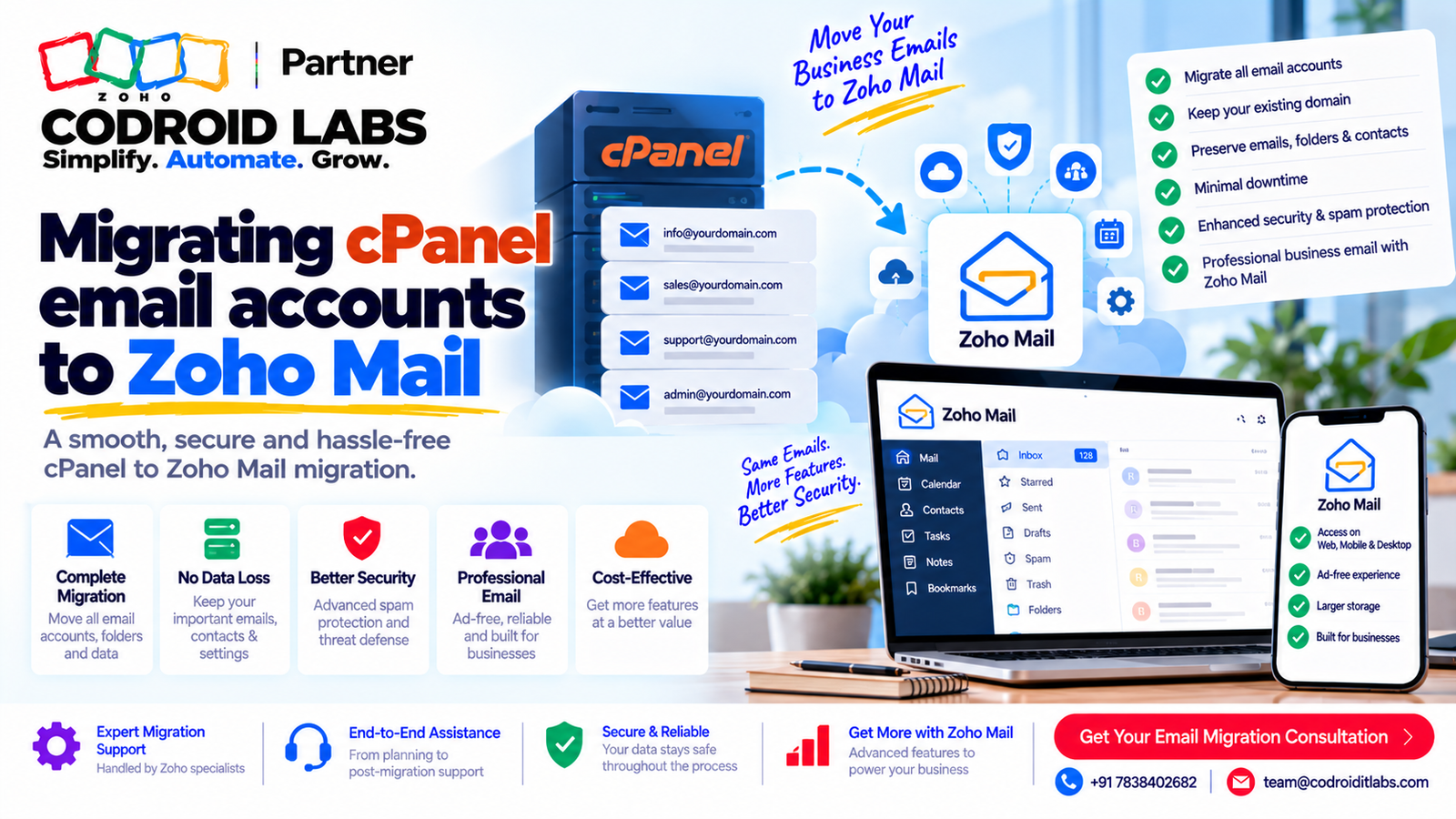
A safe cPanel to Zoho Mail migration is mostly about order: verify, create users, copy mail, switch MX, then copy again. This guide walks through each step using Zoho Mail's own help pages, explains MX records, SPF and DKIM in plain words, and covers the errors that trip up email hosting migration when many mailboxes are involved.
Short answer
Verify your domain in Zoho Mail, add a Zoho account for every cPanel mailbox, and copy old mail with Zoho's IMAP migration tool while your MX records still point to cPanel. Then replace the MX records with the values shown in your Zoho Admin Console, publish SPF and DKIM, and run a second copy for mail that arrived during the switch. Keep the cPanel mailboxes until every user confirms their mail is complete.
Why a cPanel to Zoho Mail Migration Loses Mail
In short: Lost mail usually comes from doing steps out of order, not from the copy itself.
People who ask about this online describe the same fears: years of old emails left behind, a gap while MX records change, IMAP copy errors, dozens of mailboxes to move by hand, confusion over SPF and DKIM, and the old host quietly keeping some messages after the switch.
Almost all of these come from doing steps in the wrong order. If you switch MX before Zoho accounts exist, new mail has nowhere to land. If you copy mail only once, anything that arrives during the switch stays on cPanel. If the old server still thinks it handles your domain, website forms keep delivering locally. A careful cPanel to Zoho Mail migration fixes each of these with a step, not with luck.
If your source is a free consumer mailbox rather than cPanel, see Gmail to Zoho Mail migration. For a general overview of moving any provider, see our Zoho Mail migration guide.
Before You Start: Inventory and Access
In short: List every cPanel mailbox, alias and forwarder, and confirm who controls your DNS.
Every cPanel to Zoho Mail migration starts with an inventory. Spend an hour on this list before touching DNS. It makes every later step faster.
| Item | What to collect | Why |
|---|---|---|
| Mailbox list | Every email account in cPanel, with size | You need a Zoho user for each, and enough storage |
| Aliases and forwarders | Addresses that forward rather than hold mail | Recreate as aliases or groups in Zoho |
| Passwords | Current password for each source mailbox | The IMAP copy logs in as each user |
| IMAP server name and port | From your host's mail client settings | Needed for the migration server details |
| DNS access | Who controls the zone where your name servers point | MX, SPF, DKIM and verification records live there |
| Website forms | Forms that send mail from your site | They may keep delivering locally after the switch |
| Other senders | Billing tools or servers that send as your domain | They must be included in one SPF record |
Zoho notes that DNS records only count where your name servers point; records added at a registrar that does not host your DNS are ignored (source). Check that first. For the admin screens you will use, see our Zoho Mail Admin Console guide.
The 9-Step cPanel to Zoho Mail Migration
In short: Verify the domain, add users, copy mail by IMAP, switch MX, then run a catch-up copy.
| Step | What you do | Zoho source |
|---|---|---|
| 1. Verify domain | Add a TXT or CNAME record (or use one-click verification where offered) | Domain verification |
| 2. Add users | Create each mailbox one by one or by CSV | Adding users |
| 3. Add server details | Data Migration > IMAP, enter the cPanel IMAP host, port 993 with SSL or 143 | IMAP migration |
| 4. Choose settings | All folders or selected folders, all emails or after a date | IMAP migration |
| 5. Add mailboxes | Source username and password mapped to each Zoho address, manually or by CSV | IMAP migration |
| 6. Start and watch | Track per-user status and folder-level failures | IMAP migration |
| 7. Switch MX | Replace cPanel MX with the Zoho values in your Admin Console | Configure email delivery |
| 8. SPF and DKIM | Publish one SPF record and a DKIM key, then verify | SPF, DKIM |
| 9. Catch-up copy | Re-run for mail received after a date, or use Sync where enabled | IMAP migration |
Steps 1 and 2: domain and users
Zoho Mail asks you to prove domain ownership by TXT, CNAME or HTML file, with one-click verification for some providers (source). Zoho says to allow an hour or two for a new TXT or CNAME record to propagate before you click verify. Then add users: one at a time, or up to 200 at once by CSV, per Zoho's adding users page. If you are on Zoho One, users are added from the Zoho One admin panel instead. For a first-time Zoho Mail setup walkthrough, see how to create a Zoho business email account.
Steps 3 to 6: the mailbox transfer
Zoho's IMAP migration help says to add user accounts in Zoho Mail before migrating. In the Admin Console, open Data Migration, add the source server, choose IMAP, and set the port: 993 with SSL or 143 without. Zoho supports only trusted SSL certificates and offers a skip-certificate-check option; check with your host if the server uses a self-signed certificate. You also set a maximum connection limit, which controls how many mailboxes copy in parallel.
This mailbox transfer is the heart of any cPanel to Zoho Mail migration. For many mailboxes, use the CSV import on the Users tab rather than adding each by hand. Zoho also lets you pause the migration when storage reaches 80% or 95%. If the source server does not support IMAP, Zoho offers POP migration as a fallback.
MX Records: Switching Without a Gap
In short: Use only the MX values in your Zoho Admin Console, remove old MX entries and turn off local delivery.
MX records tell the internet where to deliver mail for your domain. Zoho states you can send from Zoho once the domain is verified and users exist, but you will not receive mail there until MX records point to Zoho (source). That is why, in a cPanel to Zoho Mail migration, the copy runs first while cPanel still receives.
- Copy the exact MX values from Tools & Configurations in your Admin Console. Zoho notes the domain ending of the MX host varies by the data centre that holds your account, so do not copy values from a blog, including this one.
- Remove the old cPanel MX entries. Zoho warns that MX records from another provider with equal or better priority can stop mail reaching Zoho.
- If the TTL is editable, Zoho suggests the lowest value allowed. Zoho says changes can take up to 12 to 24 hours to take effect depending on the TTL set.
- Turn off local email delivery on the web host. Zoho lists this as a reason mail keeps landing on the old server, especially from website contact forms.
- Zoho suggests a temporary catch-all address while accounts are being created, so nothing is missed.
Email hosting migration also means knowing where your data lives. Where your account's data is stored is explained on Zoho's data centre page. If you later need to move regions, see Zoho Mail data centre migration. If mail still does not arrive after the switch, our Zoho Mail not receiving emails guide covers the checks in order.
SPF and DKIM Without the Confusion
In short: Publish one SPF record and a DKIM key from Zoho, then verify both in the Admin Console.
SPF lists which servers may send mail as your domain. Zoho's SPF page gives the value v=spf1 include:zohomail.com with ~all or -all, and is firm that a domain must have only one SPF record. If your website or another tool also sends mail as your domain, combine everything into that single record. Zoho also notes SPF fails if the record needs more than 10 DNS lookups.
DKIM signs each outgoing message. In the Admin Console you add a selector, copy the generated TXT value, publish it at selector._domainkey on your domain, then verify and enable it, per Zoho's DKIM page. After a cPanel to Zoho Mail migration, old SPF and DKIM entries from the cPanel server can linger; remove or replace those so they do not conflict. For DMARC on top of this, see our SPF, DKIM and DMARC setup guide, and if messages land in spam, Zoho emails going to spam fixes.
Common IMAP Migration Errors and Fixes
In short: Most IMAP failures are password changes, certificate issues, storage limits or oversized messages.
| What you see | Likely cause (per Zoho) | What to do |
|---|---|---|
| Authentication failed | Source password changed, or access to old server removed | Keep passwords unchanged until the copy completes |
| Certificate problem | Self-signed SSL on the source server | Use a trusted certificate or the skip check option, after checking with your host |
| Migration suspended | Zoho storage threshold reached | Free space or add storage, then resume |
| Email size exceeded | Message larger than the user's email policy allows | Raise the limit or accept those as skipped |
| Mail already present | Duplicate of a message already copied | Normal on a re-run; no action |
| Invalid message | Message does not follow email format standards | Check the folder report; save critical ones by hand |
Most cPanel to Zoho Mail migration errors fall into these rows. These causes come from Zoho's migration troubleshooting page. After a run, failed users can be retried individually or all at once. Zoho says its Sync option for completed users is rolling out in phases; where it is not available, re-run with the "emails received after a specific date" setting to collect the catch-up mail.
After the Move: Devices, Forms and Sign-off
In short: Update devices, test web forms, and keep the old mailboxes until every user signs off.
- Update desktop and phone mail apps to Zoho's incoming and outgoing server settings, as Zoho advises when switching providers.
- Send a test from a website form and confirm it lands in Zoho, not on the old host.
- Send test mail from an outside account to each key mailbox.
- Check SPF and DKIM status show as verified in the Admin Console.
- Ask every user to confirm folders and old mail look complete.
- Only then close the cPanel mailboxes.
Do not delete cPanel mailboxes on day one of your cPanel to Zoho Mail migration. They are your fallback until sign-off. For more tidy-up tasks, see our Zoho Mail migration and Zoho Mail setup guides.
How Codroid Labs Helps With Email Hosting Migration
Codroid Labs is a Zoho Partner and a Zoho AI Enabled Partner, recognised by Zoho after the AI Accelerator Series 2026. Based in New Delhi, we run cPanel to Zoho Mail migration projects remotely for businesses across India: mailbox inventory, user creation, IMAP copy, MX switch, SPF and DKIM, and a final catch-up copy. We keep your Zoho account in your name and leave cPanel untouched until you sign off. Call +91 7838402682 or email team@codroiditlabs.com.
Quick Answers
Copy first or switch MX first?
Copy first, switch MX, then copy again.
Where are the MX values?
Tools & Configurations in your Zoho Admin Console.
How many SPF records?
One per domain, per Zoho.
Many mailboxes?
Use CSV for users and for the migration list.
cPanel to Zoho Mail Migration FAQs
Will I lose old emails in a cPanel to Zoho Mail migration?
Not if you copy by IMAP before switching MX, review the folder failure report, and keep cPanel mailboxes until users sign off.
Will mail stop during the MX switch?
Old mail keeps arriving on cPanel until the new MX records take effect. A catch-up copy afterwards collects anything that landed there.
How long do MX changes take?
Zoho says DNS changes can take up to 12 to 24 hours depending on the TTL. Lower the TTL beforehand if your DNS allows it.
Can I move many mailboxes at once?
Yes. Zoho supports CSV import for users and for the migration list, and a connection limit for parallel copies.
Which MX values do I use, .com or another ending?
Use only the values shown in your Admin Console. Zoho notes the ending depends on your data centre.
Why is the old host still receiving some mail?
Usually old MX records still exist or local email delivery is still on at the web host. Zoho lists both as causes.
What if the source server does not support IMAP?
Zoho offers POP migration as an alternative.
Planning a cPanel to Zoho Mail migration?
Bring your mailbox list. We will map the order, the DNS changes and the sign-off plan with you.
Related guides