



Emails going to spam. Prospects marking your domain as suspicious. Gmail showing “via zoho.com” instead of your company name in the From field. All three problems have the same root cause — missing or incorrectly configured Zoho Mail SPF, DKIM, and DMARC records. Since February 2024, Google and Yahoo require all bulk senders to have SPF, DKIM, and DMARC configured before emails reach the inbox. This guide covers the complete Zoho Mail SPF DKIM DMARC setup in one place — with exact DNS record values ready to copy and paste, the Zoho Admin Console navigation path for each step, a full DMARC tag reference, troubleshooting for every common failure, and the free tools to verify everything is working correctly.
You will complete this setup in under 30 minutes. DNS propagation takes up to 48 hours after that — but the configuration itself is straightforward when you have the correct values in front of you.
Written by Codroid Labs — Certified Zoho Partner | April 2026 | 14 min read
Zoho Mail + DNS Expert Guide
Quick Reference — All 3 Records at a Glance
SPF Record
v=spf1 include:zoho.in ~all
TXT at @ (root domain)
DKIM Record
zoho._domainkey.yourdomain.com
TXT — key from Zoho Admin Console
DMARC Record
v=DMARC1; p=none; rua=mailto:…
TXT at _dmarc.yourdomain.com
Table of Contents
- Why SPF, DKIM and DMARC All Matter
- Zoho Mail SPF Record — Step-by-Step
- Zoho Mail DKIM Record — Step-by-Step
- Zoho Mail DMARC Record — Step-by-Step
- DMARC Tag Reference — All Parameters Explained
- DMARC Policy Progression Guide
- Troubleshooting — Every Common Failure Fixed
- SPF Lookup Limit — What It Is and How to Fix It
- Free Verification Tools — Full Checklist
- FAQs — Zoho Mail SPF DKIM DMARC 2026
1. Why You Need All Three — SPF, DKIM, and DMARC Together
The most important thing to understand about Zoho Mail SPF DKIM DMARC setup is that all three records serve different functions — and missing any one of them leaves your email authentication incomplete. Gmail and Yahoo have required all three for bulk senders since February 2024, and major email providers increasingly penalise domains that have only one or two configured.
| Record | Full Name | What It Proves | Where It Lives in DNS |
|---|---|---|---|
| SPF | Sender Policy Framework | The sending IP is authorised to send from your domain | TXT at @ (root domain) |
| DKIM | DomainKeys Identified Mail | The email content was not modified in transit after sending | TXT at {selector}._domainkey |
| DMARC | Domain-based Message Auth, Reporting and Conformance | Instructs receivers what to do when SPF or DKIM fails | TXT at _dmarc |
Gmail and Yahoo 2024 requirement: Since February 1, 2024, Google and Yahoo require all senders of 5,000+ daily emails to have SPF, DKIM, and a DMARC record (any policy) configured. For all senders regardless of volume, one-click unsubscribe and authenticated email (SPF + DKIM passing) are required. Missing any of these will increase spam placement rates even for low-volume senders.
2. Zoho Mail SPF Record Setup — Complete Step-by-Step
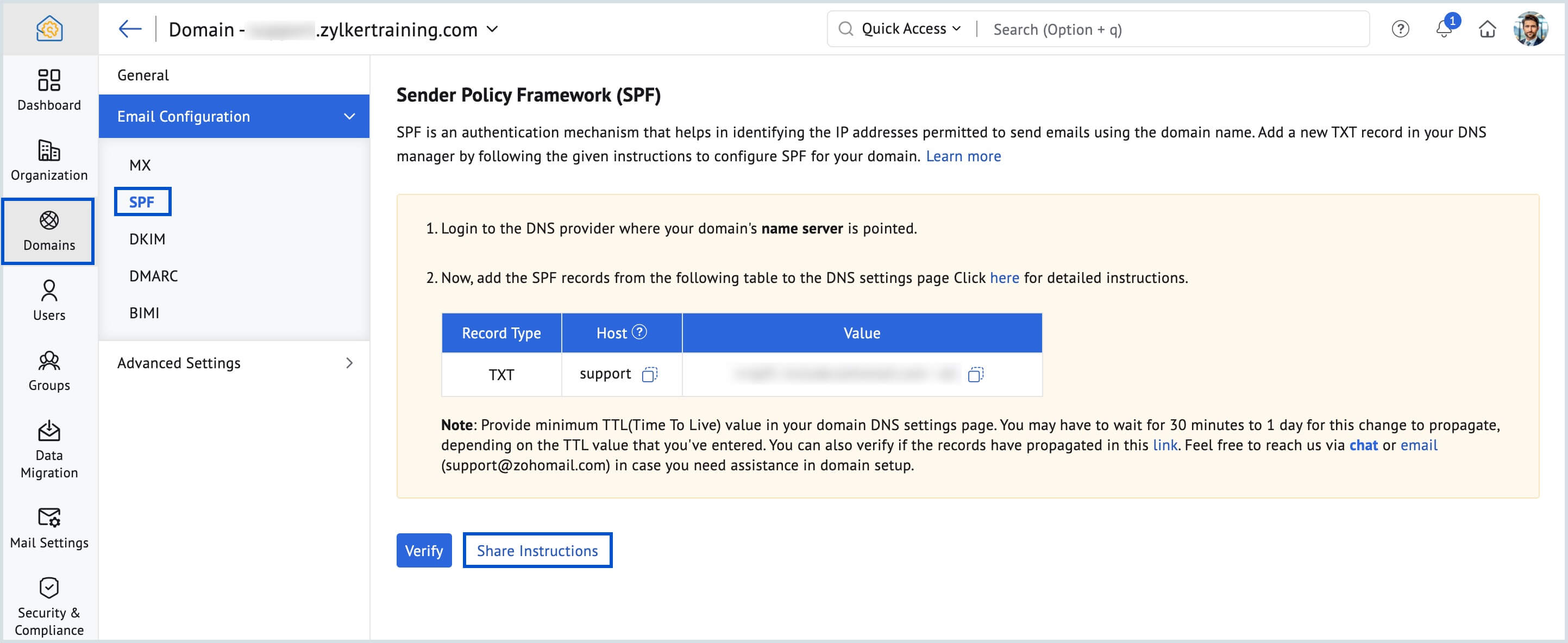
The SPF record for Zoho Mail is a TXT record added at the root of your domain in your DNS provider. The exact include: mechanism depends on which Zoho data centre your account uses.
Step 1 — Determine Your Zoho Mail Data Centre
| Your Zoho Login URL | Data Centre | SPF Include to Use |
|---|---|---|
| mail.zoho.in or zoho.in | India (IN) | include:zoho.in |
| mail.zoho.com or zoho.com | Global (COM) | include:zoho.com |
| mail.zoho.eu or zoho.eu | Europe (EU) | include:zoho.eu |
| mail.zoho.com.au or zoho.com.au | Australia (AU) | include:zoho.com.au |
India users note: Most Indian businesses using Zoho Mail use
zoho.in accounts. If you signed up at zoho.com/in/mail, use include:zoho.in in your SPF record, not include:zoho.com. Using the wrong include will cause SPF failures even though your record looks correct.Step 2 — Check for an Existing SPF Record
Before creating a new SPF record, check whether one already exists. Having two SPF records is one of the most common email authentication mistakes and breaks SPF completely. Log in to your DNS provider and look for any TXT record that starts with v=spf1.
Step 3 — Create or Update Your SPF Record
If No SPF Record Exists — Create New TXT Record:
India (zoho.in) — Copy This
Host/Name: @
Type: TXT
Value: v=spf1 include:zoho.in ~all
TTL: 3600
Global (zoho.com) — Copy This
Host/Name: @
Type: TXT
Value: v=spf1 include:zoho.com ~all
TTL: 3600
If SPF Record Already Exists — Update (Do NOT Create Second):
Add Zoho to Existing SPF
# Existing record (example):
v=spf1 include:_spf.google.com ~all
# Updated record (India):
v=spf1 include:zoho.in
include:_spf.google.com ~all
Never have two lines starting with v=spf1. Merge all includes into ONE record.
Understanding SPF Mechanisms and Qualifiers
The final mechanism in your SPF record controls what happens when a sending IP is not listed. Use the right one for your situation:
| Mechanism | Meaning | Recommended For |
|---|---|---|
| ~all | Soft fail — unlisted IPs receive a “soft fail” mark but are not rejected | Most businesses. Safe starting point. Unlikely to block legitimate email. |
| -all | Hard fail — unlisted IPs are rejected | Only use when you are certain all sending services are listed. Aggressive. |
| ?all | Neutral — no policy stated | Not recommended. Provides no protection. |
3. Zoho Mail DKIM Record Setup — Complete Step-by-Step
Unlike SPF, the DKIM record for Zoho Mail cannot be copied from a generic list — it is generated uniquely for your domain inside the Zoho Mail Admin Console. Here is the exact navigation path and configuration.
Step 1 — Access Zoho Mail Admin Console
Navigate to your Zoho Mail Admin Console:
India accounts: mailadmin.zoho.in
Global accounts: mailadmin.zoho.com
Log in with your Super Administrator credentials. Only the account Super Admin can access DKIM settings — Organisation Admin roles may not have this access.
Step 2 — Navigate to DKIM Settings
In the Admin Console left sidebar: Domains → Click your domain name → Click the DKIM tab → Click Add DKIM Record. If you have multiple domains in Zoho Mail, you must configure DKIM separately for each domain — including subdomains if you send from them.
Step 3 — Choose a Selector Name and Generate
Enter a Selector Name in the field provided. Common choices: zoho, zmail, or your domain name. The selector becomes part of the DNS record name, so keep it simple and lowercase. Click Generate DKIM Record. Zoho will display:
Values Zoho Provides — Copy These Exactly
TXT Name (Host): zoho._domainkey.yourdomain.com
TXT Value: v=DKIM1; k=rsa; p=MIIBIjANBgkqhkiG9w0B…{long key string}…AQAB
Step 4 — Publish DKIM Record in Your DNS Provider
Log in to your DNS provider and create a new TXT record with exactly the values Zoho provided:
DKIM DNS Record — Paste Into Your DNS Provider
Host/Name: zoho._domainkey (or zoho._domainkey.yourdomain.com — depends on registrar)
Type: TXT
Value: v=DKIM1; k=rsa; p={your public key from Zoho}
TTL: 3600
Important: Some DNS providers (GoDaddy, Namecheap) automatically append your domain to any host/name you enter. If the TXT Name from Zoho shows
zoho._domainkey.yourdomain.com, only enter zoho._domainkey in the Host field at your registrar — your registrar adds the domain automatically.Step 5 — Verify DKIM in Zoho Mail Admin Console
Return to Zoho Mail Admin Console → Domains → your domain → DKIM tab. Click the Verify button next to your DKIM record. Wait 15-60 minutes after adding the DNS record before verifying — DNS propagation takes time. A green checkmark means DKIM is verified and active. If verification fails, see the troubleshooting section below.
4. Zoho Mail DMARC Record Setup — Complete Step-by-Step
DMARC is configured entirely in your DNS provider — there is no DMARC section in Zoho Mail Admin Console. You add a TXT record at a specific subdomain of your domain. DMARC is the layer that tells receiving email servers what to do when SPF or DKIM fails, and it also sends you reports on authentication results.
Step 1 — Create the DMARC DNS Record
In your DNS provider, create a new TXT record:
DMARC Record — Starting Configuration (Safe)
Host/Name: _dmarc (results in _dmarc.yourdomain.com)
Type: TXT
Value: v=DMARC1; p=none; rua=mailto:dmarc@yourdomain.com; ruf=mailto:dmarc@yourdomain.com; fo=1
TTL: 3600
Replace
dmarc@yourdomain.com with a real email address at your domain that you actively monitor. This is where DMARC aggregate reports (rua) and forensic reports (ruf) are delivered. Create a dedicated mailbox like dmarc@yourdomain.com or postmaster@yourdomain.com to receive these reports.Step 2 — Verify DMARC Record is Recognised
After DNS propagation (up to 48 hours), verify your DMARC record at MXToolbox DMARC Checker. Enter your domain name and click DMARC Lookup. A correctly configured DMARC record will show the full tag breakdown. No DMARC record found means DNS has not propagated yet or the record name is incorrect.
5. DMARC Tag Reference — Every Parameter Explained
Understanding each DMARC tag gives you full control over your email authentication policy. These are all the tags available in a DMARC record for your Zoho Mail SPF DKIM DMARC setup:
| Tag | Name | Required? | Values and Meaning |
|---|---|---|---|
| v | Version | Required | Always DMARC1 — must be first tag in record |
| p | Policy | Required | none = monitor only. quarantine = send to spam. reject = block the email |
| rua | Aggregate Report URI | Recommended | mailto:dmarc@yourdomain.com — receives daily XML aggregate reports |
| ruf | Forensic Report URI | Optional | mailto:dmarc@yourdomain.com — receives per-message failure reports |
| fo | Failure Options | Optional | 0=report only total failures. 1=report any failure. d=DKIM fail. s=SPF fail. Recommended: 1 |
| pct | Percentage | Optional | 1-100. Applies policy to this % of failing emails. Default: 100. Use lower % when testing stricter policies. |
| sp | Subdomain Policy | Optional | Separate policy for subdomains. none, quarantine, or reject. Inherits from p= if not set. |
| adkim | DKIM Alignment Mode | Optional | r=relaxed (recommended). s=strict. Relaxed allows subdomains to pass DKIM alignment. |
| aspf | SPF Alignment Mode | Optional | r=relaxed (recommended). s=strict. Relaxed allows subdomains to pass SPF alignment. |
6. DMARC Policy Progression Guide — From Monitoring to Full Protection
Never start with p=reject. Jumping straight to reject without monitoring first will block legitimate emails from your own team or authorised sending services you forgot to add to SPF. Follow this 3-stage progression for a safe, complete Zoho Mail SPF DKIM DMARC setup.
Stage 1
Monitor Only — p=none (Weeks 1-4)
v=DMARC1; p=none; rua=mailto:dmarc@yourdomain.com; ruf=mailto:dmarc@yourdomain.com; fo=1
Deploy this record first. It does not affect email delivery — it only sends you reports. Review the aggregate reports (rua) delivered to your mailbox. Confirm all legitimate sending services (Zoho Mail, transactional email, marketing tools) are passing SPF and DKIM. If you see sources you did not know about, add them to your SPF record before moving to Stage 2.
Stage 2
Quarantine — p=quarantine (Weeks 4-8)
v=DMARC1; p=quarantine; pct=10; rua=mailto:dmarc@yourdomain.com; fo=1
Start with pct=10 — only 10% of failing emails are quarantined. Monitor for any legitimate email being incorrectly quarantined. Gradually increase pct to 25, 50, 75, 100 over 2-4 weeks as you confirm no legitimate email is affected. At pct=100, all failing emails go to spam.
Stage 3
Full Protection — p=reject (Week 8+)
v=DMARC1; p=reject; rua=mailto:dmarc@yourdomain.com; ruf=mailto:dmarc@yourdomain.com; fo=1
The most secure configuration. Emails failing both SPF and DKIM are rejected outright — they never reach any inbox or spam folder. This completely prevents domain spoofing: nobody can send a convincing phishing email using your domain. Only move to p=reject after 4+ weeks at p=quarantine pct=100 with no legitimate email issues.
7. Troubleshooting — Every Common SPF DKIM DMARC Failure Fixed
These are the most common problems encountered during Zoho Mail SPF DKIM DMARC setup, with the exact fix for each.
Problem: DKIM verification fails immediately in Zoho Admin Console
Cause 1 — DNS propagation delay: DNS records take 15 minutes to 48 hours to propagate globally. Wait at least 30 minutes before verifying. Cause 2 — Wrong host name format: Check whether your DNS provider adds the domain automatically. If Zoho shows zoho._domainkey.example.com as the TXT Name, only enter zoho._domainkey in your registrar — not the full domain. Cause 3 — Key truncation: Some DNS providers have character limits for TXT records. If the DKIM public key is longer than 255 characters, it may need to be split into chunks using the format ("part1" "part2") — check your registrar’s documentation.
Problem: SPF passes but emails still land in spam
SPF alone is not enough. Check whether DKIM is also configured and passing. Send a test email to a Gmail account and check the full message headers. Look for dkim=pass in the Authentication-Results header. If DKIM shows dkim=none or dkim=fail, your DKIM record is not configured or not working correctly. Also check if your domain has a DMARC record — Gmail weighs DMARC presence when filtering.
Problem: Emails show “via zoho.com” in Gmail even after DKIM is set up
The “via zoho.com” label appears in Gmail when DKIM alignment fails — meaning the DKIM signature domain does not match the From header domain. Verify that in Zoho Mail Admin Console, the DKIM record is configured for the exact same domain as the From address your users send from. If you send from user@example.com but DKIM is only configured for mail.example.com, alignment fails. Also verify DKIM status shows as “Active” (green) — not just “Generated”.
Problem: Multiple SPF records exist and SPF is failing
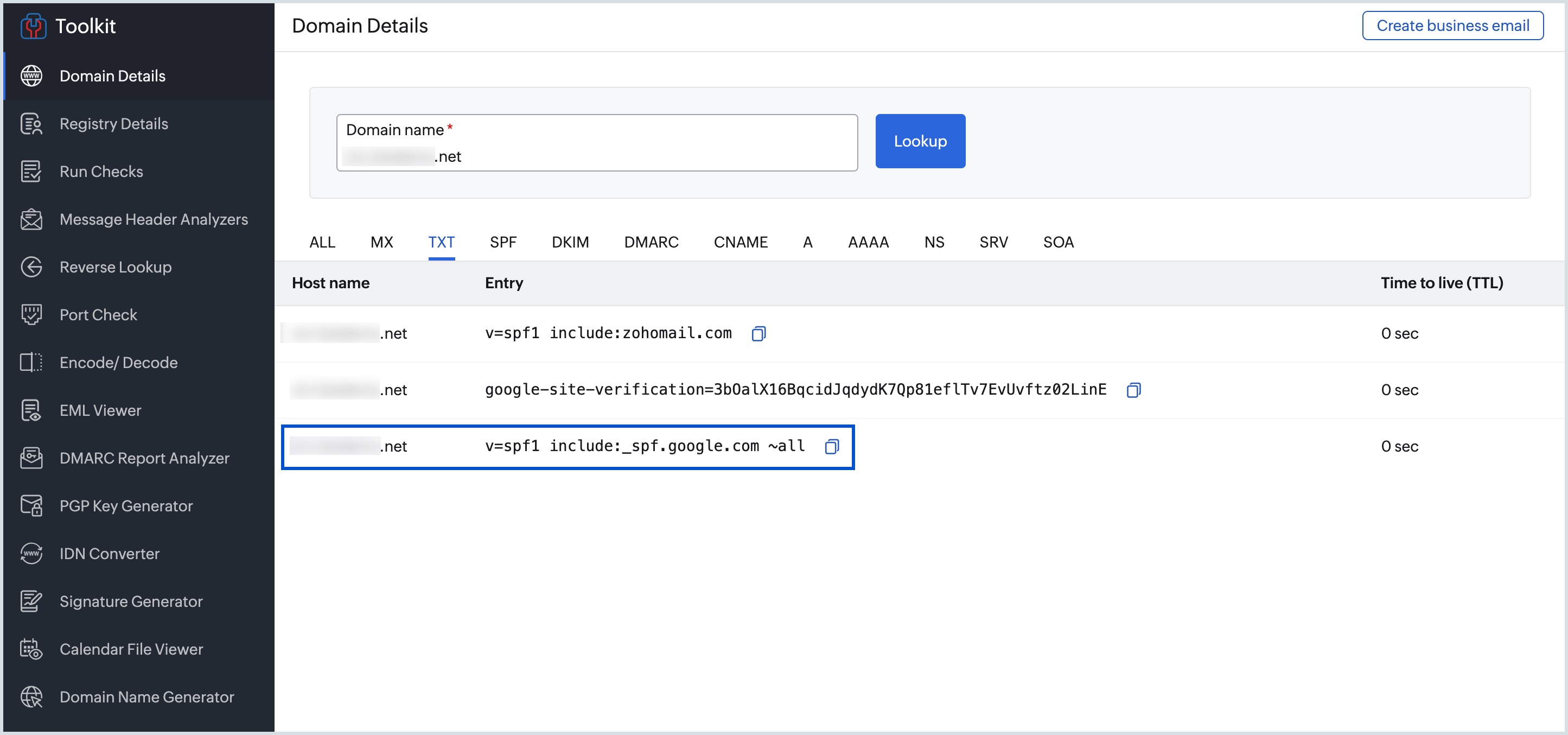
Having more than one TXT record starting with v=spf1 for the same domain causes an SPF “permerror” — an error that is treated worse than SPF failure. Log in to your DNS provider, find all TXT records for the root domain (@), identify every record starting with v=spf1, and merge all includes into a single record. Delete all but one. The final record should be one TXT record starting with v=spf1 containing all your includes and ending with ~all or -all.
Problem: DMARC aggregate reports are empty or not arriving
DMARC aggregate reports are sent once daily, typically early morning UTC. If you set up DMARC today, the first report arrives tomorrow. Check that the email address in your rua= tag exists and can receive email. If the rua address is at a different domain than your policy domain (e.g. you send from example.com but rua= points to reports@otherdomain.com), otherdomain.com must publish a DNS TXT record at example.com._report._dmarc.otherdomain.com with value v=DMARC1 to permit receiving reports.
8. SPF Lookup Limit — What It Is and How to Fix It
The SPF specification (RFC 7208) allows a maximum of 10 DNS lookups when evaluating an SPF record. Each include: mechanism, a: mechanism, and mx: mechanism counts as one lookup — and each nested include can trigger more lookups of its own. Exceeding 10 lookups causes an SPF permerror, which fails authentication.
Common Services and Their SPF Lookup Counts
| include: Mechanism | DNS Lookups Used | Service |
|---|---|---|
| include:zoho.in | 1-2 | Zoho Mail (India) |
| include:_spf.google.com | 2-4 | Google Workspace |
| include:spf.protection.outlook.com | 2-3 | Microsoft 365 |
| include:servers.mcsv.net | 2-3 | Mailchimp |
| include:sendgrid.net | 1-2 | SendGrid |
If you exceed 10 DNS lookups: Use an SPF flattening service or remove sending services you no longer use. SPF flattening converts include: mechanisms into direct ip4: statements, eliminating the lookup chain. Tools like MXToolbox SPF Checker show your current lookup count. If the result shows “Too many DNS lookups” — you need to flatten or reduce your SPF record.
9. Free Verification Tools — Complete Post-Setup Checklist
After completing your Zoho Mail SPF DKIM DMARC setup, use these free tools to verify every record is correctly published and working. Run this checklist 48 hours after adding your DNS records.
SPF
MXToolbox SPF Checker — mxtoolbox.com/spf.aspx
Enter your domain and click SPF Record Lookup. Confirms SPF record is published, shows all includes and mechanisms, checks DNS lookup count, and flags any issues. Look for “SPF Record Published” in green. If “Too many DNS lookups” appears, reduce your includes.
DKIM
MXToolbox DKIM Checker — mxtoolbox.com/dkim.aspx
Enter your domain and your DKIM selector name (e.g. zoho). Confirms the DKIM record is published at the correct DNS location, shows the full public key, and validates the record format. Look for “DKIM Record Published” with the correct selector and domain.
DMARC
MXToolbox DMARC Checker — mxtoolbox.com/dmarc.aspx
Enter your domain and click DMARC Lookup. Shows the complete DMARC record with all tag values. Confirms the record is at _dmarc.yourdomain.com. Flags any missing required tags or formatting issues.
Headers
Gmail Header Inspection — Send a Test Email
Send an email from Zoho Mail to a Gmail address. In Gmail, open the email, click the three-dot menu (⋮) → Show original. In the message source, find the Authentication-Results header. It should show: spf=pass, dkim=pass, and dmarc=pass. If any show fail or none, the corresponding record has an issue.
Dig
Google Admin Toolbox Dig — toolbox.googleapps.com/apps/dig
A free DNS lookup tool from Google. Enter your domain, select TXT record type, and click Dig. This shows all TXT records at your root domain (@), confirming your SPF record is published. Also use it with _dmarc.yourdomain.com to verify your DMARC record. Reliable for checking what Google specifically sees for your domain’s DNS records.
The complete verification checklist:
- MXToolbox SPF Checker shows “SPF Record Published” with under 10 DNS lookups
- MXToolbox DKIM Checker shows record published for your selector
- Zoho Mail Admin Console shows green DKIM status (Active/Verified)
- MXToolbox DMARC Checker shows DMARC record at _dmarc.yourdomain.com
- Gmail test email shows spf=pass, dkim=pass, dmarc=pass in Authentication-Results
- Gmail shows your From name and domain — not “via zoho.com”
More Guides from Codroid Labs — Zoho Mail Setup:
Certified Zoho Mail Partner — India
Need Help Configuring Zoho Mail SPF, DKIM and DMARC?
Codroid Labs configures your complete Zoho Mail email authentication setup — SPF, DKIM, and DMARC — as part of Zoho Mail implementation. We also troubleshoot existing authentication failures, fix SPF lookup limit issues, and set you up for DMARC policy progression to p=reject.
Free consultation. Fixed price. India-wide. Hindi or English.
10. FAQs — Zoho Mail SPF DKIM DMARC Setup 2026
What is the correct SPF record for Zoho Mail in India?
For Indian Zoho Mail users (accounts at zoho.in): v=spf1 include:zoho.in ~all. This is a TXT record added at the root (@) of your domain. If you also send from other services (Google Workspace, transactional email), add their includes in the same record: v=spf1 include:zoho.in include:_spf.google.com ~all. Never create two separate SPF records — merge all includes into one.
Where do I find the Zoho Mail DKIM record value?
The DKIM public key value is generated inside Zoho Mail Admin Console — you cannot find a generic Zoho DKIM value because it is unique to your domain. Navigate to mailadmin.zoho.in (India) or mailadmin.zoho.com (global) → Domains → click your domain → DKIM tab → Add DKIM Record → choose a selector name → Generate. Copy the TXT Name and TXT Value exactly and add them to your DNS provider as a new TXT record.
What is the Zoho Mail DKIM selector name?
You choose your own DKIM selector name in Zoho Mail Admin Console. Common choices are zoho or zmail. The selector becomes part of the DNS TXT record name: {selector}._domainkey.{yourdomain.com}. For selector zoho and domain example.com, the TXT record name is zoho._domainkey.example.com. The selector name itself does not affect authentication — only the public key value matters.
Do I need DMARC for Zoho Mail?
Yes — for all practical purposes. Since February 2024, Google and Yahoo require DMARC for bulk senders (5,000+ emails/day). Even for low-volume senders, DMARC with p=none provides visibility into who is sending email from your domain and prevents domain spoofing when advanced to p=reject. Start with p=none to monitor, then progress to p=quarantine and p=reject over 6-8 weeks.
Why does my Zoho Mail still show “via zoho.com” in Gmail after DKIM setup?
The “via zoho.com” label in Gmail appears when DKIM alignment fails. This happens when the DKIM signature domain does not exactly match the From header domain. Check that DKIM is configured for the exact domain users send from (if they send from user@example.com, DKIM must be configured for example.com — not mail.example.com or any other subdomain). Also verify the DKIM record status shows “Active” (green checkmark) in Zoho Admin Console — “Generated” is not the same as verified and active.
What DMARC policy should I start with for Zoho Mail?
Always start with p=none (monitoring only). This records authentication results and sends you daily aggregate reports without affecting email delivery. After 2-4 weeks of reviewing reports and confirming all legitimate sending services pass SPF and DKIM, move to p=quarantine with pct=10. Gradually increase pct over 2-4 weeks. Move to p=reject only after 4+ weeks at quarantine with no legitimate email issues.
What is the SPF lookup limit and does Zoho Mail exceed it?
RFC 7208 limits SPF evaluation to 10 DNS lookups. include:zoho.in uses approximately 1-2 lookups. If your domain also includes Google Workspace, Microsoft 365, Mailchimp, and other services, you may approach or exceed the 10-lookup limit. Use MXToolbox SPF Checker to count your current lookups. If you exceed 10, remove unused includes or use SPF flattening to convert includes to direct ip4: statements.
How long does it take for SPF and DKIM to start working after setup?
DNS propagation typically takes 15 minutes to 48 hours depending on your DNS provider’s TTL setting and global propagation speed. Most DNS changes are visible within 30-60 minutes through major DNS resolvers. After adding your SPF and DKIM records, wait at least 30 minutes before attempting verification in Zoho Admin Console or MXToolbox. If verification fails after 30 minutes, verify the record names and values are correct before waiting the full 48 hours.
Can I have multiple DKIM selectors for Zoho Mail?
Yes — Zoho Mail supports multiple DKIM selectors for the same domain. This is useful when you need separate DKIM signatures for different sending purposes, or when rotating DKIM keys for security. Each selector is a separate DNS TXT record at a different name (selector1._domainkey, selector2._domainkey). In Zoho Admin Console, you can generate and manage multiple DKIM records per domain under the DKIM tab.
What if I use both Zoho Mail and another email service from the same domain?
If you send email from your domain using multiple services (Zoho Mail for team email, a marketing platform for newsletters, a transactional service for system emails), all services must be included in your SPF record. The full SPF record would be: v=spf1 include:zoho.in include:{service2} include:{service3} ~all. Each service requires its own DKIM record — DKIM is configured separately for each sending service, and each gets its own unique selector.
What should the Gmail Authentication-Results header show after correct setup?
After correct Zoho Mail SPF DKIM DMARC setup, the Authentication-Results header in a Gmail message received from your Zoho Mail account should show: spf=pass (google.com: domain of user@yourdomain.com designates {IP} as permitted sender), dkim=pass header.i=@yourdomain.com header.s=zoho, and dmarc=pass (p=NONE sp=NONE dis=NONE) header.from=yourdomain.com. The dmarc=pass result requires both SPF alignment and DKIM alignment to pass — the domain in the SPF/DKIM checks must match the domain in the From header.
Official Resources — Zoho Mail Email Authentication
- Zoho Mail Official DKIM Configuration Guide
- Zoho Mail Official SPF Configuration Guide
- MXToolbox SPF Checker — Free SPF Record Verification
- MXToolbox DKIM Checker — Free DKIM Record Verification
- MXToolbox DMARC Checker — Free DMARC Record Verification
- Google Admin Toolbox Dig — DNS Record Lookup Tool
- Book Free Consultation — Codroid Labs Zoho Mail Setup Help