


Zoho emails going to spam — two problems, nine fixes. Outbound problem (your emails going to recipient’s spam): Fix 1-5 cover SPF, DKIM, DMARC, domain reputation, content triggers. Inbound problem (legitimate emails going to your Zoho spam): Fix 6-9 cover allowlist, spam settings, filter rules, sender authentication. Most outbound problems resolve with Fix 2 (DKIM). Most inbound problems resolve with Fix 6 (allowlist/trusted senders). This is the Zoho Mail emails going to spam fix and how to stop Zoho emails from going to spam resource — covering the Zoho Mail SPF DKIM and DMARC setup guide alongside how to improve Zoho Mail email deliverability, the Zoho Mail domain reputation and email delivery relationship, why Zoho Mail business emails land in spam, and how to prevent Zoho Mail emails from being rejected by Gmail, Outlook, and Microsoft 365.
Zoho emails going to spam — missing a business email means missing a client, a lead, or an important response. A community forum thread lists symptoms without an ordered fix sequence. This guide covers both problems: Zoho Mail outbound spam (your Zoho emails landing in Gmail, Outlook, or Microsoft 365 spam) and Zoho Mail incoming spam (legitimate emails landing in your own Zoho spam folder). Both are common, both have specific fixes, and the causes are almost always different. The 9 fixes are ordered from most common to least common so you spend time on the most likely cause first.
9 Fixes
Ordered by Likelihood
2 Problems
Outbound + Inbound
3 Records
SPF, DKIM, DMARC
3 Providers
Gmail, Outlook, M365
Outbound vs inbound — identify which problem you have
Outbound: your Zoho Mail emails are landing in the recipient’s Gmail, Outlook, or Microsoft 365 spam folder. Fix 1-5 apply. Inbound: legitimate emails from external senders are landing in your own Zoho Mail spam folder rather than your inbox. Fix 6-9 apply. Some organizations experience both simultaneously — a misconfigured authentication record can cause outbound deliverability problems while aggressive spam filter settings simultaneously over-block incoming legitimate mail.
Fix 1: Verify SPF record
The Zoho Mail SPF setup and how to configure SPF for Zoho Mail domain first check — the Zoho Mail email authentication foundation. Verify your SPF record exists using MXToolbox or Google Admin Toolbox by looking up DNS TXT records for your domain. The correct SPF value for Zoho Mail India accounts is v=spf1 include:zoho.in ~all. Common SPF problems causing Zoho emails going to spam: the SPF record is missing entirely; there are two conflicting SPF records (DNS allows only one SPF TXT record per domain — multiple SPF records invalidate both); the record uses -all (hard fail) when ~all (soft fail) is recommended; or the include statement points to the wrong Zoho server pool. SPF alone doesn’t prevent spam filtering — DKIM and DMARC must also be configured.
Fix 2: Configure or fix DKIM — the most common cause
The Zoho Mail DKIM setup and how to set up DKIM in Zoho Mail Admin Console — this is the single most common reason Zoho emails going to spam. Without DKIM, Gmail, Outlook, and Microsoft 365 treat your email with significantly lower trust even when SPF passes, because there is no cryptographic signature confirming the email wasn’t tampered with in transit. In the Zoho Mail Admin Console, navigate to Domains, select your domain, click DKIM. Zoho generates a CNAME or TXT record — add it exactly at your DNS provider. After adding it, the Admin Console shows verification status. To test whether DKIM is working: send an email to a Gmail address and check the original message headers — look for “DKIM-Signature” and “dkim=pass” in the authentication results. If DKIM is failing, verify the DNS record was added with the exact values from the Admin Console, confirm there’s no trailing period or space error in the record value, and wait up to 24 hours for propagation.
Fix 3: Add DMARC record
The Zoho Mail DMARC setup and how to create a DMARC record for Zoho Mail: the Zoho Mail DNS settings for DMARC are a TXT record at _dmarc.yourdomain.com with the value v=DMARC1; p=none; rua=mailto:dmarc@yourdomain.com as a starting point. Starting with p=none (monitor mode) means DMARC reports are collected without rejecting any email — this gives visibility into authentication failures before enforcing a stricter policy. The Zoho Mail DNS records for better email deliverability require all three — SPF, DKIM, and DMARC — to be working together before outbound spam problems fully resolve. The how to fix Zoho Mail email authentication failure sequence is always: SPF first, DKIM second, DMARC third.

Fix 4: Domain reputation and blocklist check
The Zoho Mail domain reputation and Zoho Mail sender reputation check — even with perfect authentication records, a newly registered domain or a domain previously used for spam will have low sender reputation that causes spam filtering. The Zoho Mail blocklist check: search your sending domain and sending IP at MXToolbox Blacklist Check. If listed, each blocklist has a delist request process — submit a request, correct the underlying problem, and allow 24-48 hours for removal. The Zoho Mail email bounce rate is a key reputation signal — high bounce rates from sending to invalid addresses significantly damage domain reputation. The Zoho Mail outbound email spam troubleshooting guide for reputation: new domains should send conservatively (low volume, high engagement) for the first few weeks before scaling up — this is email warm-up.
Fix 5: Email content triggers
The Zoho Mail email content triggering spam filters check: even with good authentication and reputation, specific content patterns trigger spam scoring. Common content spam triggers: excessive use of spam trigger words (free, urgent, act now, guaranteed, winner); HTML emails with misleading link text where the displayed URL differs from the href destination; image-to-text ratio heavily skewed toward images with no HTML text; missing unsubscribe links in bulk or marketing email; missing plain-text alternative to HTML; sending to a list with no engagement history. The Zoho Mail business email deliverability best practices for content: write like a real person, use a text-to-image ratio of roughly 60:40, always include a plain-text version, and never use link shorteners in transactional email.
Fix 6: Zoho Mail allowlist for incoming emails
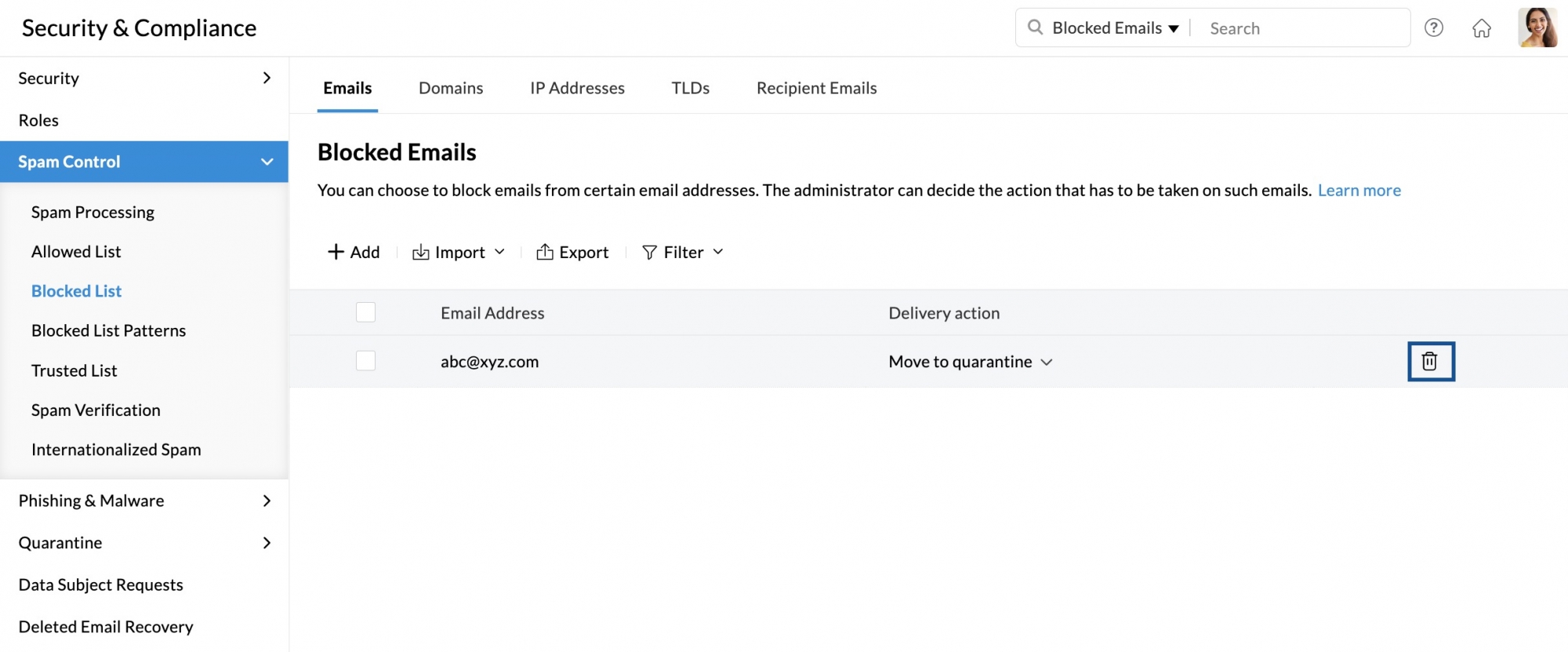
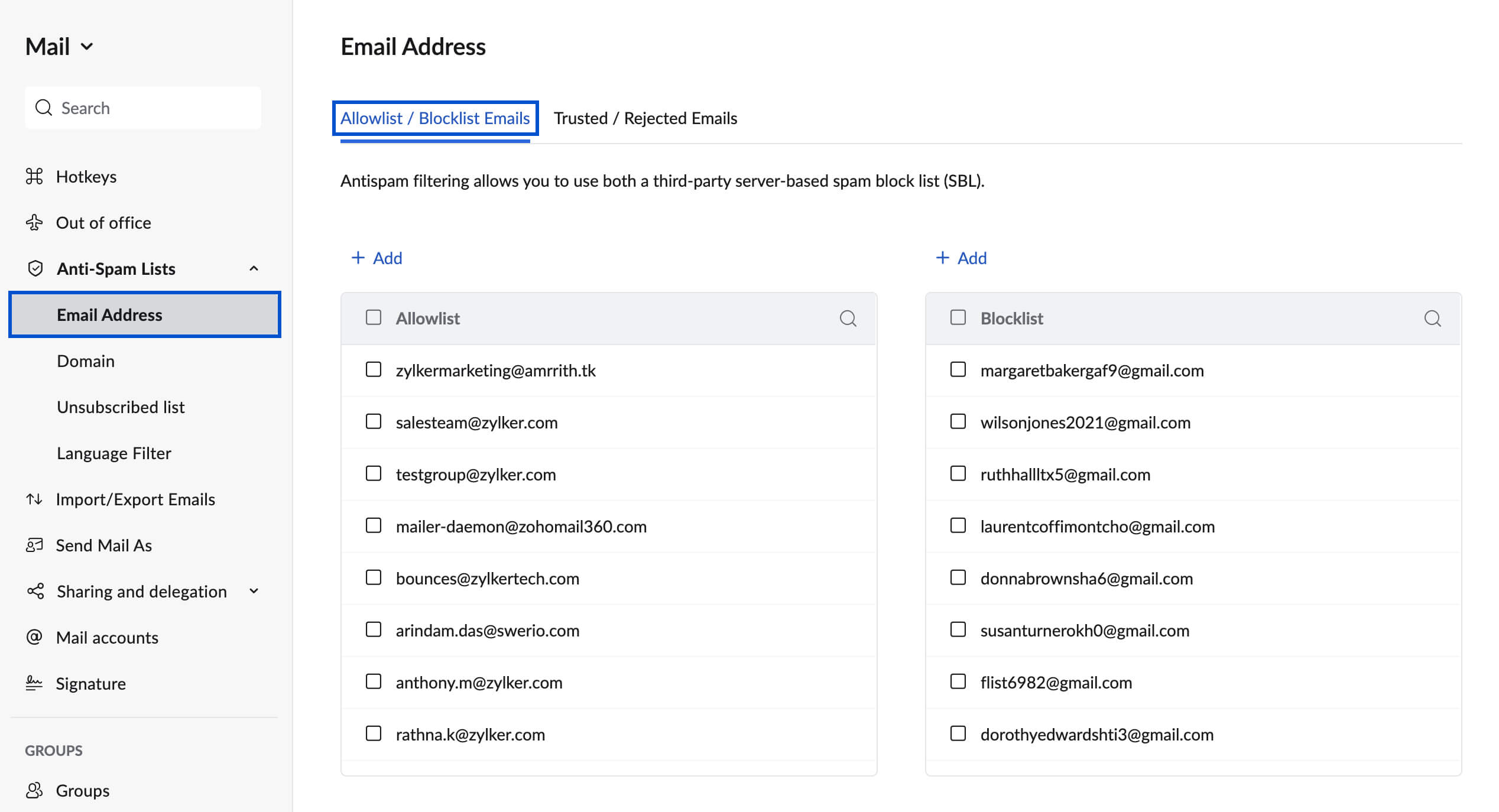
The Zoho Mail allowlist and how to add trusted senders to Zoho Mail allowlist — for inbound spam problems: add specific senders or their entire domain to your Trusted Senders list in Settings. The Zoho Mail spam control and how to remove a sender from Zoho Mail blocklist: in the Admin Console, Spam Control section, check both the per-user blocked sender list and the organization-level block list — a sender may have been accidentally blocked. The Zoho Mail incoming emails incorrectly marked as spam fix also involves checking the Spam folder for incorrectly quarantined messages and using “Mark as not spam” to train the filter.
Fix 7: Zoho spam filter settings
The Zoho Mail spam settings and how to check Zoho Mail spam control settings: in the Admin Console, Spam Control settings allow adjustment of the spam detection aggressiveness level. If legitimate emails from multiple different senders are consistently going to spam, the spam threshold may be set too aggressively. Reducing the threshold reduces false positives — but also allows more actual spam through, so this is a balance rather than a simple adjustment. The Zoho Mail email filters and Zoho Mail spam filter settings also include quarantine settings, spam reporting, and per-domain spam exemptions for trusted partner domains.
Fix 8: Filter rules review
The Zoho Mail email filters and Zoho Mail filters sending legitimate emails to spam: custom mail filter rules in the user mailbox settings may be routing emails to the spam folder automatically without the user realizing it. Check Settings, Mail Filters in the Zoho Mail interface. Look for any rule with action “Move to Spam” or “Mark as Spam” — these are often created accidentally or configured for a legitimate purpose that’s now outdated. The Zoho Mail email rejection fix for filter-caused problems is straightforward: delete or edit the offending filter rule and move any incorrectly sorted emails back to the inbox.
Fix 9: Gmail, Outlook, and Microsoft 365 specific issues
The Zoho Mail emails going to Gmail spam folder, Zoho Mail emails going to Outlook spam folder, and Zoho Mail emails going to Microsoft 365 spam provider-specific fixes:
Gmail-specific fixes
- Ask recipient to mark your email as “Not Spam”
- Ask recipient to add your address to their Google Contacts
- Gmail heavily weights DKIM — ensure it passes
- Check Google Postmaster Tools for domain reputation score
Outlook and Microsoft 365
- Ask recipient to add your domain to their Safe Senders list
- Outlook uses proprietary filtering — DMARC enforcement is stricter
- Ensure your sending IP is not on Microsoft’s Smart Network Data Service blocklist
- Check Microsoft’s JMRP (Junk Mail Reporting Program) for complaint data
Codroid Labs — Certified Zoho Mail Partner — Email Deliverability Configuration
Zoho emails going to spam, Zoho Mail spam problem, Zoho Mail spam filter, Zoho email deliverability, Zoho Mail email delivery, Zoho Mail emails in spam, Zoho Mail outbound spam, Zoho Mail incoming spam, Zoho Mail SPF setup, Zoho Mail DKIM setup, Zoho Mail DMARC setup, Zoho Mail email authentication, Zoho Mail domain reputation, Zoho Mail sender reputation, Zoho Mail spam settings, Zoho Mail blocklist, Zoho Mail allowlist, Zoho Mail email filters, Zoho Mail spam control, Zoho Mail email bounce, Zoho Mail email rejection, Zoho Mail DNS settings, Zoho Mail email security, Zoho Mail inbox spam fix, Zoho Mail deliverability fix — Codroid Labs (GSTIN 07AAWFC0815B1ZP) is a certified Zoho Mail partner. We configure SPF, DKIM, DMARC, allowlist, and spam control settings for the complete guide to fixing Zoho emails going to spam 2026. Contact: +91 78384 02682, team@codroiditlabs.com.
Related Guides from Codroid Labs
Frequently asked questions
Why are my Zoho emails going to spam even though SPF is set up?
Full detail in the FAQ Schema above. SPF alone is insufficient — DKIM is missing in most cases where SPF passes but spam filtering continues. Fix 2 (DKIM configuration and testing) resolves the majority of outbound spam problems.
How do I fix legitimate emails going to my own Zoho spam folder?
Full detail in the FAQ Schema above. Fix 6 (allowlist/trusted senders) resolves most inbound spam false positives. For persistent problems, check spam filter settings (Fix 7) and custom filter rules (Fix 8).
Fix Your Zoho Email Deliverability — Certified Partner Help
SPF, DKIM, DMARC, blocklist removal, spam filter audit — certified Zoho Mail partner with GSTIN invoice for 18% ITC.
Start Zoho Mail via Codroid Labs
Book Free Deliverability Audit – +91 78384 02682