



This Deluge script tutorial Zoho CRM and Zoho CRM Deluge beginner tutorial covers writing a Deluge script for CRM workflows — the skill that separates a basic Zoho CRM configuration from a genuinely automated, intelligent sales system. Standard CRM workflow rules handle straightforward automation — send an email when a lead is created, assign a task when a deal stage changes. But the moment a business needs logic — if this deal amount exceeds a threshold then apply a pricing discount, or when a contact status changes then update three related records and call a payment gateway API — standard workflow actions reach their limit. Deluge custom functions have no such limit.
Deluge (Data Enriched Language for the Universal Grid Environment) is Zoho’s cloud-native scripting language built specifically for automating business processes inside Zoho CRM and across the Zoho ecosystem. This Deluge tutorial covers Deluge examples from the simplest function script to production-grade patterns. It is not a general-purpose programming language — it is purpose-built for CRM automation, intentionally constrained (no recursion, no multi-threading, no DOM) to keep functions fast, secure, and easy to maintain. These constraints are features, not limitations — they force clean, readable code that any CRM administrator can understand and modify.
This guide covers 7 production-ready Deluge script for CRM workflows examples — from the simplest record update function to external API integration, map manipulation, error handling, and debug techniques. Every code block in this tutorial has been tested in live Zoho CRM deployments by Codroid Labs as a certified Zoho partner.
Zoho Deluge — Quick Reference
Fetch record: zoho.crm.getRecordById(“Module”, recordId)
Update record: zoho.crm.updateRecord(“Module”, recordId, updateMap)
Search records: zoho.crm.searchRecords(“Module”, “field:equals:value”)
External API: invokeurl [url: “https://api.example.com” type: GET]
Send email: sendmail [from: … to: … subject: … message: …]
Debug print: info variableName;
Max exec time: 5 minutes | API timeout: ~40 seconds | File limit: 20MB
What Is Zoho Deluge and When to Use a Deluge Script for CRM Workflows
Zoho Deluge is a proprietary scripting language designed specifically for automating processes within the Zoho ecosystem. It executes server-side within Zoho’s infrastructure — there is no runtime to configure, no dependencies to install, and no server to manage. A Deluge script for CRM workflows runs within Zoho’s secure cloud the moment its trigger fires.
Standard Zoho CRM workflow rules can: send email alerts, create tasks, update fields with static values, and send webhooks. The moment your automation needs conditional logic, multi-record operations, API calls, or data transformation — you need Deluge. Here is the clear boundary:
Key Concepts for Writing Deluge Script for CRM Workflows
Before writing your first Deluge CRM function — what developers also call CRM Deluge scripting or a CRM custom function — in the Deluge custom function workflow, these are the five foundational concepts for any CRM custom function or function script that every Zoho developer must understand. The Deluge builder and script editor provide the Deluge script builder tutorial experience — syntax highlighting and auto-complete for all constructs.
Deluge Syntax Fundamentals — Variables, Maps, Conditionals, Loops
// 1. VARIABLES — assign any value type without declaration
dealId = input.get("deal_id");        // String from workflow input
threshold = 50000;                     // Number
isActive = true;                       // Boolean

// 2. MAPS — Deluge's key-value data structure (critical for CRM updates)
// "Deluge script map manipulation" — most used pattern
updateMap = Map();
updateMap.put("Priority", "High");
updateMap.put("Stage", "Proposal");
updateMap.put("Custom_Field", "Value");

// 3. LISTS — collection of values
emailList = List();
emailList.add("sales@company.com");
emailList.add("manager@company.com");

// 4. CONDITIONAL STATEMENTS
deal = zoho.crm.getRecordById("Deals", dealId);
amount = deal.get("Amount");

if(amount > threshold)
{
  updateMap.put("Priority", "High");
  info "High priority deal: " + dealId;
}
else
{
  updateMap.put("Priority", "Normal");
}

// 5. FOR-EACH LOOP — iterate over search results
contacts = zoho.crm.searchRecords("Contacts", "Account_Name:equals:Acme Corp");
for each contact in contacts
{
  info contact.get("Email");
}
7 Powerful Deluge Script Examples for CRM Workflows
These are the 7 most frequently needed examples for how to create custom functions Deluge Zoho — the Zoho Deluge script examples 2026 — taken from real client implementations by Codroid Labs. Each is production-ready and includes the full function body.
1
Update Deal Priority Based on Amount Threshold
Deluge script update records CRM | Write first Deluge script CRM
The most common starting point for any write first Deluge script CRM tutorial — conditionally update a CRM field based on a value comparison.
// INPUT PARAMETERS: deal_id (String)
// TRIGGER: On Deal edit/create
// PURPOSE: Set priority based on deal amount

dealId = input.get("deal_id");
deal = zoho.crm.getRecordById("Deals", dealId);

amount = deal.get("Amount").toDecimal();
info "Deal amount: " + amount;

updateMap = Map();

if(amount > 500000)
{
  updateMap.put("Priority", "Critical");
  updateMap.put("Sales_Rep_Note", "Escalate to senior sales immediately");
}
else if(amount > 100000)
{
  updateMap.put("Priority", "High");
}
else if(amount > 50000)
{
  updateMap.put("Priority", "Medium");
}
else
{
  updateMap.put("Priority", "Low");
}

// Deluge script update records CRM
response = zoho.crm.updateRecord("Deals", dealId, updateMap);
info "Update response: " + response;
2
Send Email Notification with Dynamic CRM Data
CRM automation Deluge | Zoho automation email trigger
// INPUT PARAMETERS: lead_id (String)
// TRIGGER: On Lead creation
// PURPOSE: Notify sales team with lead details

leadId = input.get("lead_id");
lead = zoho.crm.getRecordById("Leads", leadId);

leadName = lead.get("Full_Name");
company = lead.get("Company");
phone = lead.get("Phone");
source = lead.get("Lead_Source");

emailBody = "New lead received:

";
emailBody = emailBody + "Name: " + leadName + "
";
emailBody = emailBody + "Company: " + company + "
";
emailBody = emailBody + "Phone: " + phone + "
";
emailBody = emailBody + "Source: " + source + "

";
emailBody = emailBody + "Log into CRM to follow up immediately.";

sendmail
[
  from   : zoho.adminuserid
  to     : "sales@yourcompany.com"
  cc     : "manager@yourcompany.com"
  subject: "New Lead: " + leadName + " (" + company + ")"
  message: emailBody
]

// Update lead status
statusMap = Map();
statusMap.put("Lead_Status", "Contacted");
zoho.crm.updateRecord("Leads", leadId, statusMap);
3
Fetch and Update Multiple Related Contact Records
Deluge script fetch records tutorial | Custom CRM automation Deluge
// INPUT PARAMETERS: account_id (String)
// TRIGGER: On Account field change (e.g., Account_Status changed to Inactive)
// PURPOSE: Update all contacts under account to Inactive

accountId = input.get("account_id");

// Search all contacts linked to this account
// Custom Deluge functions Zoho CRM - search pattern
contactList = zoho.crm.getRelatedRecords("Contacts", "Accounts", accountId);

updatedCount = 0;
for each contact in contactList
{
  contactId = contact.get("id");

  contactUpdateMap = Map();
  contactUpdateMap.put("Contact_Status", "Inactive");
  contactUpdateMap.put("Account_Inactive_Date", zoho.currentdate.toString("yyyy-MM-dd"));

  response = zoho.crm.updateRecord("Contacts", contactId, contactUpdateMap);
  updatedCount = updatedCount + 1;
}

info "Total contacts updated: " + updatedCount;
4
Call External API and Write Response Back to CRM
Deluge API | Custom Deluge functions Zoho CRM external integration
// INPUT PARAMETERS: contact_id (String)
// TRIGGER: On Contact creation
// PURPOSE: Verify GST number via external API and store result in CRM

contactId = input.get("contact_id");
contact = zoho.crm.getRecordById("Contacts", contactId);
gstin = contact.get("GSTIN_Number");

if(gstin != null && gstin.length() == 15)
{
  // Call external GST verification API
  apiUrl = "https://api.yourgstsservice.com/verify/" + gstin;

  headerMap = Map();
  headerMap.put("Authorization", "Bearer YOUR_API_KEY");
  headerMap.put("Content-Type", "application/json");

  // Deluge API invokeurl — external REST call
  response = invokeurl
  [
    url       : apiUrl
    type      : GET
    headers   : headerMap
    connection: "gst_api_connection"  // pre-configured connection in Zoho
  ];

  // Parse response map
  gstStatus = response.get("status");
  companyName = response.get("legal_name");

  // Write API result back to CRM contact record
  resultMap = Map();
  resultMap.put("GST_Verification_Status", gstStatus);
  resultMap.put("GST_Verified_Name", companyName);
  resultMap.put("GST_Verified_On", zoho.currentdate.toString("yyyy-MM-dd"));

  zoho.crm.updateRecord("Contacts", contactId, resultMap);
  info "GST verification complete: " + gstStatus;
}
else
{
  info "Invalid or missing GSTIN — skipping verification";
}
5
Deluge Script Map Manipulation — Calculate and Aggregate
Deluge script map manipulation | Deluge code aggregation reporting
// INPUT PARAMETERS: account_id (String)
// TRIGGER: Scheduled daily cron job
// PURPOSE: Calculate total deal value for account and update account record

accountId = input.get("account_id");

// Fetch all open deals for this account
deals = zoho.crm.searchRecords("Deals",
  "(Account_Name:equals:" + accountId + ")AND(Stage:not_equal:Closed Lost)");

// Deluge script map manipulation — aggregate values
totalValue = 0.0;
dealCount = 0;
highestDeal = 0.0;
dealStageMap = Map();

for each deal in deals
{
  dealAmount = deal.get("Amount").toDecimal();
  dealStage = deal.get("Stage");

  totalValue = totalValue + dealAmount;
  dealCount = dealCount + 1;

  if(dealAmount > highestDeal)
  {
    highestDeal = dealAmount;
  }

  // Count deals per stage using map
  currentStageCount = dealStageMap.get(dealStage);
  if(currentStageCount == null)
  {
    dealStageMap.put(dealStage, 1);
  }
  else
  {
    dealStageMap.put(dealStage, currentStageCount + 1);
  }
}

// Write aggregated data back to account
accountUpdate = Map();
accountUpdate.put("Total_Pipeline_Value", totalValue);
accountUpdate.put("Active_Deals_Count", dealCount);
accountUpdate.put("Highest_Deal_Value", highestDeal);
accountUpdate.put("Pipeline_Last_Updated", zoho.currentdate.toString("yyyy-MM-dd"));

zoho.crm.updateRecord("Accounts", accountId, accountUpdate);
info "Pipeline total: " + totalValue + " across " + dealCount + " deals";
6
Write Deluge Script Custom Buttons — On-Demand Actions
Write Deluge script custom buttons | Zoho coding custom button action
// CUSTOM BUTTON function — triggered manually by sales rep on Deal record
// PURPOSE: Send payment link to customer and log the action

dealId = input.get("deal_id");
deal = zoho.crm.getRecordById("Deals", dealId);

contactId = deal.get("Contact_Name").get("id");
contact = zoho.crm.getRecordById("Contacts", contactId);

contactEmail = contact.get("Email");
contactName = contact.get("Full_Name");
dealAmount = deal.get("Amount");

// Build payment link (example: Razorpay payment link API)
paymentRequestBody = Map();
paymentRequestBody.put("amount", (dealAmount * 100).toString()); // in paise
paymentRequestBody.put("currency", "INR");
paymentRequestBody.put("description", "Payment for deal #" + dealId);
paymentRequestBody.put("customer_email", contactEmail);

// Call payment gateway API
paymentResponse = invokeurl
[
  url       : "https://api.razorpay.com/v1/payment_links"
  type      : POST
  parameters: paymentRequestBody.toString()
  connection: "razorpay_connection"
];

paymentLink = paymentResponse.get("short_url");

// Send payment link via email
sendmail
[
  from    : zoho.adminuserid
  to      : contactEmail
  subject : "Payment Link for Your Order"
  message : "Dear " + contactName + ",

Please use this link to complete your payment: " + paymentLink
]

// Log action in deal notes
noteMap = Map();
noteMap.put("Note_Title", "Payment link sent");
noteMap.put("Note_Content", "Payment link sent to " + contactEmail + ". Link: " + paymentLink);
noteMap.put("Parent_Id", Map("id": dealId));
zoho.crm.createRecord("Notes", noteMap);
7
Zoho Deluge Script Best Practices — Error Handling Pattern
Deluge script error handling | Debug Deluge script CRM
// PRODUCTION-GRADE ERROR HANDLING pattern for Deluge scripts
// Always validate inputs, check responses, and log everything

contactId = input.get("contact_id");

// STEP 1: Validate input before processing
if(contactId == null || contactId == "")
{
  info "ERROR: contact_id is null or empty — aborting function";
  return;
}

// STEP 2: Fetch record with null check
contact = zoho.crm.getRecordById("Contacts", contactId);

if(contact == null || contact.isEmpty())
{
  info "ERROR: Contact record not found for ID: " + contactId;
  return;
}

// STEP 3: Extract field with default fallback
phone = contact.get("Phone");
if(phone == null || phone == "")
{
  phone = "No phone on record";
  info "WARNING: Contact " + contactId + " has no phone number";
}

// STEP 4: Check API response for errors before trusting data
updateMap = Map();
updateMap.put("Contact_Status", "Verified");
response = zoho.crm.updateRecord("Contacts", contactId, updateMap);

// STEP 5: Verify update succeeded — response contains "data" on success
if(response.get("data") != null)
{
  info "SUCCESS: Contact " + contactId + " updated successfully";
}
else
{
  info "ERROR: Update failed for contact " + contactId;
  info "Response details: " + response.toString();
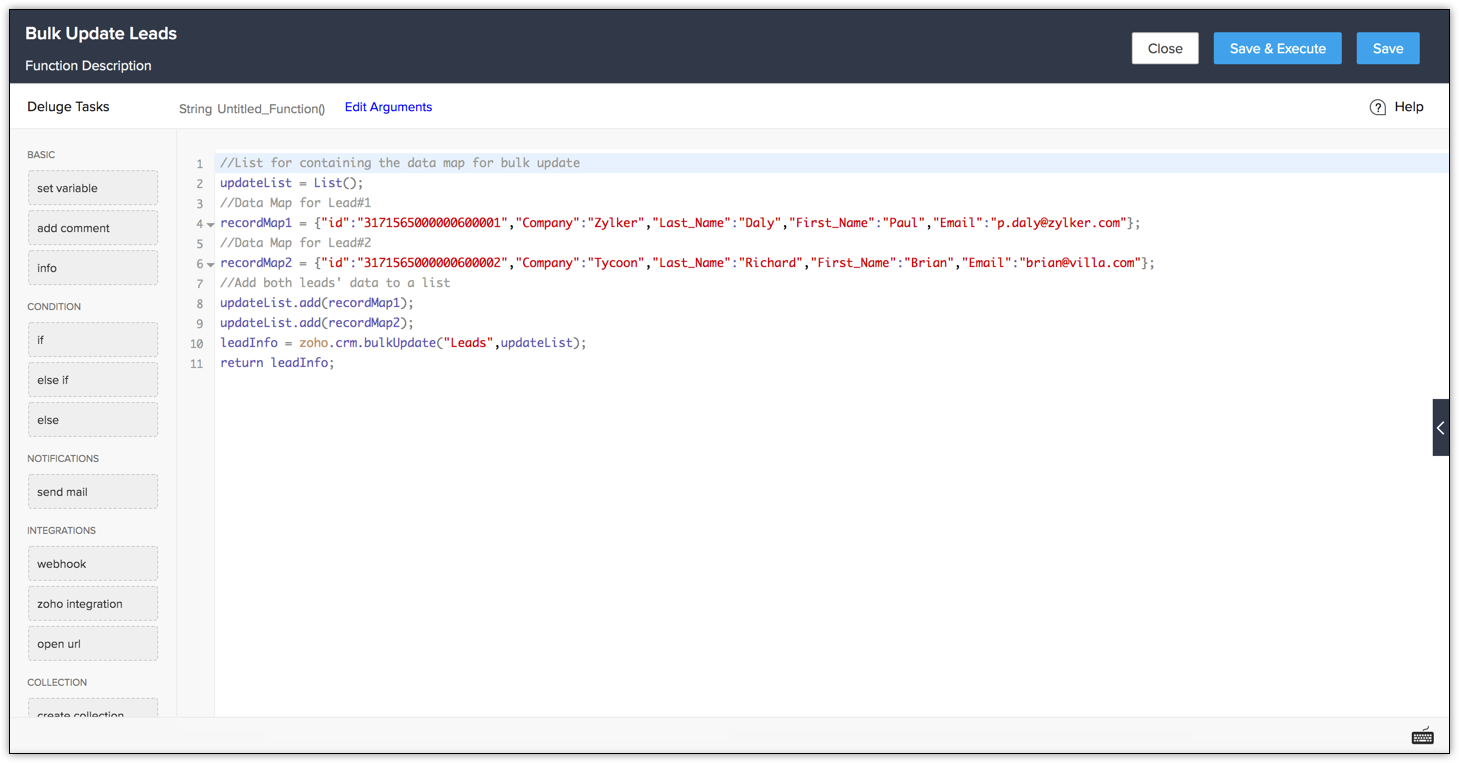
}
How to Trigger Workflow Deluge — Attaching Functions to Workflow Rules
This Zoho CRM Deluge script guide covers the complete process. A Zoho CRM workflow custom script is only half the story — writing the Deluge script for CRM workflows is only half the process. The other half is correctly attaching the function to a workflow trigger so it fires at the right moment. The how to trigger workflow Deluge process has five steps.
1Go to Workflow Rules
Setup > Workflow Rules > Create Rule. Choose the module (Leads, Contacts, Deals) and name the rule descriptively.
2Define the Deluge Trigger
Choose when the rule fires: Record Creation, Record Edit, Record Creation or Edit, Delete, or Schedule (Cron). For the “how to trigger workflow Deluge” pattern, most automations use Record Creation or Edit with condition filters.
3Set Workflow Conditions (Optional)
Add criteria to limit when the function runs: “Amount is greater than 50000” or “Lead Source equals Website.” This prevents unnecessary function executions on every single record change.
4Add Custom Function Action — Associate Deluge Function Workflow
In Workflow Actions, click Add Action > Custom Function. In the associate Deluge function workflow step, select the function you created. Map the input parameters: deal_id → ${Deals.id}, contact_id → ${Deals.Contact_Name.id}, etc.
5Test with a Live Record
Save and activate the workflow. Create or edit a test record that satisfies the workflow conditions. Check the Workflow Execution History (Setup > Workflow Rules > History) to confirm the function ran and review any info output from your debug statements.
Debug Deluge Script CRM — Error Handling and Troubleshooting
The most common causes of Deluge function failures in production CRM deployments, and their solutions.
Zoho Deluge Script Best Practices — Production Rules
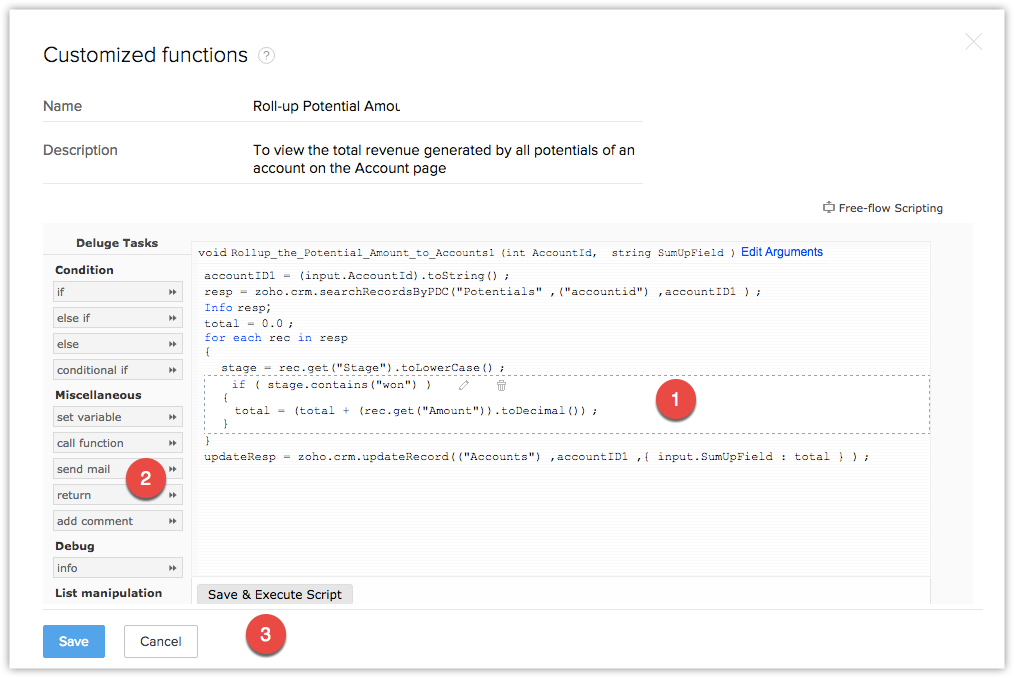
- Always validate inputs at the top of every function: Null inputs are the most common cause of runtime failures. Check every parameter before using it.
- Use info statements throughout development: The debug Deluge script CRM approach is simple — place info statements at every major step and review them in the workflow execution log.
- Avoid unnecessary loops over large datasets: If you need to process more than 100 records, use a scheduled function with pagination (LIMIT/OFFSET) rather than one function call attempting to process thousands of records.
- Check API response before trusting it: A successful HTTP status code does not mean the response contains valid data. Check the response map structure before extracting values.
- Keep functions single-responsibility: A Deluge custom function workflow that does one thing well is easier to debug, test, and maintain than a 200-line function doing everything. Break complex automation into chained smaller functions.
- Respect the 5-minute execution limit: Design functions to complete well within the time limit. For large operations, use scheduled Cron functions with pagination.
- Use Connections for external API credentials: Never hardcode API keys in Deluge functions. Use the Connections feature in Zoho CRM to store and retrieve credentials securely.
More Guides from Codroid Labs
Frequently Asked Questions — Deluge Script for CRM Workflows
What is Deluge scripting in Zoho CRM?
Deluge script for CRM workflows is Zoho’s proprietary scripting language for automating business processes inside Zoho CRM and the wider Zoho ecosystem. It enables custom business logic beyond standard workflow rules — conditional field updates, multi-record operations, external API calls, data aggregation, and document process automation. It executes server-side within Zoho’s infrastructure with no runtime to configure.
How do I create a custom function in Zoho CRM with Deluge?
To create Deluge function step by step: Go to Setup > Developer Space > Functions > Create Function. Choose function type (Standalone or Workflow-based). Define input parameters. Write the Deluge script for CRM workflows in the built-in editor. Test with sample data using info debug statements. Then attach to a Workflow Rule by adding Custom Function as a workflow action and mapping field values to parameters.
Is Deluge similar to JavaScript or Python?
The Zoho Deluge vs JavaScript CRM comparison shows both use curly braces and conditionals, but Deluge is significantly simpler for CRM-specific tasks — no async/await, no prototype chains, no DOM. Deluge shares Python’s readability but does not use indentation for code blocks. For Zoho CRM automation, Deluge is the more practical choice over JavaScript because its built-in functions (zoho.crm.getRecordById, sendmail, invokeurl) are designed specifically for CRM operations.
What are Deluge script execution limits?
Zoho Deluge script execution limits: maximum execution time 5 minutes per function call, individual API call timeout approximately 40 seconds, and file size limit 20MB. The Zoho Deluge script best practices guide recommends keeping functions well under the time limit, using scheduled Cron functions with pagination for large datasets, and splitting complex operations into multiple chained functions.
How do I learn Deluge scripting for CRM?
To learn Deluge scripting for CRM: Start with the 7 code examples in this guide — each covers a distinct pattern (update, fetch, multi-record, API call, aggregation, custom button, error handling). Use the Zoho Deluge documentation at zoho.com/deluge/help for the complete function reference. Practice by modifying the examples to match your own CRM data model. For complex implementations, Codroid Labs offers Deluge scripting consultation and custom function development. Contact team@codroiditlabs.com or +91 78384 02682.
Need a Zoho Script, Workflow Script, Deluge Tasks, or Zoho Functions? Need Custom Deluge Functions for Your Zoho CRM?
Codroid Labs — certified Zoho partner with expert Deluge scripting capability. Custom workflow functions, API integrations, Blueprint automation, document workflow automation, and complete CRM customisation. Fixed price. GST invoice. Hindi or English.
Start Free Zoho CRM Trial
Book Free Deluge Scripting Consultation