



Zoho CRM Blueprint is a process enforcement tool that defines the exact stages (States) a CRM record must pass through and the actions (Transitions) users must complete to move between them. Setup: Setup → Process Management → Blueprint → Create Blueprint → select module → add States → configure Transitions with Before/During/After settings → Publish. Unlike Workflow Automation (fires automatically when conditions are met), Blueprint enforces process compliance — preventing users from skipping stages, requiring mandatory information at each step, and enforcing approval chains. Available from Zoho CRM Professional (Rs.1,400/user/month).
Zoho CRM Blueprint is the most powerful, and most underused, feature in Zoho CRM. Most organizations deploy workflow automation for communication and notification, but skip Blueprint because the setup looks complex. This is a costly gap: without CRM Blueprint guide-level process enforcement, a sales rep can move a deal from Qualification to Closed Won in a single field edit, bypassing qualification criteria, proposal approvals, and contract upload steps entirely. Blueprint Zoho CRM makes that impossible — by defining what must happen before a deal can move to the next stage, who must approve it, and what information must be recorded. This complete Zoho CRM Blueprint tutorial for automating sales process step-by-step covers everything from your first Blueprint to the enterprise implementation checklist.
7
Setup Steps
3
Transition Phases
Rs.1,400
CRM Professional
Pro+
Plan Required
What is Zoho CRM Blueprint — and why it is not the same as Workflow Automation
Zoho CRM Blueprint is a process enforcement feature, not an automation feature. This distinction matters. CRM process automation through Workflow rules fires actions automatically when conditions are met — it does not control the sequence of your sales process and cannot prevent a sales rep from skipping stages. Blueprint Zoho CRM enforces the sequence: it defines what stages a deal must pass through, who can execute each transition, what information must be entered before a stage change is allowed, and what automated actions fire at each transition. Without Blueprint: a sales rep can mark a new lead as Closed Won in the same afternoon with no qualification, no demo, and no proposal on record. With Zoho CRM Blueprint: that is structurally impossible — every stage transition requires completing all mandatory steps the Blueprint defines. The Zoho sales process becomes a guaranteed reality rather than an aspirational flowchart.
7-step Zoho CRM Blueprint setup guide — complete step-by-step
The complete Zoho CRM Blueprint tutorial for automating sales process step-by-step — how to set up Blueprint from scratch:
1Map your actual sales process before opening Blueprint
Zoho CRM Blueprint should reflect what your best-performing reps actually do — not what you hope they do. Map the real winning sales sequence: what information do they gather at Qualification? What happens at Demo? What documents are required before sending a Proposal? What approvals does a Negotiation discount need? Document this on paper or a whiteboard before configuring a single Blueprint setting. Building Blueprint without this process map leads to rebuilding it twice.
2Navigate to Blueprint and create a new Blueprint
Go to Setup → Process Management → Blueprint → click Create Blueprint. Select the Module (Deals for most implementations, Leads for qualification enforcement, Contacts for customer onboarding). Select the Field that Blueprint will track — this is typically the Stage field in Deals. Blueprint status transitions will follow the values of this field. Important: only one active Blueprint can exist per module per field. Plan your Blueprint comprehensively before publishing — adding major structural changes after publication requires republishing, which can affect existing active records.
3Define States — the stages of your sales process
States in Zoho CRM Blueprint correspond to values of the tracked field. For a Deals Blueprint tracking the Stage field, states are: Qualification, Demo Scheduled, Demo Completed, Proposal Sent, Negotiation, Closed Won, Closed Lost. In the Blueprint canvas, each state appears as a box. You connect states with Transition arrows. The sales stages Zoho you define here must exactly match the Stage field picklist values in your Zoho CRM module — Blueprint cannot use stage values that do not exist in the field definition.
4Configure Transitions — how records move between states
Each transition connects two states and defines who can execute it, under what conditions, what must be done, and what is automated. The how to create common sales transitions in Zoho CRM Blueprint guide: name each transition by the action (“Schedule Demo”, “Submit Proposal”, “Approve Discount”, “Close Won”, “Mark Lost”). Drag a connection from the source state to the destination state on the canvas and name it. Every transition has three settings phases: Before, During, and After — covered in detail in the next section.
5Set transition owner and permissions
For each transition, configure who can execute it. The how to use Zoho CRM Blueprint to lock down sales process for teams permission system: set “Anyone” for standard transitions available to all reps, specific Roles (Sales Manager, Account Executive) for restricted transitions, or Approval Required for transitions that need a named approver’s confirmation. The discount approval transition (“Submit for Approval”) should be restricted to the deal’s assigned owner but require approval from the Sales Manager before it completes.
6Configure Before, During, and After for each transition
This is the core of Zoho CRM Blueprint and where most guides stop being useful. Covered in detail in the next section.
7Publish the Blueprint — and understand the republish warning
After configuring all states and transitions, click Publish. Blueprint immediately applies to all new and existing active records in the module. Republishing after structural changes: adding or removing states, or changing the tracked field value — covered in the publish section below.
Before, During, and After transition settings — explained with India B2B examples
The complete guide to Zoho CRM Blueprint before during after settings automation — with India B2B context for each phase:
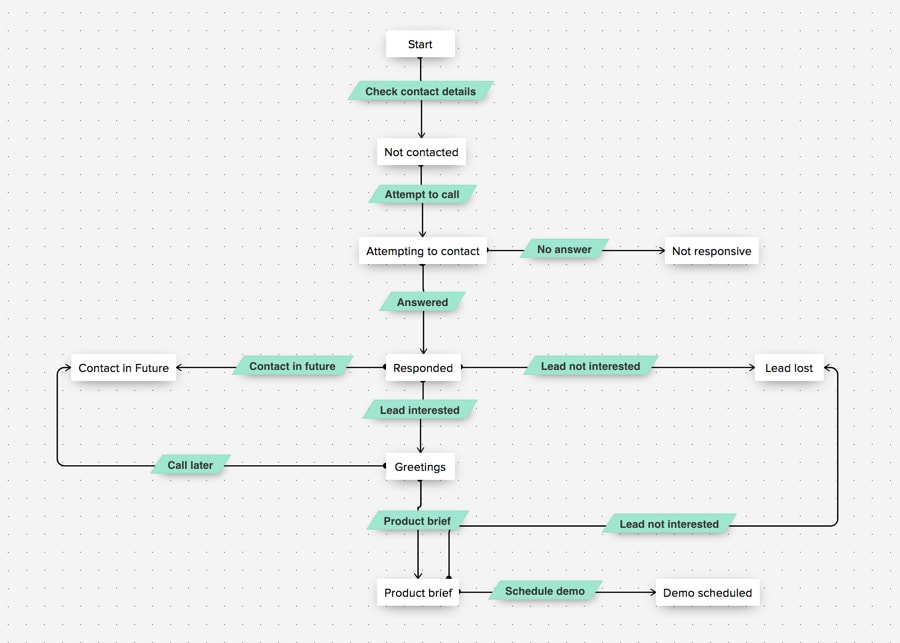
Zoho CRM Blueprint tutorial design states transitions automate sales workflow — a practical India manufacturing/trading business example for the “Proposal → Negotiation” transition: Before: deal amount must be greater than Rs.0 AND a Quote record must be linked to the deal. During: mandatory fields — Negotiation Notes (text), Proposed Discount Percentage (number), Customer Decision Timeline (date). After: create task (follow up in 3 days), send email to customer with proposal summary, notify Sales Manager. This single transition configuration eliminates three common process failures: sending a proposal without a formal quote, moving to negotiation without documenting the customer’s response, and forgetting the follow-up task after the proposal discussion.
Discount approval automation using Zoho CRM Blueprint — India SMB scenario
Zoho CRM Blueprint tutorial automate approvals follow-ups deal progress — the discount approval use case is the most valuable Blueprint configuration for Indian B2B businesses where unauthorized discounts directly impact margin. The automate sales Zoho discount control system: create a “Request Discount Approval” transition between the Negotiation and Proposal Approved states. Before Transition: set a condition that if Discount_Percentage is less than or equal to 10%, the transition can be executed directly by the Deal Owner (no approval needed). If Discount_Percentage is greater than 10% and less than or equal to 20%, configure an Approval requirement — Sales Manager must approve before the transition completes. If Discount_Percentage is greater than 20%, Sales Director approval required. During Transition: make “Discount Justification” a mandatory text field — the rep must document why the customer needs the discount. After Transition: email to the approver containing deal name, customer name, original deal amount (INR), requested discount percentage, and justification text. This sales automation CRM configuration means no discount above 10% can slip through without a documented approval trail, regardless of which rep handles the deal.
Zoho CRM Blueprint Closed Won and Closed Lost transition configuration
The Zoho CRM Blueprint tutorial create Closed Won Close Lost transitions — the two most critical transitions in any sales Blueprint. Closed Won transition: During the transition, make these fields mandatory: Final Deal Value (INR), Expected Close Date (must be today or past), Contract Number or PO Number, Customer PAN (for businesses requiring GST invoice), and Payment Terms Agreed. After transition: create an onboarding task for the customer success team, send deal-won notification to management, trigger Zoho Flow to create a proforma invoice in Zoho Books, and update the Account record with the deal amount and contract date. Closed Lost transition: During transition, make Loss Reason a mandatory picklist (price, competition, budget freeze, no decision, product fit, timing), and Competition Name an optional text field. After transition: notify Sales Manager with loss details, create a follow-up task for 90-day re-engagement, and send a professional closing email to the customer. The automate deals Zoho Closed Lost configuration is often skipped but is critically important: capturing consistent loss reason data is what drives the quarterly win/loss analysis that improves sales strategy.
Professional Zoho CRM Blueprint guide — Kiosk integration and demo booking automation
The professional Zoho CRM Blueprint guide integrate Kiosk automate demo process: Kiosk is Zoho CRM’s guided data collection interface that can be embedded in Blueprint transitions. Instead of a basic field-fill form, Kiosk presents a conversational, multi-step interface that guides the user through the required information. The Zoho CRM Blueprint for booking demos follow-ups decision-making automation use case: the “Schedule Demo” transition uses a Kiosk that: Step 1 — asks the rep to confirm the customer has a budget and decision timeline (qualification gate); Step 2 — shows a calendar picker for demo scheduling; Step 3 — asks which product areas to demonstrate (multi-select); Step 4 — confirms the meeting link has been sent. This Kiosk replaces a plain mandatory-field form with a guided experience that takes the rep through the qualification checklist, reducing both form completion time and the rate of skipped fields. Kiosk configuration is available in Zoho CRM Enterprise (Rs.2,400/user/month).
How to publish and test Zoho CRM Blueprint — the republish warning
The how to publish and test Zoho CRM Blueprint for sales automation process — and the warning that no competitor mentions prominently: when you republish a Blueprint after making structural changes (adding or removing states, changing which transitions are available), existing records that were in states removed from the Blueprint lose their Blueprint association. Those records will no longer follow the Blueprint process and will show as “Not in Blueprint.” The how to avoid republish setting removing records from Zoho CRM Blueprint approach: plan your Blueprint structure comprehensively before the initial publish. For existing active deals when Blueprint first goes live, the Blueprint will apply from their current stage forward — they do not restart the process from the beginning. Test process before publishing: use the Blueprint preview/sandbox mode to simulate all transitions as a sample user. Test each mandatory field validation, each approval flow, each After-transition automation. Publish only after all transition paths are verified. For enterprises with large active deal volumes, publish Blueprint during off-peak hours (early morning, weekend) to minimize disruption to active sales activity.
Complete Zoho CRM Blueprint implementation checklist for enterprises
The complete Zoho CRM Blueprint implementation checklist for enterprises:
Pre-implementation
- Document existing sales process (not the ideal, the actual)
- Identify all stage transition approvers by name and role
- Audit current Stage picklist values — they must match Blueprint states
- Decide mandatory fields per transition (keep minimal — 3-5 max per transition)
Configuration
- Build Blueprint in a Zoho CRM sandbox before production
- Configure each transition’s Before/During/After completely before testing
- Set up error notifications for approval workflows
- Test every transition path including exception scenarios
Deployment
- Run a team walkthrough — show reps the new process before go-live
- Publish during off-peak hours for large deal volumes
- Have one “escape hatch” transition available for exceptional cases (admin-only)
- Document the Blueprint logic for future maintenance
Post-deployment
- Monitor transition completion rates for the first 30 days
- Identify transitions where reps get stuck — simplify mandatory fields if needed
- Review approval response times — SLA for approvals should be defined
- Quarterly review: is the Blueprint still matching the actual sales process?
Codroid Labs — certified Zoho CRM Blueprint partner India
How to set up blueprint in zoho crm to control deal stages 2024, automate your sales process with zoho crm blueprint complete walkthrough, Zoho CRM Blueprint for sales funnel building tutorial for beginners, how to configure required fields in zoho crm blueprint sales automation, Zoho CRM Blueprint for structured sales pipeline customization tutorial, automate sales workflow using zoho crm blueprint deal management guide, Zoho CRM Blueprint states and transitions configuration full tutorial, Zoho CRM Blueprint for sales managers save time automate business process, configure zoho crm blueprint module layout field for sales process, Zoho CRM Blueprint for eliminating manual tasks boost conversions tutorial, Zoho CRM Blueprint ensure consistency predefined sales actions automation, Zoho CRM Blueprint for sales team productivity streamline automation guide — Codroid Labs is a verified Zoho Authorized Partner (GSTIN 07AAWFC0815B1ZP) designing and deploying Zoho CRM Blueprint for Indian businesses.
Zoho CRM Blueprint automate tasks email notifications sales process guide: the After Transition phase is where task creation and email notification automation lives — configuring these correctly in every transition is what makes Blueprint a true sales productivity tool, not just a process control layer.
Zoho CRM Blueprint, CRM Blueprint tutorial, automate sales Zoho, Zoho Blueprint guide, sales automation Zoho, Zoho CRM automate, automate CRM sales, Zoho sales process, CRM automation guide, Zoho Blueprint setup, sales workflow Zoho, Zoho CRM workflow, Zoho Blueprint tips, sales automation CRM, Zoho sales funnel, CRM Blueprint guide, Zoho deal process, automate deals Zoho, Zoho Blueprint now, sales stages Zoho, Zoho CRM stages, blueprint automation, Zoho sales tips — our Blueprint engagement includes: sales process documentation workshop, Blueprint architecture design, sandbox build and test, rep and manager training, and 30-day post-deployment support. Contact: +91 78384 02682, team@codroiditlabs.com.
Related Guides from Codroid Labs
Frequently asked questions — Zoho CRM Blueprint
Can I use Zoho CRM Blueprint for lead qualification for my IndiaMART-sourced leads?
Zoho CRM Blueprint for lead qualification works on the Leads module by tracking the Lead Status field. For IndiaMART-sourced leads, a Lead Blueprint can enforce: Before the “Qualify Lead” transition — the lead must have a valid phone number and company name (Before Transition validation). During the “Qualify Lead” transition — the rep must complete a mandatory qualification checklist: Budget Confirmed (Yes/No), Timeline (dropdown: 0-3 months, 3-6 months, 6+ months), Decision Maker Contacted (Yes/No), Product Fit (Yes/No). After the “Qualify Lead” transition — if all four criteria are Yes, automatically move the lead status to Qualified and create a Deal. If Timeline is 6+ months, create a “Nurture” task for 90 days later. This Blueprint ensures every IndiaMART lead receives the same structured qualification — no more “I talked to them briefly and they seemed interested” leads clogging your pipeline. The Zoho CRM Blueprint for sales funnel building tutorial for beginners: lead qualification Blueprint is typically the first Blueprint implementation for businesses new to the feature, because the lead pipeline is where most process inconsistency is concentrated.
Which Zoho CRM edition is required for Blueprint?
Zoho CRM Blueprint is available from the Professional edition and above. Zoho CRM Professional: Rs.1,400/user/month (annual billing) — includes Blueprint, Workflow Automation, and SalesSignals. Enterprise: Rs.2,400/user/month — adds Kiosk integration for Blueprint (the guided transition interface), Zia AI, custom functions, and territory management. Ultimate: Rs.2,600/user/month — adds custom AI/ML and enhanced analytics. For most Indian SMBs implementing Blueprint for the first time, Professional at Rs.1,400/user/month provides all the Blueprint functionality needed for standard sales process enforcement. If Kiosk-enhanced Blueprint transitions are required (guided multi-step data collection during transitions), the upgrade to Enterprise is justified. External reference: Zoho CRM Blueprint official documentation for the latest feature list per edition.
Get Zoho CRM Blueprint Built for Your Sales Process
Sales process documentation, Blueprint architecture, discount approval automation, Closed Won/Lost transitions, team training — certified Zoho CRM partner with GSTIN invoice and transparent INR pricing. Free 45-minute Blueprint assessment call.
Start Zoho CRM via Codroid Labs
Book Free Blueprint Call – +91 78384 02682