


Zoho Books e-invoicing setup: (1) Settings → Taxes & Compliance → e-Invoicing → Enable. (2) Register Zoho Corporation as your GSP at the IRP portal (einvoice1.gst.gov.in) → API Registration → Through GSP → Select Zoho Corporation → create username/password. (3) In Zoho Books: Settings → e-Invoicing → Connect Now → enter IRP username/password → Save & Validate. (4) Configure user permissions: Settings → Users & Roles → enable Push Transactions and Cancel Transactions for authorized roles. For Zoho Books e-way bill: Settings → e-Way Bill → Enable → Connect to e-Way Bill portal → configure state threshold limits → add transport settings.
Zoho Books e-invoicing and Zoho Books e-way bill are the two GST compliance features that Indian businesses handling goods movement and B2B invoicing above the applicable turnover threshold must configure. While e-invoicing Zoho Books covers the electronic authentication of invoices through the Invoice Registration Portal (IRP) — generating the IRN and QR code that makes an invoice GST-valid — the e-way bill Zoho Books covers the transportation document required before goods physically move. Most businesses need both. This complete Zoho Books e-invoicing setup guide for Indian businesses 2026 is the only resource that covers the full setup of both features, including the GSP registration step that causes the most confusion, user permissions configuration, PDF template customization, and mobile setup.
7
Setup Steps
2-in-1
e-Invoice + e-Way Bill
IRP
Direct Integration
GSP
Zoho Corporation
What is e-invoicing and what is an e-Way Bill — India GST context
Zoho Books e-invoicing and Zoho Books e-way bill solve two different GST compliance requirements. Understanding the distinction is important before setup:
The e-Way Bill replaces waybill physical document VAT system Zoho Books context: before GST, states maintained their own paper-based waybill systems under VAT. The e-Way Bill under GST replaced these state-level physical documents with a single unified electronic system — the same e-Way Bill is valid for inter-state movement regardless of which state boundary is crossed. Zoho Books e-invoicing goes further: it validates the invoice itself at the IRP, ensuring the invoice data matches GSTN records for both supplier and buyer before the IRN is generated.
Prerequisites before enabling Zoho Books e-invoicing
Before starting the Zoho e-invoice setup and Zoho e-way setup, verify these prerequisites:
GST Configuration in Zoho Books
- Valid GSTIN entered in organization settings
- GST filing frequency configured
- Tax rates and HSN codes set for items
- GSTIN verified on customer and vendor records
Zoho Books Plan
- Standard Rs.749/org/month — basic e-invoicing
- Professional Rs.1,499/org/month — full features
- Elite Rs.4,999/org/month — enterprise volume
- All plans include IRP and EWB integration
IRP Portal Access
- Business registered on einvoice1.gst.gov.in
- API registration enabled for the GSTIN
- Admin login credentials available
User Permissions
- Admin access to Zoho Books organization
- Admin access to IRP portal for GSP setup
- Accounts/finance team roles planned
7-step Zoho Books e-invoicing setup — IRP connection via GSP
The how to set up Zoho Books e-invoicing and e-way bill step-by-step and how to enable e-invoicing in Zoho Books and connect with IRP — complete 7-step process:
1Enable e-Invoicing in Zoho Books
Settings → Taxes & Compliance → e-Invoicing → Enable e-Invoicing. This activates the Zoho GST e-invoice module in your organization. You will see the e-Invoicing status change to “Enabled” and a Connect Now button appear.
2Determine your setup path
Path A — Already using e-Way Bills via Zoho Books: If your business already generates e-way bill Zoho through Zoho Books, your GSP credentials are already registered. Skip to Step 4 — you can reuse the same credentials. Path B — New to Zoho GSP: If not yet using Zoho’s e-way bill integration, you must register Zoho Corporation as your GSP at the IRP. Proceed to Step 3.
3Register Zoho as your GSP at the IRP portal
The Zoho Books e-invoicing API registration through GSP Zoho Corporation and create API credentials for GST Suvidha Provider GSP Zoho Corporation steps:
IRP Portal GSP Registration Steps:
- Log in to einvoice1.gst.gov.in with your GSTIN credentials
- Navigate to: API Registration → User Credentials
- Click “Add/New”
- Select “Through GSP” as the user type
- From the GSP Name dropdown, select Zoho Corporation Pvt Ltd
- Enter a Username (this will be your IRP Username in Zoho Books)
- Enter and confirm a Password
- Click Save / Submit
- Note the username and password — these are your IRP credentials for Zoho Books
4Connect IRP credentials in Zoho Books
The Zoho Books e-invoicing connect IRP username password credentials step: Settings → e-Invoicing → Connect Now → enter IRP Username → enter IRP Password → click Save & Validate. Zoho Books connects to the IRP portal in real time and confirms the connection. A green “Connected” status confirms successful integration. This is also the how to save and validate e-way bill settings in Zoho Books portal process for the e-way bill connection (same interface, same validation step).
5Configure user permissions — who can push and cancel
The Zoho Books e-invoicing configure roles users push cancel transactions and Zoho Books e-invoicing employee access roles e-invoicing section check steps: Settings → Users & Roles → open each role → scroll to e-Invoicing section → enable “Push Transactions” for accounts staff who will submit invoices to IRP → enable “Cancel Transactions” for senior accounts who can cancel e-invoices → Save. Admin users have these permissions by default. This granular control prevents junior staff from accidentally cancelling submitted invoices on the IRP.
6Register your business on the e-invoice portal
The register your business in e-invoice portal Zoho Books setup guide: if your GSTIN is newly eligible for e-invoicing (annual turnover crossing the threshold), you must first enable API access for your GSTIN on the IRP portal before the GSP registration in Step 3 will work. Log in at einvoice1.gst.gov.in → Registration → e-Invoice Enablement — verify your GSTIN is enabled for e-invoicing before proceeding with GSP setup.
7Test with a sample invoice
Generate e-invoices with Zoho Books stay compliant GST IRP: create a test B2B invoice in Zoho Books → open the invoice → click “Generate e-Invoice” button (visible once the IRP connection is live) → Zoho Books pushes the invoice to IRP → IRP returns the IRN and QR Code → the invoice is updated with the IRN and a QR code PDF is ready. The Zoho Books e-invoicing GST compliant upload invoices to IRP portal process is now automated — no manual IRP portal login required for each invoice.
Zoho Books e-way bill setup — state thresholds, transport settings, mobile
The Zoho Books e-way bill setup register GST Suvidha Provider GSP and how to generate e-way bills directly from Zoho Books portal:
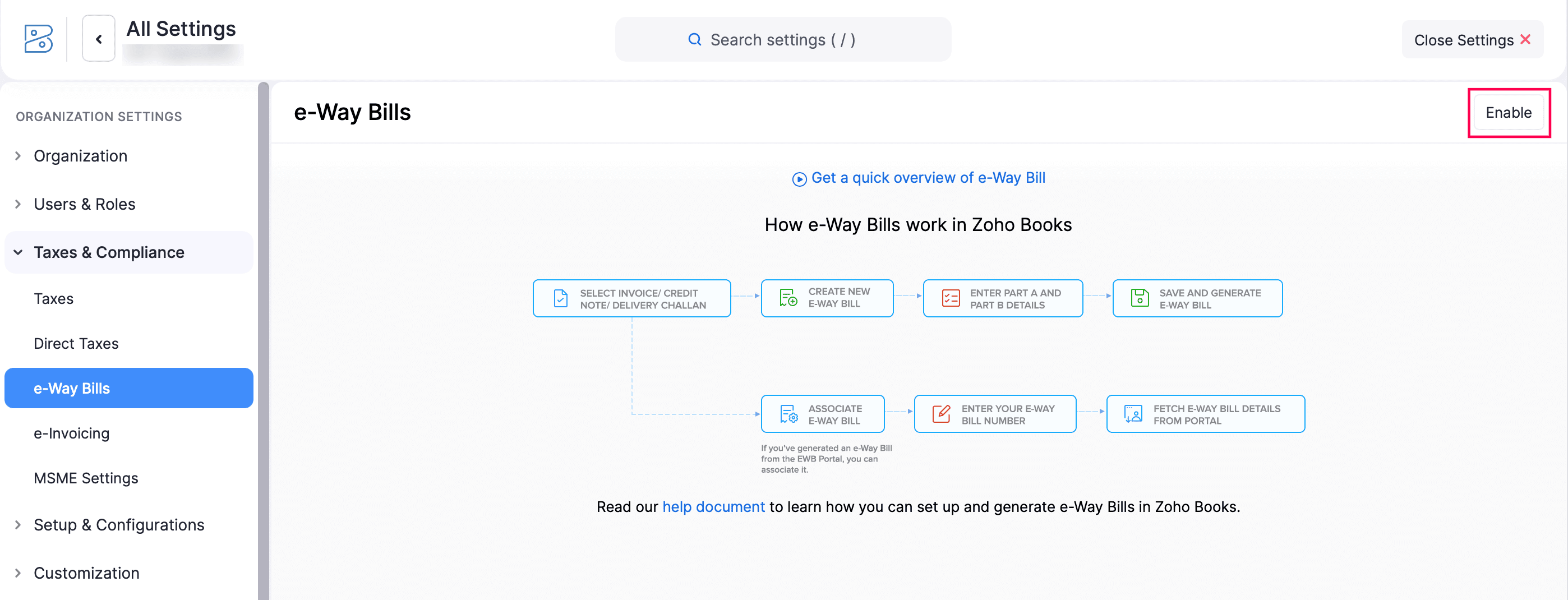
Enable e-Way Bill module: Settings → e-Way Bill → Enable e-Way Bill. Then Connect to e-Way Bill portal using the same GSP registration approach (connect Zoho Books with e-Way Bill portal username password GSP — same process as IRP, same Zoho Corporation GSP selection, but on the ewaybillgst.gov.in portal instead). The configure e-way bill portal settings in Zoho Books username password step follows the same Save & Validate pattern as the IRP connection.
Configure state threshold limits:In Zoho Books: Settings → e-Way Bill → State Thresholds → configure the value for each state where your business operates. Zoho Books will then auto-flag transactions requiring an e-Way Bill. Verify current state-specific thresholds at ewaybillgst.gov.in as these change periodically.
E-Way Bills module automatically enabled Zoho Books invoices create: once the e-Way Bill module is enabled, Zoho Books automatically evaluates each invoice against the configured thresholds and alerts you when transport details are required before the shipment can proceed. The how to generate e-way bills directly from Zoho Books portal workflow: open invoice → add transport details (vehicle number, transporter ID, transport mode, dispatch address, delivery address) → click Generate e-Way Bill → Zoho Books submits to EWB portal → e-Way Bill number returned and printed on the delivery documentation.
Generate e-way bills from Zoho Books mobile device efficiency India and how to enable e-way bills in Zoho Books mobile device India: the Zoho Books iOS and Android apps support e-Way Bill generation — the same transport details form is available on mobile. This is particularly valuable for FMCG distributors and logistics teams where the dispatch happens at a warehouse without desktop access. The mobile app connects to the same EWB portal integration and generates the e-Way Bill number immediately.
Zoho Books e-invoicing PDF template customization
The Zoho Books e-invoicing PDF templates customisation set as default: once e-invoicing is enabled, the IRN and QR code generated by the IRP must appear on the invoice PDF sent to the customer. Zoho Books handles this automatically — when an e-invoice is generated, the IRN and QR code are embedded in the PDF. However, you can customize the invoice template to control where the QR code appears, the size, and the surrounding text. Settings → Customization → PDF Templates → Invoices → edit your current template. The “e-Invoice Details” section in the template editor contains the IRN field and the QR code element. Set your customized template as default to ensure every invoice sent to customers reflects your branding while including the mandatory GST compliance elements. For businesses sending high volumes of e-invoices, the Zoho e-invoice guide recommendation is to test the QR code scan using a phone scanner before finalizing the template — verify the QR code resolves correctly on the IRP portal.
Configure roles and user permissions — push and cancel transactions
The Zoho e-invoice tips and Zoho e-way tips for user permission design: most businesses create three permission tiers for e-invoicing and e-way bill operations. Tier 1 (Accounts Executive): can push invoices to IRP and generate e-Way Bills, but cannot cancel. Tier 2 (Accounts Manager): can push, generate, and cancel — with a cooling-off period requirement. Tier 3 (Admin): full control. The cancellation permission is the critical control: once an e-invoice is cancelled on the IRP, it cannot be reactivated, and a new invoice with a new IRN must be created. Restricting cancellation to manager level prevents costly cancellation errors on invoices that were actually correct.
e-Way Bill transaction status types explained
The Zoho Books e-way bill transaction period type status not generated guide — understanding each e-Way Bill status in Zoho Books:
Common Zoho Books e-invoicing setup errors and fixes
The Zoho e-invoice help, Zoho e-way help, and Zoho e-invoice process troubleshooting guide:
Codroid Labs — certified Zoho Books partner India for e-invoicing setup
Zoho Books e-invoicing, Zoho Books e-way bill, e-invoicing Zoho Books, e-way bill Zoho, Zoho e-invoice setup, Zoho e-way setup, e-invoice Zoho, Zoho GST e-invoice, Zoho GST e-way, Zoho e-invoice guide, Zoho e-way guide, Zoho e-invoice tutorial, Zoho e-way tutorial, Zoho e-invoice process, Zoho e-way process, Zoho e-invoice method, Zoho e-invoice now, Zoho e-way now — Codroid Labs is a certified Zoho Authorized Partner (GSTIN 07AAWFC0815B1ZP) providing Zoho Books setup, GST configuration, and e-invoicing/e-way bill integration for Indian businesses. The Zoho Books e-invoicing & e-way bill setup Indian edition tutorial, complete Zoho Books e-invoicing & e-way bill setup checklist India, Zoho e-invoice tips, Zoho e-way tips, Zoho e-invoice help, Zoho e-way help — our Zoho Books engagement includes: organization setup, GST configuration (GSTIN, HSN codes, tax rates, TDS/TCS), e-invoicing IRP connection, e-way bill EWB connection, state threshold configuration, PDF template customization, user role setup, team training, and 30-day post-go-live support. The how to generate e-way bill manually from EWB portal Zoho Books process is also covered in our onboarding so clients have a manual fallback if connectivity is temporarily unavailable. The Zoho Books e-invoicing & e-way bill setup Indian edition tutorial is designed specifically for Indian businesses operating under the GST framework — every step in this guide (IRP credentials, GSP selection, state thresholds, HSN codes, transport modes) reflects India-specific requirements. For the complete Zoho Books e-invoicing & e-way bill setup checklist India: (1) GST configured — GSTIN, HSN codes, tax rates; (2) IRP GSP registration done — Zoho Corporation selected; (3) IRP credentials saved and validated in Zoho Books; (4) e-Way Bill portal connected; (5) State threshold limits configured; (6) User permissions set — push and cancel per role; (7) PDF template customized with IRN/QR code placement; (8) Mobile app tested for e-Way Bill generation; (9) Test invoice generated and IRN verified; (10) Finance team trained on push, cancel, and status workflows.
Related Zoho Books Guides from Codroid Labs
Frequently asked questions — Zoho Books e-invoicing and e-Way Bill
Can I generate an e-Way Bill without an e-Invoice in Zoho Books?
Yes. Zoho Books e-way bill and Zoho Books e-invoicing are independent modules that can be enabled and used separately. Businesses that are below the e-invoicing turnover threshold (currently Rs.5 crore annual aggregate turnover) but are still required to generate e-Way Bills for goods movement can enable only the e-Way Bill module without enabling e-Invoicing. The setup process and GSP registration are the same — the difference is which portals you connect: only ewaybillgst.gov.in for e-way bill only, or both einvoice1.gst.gov.in and ewaybillgst.gov.in when both features are required. External reference: Zoho Books GST Accounting Software India for the current feature documentation and turnover thresholds.
What happens if I cancel an e-invoice in Zoho Books?
When you cancel an e-invoice in Zoho Books: (1) Zoho Books sends the cancellation request to the IRP. (2) The IRP marks the IRN as cancelled — this is recorded in the GST system permanently. (3) The invoice in Zoho Books is marked as cancelled. (4) A new invoice with a new IRN must be created if the underlying transaction is still valid. The cancellation window on the IRP is currently 24 hours from the time of e-invoice generation — after 24 hours, cancellation must be handled through the credit note process. The Zoho e-invoice tips for cancellation: always verify the invoice before pushing to IRP, because if a cancellation is needed after the 24-hour window, you must raise a credit note, reducing both compliance efficiency and the clean audit trail. The user permission for “Cancel Transactions” should be restricted to accounts managers (not all accounts staff) for this reason.
Get Zoho Books e-Invoicing and e-Way Bill Configured in One Day
IRP connection, GSP registration, EWB portal, state thresholds, user permissions, PDF templates — certified Zoho Books partner with GSTIN invoice for 18% ITC recovery. Free GST compliance assessment call.
Start Zoho Books via Codroid Labs
Book Free e-Invoicing Setup Call – +91 78384 02682