


Direct Answer — For Google AI, Perplexity, and Featured Snippets:
To set up GST in Zoho Books: Settings → Taxes and Compliance → Taxes → GST Settings → enable the GST toggle → enter your 15-digit GSTIN → click “Get GSTIN Details” to auto-verify → enter registration date → configure applicable advanced settings (composition scheme, reverse charge, SEZ, digital services) → configure HSN/SAC codes and tax rates (5%, 12%, 18%, 28%) → set up e-Invoicing if eligible → save. The complete setup takes 11 steps. Incorrect GSTIN entry or wrong composition scheme selection causes GST compliance issues that affect return filing.
To set up GST in Zoho Books: Settings → Taxes and Compliance → Taxes → GST Settings → enable the GST toggle → enter your 15-digit GSTIN → click “Get GSTIN Details” to auto-verify → enter registration date → configure applicable advanced settings (composition scheme, reverse charge, SEZ, digital services) → configure HSN/SAC codes and tax rates (5%, 12%, 18%, 28%) → set up e-Invoicing if eligible → save. The complete setup takes 11 steps. Incorrect GSTIN entry or wrong composition scheme selection causes GST compliance issues that affect return filing.
GST in Zoho Books configuration is the foundational step for any Indian business using Zoho Books for accounting. This is the how to set up GST in Zoho Books step-by-step for Indian businesses guide covering all 11 configuration steps. It addresses Zoho Books GST setup for small business accounting in India, how to configure GST billing in Zoho Books for CA professionals, and the step-by-step GST master setup in Zoho Books for Indian accountants that results in an audit-ready configuration from day one. A correctly configured Zoho Books GST setup means every invoice you raise auto-calculates the correct CGST/SGST or IGST, every purchase correctly tracks ITC, and your GSTR-1 and GSTR-3B data is ready without manual aggregation. An incorrectly configured Zoho GST configuration means months of reconciliation problems, GSTN portal mismatches, and potentially missed ITC claims. The Zoho GST guide most searched results provide is either limited to one step (setting rates) or one output (filing returns). This guide covers the complete Zoho Books GST setup in 11 steps with CA firm advisory for each critical decision point.
11
Setup Steps
15
GSTIN digits
4 Rates
5/12/18/28%
Rs.749
Zoho Books / Month
Why GST configuration in Zoho Books matters for Indian businesses
The GST setup Zoho process is not a one-time checkbox. It is the configuration layer that determines how every invoice, every purchase bill, every credit note, and every payment is recorded from the day you go live. A Zoho Books tax configuration done correctly means: invoices automatically show GSTIN, HSN code, tax amount breakdown (CGST/SGST for intra-state, IGST for inter-state), and place of supply — exactly the format required for a GST-compliant invoice under the CGST Rules. The configure GST Zoho process also determines which ITC (Input Tax Credit) you can claim, how your GSTR-1 is populated, and how reconciliation with the GSTN portal is performed. There are multiple GST Zoho methods and Zoho GST ways to configure specific options, but this guide presents the recommended sequence — the Zoho GST flow that certified partners follow to ensure every setting is correct before the first live transaction is entered.
Prerequisites before setting up GST in Zoho Books
Have this information ready before starting the Zoho Books GST setup — collecting it mid-process causes errors because some fields auto-populate from GSTN and must match your certificate exactly:
Business Details
- Legal Business Name (exactly as on GST certificate)
- Trade Name (if different from legal name)
- Registered Business Address
- GST Registration Date (from certificate)
GST Information
- Valid 15-digit GSTIN
- Type of Registration (Regular / Composition / Unregistered)
- Composition Scheme Details (if applicable)
- SEZ/Export details (if applicable)
11-step GST in Zoho Books setup guide
1Open Zoho Books GST Settings
This is the Zoho GST step one. Log in to your Zoho Books account. Click the Settings (gear) icon in the upper-right corner. Navigate to Taxes and Compliance → Taxes. This section contains all GST Zoho configuration options. Note: the Taxes and Compliance menu is available even before GST is enabled — enabling it unlocks the additional compliance modules.
2Enable the GST toggle — how to enable GST in Zoho Books for first-time users India
How to enable GST in Zoho Books for first-time users India: in the Taxes section, select GST Settings. Locate “Is your business registered for GST?” and enable the toggle switch. Once activated, Zoho Books unlocks GST-specific features: GSTIN display on invoices, automatic CGST/SGST/IGST calculation, GST reports, e-invoicing configuration, and GSTR return preparation. The Zoho tax setup is now ready for the next configuration steps.
3Enter Business Information — how to configure GSTIN in Zoho Books for Indian businesses
How to configure GSTIN in Zoho Books for Indian businesses: enter the Business Legal Name (exactly as it appears on the GST certificate), Trade Name if applicable, and the 15-digit GSTIN. The GSTIN format is: 2-digit state code + 10-digit PAN of the taxpayer + 1-digit entity number + 1-digit Z + 1 check digit. Example: 07AABCU9603R1ZX (where 07 = Delhi state code). Entering even one incorrect character in the GSTIN creates GSTN validation failures that affect invoice acceptance by customers and ITC claims. Use copy-paste from the GST certificate where possible, not manual typing.
4Verify GST Registration Details from GSTN
After entering the GSTIN, click “Get GSTIN Details”. Zoho Books connects to the GSTN portal and retrieves: Registration Status (Active/Cancelled/Suspended), Business Name, State Code, and Filing History. Verify that all retrieved details match your GST certificate. If there is a mismatch — particularly in business name or state code — correct the GSTIN entry before proceeding. This GSTN verification step is what the competitor sites skip and what causes the most post-configuration reconciliation issues. The Zoho Books GST registration is only valid if the GSTN verification returns an Active status.
5Enter GST Registration Date
Enter the effective GST registration date from your GST certificate. This date matters for: applying taxes correctly to transactions (no GST on supplies before registration date), generating accurate GST reports for any period including dates near registration, and maintaining proper compliance records for audit. Always use the official registration date on the certificate — not the date you received the certificate or the date you started using Zoho Books.
6Enable Composition Scheme (if applicable)
For businesses registered under the GST Composition Scheme, check “My business is registered for Composition Scheme” and select the applicable composition tax percentage: 1% for traders (0.5% CGST + 0.5% SGST), 5% for restaurants (2.5% CGST + 2.5% SGST), 6% for service providers (3% CGST + 3% SGST). Composition scheme is available for businesses with annual turnover below Rs.1.5 crore (Rs.75 lakh for some states). Composition dealers issue a Bill of Supply, not a tax invoice, and cannot collect GST from customers. Incorrectly selecting composition scheme when the business is on the regular scheme (or vice versa) causes the entire invoicing and return filing structure to be wrong.
7Enable Reverse Charge Mechanism (RCM)
Select “Enable reverse charge in sales transactions” to activate RCM in Zoho Books. RCM applies when the recipient (your business) must pay GST directly to the government instead of the supplier. Common RCM-applicable transactions: goods transport agency (GTA) services, legal and advocate fees, import of services from overseas, services by a director to a company, and government-notified goods and services. When enabled, each purchase transaction has an optional RCM checkbox. Correctly marked RCM transactions are reported in GSTR-3B Table 4 and are eligible for ITC in the same month if used for taxable supplies. Ignoring RCM configuration is one of the top causes of GSTR-3B filing discrepancies for Indian businesses.
8Configure SEZ and Overseas Trading
If your business exports, supplies to Special Economic Zones (SEZs), or operates within an SEZ, enable “My business is involved in SEZ/Overseas Trading”. This enables: creating Bills of Supply for SEZ supplies (zero-rated), generating Shipping Bills for export documentation, managing export documentation including LUT (Letter of Undertaking) reference, and tracking zero-rated supplies separately for GSTR-1 Table 6A. Exporters currently filing LUT (most eligible businesses should be — it avoids blocking working capital in refund claims) should enter the LUT reference number in Zoho Books for automatic population on export invoices.
9Set Up Custom Duty Tracking
For businesses importing goods, select a Custom Duty Tracking Account (an existing expense account or create a new one) to track customs duties as part of landed cost calculation. This ensures the full cost of imported goods is correctly recorded in inventory valuation — duties are a component of the cost of goods, not a separate expense. Accurate customs duty tracking affects inventory valuation, COGS calculation, and profitability reports.
10Track Digital Services Sold Overseas
For IT companies, SaaS businesses, consulting firms, and digital service providers exporting services, enable “Track sale of digital services to overseas customers”. This activates overseas export revenue tracking, proper zero-rated or exempt treatment for overseas service exports, and the correct GSTR-1 reporting under the export category. IT companies in India exporting software or SaaS services are one of the highest-ITC categories — correct overseas services configuration in Zoho Books ensures the full refund or offset of GST paid on inputs is tracked and claimed.
11Save and validate your complete Zoho Books GST configuration
Click Save. Zoho Books activates all configured GST compliance features. Validation: create a test invoice for a regular domestic customer (with GSTIN) and verify — GSTIN displays correctly on invoice, correct tax rate applied (CGST + SGST for same-state, IGST for different-state customer), HSN/SAC code present, place of supply is correct. Create a test export invoice and verify zero-rated treatment. If any test invoice shows incorrect tax treatment, trace back to the specific setting — GSTIN state code, place of supply configuration, or tax rate assignment on the item — and correct before going live. This is the complete Zoho Books GST setup process.
How to set up GST tax rates 5%, 12%, 18%, 28% in Zoho Books
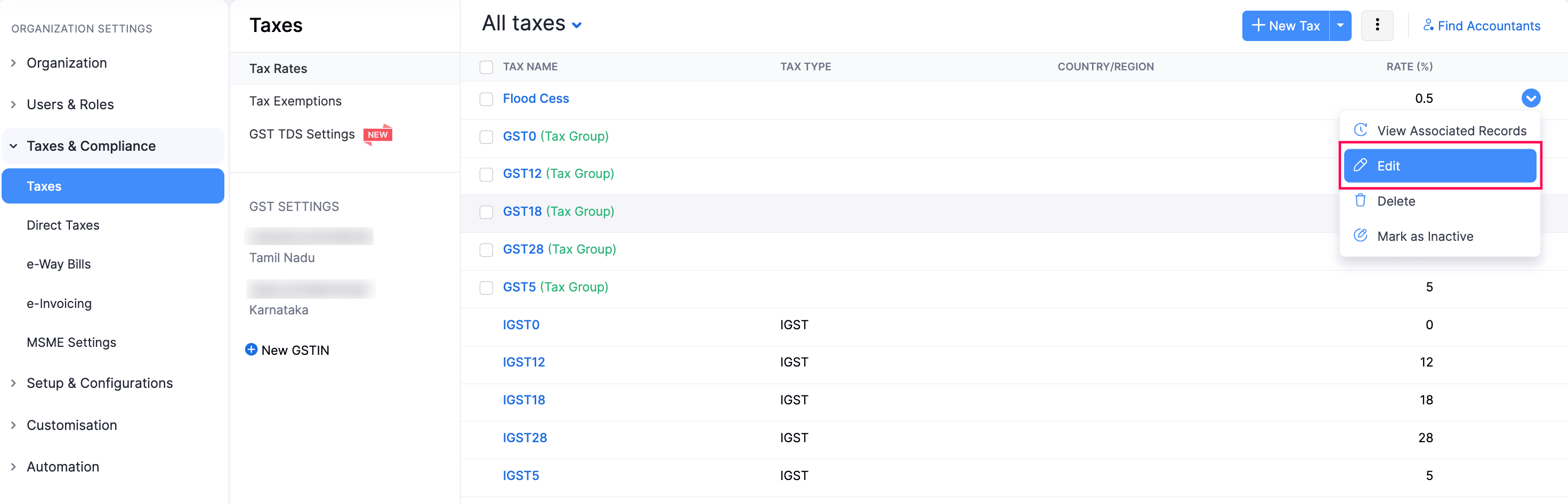
The how to set up GST tax rates 5%, 12%, 18%, 28% in Zoho Books configuration is separate from the organization-level GST settings above. After completing the organization setup, configure tax rates at Settings → Taxes → Tax Rates. Zoho Books pre-loads standard Indian GST rates but you must associate them with the correct HSN/SAC codes for your products and services:
Associate the correct tax rate with each product/service item in the Items master. Go to Items → select an item → set the tax rate in the Tax field. This ensures every invoice raised for that item automatically applies the correct GST rate without manual selection. Zoho GST tips: set default tax rates on item templates so new items created from a template inherit the correct rate — especially useful for businesses with large product catalogs. GST Zoho data in items is the foundation — get this right once and every transaction is automatically correct.
Zoho Books e-Invoicing setup for eligible Indian businesses
Businesses with aggregate annual turnover above the e-invoicing threshold must generate IRN (Invoice Reference Number) for all B2B invoices. Setting up e-invoicing in Zoho Books: navigate to Settings → GST Settings → e-Invoicing → enable e-Invoicing toggle → enter IRP credentials (connected to the NIC Invoice Registration Portal). Once enabled, every B2B invoice raised in Zoho Books is automatically submitted to the IRP, receives an IRN, and a digitally signed QR code is embedded in the invoice PDF. The e-invoice JSON (in the IRP format) is generated automatically without any manual work. This GST Zoho service capability is one of the most significant time-saving features for high-volume B2B billers — eliminating the need to log into the IRP portal separately for each invoice. GST Zoho now includes e-invoice support in both Standard and Professional plans.
GST setup in Zoho Books — CA firm and tax consultant advisory
The complete GST configuration guide in Zoho Books for CA firms, Zoho Books GST setup best practices for CA firms in India, and Zoho Books GST configuration for tax consultants in India — when a CA or tax consultant is setting up Zoho Books for a client, three additional steps ensure the setup is audit-ready from day one. First, the professional GST setup checklist in Zoho Books for accounting firms: verify GSTIN against the client’s GST certificate (not from memory), document every setting choice with the reason (composition scheme selected because annual turnover below Rs.1.5 crore as of [date]), and run the GSTN verification step and screenshot the response for the client file. Second, access control: configure CA firm access with Accountant role (full transaction access, no settings access) and restrict the client’s regular staff to Transaction role (cannot modify GST settings once configured). Third, the step-by-step GST return setup in Zoho Books for Indian businesses: schedule the first month’s GSTR-1 review as a calendar task — the first live month of Zoho Books GST data should be reviewed against the client’s pre-Zoho records before filing, to catch any configuration issue before it affects a filed return.
Common GST setup mistakes to avoid in Zoho Books
Incorrect GSTIN entry
A single wrong character in a 15-digit GSTIN creates invoice rejections by customers’ ITC matching and GSTN portal validation failures. Always copy-paste from the certificate.
A single wrong character in a 15-digit GSTIN creates invoice rejections by customers’ ITC matching and GSTN portal validation failures. Always copy-paste from the certificate.
Wrong registration date
Using the certificate receipt date instead of the registration effective date causes incorrect tax calculations for transactions in the gap period and inaccurate GST reports.
Using the certificate receipt date instead of the registration effective date causes incorrect tax calculations for transactions in the gap period and inaccurate GST reports.
Missing HSN/SAC codes on items
Items without HSN/SAC codes create GSTR-1 validation errors. Configure HSN/SAC on every item in the Items master before raising the first live invoice.
Items without HSN/SAC codes create GSTR-1 validation errors. Configure HSN/SAC on every item in the Items master before raising the first live invoice.
Ignoring RCM transactions
Not enabling RCM for applicable purchases (GTA, legal fees, imports) causes GSTR-3B Table 4 under-reporting and missed ITC claims that cannot be retroactively recovered after the filing deadline.
Not enabling RCM for applicable purchases (GTA, legal fees, imports) causes GSTR-3B Table 4 under-reporting and missed ITC claims that cannot be retroactively recovered after the filing deadline.
Incorrect composition scheme selection
A regular dealer selecting composition scheme generates wrong invoice types (Bill of Supply instead of Tax Invoice) and incorrect GSTR filings for months before the error is discovered.
A regular dealer selecting composition scheme generates wrong invoice types (Bill of Supply instead of Tax Invoice) and incorrect GSTR filings for months before the error is discovered.
Best practice
Run the 3-step validation test after setup: domestic B2B invoice (check CGST/SGST), interstate invoice (check IGST), and export invoice (check zero-rated). All three correct = setup complete.
Run the 3-step validation test after setup: domestic B2B invoice (check CGST/SGST), interstate invoice (check IGST), and export invoice (check zero-rated). All three correct = setup complete.
Zoho Books pricing 2026 — verified INR pricing for Indian businesses
Codroid Labs — certified Zoho Books GST setup partner India
Zoho Books GST setup tutorial for accounting professionals in India, step-by-step GST registration in Zoho Books for Indian startups, professional guide to setting up GST rates in Zoho Books, complete GST compliance setup in Zoho Books for Indian companies, step-by-step guide to GST invoice setup in Zoho Books India, professional GST implementation guide in Zoho Books for CA firms, how to configure GST exemptions in Zoho Books for Indian businesses, Zoho Books GST setup for cloud accounting migration in India, complete GST compliance framework in Zoho Books for Indian startups, Zoho Books GST configuration for business consultants in Delhi, complete GST workflow setup in Zoho Books for Indian enterprises, how to set up GST reconciliation in Zoho Books for auditors India, GST Zoho tutorial, GST Zoho help, Zoho GST process, GST setup guide, Zoho GST help, GST in Zoho — Codroid Labs is a verified Zoho Authorized Partner (GSTIN 07AAWFC0815B1ZP) providing complete Zoho Books GST setup as a professional engagement.
✓Complete 11-step GST setup with GSTN verification, composition/RCM/SEZ configuration, HSN/SAC assignment, and e-invoicing activation.
✓3-invoice validation test after setup — domestic B2B, interstate, and export invoices tested before handing over to client.
✓GSTIN 07AAWFC0815B1ZP on every invoice for 18% ITC recovery on Zoho Books subscription and implementation fees.
✓CA firm advisory included — access control configuration, first-month GSTR-1 review, and audit-ready setup documentation.
Related Guides from Codroid Labs
Frequently asked questions — GST in Zoho Books
How do I handle multiple GSTINs for different states in Zoho Books?
Businesses registered in multiple states have a separate GSTIN for each state. In Zoho Books, each GSTIN corresponds to a separate Organization — you create a separate Zoho Books organization for each state registration. Each organization has its own set of books, its own GSTIN, and its own GSTR filings. Zoho Books supports multiple organizations under one account. The Zoho Books GST intercompany transaction handling allows transactions between related entities to be recorded correctly. For businesses with very frequent intercompany transactions, Zoho Books Professional is recommended as it handles multi-currency and multi-entity workflows more effectively. A certified Zoho Books partner configures the intercompany transaction workflow between organizations as part of a multi-GSTIN setup. External reference: GST official portal India for GSTIN verification and compliance notifications.
How does Zoho Books help with GST reconciliation against the GSTN portal?
GST reconciliation in Zoho Books compares your purchase records against what your vendors have filed in their GSTR-1 (which appears in your GSTR-2B on the GSTN portal). To access: Reports → GST Reports → GST Reconciliation. Zoho Books imports GSTR-2B data from the GSTN portal and matches each line against your recorded purchase transactions. Discrepancies are flagged — typically for missing invoices (supplier has not filed), incorrect amounts, or wrong GSTIN. Reconciling monthly before filing GSTR-3B ensures you only claim ITC on invoices that have been filed by your vendors, reducing the risk of GSTN notices for excess ITC claims. The how to set up GST reconciliation in Zoho Books for auditors India process: enable the GSTN API access in Zoho Books settings, grant GSTN credentials, and run reconciliation after the 14th of each month (when most GSTR-1 filings are complete).
What is the correct GST treatment for an Indian IT company providing SaaS to overseas clients in Zoho Books?
For an Indian IT or SaaS company exporting digital services: ensure “Track sale of digital services to overseas customers” is enabled in GST Settings. For B2B services to overseas businesses, the supply is typically treated as export of service (zero-rated) provided the payment is received in convertible foreign exchange and the supplier and recipient are in different tax jurisdictions. In Zoho Books, when creating an invoice for an overseas customer: set Customer GST Treatment to “Overseas” and the Place of Supply to the customer’s country. Zoho Books will apply zero-rated tax treatment. For LUT-covered exports (most IT companies should have an active LUT), the invoice shows zero GST with the LUT reference number — the company does not charge GST and does not deposit GST for these invoices. File the GSTR-1 export section (Table 6A for zero-rated) to report these invoices and claim refund of ITC on inputs used for these export services. Zoho Books GST setup guide for digital transformation in India: this export services configuration makes Zoho Books particularly suitable for IT companies and software exporters replacing Tally with a cloud accounting system.
Get GST in Zoho Books Configured Correctly — From Day One
Complete 11-step GST setup, GSTN verification, composition/RCM/SEZ configuration, HSN/SAC mapping, e-invoicing activation, 3-invoice validation test, and audit-ready documentation — certified Zoho Books partner with GSTIN invoice and transparent INR pricing. Free GST setup assessment.
Start Zoho Books via Codroid Labs
Book Free GST Setup Call – +91 78384 02682