


Zoho Books GST setup — quick reference: configure GSTIN and master data first, then enable e-Invoicing (IRP → IRN/QR), then register Zoho Corporation as GSP on the e-Way Bill portal → Settings → Organisation Settings → e-Way Bills → Connect Now. Interstate threshold Rs.50,000. From January 1 2025, e-Way Bills cannot be generated for invoices older than 180 days. Monitor statuses — Part A Generated is NOT yet valid for goods movement.
Zoho Books GST setup — the how to set up GST in Zoho Books India process involves more than enabling features in Settings. GST compliance requires correct master data (GSTIN, HSN/SAC codes, place of supply), a connected e-Invoice workflow generating IRN and QR codes, and an e-Way Bill workflow with properly registered transporter and vehicle details. This complete Zoho Books GST compliance guide India 2026 — the Zoho Books GST setup e-invoicing and e-way bills complete reference — covers the exact setup sequence for both e-Invoicing and e-Way Bills, the six mistakes that create compliance problems even after setup is complete, and the checklist that confirms everything is working before go-live.
6 Mistakes
GST Setup Errors
Rs.50,000
Interstate Threshold
180 Days
e-Way Bill Rule Jan 2025
7 Statuses
e-Way Bill Monitoring
Step 1 — GST master data configuration
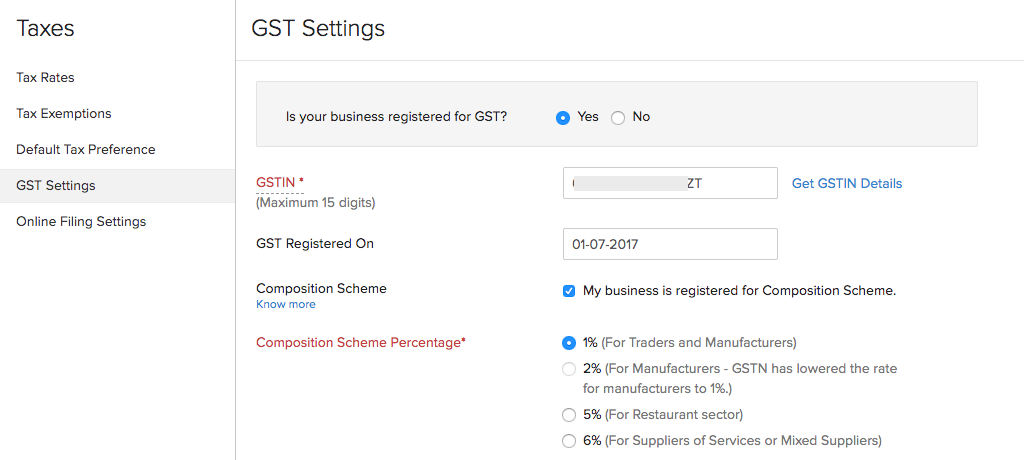
The Zoho Books GST setup foundation — the how to configure GSTIN in Zoho Books and Zoho Books GSTIN setup starting point: automation should execute a correct process, not automate incorrect data. Before enabling any e-Invoice or e-Way Bill feature, verify:
The Zoho Books GST rates and Zoho Books GST tax rates configuration guide note: verify GST rates match the applicable HSN/SAC category — incorrect rate configuration generates a correctly structured invoice with the wrong tax amount. The Zoho Books GST filing and Zoho Books GSTR-1 and Zoho Books GSTR-3B and Zoho Books GST returns connection: accurate master data in Zoho Books flows directly into GSTR-1 (outward supplies) and GSTR-3B (summary return) reports — the how to file GSTR-1 using Zoho Books and how to prepare GSTR-3B in Zoho Books process begins with correct invoice-level data. The Zoho Books wrong GSTIN e-invoice mistake is among the most costly: an incorrect customer GSTIN in the master data generates an e-invoice with a wrong buyer GSTIN that the IRP accepts but creates a mismatch in the recipient’s GSTR-2B, triggering ITC disputes. Verify customer GSTINs against the GSTN portal before enabling e-invoicing — not just at setup, but whenever a new customer is added. The Zoho Books GST e-invoice common errors and fixes most frequent causes: missing HSN code (IRP rejection), incorrect place of supply (wrong CGST/SGST vs IGST), and wrong API credentials (connection failure). HSN codes for goods and SAC codes for services must be assigned at the item level in Zoho Books. Missing HSN/SAC codes are a direct e-invoice rejection reason — the IRP validates this mandatory field. The how to add HSN and SAC codes in Zoho Books and Zoho Books HSN codes and Zoho Books SAC codes configuration and how to configure CGST SGST and IGST in Zoho Books: and Zoho Books CGST SGST and Zoho Books IGST distinction: if the customer’s state matches your organisation’s state, CGST + SGST applies; if different states, IGST applies — determined automatically by the place of supply setting when customer GSTIN is correctly configured.
Step 2 — E-invoicing setup and IRN generation
The Zoho Books e-invoicing and Zoho Books e-invoice setup — the how to enable e-invoicing in Zoho Books and how to connect Zoho Books with the GST IRP portal process:
E-invoicing setup sequence:
- Confirm all master data (GSTIN, HSN/SAC codes, customer GSTINs) is correct
- Complete IRP registration — use the dedicated IRP setup section in Zoho Books Settings
- Configure Zoho Books IRP integration and Zoho Books e-invoice API credentials setup in e-Invoicing settings
- Test: create a test invoice, validate GST information, submit for e-Invoice generation
- Verify Zoho Books IRN generation and Zoho Books QR code invoice — confirm IRN and QR code are received and stored
The how to generate IRN and QR code in Zoho Books workflow: Create invoice → Validate GST information → Submit for e-Invoice generation → Receive IRN/QR information → Maintain the registered invoice record. The Zoho Books GST API layer handles the IRP communication automatically once credentials are configured. The Zoho Books e-invoice common errors and fixes most frequent issue: incorrect or missing HSN code triggers IRP rejection without an obvious Zoho Books error message — always verify HSN/SAC codes before testing e-invoicing.
Step 3 — E-Way Bill GSP registration and portal connection
The Zoho Books e-way bill and Zoho Books e-way bill setup — the how to create e-way bills in Zoho Books and Zoho Books e-way bill portal integration guide process:
Enable the e-Way Bill module
Go to Settings → Organisation Settings → e-Way Bills → Enable. Once enabled, e-Way Bill information can be added to invoices, bills of supply, credit notes, and delivery challans.
Register Zoho Corporation as your GSP
On the government’s e-Way Bill system portal, register Zoho Corporation as your GST Suvidha Provider (GSP) — this is a one-time registration. This is the step that enables Zoho Books to communicate directly with the e-Way Bill portal on your behalf.
Connect Zoho Books to the portal
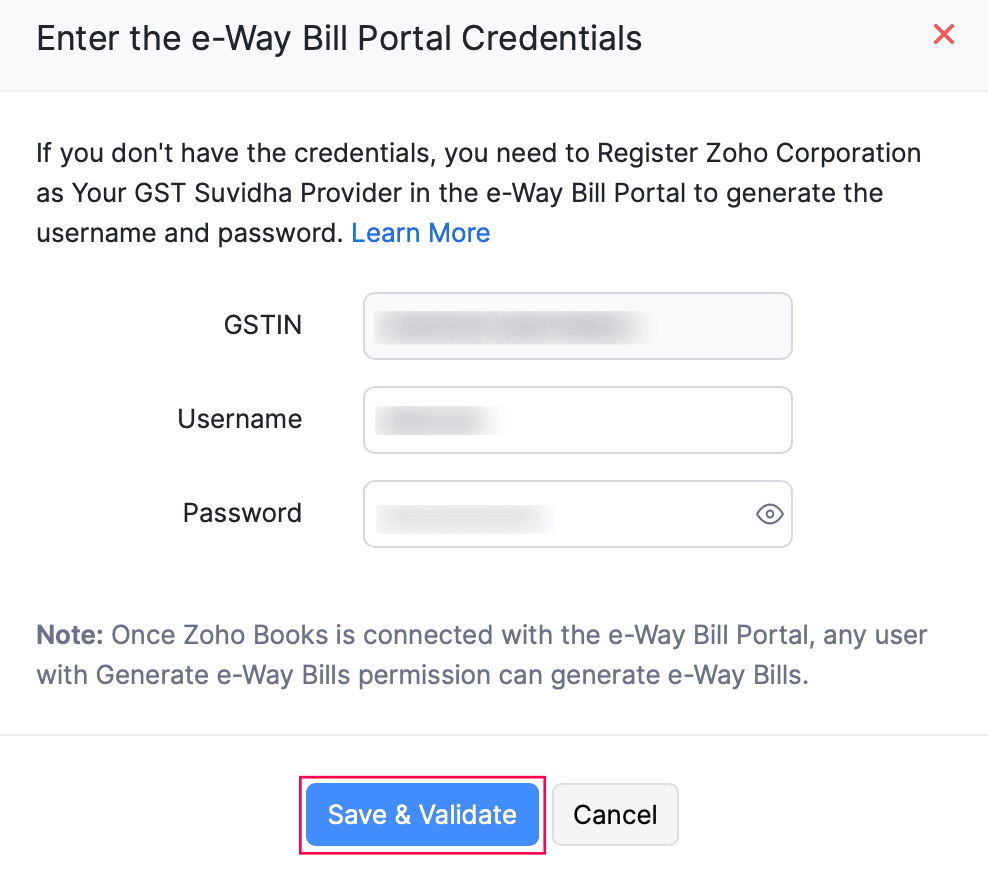
The Zoho Books GST setup portal connection — Settings → Organisation Settings → e-Way Bills → Connect Now → enter GSTIN, e-Way Bill portal username, and password → select Save and Validate. Once validated, Zoho Books can generate e-Way Bills directly from transactions. The Zoho Books wrong API credentials e-invoice issue equivalent for e-Way Bills: if the portal credentials don’t match (common when e-Way Bill portal passwords differ from the main GST portal), the connection validation fails. Verify the correct e-Way Bill portal credentials specifically.
Step 4 — Threshold configuration
The Zoho Books GST errors threshold misconfiguration — one of the most commonly missed configuration steps: the interstate e-Way Bill threshold is Rs.50,000. Intra-state thresholds vary by state. Zoho Books allows organisations to configure the intra-state threshold per GSTIN. Businesses operating across multiple states must review GSTIN-specific threshold configurations — a single threshold applied everywhere can cause missing e-Way Bills in some states and unnecessary e-Way Bills in others. The Zoho Books GST compliance threshold configuration path: Settings → Organisation Settings → e-Way Bills → configure the applicable threshold per GSTIN.
Step 5 — Generating e-Way Bills from Zoho Books
The Zoho Books e-way bill setup generation process — the Zoho Books GST billing transaction workflow: transactions meeting the threshold appear under Not Generated status. For each eligible transaction, provide:
Transaction information
- Document type
- Transaction subtype
- Location
- Customer
- Transaction number and type
- Place of delivery
Transport information (mandatory)
- Transporter name/ID
- Distance (manual or auto from PIN codes)
- Mode of transportation
- Vehicle number or transporter document details
- Transporter document number and date
Select Save and Generate to create the e-Way Bill directly. The distance field: Zoho Books can determine the distance automatically through the e-Way Bill system based on dispatch and destination PIN codes — or it can be entered manually. Verify PIN codes are correct to ensure accurate distance calculation.
Step 6 — Status monitoring (7 statuses explained)
The Zoho Books GST compliance monitoring layer — the status that most businesses misread:
Bulk processing — JSON and Excel workflow
The Zoho Books GST guide 2026 bulk processing option for high-volume businesses: direct generation from Zoho Books is not the only option. Export transaction data as JSON (for bulk generation) or Excel (for review and modification before JSON conversion). The safe bulk workflow: Zoho Books → Export → Validate mandatory fields → Correct any issues → Convert to JSON → Upload to EWB portal → Generate → Reconcile statuses in Zoho Books. The Zoho Books GST mistakes bulk processing warning: the EWB documentation specifically advises reviewing transactions and ensuring mandatory details are entered before export. Validating the Excel file through the EWB offline tool before JSON conversion prevents bulk rejections.
The 6 GST setup mistakes businesses must avoid
The six Zoho Books GST mistakes businesses must avoid and common GST setup mistakes in Zoho Books:
Mistake 1: One-time GST setup, never reviewed
The Zoho Books GST errors accumulation risk: GST registrations, business locations, customers, products, and tax rules change over time. A configuration that was correct at setup can become incorrect without a formal review process. Create a periodic GST configuration review — quarterly at minimum — involving accounting and operations teams.
Mistake 2: Missing mandatory e-Way Bill fields
The Zoho Books e-way bill errors and troubleshooting most common failure: missing PIN code, place of supply, distance, vehicle number, mode of transport, supply type, or HSN code. The Zoho Books missing HSN code e-invoice error equivalent for e-Way Bills. Build a dispatch checklist: Invoice → Customer → PIN → Transporter → Vehicle → e-Way Bill before every consignment.
Mistake 3: Incorrect transport details
Transportation information is compliance data, not administrative convenience. Incorrect vehicle number, transporter document details, or distance creates a non-compliant e-Way Bill that may not survive inspection. The Zoho Books incorrect place of supply GST mistake equivalent: wrong dispatch or destination PIN code generates an incorrect distance calculation.
Mistake 4: Ignoring the 180-day rule
From January 1, 2025, e-Way Bills and Part-A slips cannot be generated or updated for invoices older than 180 days. This applies to updating or consolidating Part-B details too. Don’t allow old invoices to accumulate without compliance review. Build an internal process for identifying pending e-Way Bills and resolving them before the 180-day limit applies.
Mistake 5: Treating bulk upload as validation-free
The Zoho Books GST mistakes bulk processing assumption: exporting 500 transactions to JSON and uploading them to the EWB portal doesn’t validate the data. Transactions with missing mandatory fields fail silently in bulk. Always validate through the EWB offline tool before JSON conversion — find and fix errors before they become bulk rejection reports.
Mistake 6: Not monitoring e-Way Bill statuses
Part A Generated is not a valid e-Way Bill — goods cannot legally move under Part A only. Finance and logistics teams must regularly review pending statuses rather than assuming every transaction with an e-Way Bill record is compliant. A monthly status reconciliation between Zoho Books records and the EWB portal is a minimum control requirement.
Complete GST setup checklist
The Zoho Books GST setup checklist for e-invoicing and the Zoho Books GST setup guide for Indian businesses 2026 go-live confirmation:
Organisation and master data
- GSTIN configured and verified
- All business locations added
- Customer GSTINs verified
- HSN/SAC codes assigned to all items
- GST rates configured (CGST/SGST/IGST)
- Place of supply settings verified
E-invoicing
- IRP registration completed
- API credentials configured in Zoho Books
- Test e-invoice generated and IRN verified
- QR code displaying correctly on invoice PDF
- Error response handling understood
E-Way Bills
- e-Way Bill module enabled in Settings
- Zoho Corporation registered as GSP
- Portal connection validated (Save and Validate)
- Intra-state threshold configured per GSTIN
- Test e-Way Bill generated and verified
Operations and process
- Finance team trained on e-invoice workflow
- Dispatch team trained on e-Way Bill process
- Status monitoring process assigned
- 180-day pending invoice review process created
Codroid Labs — Certified Zoho Books Partner — GST Setup and Compliance Implementation
Zoho Books GST setup, Zoho Books GST India, Zoho Books e-invoicing, Zoho Books e-invoice, Zoho Books e-way bill, Zoho Books GST billing, Zoho Books GST compliance, Zoho Books GSTIN setup, Zoho Books IRN generation, Zoho Books QR code invoice, Zoho Books HSN codes, Zoho Books SAC codes, Zoho Books GST rates, Zoho Books CGST SGST, Zoho Books IGST, Zoho Books GST filing, Zoho Books GSTR-1, Zoho Books GSTR-3B, Zoho Books GST returns, Zoho Books IRP integration, Zoho Books GST API, Zoho Books e-way bill setup, Zoho Books GST errors, Zoho Books GST mistakes, Zoho Books GST guide 2026 — Codroid Labs (GSTIN 07AAWFC0815B1ZP) is a certified Zoho Authorized Partner. We implement Zoho Books GST configuration including e-invoicing IRP setup, e-Way Bill GSP registration, and compliance process training. Contact: +91 78384 02682, team@codroiditlabs.com.
Related Guides from Codroid Labs
Frequently asked questions
How do I set up e-invoicing in Zoho Books India?
Verify master data (GSTIN, HSN/SAC, customer GSTINs) → IRP registration → API credentials in Zoho Books → test e-invoice → verify IRN and QR code. Full 4-step process in FAQ Schema above.
How do I connect Zoho Books to the e-Way Bill portal?
Register Zoho Corporation as GSP on the e-Way Bill portal (one-time) → Settings → Organisation Settings → e-Way Bills → Connect Now → enter GSTIN and portal credentials → Save and Validate. Full detail in FAQ Schema above.
Set Up Zoho Books GST Compliance — Expert Implementation
E-invoicing IRP setup, IRN generation, e-Way Bill GSP registration, HSN/SAC configuration, compliance training — certified Zoho Books partner with GSTIN invoice for 18% ITC.
Start Zoho Books via Codroid Labs
Book Free GST Setup Consultation – +91 78384 02682