


Zoho Books GST filing is the most comprehensive and automation-heavy GST compliance workflow available to Indian businesses in 2026. Zoho Books is not just a GST accounting platform — it is a registered GST Suvidha Provider (GSP), which means it has direct API access to the GSTN portal. This is the technical foundation that makes Zoho Books GST genuinely different from general accounting software: you do not need to export data to a separate filing tool, you do not need a third-party GSP connector, and you do not need to manually copy invoice data to the GST portal. Everything — from generating GST-compliant invoices with correct CGST/SGST/IGST splits to pushing GSTR-1 to the portal and reconciling GSTR-2B — happens inside Zoho Books.
This complete Zoho Books GST setup guide and Zoho Books GST filing complete tutorial — the definitive GST filing Zoho resource — covers every step: initial GST configuration, GSTIN setup, HSN and SAC code assignment, creating compliant invoices, managing multi-GSTIN businesses, filing GSTR-1 and GSTR-3B, running GSTR-2B reconciliation for ITC claims, configuring reverse charge, setting up e-invoicing, and using approval workflows for larger finance teams. Whether you are a first-time Zoho Books user, a CA setting up a client account, or a business owner who needs the complete Zoho Books GST setup guide, this tutorial covers the entire compliance workflow.
Zoho Books Pricing India 2026 (Annual, per Organisation/month)
StandardRs.749
ProRs.1,499
PremiumRs.2,999
EliteRs.4,999
All plans include GST compliance, GSTR filing, and e-invoicing. Advanced features like multi-GSTIN from Pro plan.
Step 1 — Configure GST Settings in Zoho Books
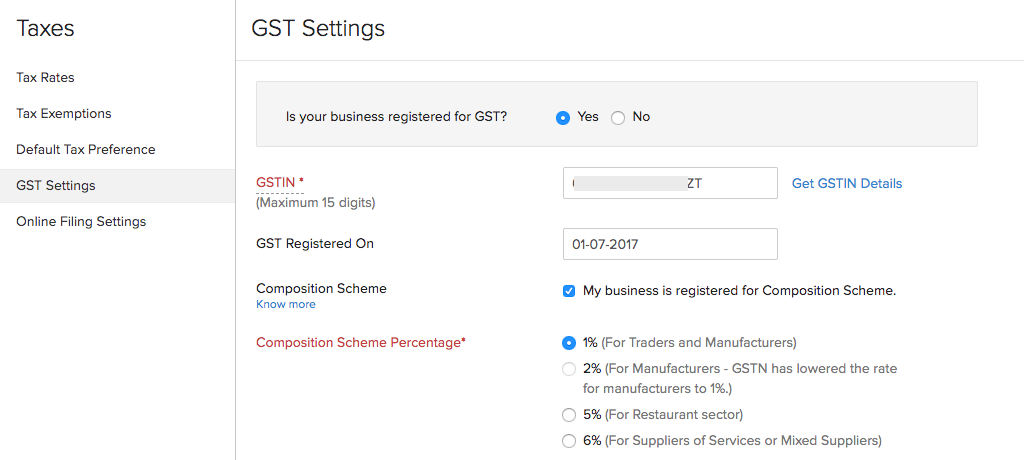
Zoho GST setup begins with the GST configuration page. The configure GST settings Zoho Books process takes 5 minutes and unlocks all compliance features. Follow these steps:
Navigation: Settings → Taxes & Compliance → GST Settings
1Toggle on “Is your business registered for GST?”
2Enter your GSTIN — Zoho Books auto-fetches your registered business name and address from GSTN records.
3Set your GST Registration Date — this determines when GSTR tracking begins.
4Select your Business Type — Regular, Composition Scheme, SEZ, or Overseas.
5Configure Reverse Charge settings if applicable to your procurement (Section 9(3)/9(4) applicable items).
6Click Save. All invoices, reports, and returns now reflect your GST registration.
GSTIN Zoho Books auto-verification ensures you do not enter incorrect details — Zoho Books cross-checks your GSTIN against the GSTN database. The Zoho GST India setup supports all registration types: regular taxpayers, composition dealers, SEZ units, and non-resident taxable persons.
Step 2 — Enable Online GST Filing in Zoho Books
Enabling Zoho GST portal connectivity activates the direct GSTN push capability. Without this step, you would need to export data and file manually on the GST portal:
Navigation: Settings → Taxes & Compliance → Online Filing Settings
- Enter your GSTN Username (the username you use to log in to gstin.gov.in)
- Select Reporting Period — Monthly or Quarterly (QRMP scheme)
- Set Generate First Tax Return From date — the start period for Zoho Books GST tracking
- Optionally configure GST Approval Workflow for multi-user finance teams
- Click Save
Once enabled, the Zoho Books GST portal integration means every invoice created flows directly into your GSTR-1 return queue. No manual data entry at the GST portal. The Zoho GST reports section shows real-time return readiness — how many invoices are pending validation, which have errors, and what the current month’s tax liability is.
Step 3 — Create GST-Compliant Invoices in Zoho Books
The create GST compliant invoice Zoho Books process is the most frequently performed action in the platform. Every invoice you create feeds directly into your GSTR-1 return. Here is the complete workflow:
The GST invoice Zoho PDF includes: your company name, GSTIN, invoice number, date, customer GSTIN, line items with HSN/SAC codes, taxable value, CGST/SGST/IGST amounts, and total value. All fields are mandatory for a valid GST tax invoice. Zoho invoicing automatically validates that all required fields are populated before allowing the invoice to be saved.
Step 4 — HSN and SAC Codes in Zoho Books
Zoho Books HSN SAC code tutorial — HSN (Harmonized System of Nomenclature) codes classify goods; SAC (Service Accounting Codes) classify services. Both are mandatory on GST invoices as per the GSTN requirements. Here is how to configure them in Zoho Books:
HSN code Zoho — For Goods
Go to Items → Select product → Edit. Enter the 4-digit, 6-digit, or 8-digit HSN code in the HSN/SAC field. Once saved, all invoices for this product automatically include the correct HSN code. Zoho Books has a built-in HSN code search to help identify the correct code.
Zoho SAC codes — For Services
SAC codes are 6 digits and apply to all services. Configure at the service/product item level: Items → Service item → HSN/SAC field. Common SAC codes: 998311 (IT services), 997212 (real estate), 996411 (transport). The Zoho CA tutorial recommends configuring SAC codes for every service item before creating the first invoice.
Zoho tax setup for each item includes selecting the applicable GST rate slab: 0%, 5%, 12%, 18%, or 28% plus applicable cess. Once configured at the item level, the correct tax rate applies automatically on every invoice — no manual selection needed at invoice time.
Step 5 — How to File GSTR-1 in Zoho Books
The GSTR-2B Zoho (GSTR2B Zoho) integration and GSTR1 tutorial — file GSTR1 directly from Zoho Books — the complete how to file GSTR1 in Zoho Books process is the core of the GST compliance workflow. GSTR-1 contains all outward supplies (sales invoices) for the filing period. Here is the complete how to file GSTR-1 in Zoho Books process:
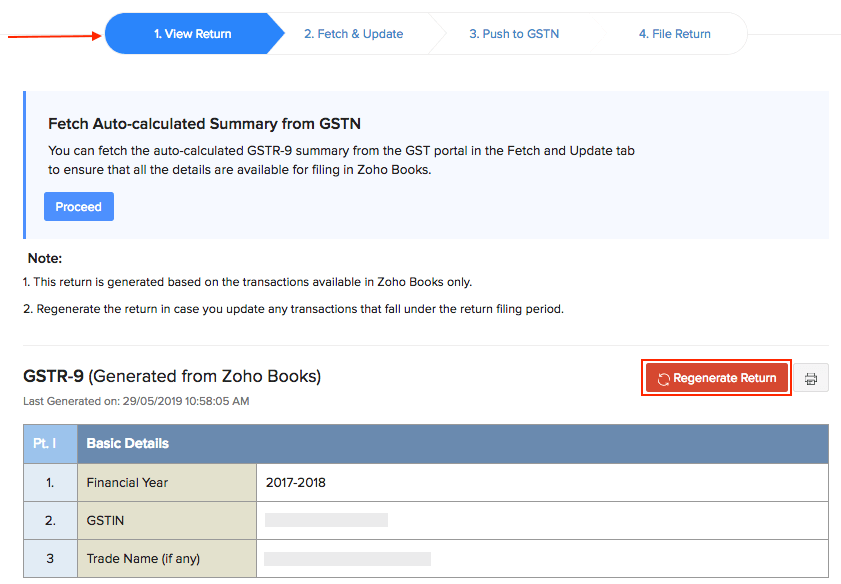
Navigation: GST → GSTR-1 Filing
1Select the filing period (month or quarter) and verify the return summary.
2Review each section: B2B Invoices (customer GSTIN required), B2C Large (interstate B2C above Rs.2.5L), B2C Small, Export Invoices, Credit/Debit Notes.
3Validate — Zoho Books flags any invoices with missing GST details, incorrect GSTINs, or HSN/SAC code errors. Fix all errors before proceeding.
4Click “Push to GSTN” — Zoho Books connects to the GST portal as a registered GSP and uploads the invoice data.
5File using OTP (EVC) — enter the OTP sent to your registered mobile. Or use DSC (Digital Signature Certificate) for companies mandated to use DSC. This is the Zoho Books GST return filing OTP step.
6Receive confirmation. Zoho Books records the filing acknowledgement number and date.
Step 6 — GSTR-3B Filing in Zoho Books
The GSTR3B Zoho filing process is the monthly/quarterly summary return of tax liability and ITC claims. The Zoho Books GSTR3B filing tutorial 2026 is straightforward once GSTR-1 is filed:
Navigation: GST → GSTR-3B
1. Zoho Books auto-generates the GSTR-3B summary from your filed GSTR-1 and purchase bills.
2. Section 3.1 (Outward supplies) — auto-filled from GSTR-1.
3. Section 4 (ITC Claims) — populated from purchase bills and GSTR-2B reconciliation.
4. Review the net tax liability (Output tax minus ITC).
5. Push to GSTN → File with OTP or DSC.
1. Zoho Books auto-generates the GSTR-3B summary from your filed GSTR-1 and purchase bills.
2. Section 3.1 (Outward supplies) — auto-filled from GSTR-1.
3. Section 4 (ITC Claims) — populated from purchase bills and GSTR-2B reconciliation.
4. Review the net tax liability (Output tax minus ITC).
5. Push to GSTN → File with OTP or DSC.
Zoho accounting GST accuracy in GSTR-3B depends on completing the GSTR-2B reconciliation (Step 7) before filing GSTR-3B — this ensures ITC claims are accurate and match the portal records. The GST compliance Zoho dashboard shows a traffic-light status for each return period: red (not ready), amber (pending actions), green (ready to file).
Step 7 — GSTR-2B Reconciliation and ITC Claims in Zoho Books
GSTR2B reconciliation Zoho Books tutorial and Zoho Books ITC claim GST guide — GSTR-2B is the auto-generated Input Tax Credit (ITC) statement from the GST portal showing which of your vendor invoices have been filed by your vendors. The GST reconciliation Zoho process in Zoho Books automatically matches your purchase bills against the GSTR-2B data.
ITC Zoho Books claims are only safe to take on Matched records. Zoho Books GST reconciliation GSTR2B navigation: GST → GSTR-2B Reconciliation → Import GSTR-2B (download the JSON from GST portal) → Run Reconciliation. The Zoho purchase bill management connects directly to this reconciliation — all purchase bills entered in Zoho Books automatically enter the reconciliation process. The import purchase bills Zoho GST feature allows bulk import of purchase bills from Excel if you are migrating from manual accounting.
Step 8 — E-Invoicing Setup in Zoho Books India
Zoho e-invoicing and the Zoho Books e-invoicing setup India process applies to businesses whose aggregate turnover exceeds the e-invoicing threshold (currently Rs.5 crore). E-invoicing requires that B2B invoice data be reported to the Invoice Registration Portal (IRP) before the invoice is shared with the customer — the IRP returns an Invoice Reference Number (IRN) and a QR code that must appear on the invoice.
Enable e-invoicing: Settings → Taxes & Compliance → E-Invoice Settings → Enable
How it works in Zoho Books:
1. Create invoice in Zoho Books as normal.
2. On saving, Zoho Books automatically submits invoice JSON to IRP via API.
3. IRP validates and returns the IRN (Invoice Reference Number) and QR code instantly.
4. The IRN and QR code are embedded in the invoice PDF automatically.
5. Invoice can now be shared with the customer.
Cancellation: E-invoices can only be cancelled within 24 hours on the IRP. Zoho Books triggers the cancellation request from within the platform.
How it works in Zoho Books:
1. Create invoice in Zoho Books as normal.
2. On saving, Zoho Books automatically submits invoice JSON to IRP via API.
3. IRP validates and returns the IRN (Invoice Reference Number) and QR code instantly.
4. The IRN and QR code are embedded in the invoice PDF automatically.
5. Invoice can now be shared with the customer.
Cancellation: E-invoices can only be cancelled within 24 hours on the IRP. Zoho Books triggers the cancellation request from within the platform.
Zoho Books e-invoicing handles offline queuing — if internet connectivity is disrupted at invoice generation time, Zoho Books queues the IRP request and processes it when connectivity is restored. The Zoho Books GST audit trail setup records every IRP interaction — IRN generation time, cancellation events, and portal response codes — for compliance audit purposes.
Advanced Features — Multi-GSTIN, Reverse Charge, Approval Workflow
Zoho Books multi GSTIN setup
For businesses with operations in multiple states, each state entity has a separate GSTIN. Multi GSTIN Zoho configuration: Settings → GST Settings → Add Another GSTIN. Configure each GSTIN with its state, registration type, and associated bank account. Invoices generated from each state entity automatically use the correct GSTIN, and returns are filed separately per GSTIN. This is critical for the Zoho Books GST for manufacturers who operate production facilities in different states (e.g., WB and HP — like our Tycab client at Black Burn & Co.).
Zoho Books reverse charge GST tutorial
Reverse Charge Mechanism (RCM) applies when you purchase from unregistered dealers or certain specific categories of goods/services. GST compliance Zoho reverse charge configuration: Settings → GST Settings → Enable Reverse Charge. When creating a purchase bill from an unregistered vendor, select “Reverse Charge Applicable” — Zoho Books creates the corresponding tax liability entry and ITC credit automatically, and includes the reverse charge amounts in GSTR-3B Section 3.1(d).
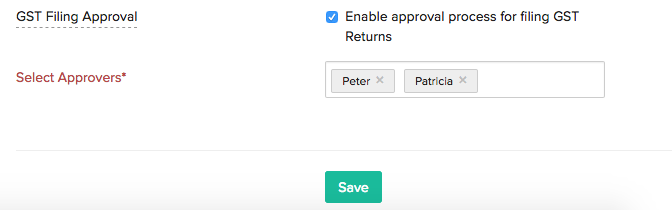
Zoho Books GST approval workflow
For finance teams where GST return filing requires senior approval before submission, Zoho Books provides a configurable approval workflow: Settings → Online Filing Settings → Enable Approval Workflow. The designated approver receives a notification when a return is ready to file, reviews the summary, and approves or rejects. Only after approval can the return be pushed to GSTN. The Zoho Books GST reports for CA include a complete approval audit trail showing who reviewed, who approved, and when each return was filed — essential for CA firms managing multiple client accounts.
More Guides from Codroid Labs
Frequently Asked Questions — Zoho Books GST Filing
How do I enable GST in Zoho Books?
Enable GST in Zoho Books tutorial: Settings → Taxes & Compliance → GST Settings → toggle “Is your business registered for GST?” → enter GSTIN → Zoho Books auto-fetches your registered name → set GST registration date → select business type → save. The Zoho Books complete GST compliance guide begins here — after enabling GST, all invoices, reports, and return workflows become available. The Zoho Books training for first-time users recommends completing this GST setup before creating any invoices.
What is the difference between GSTR-1 and GSTR-3B in Zoho Books?
GST return Zoho: GSTR-1 is the invoice-level outward supplies return — every sales invoice is reported with full details (invoice number, date, customer GSTIN, HSN/SAC, and tax amounts). GSTR-3B is the summary return — monthly or quarterly summary of output tax liability, ITC claims, and net tax payable. In Zoho Books GST filing, file GSTR-1 first (by the 11th of the following month), then GSTR-2B reconciliation, then GSTR-3B (by the 20th). Zoho Books connects these workflows — GSTR-3B auto-fills from GSTR-1 and reconciled ITC data.
How does Zoho Books push GSTR-1 to GSTN?
Zoho Books GST invoicing step by step and push GSTR1 to GSTN from Zoho Books — Zoho Books is a registered GST Suvidha Provider (GSP) with direct API connectivity to the GSTN portal. After reviewing your GSTR-1 data in Zoho Books and fixing any errors, click “Push to GSTN” — Zoho Books sends the invoice data to the GST portal in real time. You then file using OTP (EVC sent to registered mobile) or DSC. This eliminates the need to export data to any external tool or log in to the GST portal manually for data entry.
Is Zoho Books GST filing suitable for manufacturing businesses?
Zoho Books GST for manufacturers — yes, and particularly well. Manufacturing businesses typically have: multiple GSTINs (production in different states) — handled by multi-GSTIN setup; high volume of purchase bills — handled by bulk import and GSTR-2B auto-reconciliation; reverse charge purchases from unregistered vendors — handled by RCM configuration; complex product catalogue with multiple HSN codes and rates — handled by item-level HSN code and tax rate configuration. The Zoho Books GST filing complete tutorial covers all of these manufacturing-specific requirements. Codroid Labs has implemented Zoho Books for manufacturing clients including Black Burn & Co. (cable ties, Kolkata) with dual-GSTIN (WB and HP) configuration.
Get Zoho Books GST Configured by Certified Experts — Codroid Labs
Certified Zoho Books partner — GSTIN setup, HSN/SAC codes, multi-GSTIN, e-invoicing, GSTR-2B reconciliation, reverse charge, approval workflow, CA training. GSTIN invoice for ITC. Hindi or English.
Start Zoho Books via Codroid Labs
Book Free GST Setup Consultation