


Excel to Zoho CRM migration — the critical rule: Import Successful does not mean the data is correct. Silent data loss — leading zeros stripped, scientific notation replacing IDs, picklist mismatches creating blank fields, contacts losing their Account relationships — happens without error messages. The safe sequence: Audit → Clean → Map → Backup → Test import (50-100 records) → Validate → Full import → Reconcile record counts.
Excel to Zoho CRM migration — the Excel to Zoho CRM migration preventing silent data loss complete answer, the how to import Excel contacts into Zoho CRM and how to import Excel leads into Zoho CRM safe process, and the Zoho CRM migration service without data loss standard — the how to migrate Excel data to Zoho CRM safely question is more consequential than it appears. A spreadsheet import looks simple: prepare the file, upload it, click import. But the most dangerous migration problems happen without obvious error messages. A phone number loses its leading zero. An account ID switches to scientific notation. A contact imports successfully but loses its connection to its parent account. The migration completes. Zoho CRM reports success. The business’s data is already subtly wrong. This complete Excel to Zoho CRM migration guide 2026 covers exactly where these silent failures occur and how to prevent every one of them.
6 Silent
Data Loss Types
10 Steps
Safe Migration Process
50-100
Test Import First
15-Point
Pre-Import Checklist
6 silent data loss problems in Excel to Zoho CRM migration
The Zoho CRM data loss and Zoho CRM migration errors that don’t generate obvious warnings — the how to prevent silent data loss in Zoho CRM migration problem catalogue:
Problem 1: Leading zeros disappear
Excel: 0172456789
After import: 172456789
The Zoho CRM import errors invisible type: Excel treats phone numbers, PIN codes, GST numbers, and PAN numbers as numeric values and strips leading zeros before Zoho CRM ever receives the data. The fix: format identifier columns as Text in Excel before export.
Problem 2: Scientific notation replaces IDs
Excel: 123456789012
After import: 1.23457E+11
Long numbers — invoice numbers, account IDs, employee IDs, bank references — get converted to scientific notation. The Zoho CRM import errors result: the CRM receives a number that doesn’t match the original. Fix: store long identifiers as Text columns in Excel.
Problem 3: Date format ambiguity
Excel: 05/08/2026
CRM reads: May 8 or August 5?
The Zoho CRM data accuracy date problem: regional settings differences between Excel and Zoho CRM can silently swap day and month values. Fix: standardise all dates to YYYY-MM-DD format before import.
Problem 4: Picklist mismatches
Excel: “Existing Customer”
CRM picklist: “Existing”
When an Excel value doesn’t exactly match a Zoho CRM picklist option, the field imports as blank rather than generating an error. The Zoho CRM import guide fix: compare all Excel values against CRM picklist options before import and standardise the values.
Problem 5: Broken account-contact relationships
Contacts import successfully but lose their link to the parent Account or associated Deal. The how to maintain account contact relationships in Zoho CRM requirement: relationship identifiers must be explicitly included in the import file and mapped to the correct lookup field.
Problem 6: Silent duplicate creation
A record with a slightly different company name spelling or a new email address creates a second CRM record instead of updating the existing one. The Zoho CRM duplicate records result: the database has two versions of the same customer without any warning.
Step 1 — Data audit before touching the file
The Zoho CRM data migration starting point — the how to clean Excel data before Zoho CRM migration audit stage: before importing anything, create a complete inventory of what the Excel file contains and where it belongs in Zoho CRM:
Ask before starting: which records are still active? Are there duplicates? Which columns contain sensitive information? Which Zoho CRM fields are mandatory? Which Excel columns need to be combined or split?
Step 2 — Clean data before importing
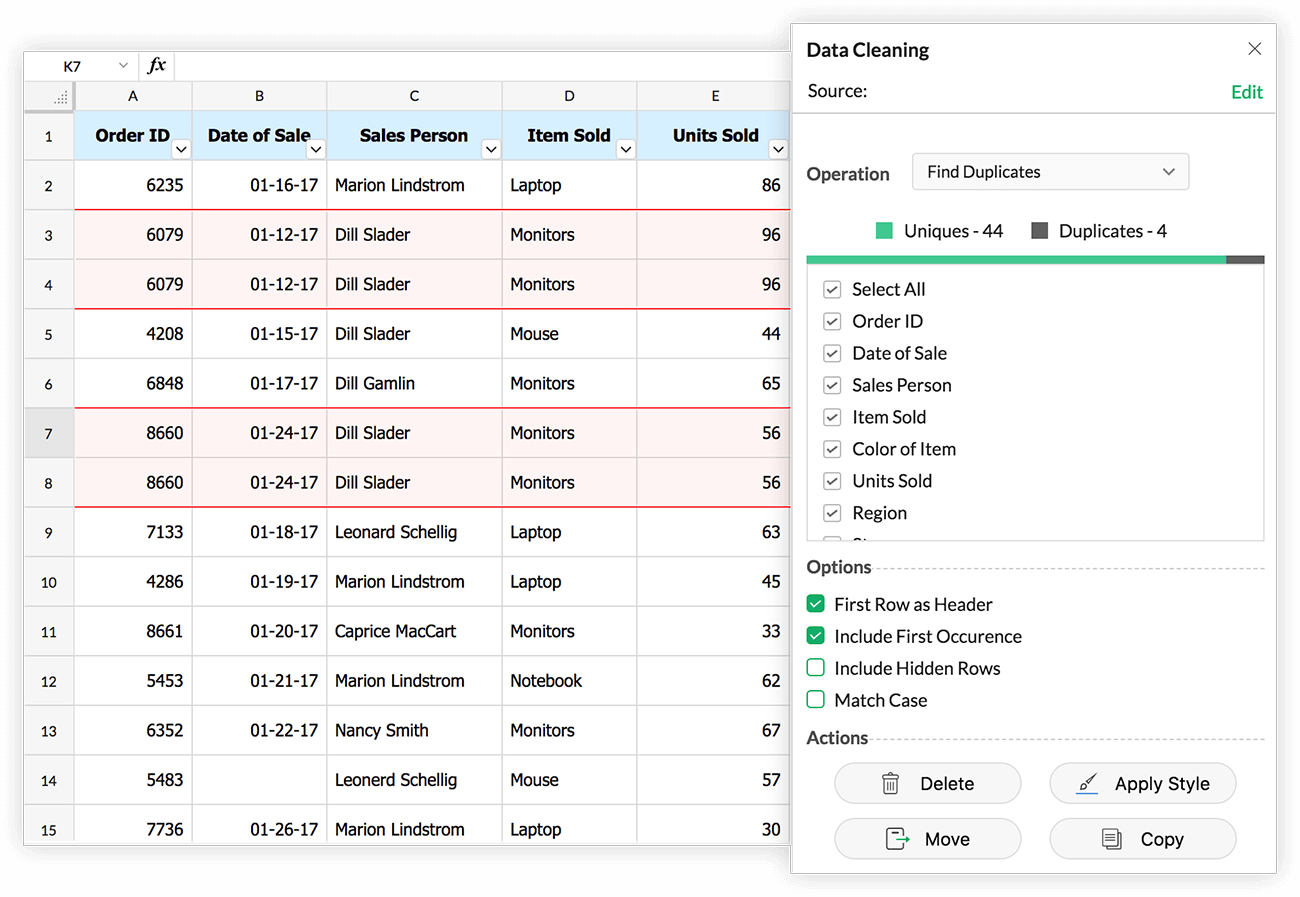
The Zoho CRM data cleaning and Zoho CRM data backup stage — the Zoho CRM spreadsheet migration pre-flight cleaning list: migration is the best opportunity to clean the database. Remove duplicate records, empty rows, unnecessary columns, incorrect email addresses, invalid phone numbers, outdated contacts, inconsistent naming conventions, extra whitespace, incorrect date formats, and duplicate company variations (ABC PVT LTD / ABC Pvt. Ltd. / ABC PRIVATE LIMITED may all be the same organisation). The Zoho CRM migration with UTF 8 names and special characters note: names with regional characters (Ä, ü, ñ, or Indian script romanizations) need explicit UTF-8 encoding verification before import to prevent character corruption. After cleaning, the Zoho CRM data backup step: keep the original uncleaned Excel file, the cleaned version, and the final import-ready file as three separate backups.
Step 3 — Field mapping best practices
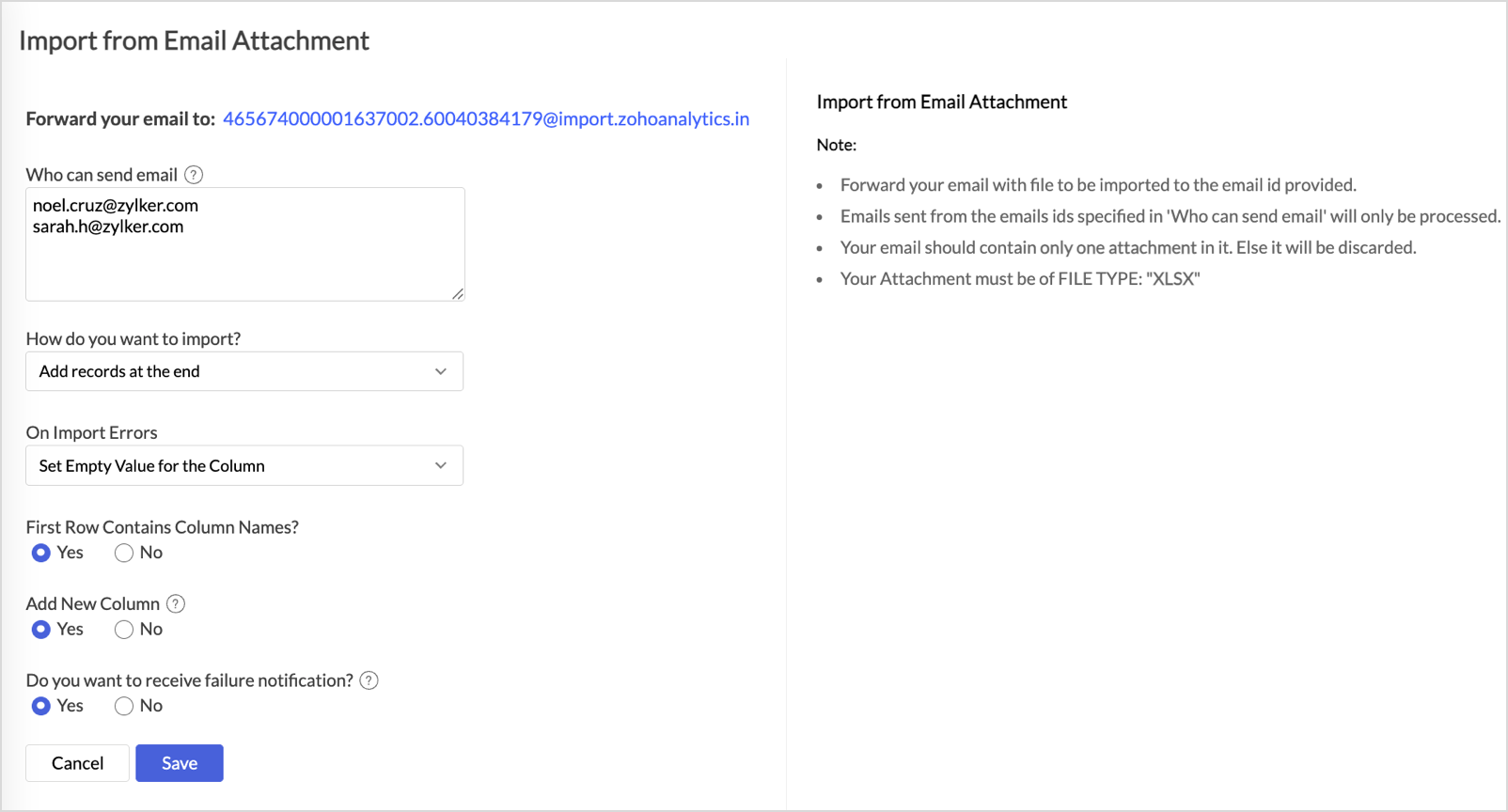
The Zoho CRM field mapping and Zoho CRM Excel import field mapping best practices — the how to map Excel columns to Zoho CRM fields process: field mapping is where most migration quality problems originate. Never assume similar-looking column names are equivalent — “Customer Mobile” in Excel is not automatically the same as “Mobile” in Zoho CRM. Build an explicit mapping document before starting the import:
Step 4 — Duplicate strategy
The Zoho CRM duplicate records and how to prevent duplicate records during Zoho CRM import — the Zoho CRM import skip overwrite and clone duplicates decision: if your Excel file has 20,000 records and 3,000 already exist in Zoho CRM, a direct import without a duplicate strategy creates 3,000 duplicate customers. Define the deduplication key before importing:
Recommended deduplication keys
- Email address (most reliable)
- Mobile / phone number
- Customer ID or GSTIN
- Existing Zoho CRM Record ID
- Combination: email + company name
Duplicate handling options in Zoho CRM
- Skip — don’t import if record exists
- Overwrite — update existing record
- Clone — create new record alongside existing
For most migrations: Skip existing, add new. For data updates: Overwrite.
The Zoho CRM lead import and Zoho CRM contact import and Zoho CRM account import all follow this same deduplication logic — define the strategy per module before starting, because the optimal key differs between Leads (email), Contacts (email + Account), and Accounts (company name + GSTIN).
Step 5 — Preserving record relationships
The how to migrate Accounts Contacts and Deals to Zoho CRM and how to maintain account contact relationships in Zoho CRM — the relationship preservation requirement: a CRM is not a collection of rows, it is a network of relationships. Account → Contacts → Deals → Activities. The Zoho CRM data transfer relationship strategy: import in the correct order — Accounts first, then Contacts (linked to Account by Account Name or Account ID), then Deals (linked to Contact and Account). Assign a Migration ID to every source record (e.g., EXCEL-CUST-00001) for traceability if relationships break and need to be reconstructed. The Zoho CRM CSV import relationship linking note: the lookup field in the import file must contain the exact value that matches the parent record — a spelling variation or extra space breaks the link silently.
Step 6 — Review automation before import
The Zoho CRM migration checklist automation review — an often-skipped step that causes serious problems: a successful import triggers CRM automation for every imported record. Importing 20,000 records without reviewing automation can send 20,000 welcome emails, create 20,000 follow-up tasks, or trigger thousands of webhook notifications. Before the production import, review and temporarily disable or exclude from import-triggered records: workflow rules, assignment rules, blueprints, approval processes, email notifications, custom functions, webhooks, and third-party integrations. Decide explicitly which automations should fire during migration and which should remain inactive until go-live.
Step 7 — Test import (50-100 records first)
The Zoho CRM test import and how to run a test import before Zoho CRM migration — the Excel to Zoho CRM migration for large databases critical rule: never import the full dataset without a test import first. The how to convert Excel files to CSV for Zoho CRM test sequence:
- Select 50-100 representative records including edge cases (special characters, missing mandatory fields, long IDs, existing CRM records)
- Import the sample into Zoho CRM
- Check field mapping — confirm every column landed in the right field
- Verify phone numbers retained leading zeros; IDs aren’t in scientific notation; dates are correct
- Check duplicate handling — existing records treated as expected
- Verify lookup relationships — contacts linked to correct accounts
- Check record ownership — assigned to the correct CRM user
- Review which automations fired and whether this was intentional
Only after the test import passes all 8 checks should the production import proceed.
Step 8 — Post-import validation
The Zoho CRM import validation and how to verify Excel records after importing into Zoho CRM — the how to review Zoho CRM import summary and error reports process: never accept “Import Successful” as the final verification. The Zoho CRM migration service validation standard:
Check in Excel (source)
- Total records
- Unique records
- Blank mandatory fields
- Key identifier values
- Email address count
Verify in Zoho CRM (destination)
- Total records imported
- Duplicate records created
- Missing mandatory fields
- Incorrect values or blanks
- Broken relationships
The how to fix failed records after Zoho CRM import process: download the import error report from Zoho CRM’s import history, identify failed records and their failure reasons, fix the source data, and re-import only the failed records. The how to compare Excel and Zoho CRM record counts rule: if Excel had 10,000 records and Zoho CRM shows 9,998 — find the two missing records before declaring success.
Step 9 — Reconciliation report
The Zoho CRM record reconciliation and Zoho CRM migration 2026 reconciliation standard — the Zoho CRM migration data backup and recovery checklist final gate. A professional migration produces a reconciliation document:
The how to preserve lead status during Excel migration reconciliation check: verify that Lead Status, Lead Source, and Owner fields maintained their correct values — these are common silent loss points when picklist values or owner names don’t exactly match CRM options.
15-point pre-import checklist
The complete checklist for error free Excel to Zoho CRM migration 2026 and Zoho CRM migration checklist:
Data quality (1-8)
- Original Excel files backed up
- Duplicate records identified and removed
- Leading zeros preserved (columns set to Text)
- Long IDs stored as Text, not Number
- Dates in consistent YYYY-MM-DD format
- Picklist values matched to CRM options
- Mandatory CRM fields mapped and filled
- Record owners match existing CRM users
Process (9-15)
- Field mapping document completed
- Lookup relationship identifiers included
- Duplicate handling strategy defined
- Automations reviewed and inactive ones paused
- Test import completed and validated
- Import error report reviewed
- Record count reconciliation completed
Codroid Labs — Certified Zoho CRM Partner — Migration and Implementation
Excel to Zoho CRM migration, Excel to Zoho CRM import, Zoho CRM Excel import, Zoho CRM data migration, Zoho CRM CSV import, Zoho CRM spreadsheet migration, Zoho CRM data transfer, Zoho CRM import guide, Zoho CRM field mapping, Zoho CRM duplicate records, Zoho CRM data loss, Zoho CRM migration errors, Zoho CRM import errors, Zoho CRM data cleaning, Zoho CRM data backup, Zoho CRM migration checklist, Zoho CRM test import, Zoho CRM import validation, Zoho CRM data accuracy, Zoho CRM record reconciliation, Zoho CRM lead import, Zoho CRM contact import, Zoho CRM account import, Zoho CRM migration service, Zoho CRM migration 2026 — Codroid Labs (GSTIN 07AAWFC0815B1ZP) is a certified Zoho Authorized Partner. We deliver zero-silent-data-loss Excel to Zoho CRM migrations with field mapping documentation, reconciliation reports, and post-migration validation. Contact: +91 78384 02682, team@codroiditlabs.com.
Related Guides from Codroid Labs
Frequently asked questions
What is silent data loss in Excel to Zoho CRM migration?
Silent data loss is when the migration reports success but data changes without error messages — leading zeros stripped, scientific notation replacing IDs, picklist mismatches creating blank fields, contacts losing Account relationships. Full detail in FAQ Schema above.
How do I run a safe test import before migrating all Excel data to Zoho CRM?
Select 50-100 representative records → import sample → check field mapping, phone numbers, dates, duplicates, relationships, ownership, and automation → fix any issues → then proceed to full import. Full 8-step process in FAQ Schema above.
Migrate Your Excel Data to Zoho CRM — Zero Silent Data Loss
Field mapping documentation, duplicate strategy, test import, reconciliation report — certified Zoho CRM partner with GSTIN invoice for 18% ITC.
Start Zoho CRM via Codroid Labs
Book Free Migration Consultation – +91 78384 02682