



Zoho Mail migration — the critical rule: do NOT change your MX records until domain verification, user creation, and test migration are all complete. Changing MX too early is the single most common cause of email disruption during migration. The safe sequence: verify domain, create users, run sample migration, check storage, keep old server active, migrate in batches, then switch MX records.
Zoho Mail migration — move email to Zoho Mail sounds straightforward but requires specific sequencing to avoid losing historical emails, folder structures, or attachments. Two types of competitor guides exist: one focused narrowly on a single method (Gmail only), and one that describes steps without covering the timing and sequencing mistakes that cause data loss. This guide covers all 5 migration methods with method-specific notes, the 10-step sequence in safe order, 7 mistakes that actually lose data, and a 20-point pre-go-live checklist.
10 Steps
Safe Migration Order
5 Methods
Gmail, M365, Exchange, IMAP, PST
7 Mistakes
That Lose Data
20-Point
Pre-Go-Live Checklist
5 migration methods
The Zoho Mail migration tool options and the Zoho Mail Migration Wizard method types:
10-step migration process (safe order)
Step 1Verify your domain — do NOT change MX yet
The Zoho Mail domain migration and email migration to Zoho starting point: add your domain in the Zoho Mail Admin Console and complete domain ownership verification via TXT record. Do not update MX records at this stage — changing MX before users and migration are ready causes incoming mail to be routed to Zoho before any mailboxes exist there.
Step 2Create all user accounts
The Zoho Mail business migration user setup: create every employee’s Zoho Mail account before running any migration. The how to migrate multiple users to Zoho Mail approach: prepare a tracking spreadsheet with columns for each user’s old email, new Zoho Mail address, and migration status (Pending / In Progress / Verified). Larger organizations can add users in bulk via CSV import in the Admin Console.
Step 3Choose your migration method
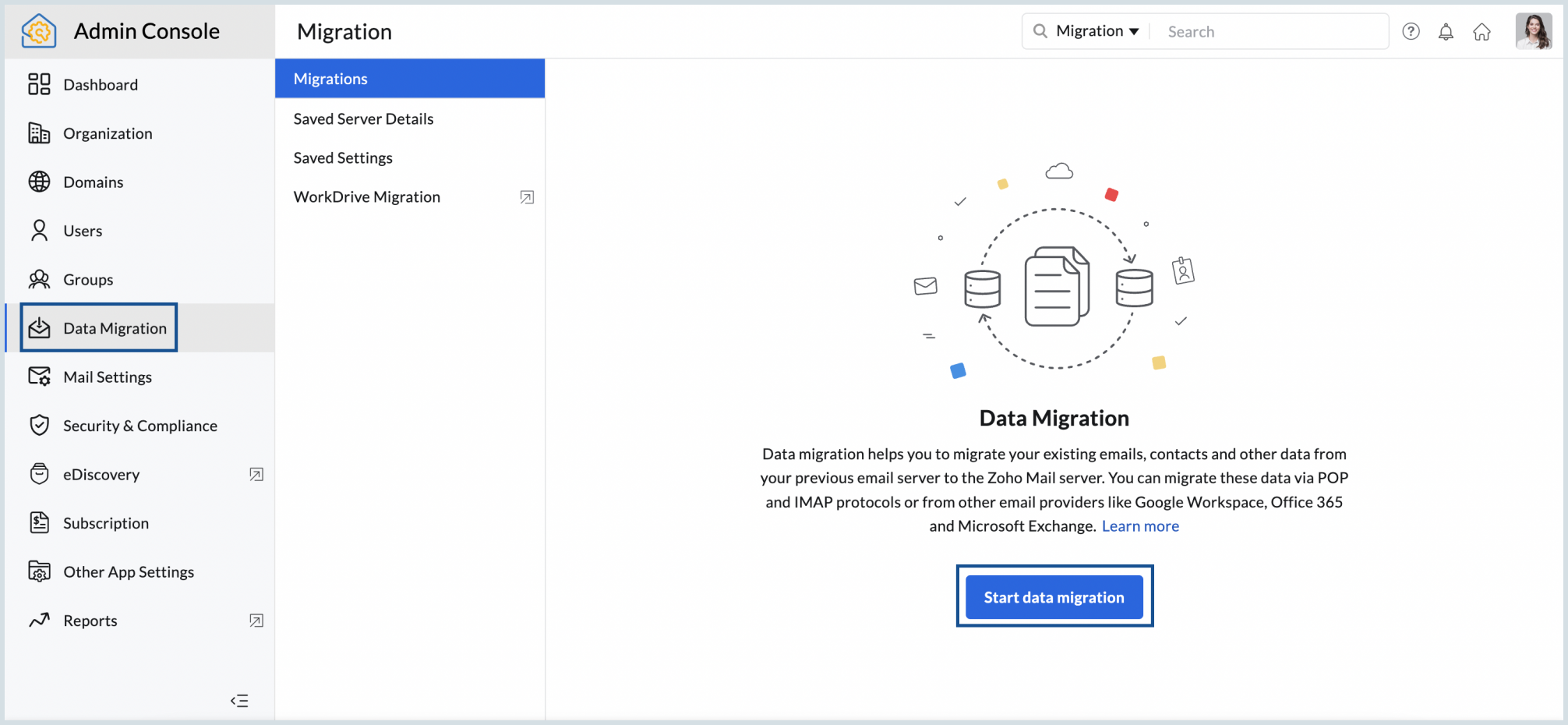
The Zoho Mail migration setup method selection — use the method table above to choose based on your current provider. The Zoho Mail IMAP migration setup guide 2026 is the most universal — if your current host provides IMAP access, IMAP migration works regardless of provider. The how to use Zoho Mail Migration Wizard process starts in the Admin Console, Email Migration section, where each method type has its own wizard with step-by-step prompts.
Step 4Run a test sample migration
The how to test a sample migration in Zoho Mail step — never start with all mailboxes. The Zoho Mail migration without losing emails or folders approach: select 2-3 representative users (admin, a manager, a regular employee) and run the migration for only those mailboxes first. Verify that emails appear correctly, folder structures are preserved, attachments open, timestamps are correct, and large messages transferred successfully. Identify any authentication or folder-mapping issues before they affect the entire organization.
Step 5Check storage and connection limits
The Zoho Mail data migration scale check: review source mailbox sizes, destination storage allocations, message counts, and server connection limits before starting the full migration. The Zoho Mail zero data loss approach: batch the migration by department (Management first, then Sales, Finance, Operations, remaining) rather than running all mailboxes simultaneously. Concurrent connections to the source mail server can trigger rate limits or timeouts that cause messages to be skipped.
Step 6Keep the old server active throughout
The secure email migration to Zoho Mail for businesses safety net: keep the existing email provider running during the entire migration. This allows mail to continue flowing if a mailbox fails authentication, a folder doesn’t transfer, or DNS propagation takes longer than expected. The how to migrate email with zero downtime to Zoho Mail approach relies on this overlap period — the old system continues handling live mail while historical data moves across.
Step 7Migrate historical emails in batches
The Zoho Mail inbox migration and Zoho Mail email transfer main phase: the how to migrate business email accounts to Zoho Mail best practice is department-by-department batching. The Zoho Mail email import process runs through the Admin Console’s migration wizard — monitor the status logs for each batch: messages transferred, failed, and skipped. Do not consider a batch complete until you have verified the results at the user level, not just the migration job report.
Step 8Configure MX records at the right time
The how to configure MX records after Zoho Mail migration timing: only update MX records after all user mailboxes are migrated, tested, and verified. The Zoho Mail email routing to prevent data loss rule: always use the MX values shown in your current Zoho Mail Admin Console — not values copied from a third-party blog or old tutorial, which may be outdated. The Zoho Mail migration 2026 MX record change should be done outside business hours to minimize impact of the DNS propagation period.
Step 9Configure SPF, DKIM, and DMARC
The Zoho Mail migration guide authentication layer: moving mailboxes without configuring email authentication creates deliverability problems immediately after the MX switch. SPF authorizes Zoho’s servers to send for your domain. DKIM adds cryptographic signing to outgoing messages. DMARC enforces policy when authentication fails. These three records together protect your domain reputation and ensure outbound emails from Zoho reach recipients’ inboxes rather than spam folders after the migration cutover.
Step 10Verify results mailbox by mailbox
The Zoho Mail migration troubleshooting and common errors prevention step: the how to preserve email folders during Zoho migration verification covers inbox (historical emails present), sent items (previously sent messages available), custom folders and subfolders (structure preserved), attachments (open correctly), timestamps (original dates retained), search (older conversations findable), and new incoming mail (routing confirmed to Zoho). The Zoho Mail email export from the previous provider should be retained for 30 days as a backup even after verification.
Method-specific notes: Gmail, M365, Exchange
Gmail / Google Workspace
The how to migrate Gmail emails to Zoho Mail safely and Gmail to Zoho Mail method: verify OAuth access permissions for the migration tool. Gmail uses labels rather than folders — map labels to Zoho Mail folders before starting. The Zoho Mail migration from Gmail custom domain retains your existing domain — you only move the mailboxes, not the domain name. The how to transfer Google Workspace email to Zoho Mail also requires migrating contacts and calendars separately via export/import — the how to migrate calendars from Google Workspace to Zoho process uses Zoho Calendar’s import function from a Google Calendar ICS export.
Microsoft 365 / Exchange
The Microsoft 365 to Zoho Mail and Microsoft 365 email migration to Zoho Mail step by step: grant delegated mailbox access or use service account credentials for the migration tool. The Exchange to Zoho Mail and how to migrate Exchange emails to Zoho Mail: verify Exchange connectivity and authentication before starting. Shared mailboxes, resource mailboxes, and distribution groups each need separate handling — they don’t always migrate with individual user mailboxes. The Google Workspace to Zoho equivalent migration is generally simpler due to API-based access.
IMAP and PST/EML
The IMAP migration Zoho Mail and Zoho Mail IMAP migration setup guide 2026: IMAP is the universal method — works from any host with IMAP enabled. Server and port configuration depends on the source host. The Zoho Mail PST migration and Zoho Mail PST file migration step by step: PST files from locally archived Outlook email are imported via the Admin Console upload tool. The Zoho Mail EML migration and Zoho Mail EML file import and migration guide: individual EML files can be imported per-mailbox for granular historical email recovery.
7 mistakes that lose data
Mistake 1: Changing MX too early
Updating MX before users and migration are ready routes incoming mail to Zoho before mailboxes are ready. The Zoho Mail migration checklist rule: MX records are Step 8, not Step 1.
Mistake 2: Skipping the test migration
A migration works for one mailbox and fails for another due to size, authentication, or folder restrictions. The Zoho Mail migration service starting point is always 2-3 test mailboxes.
Mistake 3: Cancelling old server too early
Terminating the previous provider before verification makes recovery impossible. Keep it active for at least 30 days post-cutover.
Mistake 4: Ignoring large attachments
Large messages and attachments cause migration failures. Review migration logs for failed messages and re-run or manually import them.
Mistake 5: Skipping authentication setup
Moving mailboxes without SPF/DKIM/DMARC creates immediate deliverability problems post-cutover. Treat authentication as part of the migration project.
Mistake 6: Migrating everyone simultaneously
Concurrent connections can trigger source server rate limits. Department batching prevents this and makes troubleshooting manageable.
Mistake 7: Not reviewing migration logs. A migration job report showing “Complete” doesn’t mean all messages transferred — it means the job finished. Review logs for skipped and failed messages, and investigate every exception before declaring the migration done. The complete Gmail to Zoho Mail migration guide 2026 and any provider migration follows this same log-review discipline.
20-point pre-go-live checklist
The Zoho Mail migration checklist for organizations and how to migrate emails and contacts to Zoho Mail verification:
Preparation (1-8)
- Domain verified in Admin Console
- All users created with correct addresses
- User groups and distribution lists created
- Migration method selected and tested
- Test migration completed and verified
- Source mailbox sizes and storage checked
- Batch migration schedule prepared
- Old mail server confirmed active
Migration (9-14)
- Historical emails migrated in batches
- Migration logs reviewed for failures
- Failed/skipped messages addressed
- MX records updated (Admin Console values)
- SPF record configured
- DKIM record configured and verified
Verification (15-20)
- Inbox messages present and searchable
- Sent items verified in key mailboxes
- Custom folders and subfolders intact
- Attachments open correctly
- New incoming mail routing confirmed
- Mobile and desktop access tested
Codroid Labs — Certified Zoho Mail Partner — Migration Services
Zoho Mail migration, email migration to Zoho, move email to Zoho Mail, Gmail to Zoho Mail, Google Workspace to Zoho, Microsoft 365 to Zoho Mail, Exchange to Zoho Mail, IMAP migration Zoho Mail, Zoho Mail migration tool, Zoho Mail Migration Wizard, Zoho Mail data migration, Zoho Mail email transfer, Zoho Mail inbox migration, Zoho Mail business migration, Zoho Mail domain migration, Zoho Mail migration guide, Zoho Mail migration service, Zoho Mail migration setup, Zoho Mail email import, Zoho Mail email export, Zoho Mail PST migration, Zoho Mail EML migration, Zoho Mail migration checklist, Zoho Mail zero data loss, Zoho Mail migration 2026 — Codroid Labs (GSTIN 07AAWFC0815B1ZP) is a certified Zoho Mail partner. We deliver move your email to Zoho Mail without losing anything migrations and the complete Zoho Mail migration guide for beginners scope for businesses across India. Contact: +91 78384 02682, team@codroiditlabs.com. External: Zoho Mail Migration official page.
Related Guides from Codroid Labs
Frequently asked questions
What can be migrated when moving email to Zoho Mail?
Full detail in the FAQ Schema above. Inbox, sent, drafts, folders, attachments, and archived emails can typically be migrated. Contacts, calendars, and tasks may require a separate process. Always verify results at the user level after migration completes. External: Zoho Mail Migration official page.
What is the safest order for Zoho Mail migration steps?
Full detail in the FAQ Schema above. The key rule: domain verify first, MX records last. Complete 10-step sequence: verify domain, create users, choose method, test sample, check storage, keep old server active, migrate in batches, configure MX, set up SPF/DKIM/DMARC, verify results.
Migrate Your Business Email to Zoho Mail — Expert Help
Gmail, Microsoft 365, Exchange, IMAP, PST — zero data loss migration with full SPF/DKIM configuration and GSTIN invoice for 18% ITC.
Start Zoho Mail via Codroid Labs
Book Free Migration Consultation – +91 78384 02682