



Getting fast, useful help from Zoho support is a skill — and most people approach it in the exact way that guarantees a slow, frustrating experience. These Zoho support tips for 2026 are the result of 150+ real implementations and thousands of resolved support tickets across every Zoho product. This guide tells you exactly which channel to use for which issue, what to include in every ticket to cut resolution time in half, how to escalate professionally when the first response misses the mark, and what to do when Zoho support seems to go completely silent. No generic “submit a ticket” advice — only what actually works.
The difference between a support ticket that resolves in 4 hours and one that goes 4 days without a useful response almost always comes down to how the ticket was written — not how many times you follow up. Master these Zoho support tips and you will never spend another afternoon waiting for a response that finally says “Can you please provide more details.”
Written by Codroid Labs — Certified Zoho Partner | March 2026 | 14 min read
Based on 150+ Real Implementations
Quick Reference — Zoho Support Contacts 2026
India Support
Phone: 1800 103 1123 (Mon–Fri, 9:30AM–7PM IST)
Zoho Mail: 1800-102-9646
Ticket: help.zoho.com/portal/en/newticket
Email: support@zoho.com
Community: help.zoho.com/portal/en/community
Zoho Mail: 1800-102-9646
Ticket: help.zoho.com/portal/en/newticket
Email: support@zoho.com
Community: help.zoho.com/portal/en/community
USA / Global Support
Phone: +1 877 834 4428 (Mon–Fri, 8AM–8PM EST)
Support line: +1 (888) 900 9646
Ticket portal: help.zoho.com/portal/en/newticket
Twitter/X: @ZohoSupport
Live chat: Inside your Zoho product — Help (?) icon
Support line: +1 (888) 900 9646
Ticket portal: help.zoho.com/portal/en/newticket
Twitter/X: @ZohoSupport
Live chat: Inside your Zoho product — Help (?) icon
Table of Contents
- All Zoho Support Channels Explained
- Which Channel to Use for Which Issue
- How to Write the Perfect Support Ticket
- Getting the Most from Zoho Live Chat
- How to Escalate a Zoho Support Ticket
- Using the Zoho Community Forum Effectively
- Zoho Support Plans — What You Get Per Tier
- India-Specific Support Tips
- The Zoho Partner Escalation Advantage
- 12 FAQs — Zoho Support Tips 2026
1. All Zoho Support Channels in 2026 — Complete Overview
Understanding all available Zoho support channels is the first of our core Zoho support tips — because using the wrong channel for your issue type is the most common reason people wait days for help that should take hours.
| Channel | Availability | Response Time | Best For | Plan Required |
|---|---|---|---|---|
| Live Chat | Business hours | 2–10 min | Quick configuration questions, feature queries, how-to guidance | Paid plans |
| Phone Support | Mon–Fri | Immediate | Billing issues, account access, account locked, urgent data issues | Paid plans |
| Support Ticket | 24/7 submit | 4–24 hrs | Technical bugs, data issues, integration problems, complex errors | All plans |
| 24/7 submit | 24–48 hrs | Non-urgent product feedback, billing queries, general enquiries | All plans | |
| Community Forum | 24/7 | Hours to days | How-to questions, workarounds, feature requests, peer knowledge | All (incl. Free) |
| Help Documentation | 24/7 | Instant | Feature setup, configuration steps, standard how-to questions | All (incl. Free) |
| Twitter/X @ZohoSupport | Business hours | 30 min–4 hrs | Public visibility issues, when tickets are stalled, urgent escalation | All plans |
| Partner Escalation | Business hours | 2–8 hrs | Complex technical issues, stalled tickets, account-level problems | Customers via partner |
2. Which Zoho Support Channel to Use — The Decision Framework
One of the most practical Zoho support tips in 2026 is matching your issue to the right channel from the start. This single decision determines whether you wait 2 hours or 2 days for resolution.
Urgent — Call Phone Support Immediately
Cannot log into your Zoho account at all
Zoho account suspended or locked
Billing charged incorrectly
Subscription cancelled by mistake
Critical data has disappeared or been deleted
Business is completely blocked by a Zoho outage
India: 1800 103 1123 | USA: +1 877 834 4428 | Mon–Fri business hours only
Same-Day Urgent — Use Live Chat First
A specific feature stopped working suddenly
You need to know if a feature exists before a client call
Workflow automation is not firing as expected
Email integration stopped syncing
Import or export is not working as expected
Need clarification on a plan or pricing feature
Inside Zoho product → Help (?) icon → Chat with us
Within 24 Hours — Raise a Support Ticket
Recurring technical bug with steps to reproduce
Integration with third-party tool not working
CRM automation triggering incorrectly
Report showing incorrect data
API call returning unexpected error
Customisation not saving correctly
help.zoho.com/portal/en/newticket — include screenshots and screen recording
No Rush — Use Help Docs or Community Forum First
How do I set up [feature X]?
Is there a way to do [task] in Zoho?
What is the difference between [Feature A] and [Feature B]?
Best practices for [specific CRM workflow]
help.zoho.com → Search first. 80% of how-to questions are already answered in official docs.
3. How to Write the Perfect Zoho Support Ticket — Templates That Get Resolved Fast
The single most impactful of all Zoho support tips is writing a complete ticket the first time. A well-written ticket resolves 2–3x faster than a vague one — because the support engineer does not need to write back asking for information you should have included upfront.

The 8 Elements Every Zoho Ticket Must Include
1
Exact product name and plan
Write “Zoho CRM Enterprise” not “Zoho” or “CRM.” The support engineer needs to know the exact product context — features differ significantly between plans and the wrong team may otherwise handle your ticket.
2
Your account email address
Include the email you use to log into Zoho — this allows support to pull up your account instantly instead of asking you for it in the first reply.
3
Exact error message — copy-pasted
Copy the exact error message from your screen. Never paraphrase it. “Error code: INVALID_TOKEN” tells the engineer everything. “It says something about tokens” tells them nothing and costs you 24 hours.
4
Steps to reproduce — numbered list
Write numbered steps: “1. Log in to Zoho CRM. 2. Go to Setup → Workflows → Rule Name. 3. Click Save. 4. The error appears.” Without reproduction steps, the engineer cannot test the issue in their environment and must ask you how to reproduce it.
5
Expected result vs actual result
“Expected: The workflow should send an email to the lead. Actual: No email is sent and no error appears in the log.” This two-line format eliminates ambiguity and tells the engineer exactly what behaviour is broken.
6
Screenshot or screen recording
Attach a screenshot showing the error state. For complex issues, a 30-60 second Loom or screen recording showing the exact steps is the single fastest way to get to resolution — the engineer sees exactly what you see, with zero ambiguity. Free tools: Loom, ScreenPal, built-in Windows Snipping Tool.
7
When it started — was it working before?
“This was working until March 15, 2026 — it stopped after the Zoho CRM update on that date.” This narrows the investigation to a specific change window and is dramatically faster than “it has never worked.”
8
Business impact
“This issue is preventing 15 users from creating invoices. We are unable to bill clients until this is resolved.” Business impact signals urgency and ensures the ticket is prioritised appropriately — generic tickets without impact statements are treated as low priority by default.
Copy-Paste Ticket Template — Use This for Every Technical Issue
ZOHO SUPPORT TICKET TEMPLATE — COPY AND CUSTOMISE
Product: [Zoho CRM / Zoho Books / Zoho Desk / etc.] — [Plan: Standard / Professional / Enterprise]
Account Email: [your-login@email.com]
Date Issue Started: [DD/MM/YYYY]
Account Email: [your-login@email.com]
Date Issue Started: [DD/MM/YYYY]
ISSUE SUMMARY
[One sentence: what is broken and what is the impact]
EXACT ERROR MESSAGE
[Paste the error text exactly — do not paraphrase]
STEPS TO REPRODUCE
1. [First step]
2. [Second step]
3. [Where the error appears]
EXPECTED RESULT
[What should happen]
ACTUAL RESULT
[What actually happens]
BUSINESS IMPACT
[How many users affected / what business process is blocked]
ATTACHMENTS
[Screenshot or screen recording link — always include]
4. Getting the Most from Zoho Live Chat Support
Live chat is the fastest Zoho support channel for quick questions and real-time guidance — but most people do not know how to access it. This is one of those Zoho support tips that surprises many users: the live chat widget is inside the Zoho product itself, not on the website.
How to Access Zoho Live Chat
Log into any paid Zoho product. Look for the Help icon (?) or question mark in the top-right corner of the screen. Click it — a dropdown appears with options including “Chat with us,” “Help documentation,” “Community,” and “Submit a ticket.” Click “Chat with us” to open the live chat widget. If you do not see this option, your plan does not include live chat — check your plan level at Setup → Subscription.
5 Live Chat Best Practices
Type your issue summary before connecting
Before the agent joins, type a 2-3 sentence summary of your issue in the chat window. The agent reads this before responding and arrives already understanding the context — saving 5 minutes of back-and-forth.
Have your account email ready to type immediately
The first thing every live chat agent asks is your account email. Have it copied to clipboard before you start the chat so you can paste it instantly.
Stay on the browser tab during the session
If you navigate away from the chat window for more than 3–4 minutes without responding, many agents will close the session as “inactive.” Keep the chat tab focused throughout.
Ask to convert to a ticket at end of session
If the issue is not resolved in chat, ask the agent: “Can you please convert this chat into a ticket and assign it to a technical team?” This creates a documented record with the chat context already attached.
Save the transcript before closing
At the end of every live chat, click “Email transcript” or copy-paste the conversation before closing. If the issue recurs, having the previous chat transcript with case reference numbers allows you to follow up immediately without restarting the explanation.
5. How to Escalate a Zoho Support Ticket — Scripts That Work
Knowing how to escalate professionally is one of the most valuable Zoho support tips — because sometimes the first response is a canned reply that completely misses the actual issue. Here is how to escalate without being aggressive and without starting over.
Golden rule of Zoho ticket escalation: NEVER open a new ticket for the same issue. Always reply to the existing ticket. Opening multiple tickets for the same issue splits the conversation history, confuses the support team, and actually slows down resolution — each new ticket restarts the queue timer.
Escalation Script 1 — When the First Response Misses the Issue
ESCALATION REPLY — MISSED ISSUE
Thank you for your response. Unfortunately, the solution provided does not address the issue I reported.
To clarify the core issue:
• [Point 1 — what the actual problem is in one sentence]
• [Point 2 — what you have already tried]
• [Point 3 — what exact outcome is needed]
I am requesting escalation to Tier 2 technical support or a senior engineer who can investigate this further.
I have attached an updated screen recording showing the issue: [link]
Business impact: [X users/processes affected] since [date].
Escalation Script 2 — When the Ticket Has Had No Response for 48+ Hours
FOLLOW-UP REPLY — NO RESPONSE
This ticket was raised on [date] and has not received a response in [X] hours/days.
Reference: Ticket # [number]
Issue: [One sentence summary]
Impact: [Business impact statement]
I am following up to request an update on the status and estimated resolution time.
If this ticket requires escalation to a senior technical team, please proceed with that escalation.
When to Use Social Media for Escalation
If a ticket has been open for more than 72 hours without meaningful progress on a business-critical issue, posting a polite public mention on Twitter/X tagging @ZohoSupport or @Zoho frequently produces faster engagement. Keep the post factual and professional: “Ticket #[number] has been open for 4 days without resolution. Issue is blocking [X users]. Requesting urgent escalation.” Do not post confidential details. The purpose is visibility, not shaming — Zoho’s social team monitors these mentions actively.
6. Using the Zoho Community Forum Effectively
The Zoho Community Forum is one of the most underused tools in our Zoho support tips toolkit. It has answers to thousands of real-world configuration questions — and Zoho’s own product engineers and MVPs regularly contribute there.
When to Use the Community Forum
Use the community forum for: how-to questions (“How do I set up a Blueprint in Zoho CRM?”), workaround requests (“Is there a way to bulk-update records without a Deluge script?”), feature requests and voting, understanding if others have experienced the same bug, and learning about upcoming features through Zoho product team posts.
Community Forum Search Tip — Always Search Before Posting
Before posting a new question on the community forum, search for it. The forum has been active since 2008 and contains over a million posts. Use the product-specific sub-forum filter and search for the exact feature name or error code. At least 70% of common configuration questions are already answered — often with the exact Deluge script or configuration screenshot you need.
7. Zoho Support Plans — What You Get at Each Tier
Understanding your support plan tier is fundamental to setting the right expectations — and is one of the most practically important Zoho support tips for businesses on paid plans.
| Feature | Classic (Free) | Premium (Paid) | Enterprise (Paid) |
|---|---|---|---|
| Availability | 8×5 | 24×5 | 24×7 |
| Initial Response SLA | 8 hours | 3 hours | 1 hour |
| Live Chat | No | Yes | Yes |
| Phone Support | No | Yes | Yes (24/7) |
| Dedicated Account Manager | No | No | Yes |
| Minimum Licences Required | Any paid plan | Any paid plan | 50+ licences |
| Included in Plan? | Yes — free | No — paid add-on | No — paid add-on |
Practical Zoho support tip: Classic support (free, 8×5) is adequate for businesses where CRM issues are not revenue-critical. If your Zoho system is the backbone of daily operations — billing, client management, support tickets — the Premium support upgrade is worth the cost purely for the 3-hour SLA guarantee. One critical billing issue resolved in 3 hours vs 24 hours typically saves more than the annual premium support fee.
8. India-Specific Zoho Support Tips for 2026
Indian Zoho users have a significant advantage that most do not use: Zoho is an Indian company, the primary development and support teams are based in India, and India support operates during IST hours that give Indian businesses access to senior engineers during their regular business day.
India Support Contacts — Verified March 2026
| Product | India Phone | Hours (IST) |
|---|---|---|
| All Zoho Products | 1800 103 1123 | Mon–Fri, 9:30 AM – 7:00 PM |
| All Zoho Products (Alt) | 1800 572 3535 | Mon–Fri, 9:30 AM – 7:00 PM |
| Zoho Mail | 1800-102-9646 | 24/7 for paid plans |
| Ticket Portal | help.zoho.com/portal/en/newticket | |
Time Zone Strategy for Faster India Support
Submit tickets during IST business hours for fastest first response — specifically between 10:00 AM and 4:00 PM IST. Tickets submitted at 10 AM IST on a weekday typically receive a first response within 2–4 hours under Classic support, and within 30–90 minutes under Premium support. Tickets submitted at 8 PM IST fall into the overnight queue and typically receive first response only when the next shift opens — adding 12–14 hours to your wait. For global users outside India: IST is UTC+5:30. Calculate your local equivalent of IST 10 AM for optimal ticket timing.
GST and Billing Issues in India — Specific Process
For GST invoice corrections, GSTIN updates, or 80G certificate requests related to your Zoho subscription, email billing@zoho.com with your GSTIN, account email, and the specific correction needed. Do not raise a technical ticket for billing issues in India — it goes to the wrong queue. The billing team handles India-specific invoicing and typically responds within 1 business day. For GSTIN update requests, response time is typically 24–48 hours.
9. The Zoho Partner Escalation Advantage — Your Most Powerful Support Channel
This is the most underused of all Zoho support tips: if you purchased your Zoho subscription through a certified partner like Codroid Labs, you have access to a support escalation channel that is simply not available to direct customers.
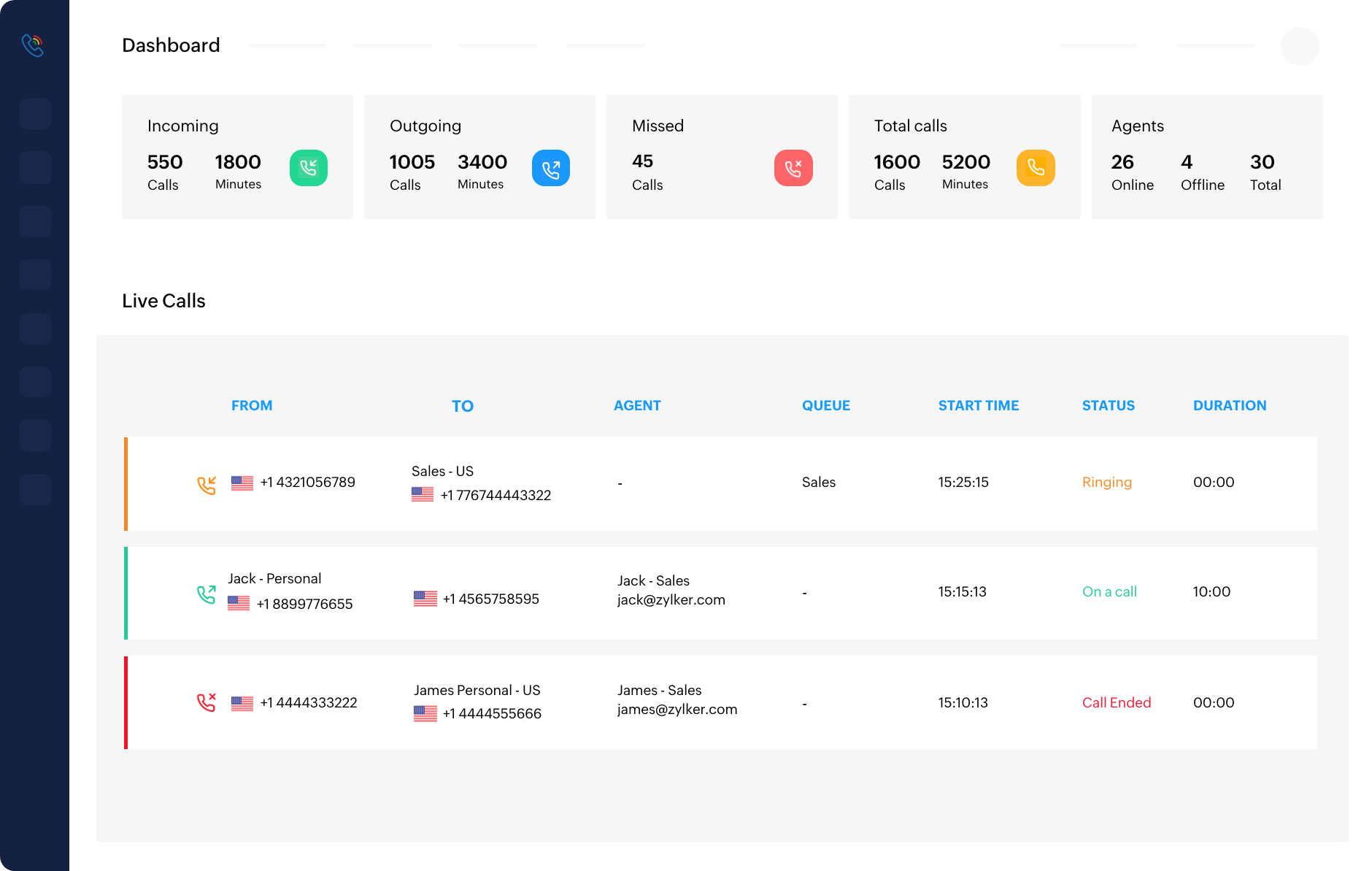
Certified Zoho partners have a dedicated partner portal with a separate support queue for their clients. When a partner escalates a ticket on your behalf, it bypasses the general support queue and goes directly to a team that handles partner-escalated cases — typically senior engineers familiar with complex implementation scenarios.
In practice, this means: a ticket that might take 3–4 days to resolve through the standard queue often resolves in 4–12 hours when a partner escalates it. For business-critical issues — CRM outages during peak sales periods, billing emergencies, data integrity issues — the partner escalation path is the fastest channel available to any Zoho customer.
When to Ask Your Zoho Partner to Escalate
- Ticket open more than 72 hours without resolution
- Critical business process blocked — invoicing, CRM access, email
- Issue requires access to Zoho’s backend or server-side logs
- Multiple support responses have not resolved the issue
- Zoho account locked or subscription issue affecting operations
- Data loss or data integrity issue requiring backend investigation
Related Guides From Codroid Labs:
Skip the Support Queue — Get Partner-Level Help
Need Faster Zoho Support? Codroid Labs Can Escalate on Your Behalf
As a certified Zoho partner, Codroid Labs has a direct escalation channel that resolves complex issues faster than public tickets. If your Zoho issue is business-critical, book a free consultation and we will engage partner-level support immediately.
India and global businesses. Hindi or English. Free consultation — no obligation.
10. Zoho Support Tips 2026 — 12 Questions Answered
How do I contact Zoho support in India?
Zoho support in India (2026 verified contacts): Toll-free phone: 1800 103 1123 (Monday to Friday, 9:30 AM to 7:00 PM IST). Alternative: 1800 572 3535. Zoho Mail specifically: 1800-102-9646. Support ticket portal: help.zoho.com/portal/en/newticket. Live chat: inside any paid Zoho product via the Help (?) icon. For billing and GST issues: billing@zoho.com. Best practical tip: raise a ticket with full details AND call during IST business hours for the fastest combined resolution.
What should I include in a Zoho support ticket?
Every Zoho support ticket should include: exact product name and plan, your account email, copy-pasted exact error message, numbered steps to reproduce, expected vs actual result, screenshot or screen recording, when the issue started, and business impact statement. Tickets with all 8 elements resolve 2-3x faster than incomplete tickets — because the engineer does not need to write back asking for information that should have been there from the start.
How do I escalate a Zoho support ticket?
Reply to the existing ticket — never open a new one. State clearly: “The previous response did not resolve the issue. Requesting escalation to Tier 2 technical support.” Restate the issue in 3 bullet points, add your business impact, and attach updated evidence. If the ticket remains unresolved after 72 hours, contact your Zoho certified partner to escalate through the partner portal queue, or post a professional public mention on Twitter/X tagging @ZohoSupport with your ticket number.
What is the fastest way to get help from Zoho?
The fastest Zoho support tip for most issues: use live chat during business hours (access via Help ? icon inside your Zoho product). For urgent account/billing issues: call directly. For complex technical bugs: raise a detailed ticket with a screen recording attached — a complete ticket resolves faster than a phone call for technical issues because the engineer can investigate asynchronously. For business-critical issues with a stalled ticket: your Zoho certified partner can escalate to the partner support queue for faster resolution.
Does Zoho have 24/7 support?
Zoho CRM Classic support is 8×5 (business hours only). Premium support is 24×5 (all days, business hours). Enterprise support (50+ licences) is 24×7. For Zoho Mail specifically, 24/7 support is available for paid plans. If you need 24/7 support for other Zoho products, you will need to upgrade to Premium or Enterprise support or ensure your implementation partner provides after-hours support coverage.
How do I access Zoho live chat support?
Log into your paid Zoho product. Click the Help icon (?) in the top-right corner. Select “Chat with us” from the dropdown. Live chat is available during business hours on paid plans. If you do not see the chat option, your plan may not include live chat — check at Setup → Subscription. The Standard plan on some Zoho products includes live chat; on others it requires Professional or above. Check your specific product’s support page for plan-by-plan details.
Why is Zoho support not responding to my ticket?
Common reasons for slow Zoho support responses: (1) Ticket submitted outside IST business hours with no follow-up during business hours, (2) Incomplete ticket missing key information — the engineer is waiting for details to be provided before investigating, (3) The ticket was auto-categorised into a queue with a longer SLA, (4) High volume periods like major product updates or regional holidays. Action: reply to the ticket during IST business hours with a polite follow-up, full details, and your business impact statement. Do not open a new ticket.
What is Zoho’s ticket support portal URL?
The Zoho support ticket portal is at help.zoho.com/portal/en/newticket. You will need to be logged in with your Zoho account to submit a ticket. Alternatively, access the support portal from inside any Zoho product via Help (?) → Submit a ticket. The same portal handles support for all Zoho products — select the correct product in the ticket form to ensure it routes to the right team.
Does Zoho support differ between paid and free plan users?
Yes. Free plan users have access to Zoho’s help documentation and community forum only — no ticket support, live chat, or phone support. Paid plan users on Classic support get ticket support with an 8-hour initial response SLA during business hours. Premium support adds 24×5 live chat and phone with a 3-hour SLA. Enterprise support (50+ licences) adds 24/7 coverage, 1-hour SLA, and a dedicated account manager. If you need active support, you must be on at least a paid plan.
Can a Zoho implementation partner help with support issues?
Yes — and this is one of the most valuable Zoho support tips. Certified Zoho partners like Codroid Labs have a dedicated partner support portal with a separate escalation queue that handles partner-raised tickets with higher priority. For complex technical issues, stalled tickets, or business-critical problems, your partner can often achieve resolution in hours rather than days. When you buy Zoho through a certified partner, you effectively gain an additional escalation layer above the standard public support queue.
How do I check the status of my Zoho support ticket?
Log into help.zoho.com/portal/en/home with your Zoho account credentials. Click on “My Area” → “Tickets” to see all your open and closed tickets with their current status. You will also receive email notifications when a support agent responds to your ticket. If email notifications are going to spam, whitelist the sender support@zoho.com and add it to your contacts to ensure ticket replies reach your inbox promptly.
What are the Zoho support hours for India in 2026?
Zoho India support phone hours (verified March 2026): Monday to Friday, 9:30 AM to 7:00 PM IST. The support team does not operate on Indian national holidays. For Zoho Mail, 24/7 support is available for paid plans by phone. Ticket support can be submitted 24/7 but first responses from the India team occur during business hours. For after-hours technical emergencies, use the Zoho community forum or contact your implementation partner if you have one — they may offer after-hours support as part of their service arrangement.
Official Zoho Support Resources — All Links Verified 2026
- Zoho Support Ticket Portal — Submit a New Ticket
- Zoho Help Centre — All Products Documentation
- Zoho Community Forum — Ask Questions, Share Solutions
- Zoho Contact Page — All Global Phone Numbers
- Zoho CRM Support Plans — Classic, Premium, Enterprise
- Book Free Consultation — Codroid Labs Zoho Partner Escalation