


Zoho People Biometric Integration 2026
eSSL, ZKTeco, Biomax, Matrix
Plugin + API Method Both Covered
OAuth Steps + SQL Mapping Included
Troubleshooting Guide + Payroll Impact
eSSL, ZKTeco, Biomax, Matrix
Plugin + API Method Both Covered
OAuth Steps + SQL Mapping Included
Troubleshooting Guide + Payroll Impact
Every day your HR team manually exports attendance from a biometric device and uploads it to Zoho People, you are paying for a problem that should not exist. Biometric device integration with Zoho People eliminates this — connecting your eSSL, ZKTeco, Biomax, or Matrix attendance machine directly to Zoho People so every punch-in and punch-out syncs automatically, every 5 minutes, without a single manual step. This guide covers the complete setup process for both the Plugin method and API method — including OAuth token generation, the exact SQL database column mapping for each device brand, employee ID mismatch handling, shift configuration, and the troubleshooting steps for every common error. This is the guide that saves your HR team 45 minutes of daily manual work and eliminates payroll errors caused by attendance data gaps.
Written by Codroid Labs — Certified Zoho Partner India | April 2026 | 16 min read
Verified Working — April 2026

Before You Start — 4 Things to Confirm
Zoho People Plan Required
Premium (₹144/user/month) or Enterprise plan. Standard and Essential plans do NOT support biometric integration. Upgrade before starting.
Device Database Accessibility
Your biometric device must store data in MS SQL, MySQL, or MS Access. Cloud-only devices without local database access cannot use the Plugin method.
Local Server Requirement (Plugin)
Plugin method needs a Windows server on the same local network as the biometric device. Java 8+ required. Not needed for API method.
Shifts Must Be Pre-Configured
All employee shifts must be set up in Zoho People BEFORE biometric data starts syncing. Attendance without matching shifts generates incorrect records.
Table of Contents
- Plugin Method vs API Method — Which to Choose
- Supported Brands — eSSL, ZKTeco, Biomax, Matrix
- Zoho People Plan Requirement
- OAuth Token Generation — Step-by-Step
- Plugin Method Setup — Complete Guide
- Database Column Mapping — Brand by Brand
- Employee ID Mapping and Shift Configuration
- Troubleshooting Common Errors
- Zoho Payroll Impact — Why Accuracy Matters
- 8 FAQs — Zoho People Biometric Integration
1. Plugin Method vs API Method — Which One Should Your Business Use?
Zoho People supports two methods for biometric device integration with Zoho People. Choosing the wrong method creates configuration problems that are expensive to fix. Here is the honest decision guide.
| Factor | Plugin Method (ZAttendance) | API Method (Bulk Import) |
|---|---|---|
| Setup complexity | Medium — Tomcat + WAR file | High — requires custom code |
| Automatic sync frequency | Every 5 minutes — automatic | Custom — depends on your script |
| IT team required | No — after one-time setup | Yes — developer needed |
| Server requirement | Windows server + Java 8+ on local network | Any server — cloud or local |
| Multi-device support | Yes — multiple devices one config | Yes — code handles multiple sources |
| Multi-site support | One plugin instance per site | Best for multi-site — centralised API calls |
| Best for | SMBs — single or dual-site | Enterprises — multi-site, custom logic |
For 90% of Indian SMBs: The Plugin method (ZAttendance WAR on Tomcat) is the correct choice. It is officially supported by Zoho, does not require ongoing IT involvement, and syncs automatically every 5 minutes. The API method is appropriate for businesses with in-house developers who need conditional logic, custom data transformation, or centralised multi-site control from a cloud server.
2. Supported Biometric Brands — eSSL, ZKTeco, Biomax, and Matrix
The biometric device integration with Zoho People supports all major Indian market biometric brands as long as the device stores attendance data in a local database accessible on the network. Here is what each brand’s integration looks like in practice.
eSSL (ETimetracklite)
- Database: MS SQL or MS Access (ETimetracklite)
- Employee ID column:
EMPCode - Punch date column:
PUNCH_DATE - Punch time column:
PUNCH_TIME - Punch type:
PUNCH_TYPE(1=IN, 0=OUT) - Compatible devices: Face, Fingerprint, RFID
ZKTeco (ZKBioX, ZKML)
- Database: MySQL (ZKBio X Software) or MS SQL
- Employee ID column:
User_IDorPIN - Punch datetime:
Punch_DateTime(combined) - Punch state:
Punch_State(0=Check-In, 1=Check-Out) - Transaction table:
att_punches(ZKBio X) - Compatible: F22, F30, uFace 302, MB160
Biomax
- Database: MS SQL or MS Access
- Employee ID column:
EmployeeID - Punch datetime:
AttendDateTime - In/Out flag:
InOut(1=IN, 2=OUT) - Attendance table:
DeviceLogs - Compatible: SpeedFace 5, BM-F220, BM-F226
Matrix COSEC
- Database: MS SQL (COSEC CENTRA software)
- Employee ID column:
EnrollCode - Event timestamp:
EventDateTime - Event direction:
Direction(IN/OUT string value) - Event table:
AccessEvents - Compatible: ARGO FACE300, VEGA, COSEC DOOR
Database column names vary by software version: The column names above are for the most common software versions. Older versions of the same software may use different column names. Always verify column names against your actual database using SQL Server Management Studio or MySQL Workbench before configuring the plugin.
3. Zoho People Plan Requirement for Biometric Integration
This is the most commonly missed prerequisite — and the most expensive mistake. Biometric device integration with Zoho People requires the Premium plan or above. The Essential HR and Standard plans do not include the Attendance module API access that the biometric integration depends on.
| Zoho People Plan | INR Price | Biometric Integration | Note |
|---|---|---|---|
| Essential HR | ₹48/user/month | Not Supported | No Attendance API access |
| Professional | ₹96/user/month | Not Supported | Limited Attendance module features |
| Premium | ₹144/user/month | Supported — Full Integration | Recommended for most businesses |
| Enterprise | ₹192/user/month | Supported — Full Integration | All Premium features plus advanced HR |
4. OAuth Token Generation — The Critical Step Most Guides Skip
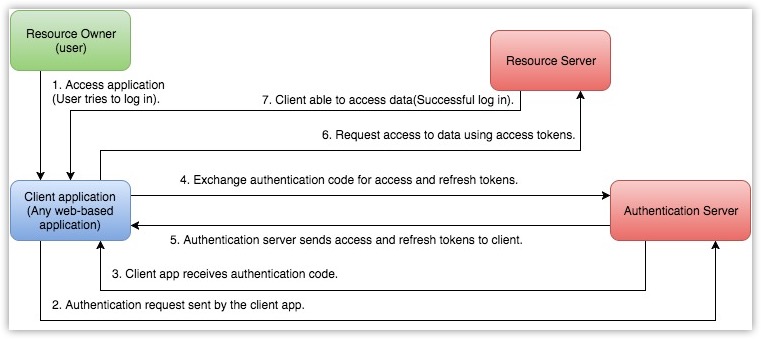
The OAuth token is the security credential that allows your biometric device plugin to authenticate with Zoho People and push attendance data. Access Tokens expire every hour — which is why you need a Refresh Token that regenerates them automatically. Here is the exact process.
Step 1 — Create an OAuth Client in Zoho Developer Console
Go to api-console.zoho.in (India accounts) or api-console.zoho.com (global accounts). Click Add Client. Select Self Client (for server-side integration without a redirect URL). Note your Client ID and Client Secret — you will need both for the plugin configuration.
Step 2 — Generate Authorization Code with Correct Scope
In the Self Client, generate an Authorization Code. The scope must include:
ZohoPeople.attendance.ALL
Set Time Duration to the maximum allowed (10 minutes). Generate and copy the Authorization Code immediately — it expires in 10 minutes.
Step 3 — Exchange for Access Token and Refresh Token
Make this POST request to exchange the Authorization Code for tokens:
POST https://accounts.zoho.in/oauth/v2/token
?grant_type=authorization_code
&client_id=YOUR_CLIENT_ID
&client_secret=YOUR_CLIENT_SECRET
&redirect_uri=https://www.zoho.com
&code=YOUR_AUTHORIZATION_CODE
The response contains both access_token (expires in 1 hour) and refresh_token (does not expire unless revoked). Save the Refresh Token — this is the credential you put in the plugin configuration.
India users — critical data centre note: Use
accounts.zoho.in for all OAuth endpoints if your Zoho People account is on zoho.in. Using accounts.zoho.com with a zoho.in account returns “invalid client” errors. This is the most common setup error for Indian biometric integrations.5. Plugin Method Setup — Complete Step-by-Step Guide
Step 1 — Download ZAttendance Plugin from Zoho
In Zoho People, go to: Settings → Attendance → Attendance Configuration → Biometric Devices → Download Plugin. Download the ZAttendance WAR file and the Apache Tomcat installation package. Install Tomcat on your local Windows server (the machine that can access the biometric device’s database).
Step 2 — Deploy the WAR File on Tomcat
Copy the downloaded ZAttendance.war file to the Tomcat webapps folder:
C:\Apache Tomcat\webapps\ZAttendance.war
Start the Tomcat service. Wait 60 seconds for deployment. Access the plugin interface at http://localhost:8080/ZAttendance. If the interface loads, deployment is successful.
Step 3 — Configure the Zoho People Connection
In the ZAttendance interface, under Zoho Configuration, enter:
Client ID: [Your Zoho OAuth Client ID]
Client Secret: [Your Zoho OAuth Client Secret]
Refresh Token: [Your Zoho OAuth Refresh Token]
Organisation: [Your Zoho People Organisation ID]
Data Centre: IN (for zoho.in accounts) or US (for zoho.com)
Click Test Connection. A green success message confirms the plugin can authenticate with Zoho People.
Step 4 — Configure the Biometric Database Connection
Under Device Configuration, set your database connection. Example for eSSL with MS SQL:
Database Type: MS SQL Server
Server: 192.168.1.100\SQLEXPRESS
Database Name: ETimetrackliteV2
Username: sa
Password: [your SQL password]
Sync Interval: 5 minutes
Click Test Database Connection. A successful connection message confirms the plugin can read from your biometric device’s database.
Step 5 — Set the SQL Query for Attendance Pull
The plugin needs a SQL query to extract attendance records. For eSSL (ETimetracklite):
SELECT
  EMPCode AS EmployeeId,
  CONVERT(VARCHAR(10), PUNCH_DATE, 23) AS EventDate,
  PUNCH_TIME AS EventTime,
  CASE PUNCH_TYPE WHEN 1 THEN 1 ELSE 0 END AS IsCheckin,
  GETDATE() AS DownloadDate
FROM
  DeviceLogs
WHERE
  DownloadDate >= DATEADD(MINUTE, -10, GETDATE())
The exact query varies by brand — Section 6 covers the SQL mapping for each brand.
Step 6 — Run Manual Test Push and Verify
In the ZAttendance interface, select one employee and click Manual Push. Check the API Response Log. A successful push shows:
{
  "status": "success",
  "message": "Attendance data synced successfully",
  "records_processed": 2,
  "records_failed": 0
}
Verify in Zoho People → Attendance → Logs that the employee’s attendance appears. Enable Automatic Sync after successful manual test.
6. Database Column Mapping — Brand-by-Brand SQL Query Guide
Zoho People’s biometric plugin expects four specific data fields from your biometric database. Every brand uses different column names. Here is the exact mapping for each major brand.
eSSL — ETimetracklite SQL
SELECT
  EMPCode AS EmployeeId,
  CAST(PUNCH_DATE AS DATE)
    AS EventDate,
  PUNCH_TIME AS EventTime,
  CASE WHEN PUNCH_TYPE = 1
    THEN 1 ELSE 0 END AS IsCheckin
FROM DeviceLogs
WHERE
  DownloadDate > [LastSyncTime]
ZKTeco — ZKBio X MySQL
SELECT
  User_ID AS EmployeeId,
  DATE(Punch_DateTime) AS EventDate,
  TIME(Punch_DateTime) AS EventTime,
  CASE WHEN Punch_State = 0
    THEN 1 ELSE 0 END AS IsCheckin
FROM att_punches
WHERE
  Punch_DateTime > [LastSyncTime]
Biomax — MS SQL
SELECT
  EmployeeID AS EmployeeId,
  CAST(AttendDateTime AS DATE)
    AS EventDate,
  CAST(AttendDateTime AS TIME)
    AS EventTime,
  CASE WHEN InOut = 1
    THEN 1 ELSE 0 END AS IsCheckin
FROM DeviceLogs
WHERE
  AttendDateTime > [LastSyncTime]
Matrix COSEC — MS SQL
SELECT
  EnrollCode AS EmployeeId,
  CAST(EventDateTime AS DATE)
    AS EventDate,
  CAST(EventDateTime AS TIME)
    AS EventTime,
  CASE WHEN Direction = 'IN'
    THEN 1 ELSE 0 END AS IsCheckin
FROM AccessEvents
WHERE
  EventDateTime > [LastSyncTime]
7. Employee ID Mapping and Shift Configuration — Two Steps That Break Every Integration
After OAuth and database configuration, these two steps cause the most post-go-live problems in biometric device integration with Zoho People. Both must be completed before the first attendance sync runs.
Employee ID Mapping — When Biometric IDs Don’t Match Zoho People IDs
Most organisations use different ID formats in their biometric devices and in Zoho People. The biometric device might use numeric IDs (001, 002, 003) while Zoho People uses employee codes (EMP001, EMP002). Without mapping, synced data lands in Zoho People without matching any employee — silently failing.
How to Configure User ID Mapping in Zoho People:
- Go to Zoho People → Attendance → Settings → User ID Mapping
- For each employee, enter their biometric device ID in the “Device User ID” field
- The mapping links biometric ID to Zoho People employee ID automatically
- For bulk mapping: export the mapping template, fill in device IDs, and re-import via CSV
- Verify by checking that employee names appear correctly in the mapping table
Shift Configuration — Why Wrong Shifts Mean Wrong Payroll
Zoho People calculates attendance (Present, Absent, Half Day, Late) by comparing biometric punch-in/punch-out times against the employee’s assigned shift. If shifts are not configured, or employees are assigned to the wrong shift, biometric data will sync successfully but generate incorrect attendance records.
Correct shift configuration:
- Shift name matches actual working hours
- Grace period for late arrival configured (typically 5-15 min)
- All employees assigned to correct shift or shift schedule
- Night shift employees have overnight shift configured
Common shift configuration errors:
- Employee punch-in 09:02 flagged as Late because grace period is 0 minutes
- Night shift employee (22:00-06:00) marked as Absent because single-day shift ends at midnight
- All employees on default General shift when actual shifts vary
- Half-day thresholds not configured — all short days show as Absent
8. Troubleshooting Common Biometric Integration Errors
These are the five most common errors in biometric device integration with Zoho People — with the exact cause and fix for each.
Error: “Connection Refused” on Test Database
Cause: Tomcat server cannot reach the biometric device’s SQL database. Firewall blocking port 1433 (MS SQL) or 3306 (MySQL), or incorrect server IP address.
Fix: On the biometric device server, run: netstat -an | findstr 1433 to verify SQL is listening. Check Windows Firewall — add inbound rule for port 1433. Verify the database server IP is correct and accessible from the Tomcat server (use ping 192.168.x.x).
Error: “Access Token Not Found” or “Invalid Refresh Token”
Cause: The Refresh Token has been revoked (happens when the Zoho account password changes or OAuth client is deleted), or the wrong data centre endpoint is used (zoho.com vs zoho.in).
Fix: Regenerate a new Authorization Code from the Zoho Developer Console using the same steps in Section 4. Exchange it for a new Refresh Token. Update the plugin configuration with the new Refresh Token. Confirm you are using accounts.zoho.in (not zoho.com) for India accounts.
Error: Records Synced but No Attendance Showing in Zoho People
Cause: Employee IDs from the biometric device do not match any employee in Zoho People, and User ID Mapping has not been configured. The API returns success but attendance records are discarded.
Fix: Go to Zoho People → Attendance → Logs → Import Logs. If no records appear, the ID mismatch is confirmed. Configure User ID Mapping as described in Section 7. Run a manual push after mapping is complete to verify records now appear correctly.
Error: Sync Stopped Working After Server Restart
Cause: Tomcat service is not configured to start automatically after Windows restarts. The plugin configuration is stored in memory and lost on restart.
Fix: Configure Tomcat as a Windows service with Startup Type = Automatic. Run services.msc → find Apache Tomcat → Properties → Set Startup type to Automatic. Verify by restarting the server and checking if the ZAttendance interface loads at http://localhost:8080/ZAttendance without manual intervention.
Error: Duplicate Attendance Records in Zoho People
Cause: The SQL query does not properly filter by last sync time, causing the same records to be pushed multiple times. Or the plugin ran two sync cycles simultaneously (sync interval set too short for database query execution time).
Fix: Add a DownloadDate field to your SQL query and filter where DownloadDate > LastSyncTime. If the database does not have a DownloadDate column, add a DateProcessed field that gets stamped when records are read by the plugin. Increase sync interval from 5 minutes to 10 minutes if the database is large.
9. Zoho Payroll Impact — Why Correct Biometric Integration Is a Payroll Compliance Requirement
This section is missing from every competitor’s content — and it is the most important reason to get biometric device integration with Zoho People right the first time.
How Biometric Data Flows to Zoho Payroll
- Biometric punch → Zoho People Attendance Log
- Zoho People calculates: Present, Absent, Half Day, Late
- Monthly attendance summary sent to Zoho Payroll
- Zoho Payroll applies LOP (Loss of Pay) for absent days
- Net salary = Gross salary minus LOP deduction
- Payslip generated with attendance-based deductions
What Incorrect Integration Causes
- Employee marked Absent on days they were present — LOP wrongly deducted
- Missing punch-out creates Half Day record — partial salary paid
- Wrong shift assignment marks on-time arrival as Late
- Payroll disputes, employee complaints, legal risk
- Payslip corrections required — expensive and time-consuming
Related Zoho Guides from Codroid Labs:
Certified Zoho Implementation Partner — India
Need Help Setting Up Biometric Integration with Zoho People?
Codroid Labs is a certified Zoho implementation partner in India. We configure complete biometric device integration with Zoho People — OAuth setup, SQL database connection, employee ID mapping, shift configuration, and Zoho Payroll integration — with remote support across all Indian cities.
eSSL, ZKTeco, Biomax, Matrix — all brands supported. Single-site or multi-site. Free 60-minute consultation.
10. Biometric Device Integration with Zoho People — 8 Questions Answered
Which Zoho People plans support biometric device integration?
Biometric device integration with Zoho People requires the Premium plan (₹144/user/month) or Enterprise plan (₹192/user/month). The Essential HR plan (₹48/user/month) and Professional plan (₹96/user/month) do not include the Attendance API access needed for biometric integration. Verify your current plan at Settings → Subscription in Zoho People before starting setup.
Which biometric device brands work with Zoho People?
Zoho People biometric integration works with eSSL (ETimetracklite software), ZKTeco (ZKBio X software), Biomax, Matrix (COSEC software), and most other brands that store attendance in a local MS SQL, MySQL, or MS Access database. Fingerprint, face recognition, and RFID card devices from these brands are all compatible. Cloud-only devices without accessible local database storage require the API method with the device’s own cloud API.
How often does biometric attendance sync with Zoho People?
Using the Plugin method (ZAttendance on Tomcat), biometric attendance syncs automatically every 5 minutes. The sync interval is configurable — 5 minutes is the default and recommended setting for most businesses. For large databases with 1,000+ employee records, increasing to 10 minutes prevents database query timeout. Using the API method, sync frequency depends on how often your custom script runs — typically every 15-30 minutes for manually scheduled scripts.
Can I integrate biometric devices from multiple locations with one Zoho People account?
Yes. Zoho People supports multi-location biometric integration. For the Plugin method, deploy one ZAttendance plugin instance per location — each connects to that location’s biometric database and pushes to the same Zoho People organisation. For the API method, a centralised script can pull from multiple databases and push all data to one Zoho People API endpoint. Employee work locations in Zoho People determine which shift and attendance policy applies to each employee’s synced records.
What happens if the sync breaks and attendance data is missed?
If the biometric sync stops for any reason — server restart, Refresh Token expiry, network issue — attendance data from the gap period is not automatically backfilled. You must manually upload the missed attendance records using Zoho People’s manual attendance import. The plugin does not look back further than the configured sync window. This is why monitoring the sync status daily and setting up a server alert for Tomcat service failures is recommended for production deployments.
Official Resources — Zoho People Biometric Integration
- Zoho People Official — Biometric Integration Setup Guide
- Zoho API Console India — Generate OAuth Credentials (zoho.in accounts)
- Zoho People Attendance Module — Complete Help Documentation
- Zoho People India Pricing — All Plans (Essential to Enterprise)
- Book Free Consultation — Codroid Labs Zoho Biometric Integration