


Zoho One India Setup Guide 2026
GST + UPI + WhatsApp — All 3 Covered
7-Step Verified Process
zoho.in India Data Centre
₹1,250/employee/month
GST + UPI + WhatsApp — All 3 Covered
7-Step Verified Process
zoho.in India Data Centre
₹1,250/employee/month
Most Zoho One India setup guides stop at creating an account and importing contacts. Indian businesses need something far more specific — GSTIN configuration with IRP connectivity for e-invoice IRN generation, UPI payment links on customer invoices so buyers can pay instantly, WhatsApp Business API integration so Zoho CRM contacts respond via the channel Indian buyers actually use, and salary components configured for PF, ESI, and TDS under the correct tax regime. Getting any one of these wrong creates compliance risk or operational failure from Day 1. This is the complete Zoho One India setup guide that covers all seven configuration areas every Indian business must complete — in the correct sequence, with the exact settings for zoho.in India data centre accounts, verified for April 2026.
Written by Codroid Labs — Certified Zoho Partner India | April 2026 | 19 min read
Verified for zoho.in — April 2026
Before You Start — The zoho.in vs zoho.com Decision That Cannot Be Undone
Indian businesses must choose the right data centre before creating any Zoho account. Once signed up, data cannot be moved between data centres without a complex paid migration that Zoho rarely supports for live accounts.
Use zoho.in if:
- Business is registered in India
- All employees and clients are in India
- You need data to stay in India (RBI compliance)
- Using Indian bank UPI Connected Banking
Use zoho.com if:
- Business has global operations across India + other countries
- Billing is in USD and clients are primarily international
- Using USD pricing for Zoho licences
- No Indian data sovereignty requirement
For 95% of Indian businesses: sign up at zoho.com/one and select India as country during signup — this routes automatically to zoho.in India data centre.
Table of Contents
- Step 1 — Organisation Setup with GSTIN and PAN
- Step 2 — GST, E-Invoice (IRN), and E-Way Bill Setup
- Step 3 — UPI Connected Banking and Payment Links
- Step 4 — WhatsApp Business API in Zoho CRM
- Step 5 — Indian Payroll — PF, ESI, TDS Setup
- Step 6 — Zoho Mail — SPF, DKIM, DMARC India
- Step 7 — Zoho Analytics India Business Dashboards
- Common Setup Errors and Fixes
- Zoho One India Pricing 2026 — Verified
- 8 FAQs — Zoho One India Setup Guide
Step 1 — Organisation Setup with GSTIN, PAN, and Indian Business Details
The organisation setup in Zoho One is not cosmetic — the GSTIN you enter here flows into every Zoho Books invoice, every GST return, and every e-invoice submitted to the IRP. Getting this right in Week 1 prevents a chain of compliance errors downstream.
Admin Panel → Organisation → Organisation Details
Required Fields — Enter Exactly
- Legal Name: Exactly as in GST certificate
- GSTIN: 15-character — state code + PAN + entity + Z + check
- PAN: 10-character business PAN (not promoter PAN)
- Business Type: Private Limited / OPC / Partnership / LLP / Proprietorship
- Registered Address: Address on GST certificate with PIN
- Financial Year: April – March (Indian standard)
- Timezone: Asia/Kolkata (IST, UTC+5:30)
- Currency: INR (Indian Rupee)
Additional Branches (If Applicable)
If your business has multiple GST registrations — for example, a manufacturer in Gujarat with a branch warehouse in Maharashtra — add each GSTIN separately under Organisation → Branches. Each branch has its own GSTIN, address, and state code. Zoho Books creates branch-wise invoices with the correct GSTIN for each supply location. This is critical for businesses with multi-state GST registration to avoid charging the wrong state’s tax.
Branch GSTIN must match the supply origin state for correct IGST vs CGST+SGST application.
GSTIN validation in Zoho: Zoho validates GSTIN format but not whether it is active on the GST portal. Always verify your GSTIN at gst.gov.in/searchtaxpayer before entering it in Zoho. An expired or suspended GSTIN in Zoho Books generates e-invoices that the IRP will reject.
Step 2 — GST Setup, E-Invoice (IRN) Integration, and E-Way Bill in Zoho Books
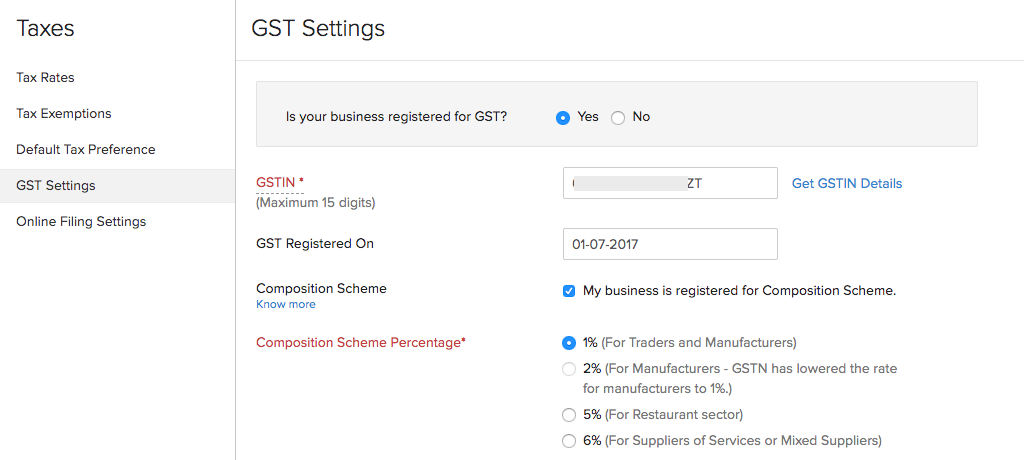
GST configuration in this Zoho One India setup guide covers three distinct components that must be configured separately: the base GST settings (GSTIN, tax rates, HSN codes), e-invoice IRP integration (mandatory above ₹5 crore turnover), and e-way bill integration (mandatory for goods above ₹50,000 inter-state or above ₹1 lakh intra-state in most states).
Zoho Books → Settings → GST Settings
Base GST configuration covers three areas:
GST Basics
- GSTIN entered and validated
- Business type (Regular / Composition)
- Filing frequency (Monthly / Quarterly)
- Reverse Charge enabled if applicable
HSN/SAC Codes
- Set HSN code for each product (goods)
- Set SAC code for each service
- Map correct GST rate to each code
- Exempted items marked as nil-rated
Tax Configuration
- 5% / 12% / 18% / 28% standard rates
- CGST+SGST for intra-state supply
- IGST for inter-state supply
- Zero-rated (export with LUT)
E-Invoice (IRN) Integration — Step by Step
Zoho Books → Settings → GST Settings → E-Invoice
- Verify e-invoice applicability: mandatory if your aggregate GST turnover exceeds ₹5 crore in any financial year from 2017-18 onwards
- Register on IRP portal: go to einvoice1.gst.gov.in with your GSTIN and create IRP login credentials
- In Zoho Books e-invoice settings, click Connect IRP
- Select IRP (Invoice Registration Portal) — IRP1 is the default, maintained by NIC
- Enter IRP username and password created in Step 2
- Click Test Connection — successful connection shows GSTIN confirmed message
- Enable Auto-generate IRN on invoice save — this ensures every applicable invoice gets IRN automatically when saved
After enabling auto-IRN, create a test invoice with your own business as both supplier and recipient to verify the complete flow — IRN generation, QR code embedding on PDF, and IRN number display on the invoice.
E-Way Bill Integration
Zoho Books → Settings → GST Settings → E-Way Bill
- Register on ewaybillgst.gov.in with your GSTIN
- Enable API access: in e-way bill portal → My Profile → For GSP (API user) → create sub-user with API access
- In Zoho Books, click Connect E-Way Bill Portal
- Enter e-way bill username and password (API sub-user credentials)
- Test connection — successful connection displays EWB connection active message
- Configure threshold: invoices above ₹50,000 for inter-state movement auto-generate EWB
- When creating a sales invoice in Zoho Books, the e-way bill fields (transporter name, vehicle number, distance) appear automatically for eligible invoices
E-way bill threshold for intra-state varies by state: While the inter-state e-way bill threshold is ₹50,000 nationally, many states have notified lower thresholds for intra-state movement. Check your state’s e-way bill notification for the correct threshold. For example, Tamil Nadu, Karnataka, and Haryana have specific intra-state EWB thresholds that differ from the national ₹50,000 limit.
Step 3 — UPI Connected Banking and Payment Links in Zoho Books
UPI payment acceptance is the single biggest collections improvement for Indian businesses using Zoho Books. Once configured, every Zoho Books invoice has a UPI QR code and payment link that customers can use to pay instantly via any UPI app — PhonePe, Google Pay, Paytm, BHIM. Payments reflect automatically in Zoho Books, closing the invoice without any manual entry.
Zoho Books → Banking → Add Bank Account
Supported Indian banks for Connected Banking in Zoho Books (as of April 2026):
SBI
HDFC Bank
ICICI Bank
Axis Bank
Kotak Bank
Bank of Baroda
IndusInd Bank
Yes Bank
- Click Add Bank Account → Indian Bank Account
- Select your bank from the list
- Enter account number, IFSC, and account holder name (as per bank records)
- Authenticate via net banking — you will be redirected to your bank’s login page
- After authentication, Zoho Books begins syncing your bank statement daily
- Bank transactions appear in Zoho Books → Banking → Transactions for manual or auto-matching
Enable UPI Payment Links on Invoices
- Go to Zoho Books → Settings → Payment Gateways
- Under India Payment Options, click Enable UPI Payment Link
- Enter your business UPI VPA (Virtual Payment Address) — e.g., yourbusiness@hdfcbank or yourbusiness@okicici
- Alternatively, connect Razorpay or Cashfree as the payment gateway — these handle UPI, netbanking, cards, and EMI in one integration
- In Invoice Settings → Customer Notification, enable Include Payment Link in Invoice Email
- Test: create a sample invoice, email it to yourself, and verify the UPI QR code and payment link appear correctly in the invoice PDF
Razorpay vs direct UPI VPA: Direct UPI VPA is free and instant for small businesses. Razorpay/Cashfree gateway (1.5-2% fee) is better for businesses needing payment reconciliation reports, multiple payment methods (card + UPI + netbanking), and automated payment reminders via Zoho Books.
Step 4 — WhatsApp Business API Integration with Zoho CRM
WhatsApp is India’s dominant business communication channel — with 500 million+ active users, it is how Indian B2C and B2B buyers prefer to communicate. Integrating WhatsApp Business API with Zoho CRM enables your sales and support team to receive, respond to, and track WhatsApp conversations within CRM — without switching between apps and without losing conversation history when a team member changes.
Prerequisites Before WhatsApp API Setup
Meta Business Manager Requirements
- Verified Meta Business Manager account (business.facebook.com)
- WhatsApp Business Account (WABA) created under your Meta BM
- Phone number dedicated to WhatsApp Business (not personal number)
- Business must not be in a restricted category per Meta policy
India-Specific DLT Registration
- All business WhatsApp message templates must be DLT registered with TRAI
- DLT registration at Airtel DLT, Jio Trueconnect, or BSNL DLT portal
- Entity registration + header registration + template registration required
- Templates take 1-7 days for DLT approval before they can be used
Zoho CRM → Settings → Channels → WhatsApp
Two integration methods available:
Method 1 — Native Zoho WhatsApp (Zoho as BSP)
- Zoho acts as your WhatsApp BSP directly
- No third-party BSP account needed
- Connect WABA in Zoho CRM → WhatsApp settings
- Pay per WhatsApp conversation (Meta pricing)
- Best for: teams already in Zoho CRM
Method 2 — Third-Party BSP (Interakt / Wati / AiSensy)
- Connect third-party BSP to your WABA
- BSP integrates with Zoho CRM via Zoho Flow or Zapier
- More features: broadcasts, chatbots, auto-replies
- Additional BSP monthly fee (₹999–5,999/month)
- Best for: high-volume WhatsApp marketing
- In Zoho CRM WhatsApp settings, click Connect WhatsApp Business Account
- You are redirected to Meta Business Manager to authorise Zoho access to your WABA
- Select the WhatsApp phone number to use with Zoho CRM
- Back in Zoho CRM, configure: which CRM module receives WhatsApp conversations (Contacts or Leads), what happens when a new unknown number messages (create new Lead or Contact), and auto-reply message for after-hours
- Upload DLT-registered template messages (must exactly match DLT-approved content)
- Test: send a WhatsApp message to your business number and verify it appears in Zoho CRM as a conversation linked to the matching contact
WhatsApp conversation types and costs (India 2026): Meta charges per 24-hour conversation window, not per message. Two types: (1) Business-Initiated — you send the first message using an approved template (₹0.44-0.58 per conversation depending on template category). (2) User-Initiated — customer messages you first, free for 1,000 conversations/month, then ₹0.29 per conversation. Most Indian B2B businesses primarily receive user-initiated messages — effectively free for moderate volumes.
Step 5 — Indian Payroll Setup — PF, ESI, TDS, and Professional Tax
Zoho One includes Zoho People (HR management) and Zoho Payroll (salary processing) as separate modules that integrate together. This Zoho One India setup guide covers the critical payroll configuration points that must be correct for statutory compliance from the first payroll run.
Zoho Payroll → Organisation → Statutory Details
Statutory Registration Numbers
- PF Number: EPFO establishment code (format: XX/XXXX/XXXXXXX)
- ESI Number: ESIC establishment number (17-digit)
- TAN: Tax deduction account number (format: XXXX00000X)
- Professional Tax: Enter nil if your state does not levy PT
- Labour Welfare Fund: State-specific if applicable
States Without Professional Tax (PT = NIL)
Rajasthan, Delhi, UP, Uttarakhand, Haryana, Punjab, Himachal Pradesh, J&K, Assam, Bihar, Jharkhand, Odisha, Chhattisgarh, MP. For these states, PT component must be explicitly set to zero in Zoho Payroll to avoid incorrect deductions.
Salary Component Setup — India Compliance
Configure these salary components correctly — the PF eligibility and tax exemption settings determine statutory deduction amounts:
Component         | Taxable | PF Eligible | Section | Notes
------------------|---------|-------------|---------|------------------------
Basic Salary      |   Yes   |     Yes     |   -     | 40-50% of CTC typically
HRA               | Partial |      No     |10(13A)  | Metro: 50%, Non-metro: 40%
DA (if any)       |   Yes   |     Yes     |   -     | Govt employees mainly
LTA               | Partial |      No     |  10(5)  | Twice in 4-year block
Medical Allowance |   Yes   |      No     |   -     | ₹75,000 std deduction now
Special Allowance |   Yes   |      No     |   -     | Balance CTC component
Employer PF       |   Yes   |     Yes     |   -     | 12% employer contribution
Most common India payroll error: Marking Special Allowance as PF-eligible increases employer PF cost by 12% of the special allowance amount — often ₹5,000-15,000+ extra per employee per month. Always verify PF eligibility is set to “No” for Special Allowance.
TDS Section 192 — New vs Old Tax Regime
Since Budget 2020, Indian employees must choose their tax regime. Zoho Payroll handles both:
Old Tax Regime (Employee Declares)
- Standard deduction ₹50,000
- HRA exemption (Section 10(13A))
- Section 80C deductions up to ₹1.5 lakh
- 80D medical insurance
- Employee declares at year start
New Tax Regime (Default from FY24-25)
- Standard deduction ₹75,000 (Budget 2024)
- No HRA exemption
- No 80C deductions
- Lower tax slabs overall
- Default unless employee opts for old regime
Step 6 — Zoho Mail Setup with SPF, DKIM, and DMARC for Indian Businesses
Zoho Mail without SPF, DKIM, and DMARC configured delivers emails that land in the spam folder of customers and vendors — a critical operational problem for invoices, payment reminders, and customer communication. These three DNS records authenticate your email and tell receiving servers that Zoho is authorised to send email on behalf of your domain.
Zoho Mail Admin Console → Domains → Domain Verification
Add these three records at your domain registrar (GoDaddy, BigRock, HostGator, Namecheap, or wherever your domain is registered). For zoho.in India data centre accounts, use the zoho.in versions:
1. SPF Record (TXT Record at root @)
Type: TXT
Name: @ (or yourdomain.in)
Value: v=spf1 include:zoho.in ~all
TTL: 3600
2. DKIM Record (CNAME Record)
Type: CNAME
Name: zmail._domainkey (Zoho provides exact value)
Value: [copied from Zoho Mail Admin Console → DKIM settings]
TTL: 3600
3. DMARC Record (TXT Record at _dmarc subdomain)
Type: TXT
Name: _dmarc.yourdomain.in
Value: v=DMARC1; p=none; rua=mailto:dmarc@yourdomain.in; pct=100
TTL: 3600
After adding all three records, wait 24-48 hours for DNS propagation. In Zoho Mail Admin Console, click Verify SPF, Verify DKIM, and Verify DMARC. All three must show green before your email is fully authenticated. Verify email deliverability using mail-tester.com — you should score 9/10 or above after all three records are verified.
DMARC policy escalation for Indian businesses: Start with
p=none (monitoring only — no emails blocked). After 30 days, review DMARC reports and if all legitimate email is authenticated, move to p=quarantine (suspicious emails go to spam). After another 30 days, move to p=reject (unauthorised emails are blocked entirely). This protects your brand from email spoofing — where fraudsters impersonate your domain to send phishing emails to your vendors and customers.Step 7 — Zoho Analytics India Business Dashboards
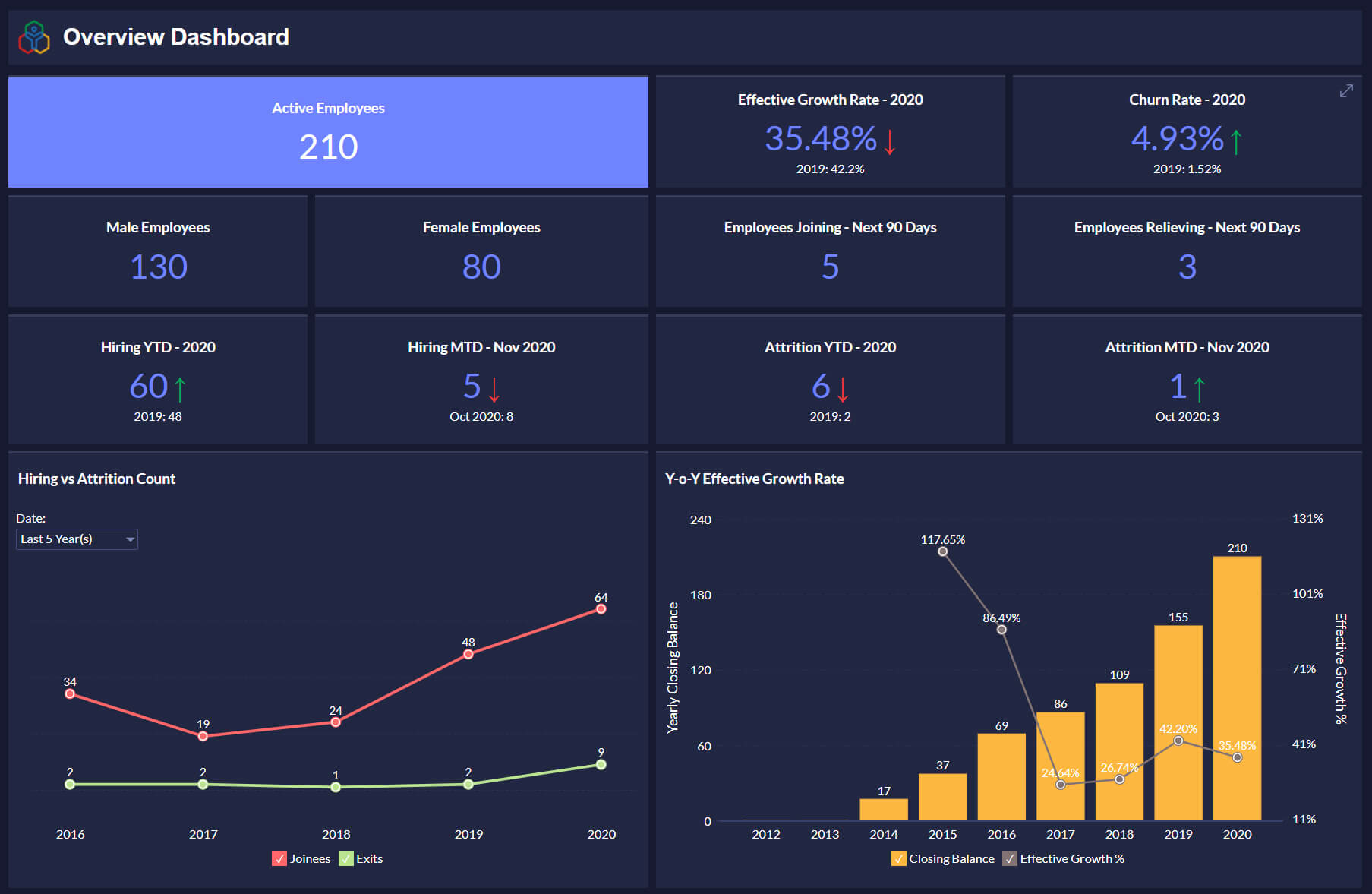
Zoho Analytics is included in Zoho One and is the final piece that transforms your Zoho setup from a data entry system into a business intelligence platform. The five dashboards below are the most valuable for Indian businesses — each pulls live data from Zoho Books, CRM, or People.
Dashboard 1 — Monthly GST Liability Tracker
Data source: Zoho Books. Shows CGST, SGST, and IGST liability by month, split by tax rate (5%, 12%, 18%, 28%). Compare with GSTR-3B filed amounts to catch discrepancies before the filing date. Essential for businesses with large GST outflow that need to plan cash for GST payment before the 20th of every month.
Dashboard 2 — Sales Pipeline and Lead Source
Data source: Zoho CRM. Shows number of deals in each pipeline stage, estimated close value, days in stage (identify stuck deals), lead source performance (IndiaMart vs direct vs referral vs WhatsApp vs social). India-specific: include campaign-wise lead quality tracking from Zoho Campaigns for email and SMS campaigns.
Dashboard 3 — Outstanding Receivables Aging
Data source: Zoho Books. Shows all unpaid invoices bucketed by aging: 0-30 days, 31-60 days, 61-90 days, 90+ days. Customer-wise and city-wise breakdown. For Indian B2B businesses where 60-90 day credit terms are common, this dashboard identifies which customers are heading into bad debt territory for proactive follow-up.
Dashboard 4 — Payroll Cost by Department
Data source: Zoho Payroll. Shows gross salary, employer PF, employer ESI, and total payroll cost by department and month. Useful for businesses tracking cost-per-head by division. India note: employer PF (12% of Basic+DA) and employer ESI (3.25% of gross for eligible employees) are significant additional costs above gross salary — this dashboard makes them visible.
Common Zoho One India Setup Errors and Fixes
Error: E-invoice rejected by IRP — “GSTIN not found”
Cause: GSTIN in Zoho Books does not match the GSTIN registered on the IRP portal, or the customer GSTIN is inactive. Fix: Verify your GSTIN status at gst.gov.in. Verify customer GSTIN before entering on invoice — inactive GSTINs cause IRP rejection. Check that the GSTIN in Zoho Books Settings matches your IRP login GSTIN exactly.
Error: Zoho Mail emails landing in spam at customer’s Gmail
Cause: SPF or DKIM not configured, or DMARC policy conflict. Fix: Verify all three DNS records are active using mxtoolbox.com. Ensure SPF uses include:zoho.in (not zoho.com) for India accounts. Check that you have not exceeded SPF lookup limit of 10 DNS lookups. Test deliverability score at mail-tester.com.
Error: WhatsApp template messages failing — “Template not approved”
Cause: DLT registration pending or template content mismatch between DLT-approved template and Meta-approved template. Fix: Template text must be identical in both DLT registration and Meta Business Manager. Even minor punctuation differences cause template failure. Check DLT approval status at your registered DLT portal. Template approvals from Meta typically take 24-72 hours; DLT approvals take 1-7 days — both must be approved before the template can be sent.
Error: UPI payment link on invoice shows “Payment failed” for customers
Cause: UPI VPA not verified, or payment gateway not configured with the correct merchant ID. Fix: Verify the UPI VPA is active by sending a test payment to it from your personal UPI app. For Razorpay/Cashfree integrations, verify the API keys entered in Zoho Books match the live (not test) keys from the gateway dashboard. Ensure your Razorpay/Cashfree account is KYC verified — unverified accounts have UPI disabled.
Zoho One India Pricing 2026 — Verified
Zoho One covers all seven setup areas in this guide — Zoho Books (GST + UPI), Zoho CRM (WhatsApp), Zoho People and Payroll (Indian HR), Zoho Mail, and Zoho Analytics — in one subscription.
All-Employee Plan (Annual)
₹1,250
/employee/month — all employees licensed
= ₹15,000/month for 12 employees
Flexible User Plan (Annual)
₹3,500
/user/month — only active Zoho users
= ₹35,000/month for 10 active users
Related Guides from Codroid Labs:
Certified Zoho One Implementation Partner — India
Get Zoho One Configured Correctly — GST, UPI, WhatsApp All Done Right
Codroid Labs is a certified Zoho One implementation partner in India. We set up all 7 modules in this guide — e-invoice IRP connectivity, UPI payment links, WhatsApp CRM integration, Indian payroll compliance, Zoho Mail DNS, and Analytics dashboards — at a fixed INR price with Hindi-language support.
Free 60-minute Zoho One assessment. All India cities. Remote implementation. GST-compliant from Day 1.
8 FAQs — Zoho One India Setup Guide 2026
Should Indian businesses sign up at zoho.in or zoho.com?
Indian businesses should sign up at zoho.com/one and select India as their country during registration — this automatically routes the account to the zoho.in India data centre. The distinction matters because: UPI Connected Banking, e-invoice IRP integration, and Indian payroll features are optimised for the zoho.in data centre. All OAuth endpoints for India accounts use accounts.zoho.in (not zoho.com). Once created at the wrong data centre, accounts cannot be migrated.
How does e-invoice work in Zoho Books India?
E-invoice in Zoho Books India works through IRP (Invoice Registration Portal) integration. When you save a B2B invoice in Zoho Books, the system automatically sends the invoice data to the IRP (einvoice1.gst.gov.in) which validates it and returns an IRN (Invoice Reference Number) and QR code. The IRN and QR code are embedded in the invoice PDF automatically. This process takes 2-5 seconds and is invisible to the user — you simply create the invoice normally and Zoho Books handles the IRP communication. E-invoice is mandatory for businesses with aggregate GST turnover above ₹5 crore.
Does Zoho CRM support DLT-registered WhatsApp templates for India?
Yes. Zoho CRM’s WhatsApp integration supports DLT-registered template messages for India. In India, all commercial WhatsApp messages using approved templates must be DLT registered with TRAI. The template text must be identical in DLT registration and Meta Business Manager approval. Zoho CRM’s WhatsApp channel allows you to upload approved templates and use them for proactive outreach — lead acknowledgement, quote sharing, payment reminders, and appointment confirmations.
Can I accept UPI payments through Zoho Books invoice links?
Yes. Zoho Books India supports UPI payment acceptance through two methods: (1) Direct UPI VPA — enter your business UPI ID (yourname@bankname) in Zoho Books payment settings, and a QR code appears on all invoices. Customers scan and pay. Free, but no automated payment recording. (2) Payment gateway integration (Razorpay or Cashfree) — customers click the payment link on the invoice and pay via UPI, netbanking, or card. Payment is automatically recorded in Zoho Books when the customer completes payment, closing the invoice without manual entry. Gateway fee is 1.5-2% of transaction value.
Official Resources — Zoho One India Setup
- Zoho One India — Start 15-Day Free Trial
- Zoho Books India GST — E-Invoice, E-Way Bill, GSTR Features
- IRP Portal India — einvoice1.gst.gov.in (Register for E-Invoice)
- E-Way Bill Portal India — ewaybillgst.gov.in
- GST Portal — Verify GSTIN Status Before Entering in Zoho
- Book Free Implementation Consultation — Codroid Labs Zoho Partner India