


Table of Contents
Introduction
Is your sales team losing their minds because their emails aren’t syncing? You are not alone. Zoho CRM Outlook integration is one of the most powerful tools for boosting sales productivity, but it can also be a source of frustration when technical gremlins strike.
As a Zoho Partner, we’ve seen it all. You invest in the software to streamline your pipeline, but instead of closing deals, your reps are fighting with a Zoho CRM Outlook plugin that won’t load or a calendar that refuses to sync.
The good news? Most Zoho CRM Outlook integration problems are solvable without a degree in computer science. Whether you are dealing with the legacy Zoho CRM Outlook add-in or the modern Zoho CRM Outlook 365 integration, this guide will walk you through the fixes that actually work.
Let’s turn those tech headaches back into revenue.
The Two Types of Integrations: Legacy Plugin vs. Office 365
Before we dive into the fixes, we must clarify a common confusion. Many Zoho CRM Outlook integration problems stem from using the wrong tool for the job.
There are currently two main ways to connect Outlook to Zoho CRM:
- The Legacy Plugin (COM Add-in): This is a piece of software you download and install on your Windows machine (
.exefile). It lives inside your desktop Outlook application. - The Server-Side Integration (Office 365): This is the modern method. It connects Zoho CRM directly to your Office 365 server. It requires no installation on individual computers and works on Mac, Windows, and Web.
Pro Tip: If you are still searching for a Zoho CRM Outlook plugin download, you might be using outdated technology. We highly recommend moving to the Zoho CRM Outlook 365 integration for better stability.
Note: This guide covers troubleshooting for both, but knowing which one you have is half the battle.
Problem 1: The Disappearing Zoho CRM Outlook Plugin

This is the most frequent complaint we hear: “I installed the Zoho CRM Outlook plugin, it worked for a day, and now it’s gone!”
When the plugin vanishes from your Outlook ribbon, it usually means Outlook has “disabled” it because it loaded too slowly or crashed.
How to Fix It:
- Open Outlook and go to File > Options.
- Click on Add-ins in the left sidebar.
- Look at the bottom of the window where it says “Manage: COM Add-ins” and click Go.
- If the Zoho CRM Outlook Add-in is unchecked, check it and click OK.
If it is not in that list:
- Go back to the “Manage” dropdown and select Disabled Items.
- Click Go.
- If you see the Zoho plugin listed there, select it and click Enable.
- Restart Outlook.
Problem 2: “Processing” or Hanging Screen Errors
You try to save an email to a lead, and the side panel just spins… and spins. It says “Processing,” but nothing happens. This often plagues the Zoho CRM Outlook email integration on the web or the new add-in.
The Cause:
This is usually a browser cache issue (if using O365 web) or a network conflict where the plugin cannot “handshake” with Zoho’s servers.
The Fix:
- Clear Cache: If you are using Outlook on the Web (OWA), clear your browser cache and cookies.
- Reload the Frame: Right-click inside the Zoho side panel and select Reload Frame.
- Check Pop-up Blockers: Ensure your browser isn’t blocking pop-ups from
zoho.comorcrm.zoho.com. - Re-authenticate: Sometimes your session token has expired. Log out of the plugin and log back in.
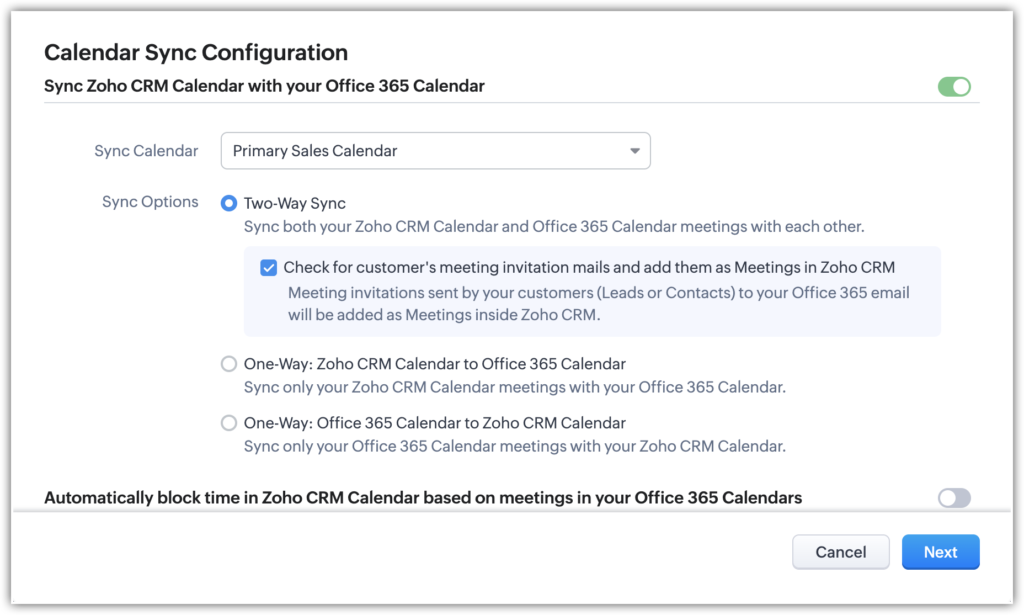
Zoho CRM Outlook sync failures are dangerous because they result in double bookings and missed sales calls. If your Zoho CRM Outlook calendar integration isn’t reflecting your meetings, check these settings immediately.
1. Folder Selection Errors
The most common reason for sync failure is that the plugin is looking at the wrong folder.
- The Fix: Go to the Zoho Plugin settings in Outlook. Look for “Folder Settings.” Ensure the correct “Contacts” and “Calendar” folders are selected. If you use sub-folders (e.g., “Sales Calendar”), you must explicitly select them.
2. Time Zone Mismatches
If your meetings are showing up at the wrong time (or not at all), your time zones are likely fighting each other.
- The Fix: Check the time zone in Zoho CRM (Setup > General > Company Details) and ensure it matches the time zone in your Outlook Calendar settings exactly.
3. One-Way vs. Two-Way Sync
Are you expecting a two-way sync but only getting one-way?
- The Fix: In the sync settings, verify if you have selected “Outlook to Zoho,” “Zoho to Outlook,” or “Both Ways.” We recommend “Both Ways” for the most seamless experience.
Problem 4: SMTP and Authentication Failures
For users setting up email integration via IMAP or POP alongside the plugin, you might see “Authentication Unsuccessful” or “SMTP Error 535.” This is common with Zoho CRM Outlook 365 integration due to modern security standards.
The Fix: Enable Authenticated SMTP
Microsoft disables “Authenticated SMTP” by default for many new tenants.
- Log in to the Microsoft 365 Admin Center.
- Go to Users > Active Users.
- Click the user having the issue.
- Click Mail.
- Click Manage email apps.
- Ensure Authenticated SMTP is checked. Save changes.
(Image Suggestion: Screenshot of the Microsoft 365 Admin Center showing the “Authenticated SMTP” checkbox. Alt text: Enabling SMTP for Zoho CRM Outlook integration in Microsoft 365.)
Problem 5: Version Mismatches (32-bit vs. 64-bit)
This applies strictly to the legacy Zoho CRM Outlook plugin download. If you download the wrong version, it simply won’t install, or it will crash instantly.
How to Check Your Outlook Version:
- In Outlook, go to File > Office Account > About Outlook.
- It will explicitly state “32-bit” or “64-bit”.
The Solution:
Download the matching installer from the Zoho CRM Marketplace. Do not guess! Installing a 32-bit plugin on 64-bit Outlook is the #1 reason for installation failures.
Problem 6: API Limit Errors
If you are a heavy user or have a massive team, you might see an error regarding “Crossed License Limits” or API thresholds.
Zoho CRM Outlook integration relies on API calls to talk to the server. Every time you sync a contact or an email, it uses an API credit.
The Fix:
- Check Usage: Go to Setup > Developer Space > APIs in Zoho CRM to see your usage.
- Reduce Sync Frequency: If you have the plugin set to sync “Automatically every 1 minute,” change it to “Every 30 minutes” or “Manual.”
- Upgrade Edition: You may need to move to Zoho CRM Enterprise or Ultimate edition to increase your API limits.
The Conflict: Running both simultaneously can sometimes cause Outlook to slow down or freeze.
The Fix: Decide which is critical. For sales teams, the CRM plugin is usually the priority. Disable the Mail add-in if you are experiencing performance lag.
Why You Need a Zoho Partner for Complex Integrations
Troubleshooting Zoho CRM Outlook integration problems can cost your team hours of productive selling time. If you have tried the fixes above and are still stuck, or if you need to migrate 50+ users from the legacy plugin to the Office 365 server-side integration, it’s time to call in the experts.
As a certified Zoho Partner, we handle:
- Seamless migration from legacy plugins to cloud integrations.
- Custom field mapping between Outlook and Zoho CRM.
- Troubleshooting complex sync failures.
- Training your team on how to use the plugin effectively.
Conclusion
A working Zoho CRM Outlook integration is the bridge between communication and conversion. Don’t let technical glitches burn that bridge. By ensuring you are using the correct version, keeping your cache clean, and configuring your sync settings properly, you can eliminate 90% of these common issues.
Ready to eliminate technical headaches and focus on selling?
Contact our team specifically for Zoho CRM Support today.
Ready to Get Started on Zoho?
Let’s build your business the smart way — with Zoho and Codroid Labs by your side.
📅 Book your free consultation now
Frequently Asked Questions
Q: Where can I find the Zoho CRM Outlook plugin download?
You can find it in the Zoho CRM Marketplace under “Microsoft Integrations,” but check if you can use the Office 365 server-side integration first.
Q: Does Zoho CRM Outlook sync work on Mac?
The legacy .exe plugin does not work on Mac. Mac users must use the Zoho CRM Outlook 365 integration or the “Zoho CRM for Email” add-in available in the Microsoft Store.
Q: Can I sync my Outlook Calendar with Zoho CRM?
Yes, the Zoho CRM Outlook calendar integration allows for bi-directional syncing of events, ensuring your sales demos are always visible in your CRM.