


Table of Contents
1. Introduction to Low-Code Integration
The Zoho Creator Salesforce Connection is a powerful tool for businesses looking to bridge the gap between custom application development and industry-standard Customer Relationship Management (CRM). In today’s fast-paced digital environment, siloed data is a hurdle to growth. By integrating these two platforms, you ensure that your custom-built Zoho applications can talk directly to your Salesforce leads, contacts, and accounts.
Note: The following guide specifically addresses users on Zoho Creator 5. If you are using Creator 6, the interface may differ slightly.
2. Why Use the Zoho Creator Salesforce Connection?
Setting up a Zoho Creator Salesforce Connection allows for a seamless flow of information between your custom apps and your CRM. Once the connection is authorized, it is ready to be used across your applications to access specific services.
(Note: The following benefits are based on general industry knowledge and are not explicitly mentioned in the provided sources.)
- Automated Data Entry: Reduce manual errors by syncing data automatically.
- Enhanced Reporting: Combine Zoho Creator’s flexible reporting with Salesforce’s robust data sets.
- Improved User Experience: Give your team a unified view of customer data without switching tabs.
For more information on the power of CRM integrations, you can visit the Official Salesforce Website
3. Pre-Requisites for Setting Up Your Connection
Before you begin the configuration, ensure you have administrative access to both your Zoho Creator account and your Salesforce instance. Having your Salesforce login credentials ready will speed up the process significantly.
4. Step-by-Step: Configuring the Zoho Creator Salesforce Connection
To successfully set up the Zoho Creator Salesforce Connection, follow these detailed steps within your Zoho Creator dashboard:
- Navigate to Account Setup: Locate the Account Setup page from your main dashboard.
- Access Connections: Click on the Connections tab to view your existing integrations or add a new one.
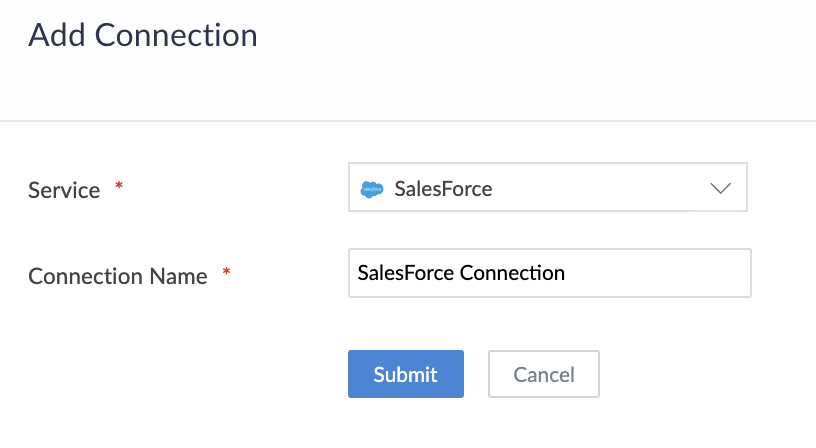
- Add Connection: Click the Add Connection button to open the list of available services.
- Select Salesforce: From the list of services provided, choose the Salesforce connection.
- Unique Identification: Enter a Connection Name. Choose a name that is unique and easy to identify within your workspace.
- Submit: Click the Submit button. This creates the connection framework and prepares the system for account linking.
5. Authorising Your Salesforce Account
Once you have named your Zoho Creator Salesforce Connection, you must link it to a specific Salesforce account to grant data access.
- Provide Authorization Name: Enter the Name of the Authorized Account. This name is used internally to identify which specific Salesforce account is linked to this connection.
- Trigger the Timer: Click the Authorize button. Note that a timer of 90 seconds will be triggered for security purposes.
- Redirection: You will be redirected to the Salesforce authorization page.
- Log In: Enter your Salesforce credentials to verify your identity.
- Grant Permission: Click Allow to permit the sharing of application data between Zoho Creator and Salesforce.
Once these steps are completed, the connection is fully authorized to access the specified services and can be utilised immediately within your Zoho Creator applications.
6. Best Practices for Data Sharing
Maintaining a healthy Zoho Creator Salesforce Connection requires regular monitoring. Because the connection allows your application data to be shared, it is vital to ensure that only the necessary permissions are granted during the “Allow” phase of authorization.
(Note: The following tips are based on general security best practices and are not explicitly mentioned in the provided sources.)
- Regular Audits: Periodically check your “Connections” page to ensure all active links are still required.
- Internal Linking: Refer back to your Zoho Creator Dashboard to manage your existing app workflows.
- Documentation: Keep a record of the “Authorized Account Names” used so your IT team can troubleshoot faster.
7. Conclusion
Establishing a Zoho Creator Salesforce Connection is a straightforward yet transformative step for any business using Zoho’s low-code platform. By following the 10-step authorization process, you unlock the ability to share data across platforms, enhancing the functionality of your custom apps.
Ready to Get Started on Zoho?
Let’s build your business the smart way — with Zoho and Codroid Labs by your side.
📅 Book your free consultation now