



In today’s fast-paced digital ecosystem, the Zoho Creator and Google WorkDrive integration has become the gold standard for businesses looking to automate document management. Imagine a world where every time a lead is captured in your custom Zoho app, a folder is automatically generated in Google WorkDrive and their details are synced via a Google Contact integration.
This isn’t just a convenience—it’s a competitive necessity. For Zoho Partners and developers, mastering these integrations means building apps that don’t just store data, but actively manage a company’s digital life. In this guide, we’ll explore how to bridge these two powerhouses to eliminate manual tasks forever.
Table of Contents
Why Integrate Zoho Creator with Google Workspace?
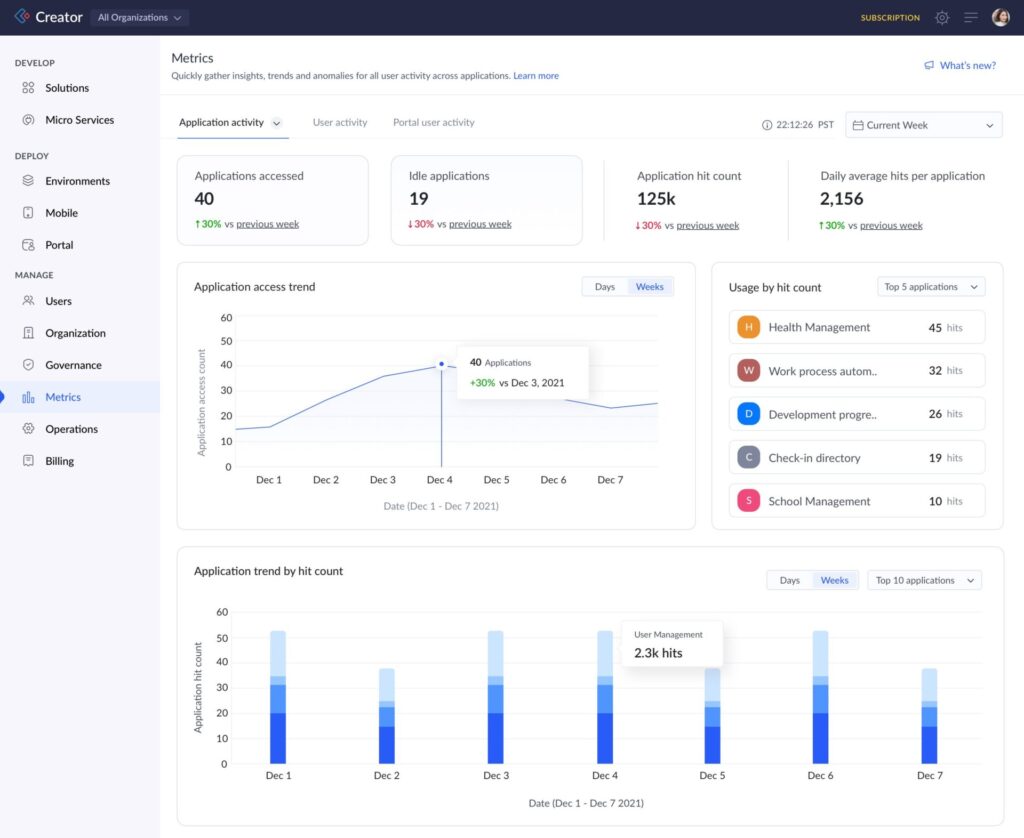
Zoho Creator is an industry-leading low-code platform, but its true power is unlocked when it talks to the tools your team uses daily. By implementing a Zoho Creator and Google WorkDrive integration, you ensure that your technical documentation, client assets, and project files are always where they need to be.
Furthermore, a robust Google Contact integration ensures that your sales and support teams aren’t wasting hours cross-referencing names and phone numbers between platforms.
Step 1: Setting Up Zoho Creator and Google WorkDrive Integration
To begin, you need to establish a secure handshake between the two platforms.
- Navigate to Microservices: In your Zoho Creator dashboard, go to the “Settings” and find the “Connections” tab.
- Create New Connection: Select “Google” from the list of services.
- Authorize WorkDrive: Ensure you check the permissions for “WorkDrive” and “Google Drive.” This allows Zoho Creator to create, delete, and modify files on your behalf.
- The Manifest Handshake: Once authorized, Zoho provides a connection link that you can call using Deluge scripting—Zoho’s proprietary language.
Step 2: Implementing Google Contact Integration
Keeping your address book updated is the second pillar of this strategy. A Google Contact integration allows your Zoho Creator app to act as a “Single Source of Truth.”
When a user submits a form in Creator:
- The Logic: A script triggers a search in Google Contacts.
- The Action: If the contact doesn’t exist, the integration creates it. If it does, it updates the record with the latest info.
Expert Strategy: Use a “One-Way Sync” during your initial setup to prevent duplicate contacts from flooding your Google account. Once you are confident in your data mapping, switch to “Two-Way Sync.”
Step 3: Advanced Workflows—Automating File Uploads
The most common use case for Zoho Creator and Google WorkDrive integration is automated file organization. Using a simple Deluge script, you can automate the creation of folders based on dynamic form fields.
This ensures that every new project in Zoho Creator has a dedicated, secure space in Google’s cloud without a human ever clicking “New Folder.”
Step 4: Troubleshooting Common Integration Errors
Even with a perfect setup, you may encounter obstacles. Here are the top three errors Zoho Partners face:
- Authentication Expired: Google OAuth tokens periodically expire. Regularly check your “Connections” tab in Zoho Creator to ensure the status is “Active.”
- Permission Mismatch: Ensure the Google account used for the Google Contact integration has “Edit” access to the specific contact labels you are targeting.
- API Limits: Google Workspace has daily API quotas. If you are syncing thousands of records, consider using a “batch” update method to stay within limits.
Conclusion: The Zoho Partner Advantage
Mastering the Zoho Creator and Google WorkDrive integration and Google Contact integration allows you to deliver high-value solutions that save clients thousands of hours. By centralizing documentation and contact data, you transform a simple app into a central business hub.
As a Zoho Partner, your goal is to make technology invisible. When data flows seamlessly from a Zoho Creator form into a Google WorkDrive folder, you’ve achieved exactly that.
Ready to Get Started on Zoho?
Let’s build your business the smart way — with Zoho and Codroid Labs by your side.
📅 Book your free consultation now
Frequently Asked Questions
Q: Do I need a paid Google Workspace account for Zoho Creator and Google WorkDrive integration?
While basic integrations can work with personal accounts, a Google Workspace (formerly G Suite) account is highly recommended. Workspace accounts offer higher API quotas and advanced “Team Folder” capabilities essential for professional Zoho Creator and Google WorkDrive integration.
Q: Is the Google Contact integration bi-directional?
Yes. You can configure the sync to be one-way (from Zoho to Google or vice versa) or a full two-way sync. For business-grade workflows, a two-way sync ensures that an update made by a salesperson on their mobile phone’s Google Contacts app reflects instantly in your Zoho Creator database
Q: How do I handle file upload limits during the integration?
Zoho Creator has specific file upload fields. When integrated with WorkDrive, the file is often passed as a stream or a URL. Using the Zoho Creator and Google WorkDrive integration allows you to bypass Creator’s internal storage limits by hosting the physical files in Google’s cloud.
Q: Can I automate folder creation for every new project?
Absolutely. Using Deluge scripting, you can trigger a “Create Folder” action in Google WorkDrive every time a new record is added to a specific Creator form. This is a favorite feature for Zoho Partners managing high-volume client onboarding.