


Twilio Integration with Zoho is a game-changer for businesses looking to bridge the gap between financial management and instant communication. Twilio serves as a robust cloud communication platform, enabling your business to send notifications via SMS through web service APIs directly from your Zoho environment. By setting up this integration, you can ensure your customers are always informed about their invoices, payments, and critical reminders in real-time.

Why Choose Twilio Integration with Zoho?
Before diving into the technical setup, it is vital to understand the “why”. Integrating these two powerhouses allows you to:
- Send automated SMS notifications for new invoices and payment thank-you notes.
- Configure specific notification settings at both the primary customer and individual contact person level.
- Improve cash flow by sending instant payment reminders.
Prerequisites for Success
To achieve a successful Twilio Integration with your Zoho application for SMS, you must have several components ready:
- An Active Twilio Account: If you don’t have one, you must sign up on the Twilio website.
- Account SID and Auth Token: These are your unique security identifiers found in your Twilio dashboard.
- A Twilio Phone Number: You must purchase or possess an active phone number that supports SMS through Twilio.
1. Connecting Your Accounts
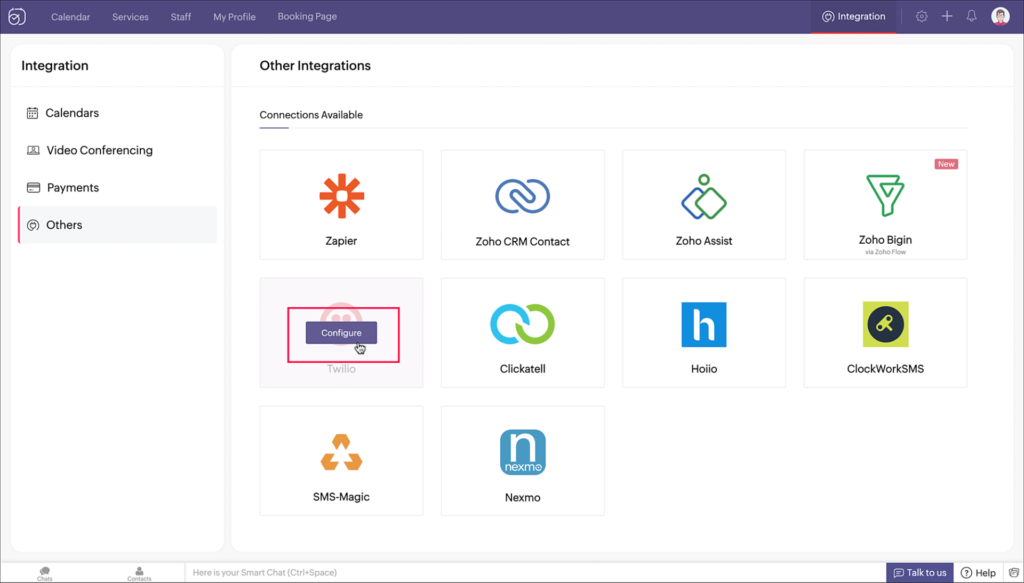
The first step in your Twilio Integration with your Zoho application for SMS journey begins in your Zoho settings.
- Navigate to Settings and select SMS Notifications under the Reminders & Notifications section.
- Locate Twilio and click Configure, then click Connect.
- A pop-up will prompt you for your Account SID, Auth Token, and Twilio Phone Number.
- Enter these details and click Connect with Twilio to finalise the link.
2. Configuring SMS Notifications for Maximum Impact
Once connected, the integration is not active by default. You must enable it to start sending messages:
- Go back to the SMS Notifications settings.
- Click Configure below the Twilio integration.
- Slide the toggle next to the specific transaction types (like Invoices or Payment Reminders) you wish to enable.
You can also customize the message content to reflect your brand’s voice. By clicking Change Template and then Customize Template, you can insert placeholders like “Customer Name” or “Invoice Amount” to make every text feel personal.
3. Enabling Contact-Level Messaging
A key benefit of the Twilio Integration with your Zoho application for SMS is the granular control it offers. You don’t have to send texts to everyone; you can choose specific recipients.
- For Primary Contacts: Go to the Customers module under Sales, select a customer, and click Enable SMS Notification in the overview section.
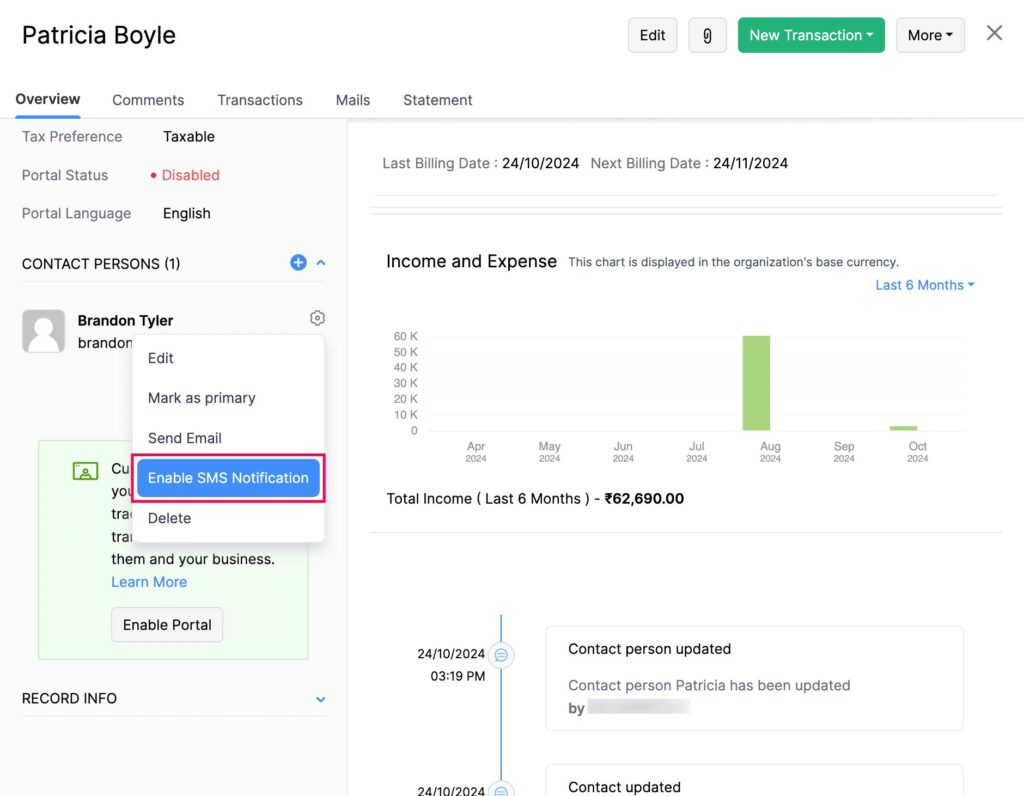
- For Contact Persons: Scroll to the Contact Persons section of a customer’s profile, click the gear icon, and select Enable SMS Notification.
4. Managing Notifications in Bulk
If you have a large database, enabling notifications one by one is inefficient. Zoho allows you to manage the Twilio Integration with your Zoho application for SMS for multiple customers at once.
- In Settings, under SMS Notifications, click the gear icon in the Twilio section.
- Select Update Communication Preference to enable SMS for all primary contacts and contact persons globally.
- Alternatively, you can select specific customers in the Customers module and use the Configure Communication Preferences button at the top of the page.
5. Automating Your Workflow
The real power of Twilio Integration with your Zoho application for SMS lies in automation.
- Recurring Invoices: If you have set your preferences to “Create and Send,” an SMS is triggered automatically upon invoice creation.
- Online Payments: When a customer pays via an online portal, a Payment Thank You SMS is sent immediately without any manual intervention.
6. Sending Manual SMS for One-Time Transactions
For one-time invoices that aren’t recurring, you may need to trigger the message manually.
- Open the specific Invoice.
- Click the Send button or the More button at the top.
- Select Send SMS or Notify via SMS.
- A preview will appear; once confirmed, hit Send.
7. Monitoring and Tracking History
To ensure your Twilio Integration with your Zoho application for SMS is working correctly, you should monitor your outbound communication.
- Select a module, such as Invoices.
- Click on a specific record and navigate to the Comments and History tab in the top-right corner.
- Here, you can view the status and details of every SMS sent to that customer.
Conclusion
Implementing the Twilio Integration with your Zoho application for SMS provides a professional edge by keeping your customers updated through their preferred communication channel. Whether it’s a thank-you note for a payment or a gentle reminder for an overdue bill, this integration ensures your business stays top-of-mind and gets paid faster.
Ready to Get Started on Zoho?
Let’s build your business the smart way — with Zoho and Codroid Labs by your side.
📅 Book your free consultation now