


Zoho CRM — Migration Guide 2026
Salesforce to Zoho CRM Migration: The Complete Guide to a Smooth Switch
A Salesforce to Zoho CRM migration succeeds or fails on the order you do things in — build your role hierarchy after importing data, and record ownership breaks in ways that are genuinely hard to fix afterward. This guide covers the native migration tool, the correct sequence, and exactly what doesn’t carry over.

1
Thing to Build Before Any Import
2
Official Migration Paths
0
Native Chat Migration Support
9
Common Errors Fixed Below
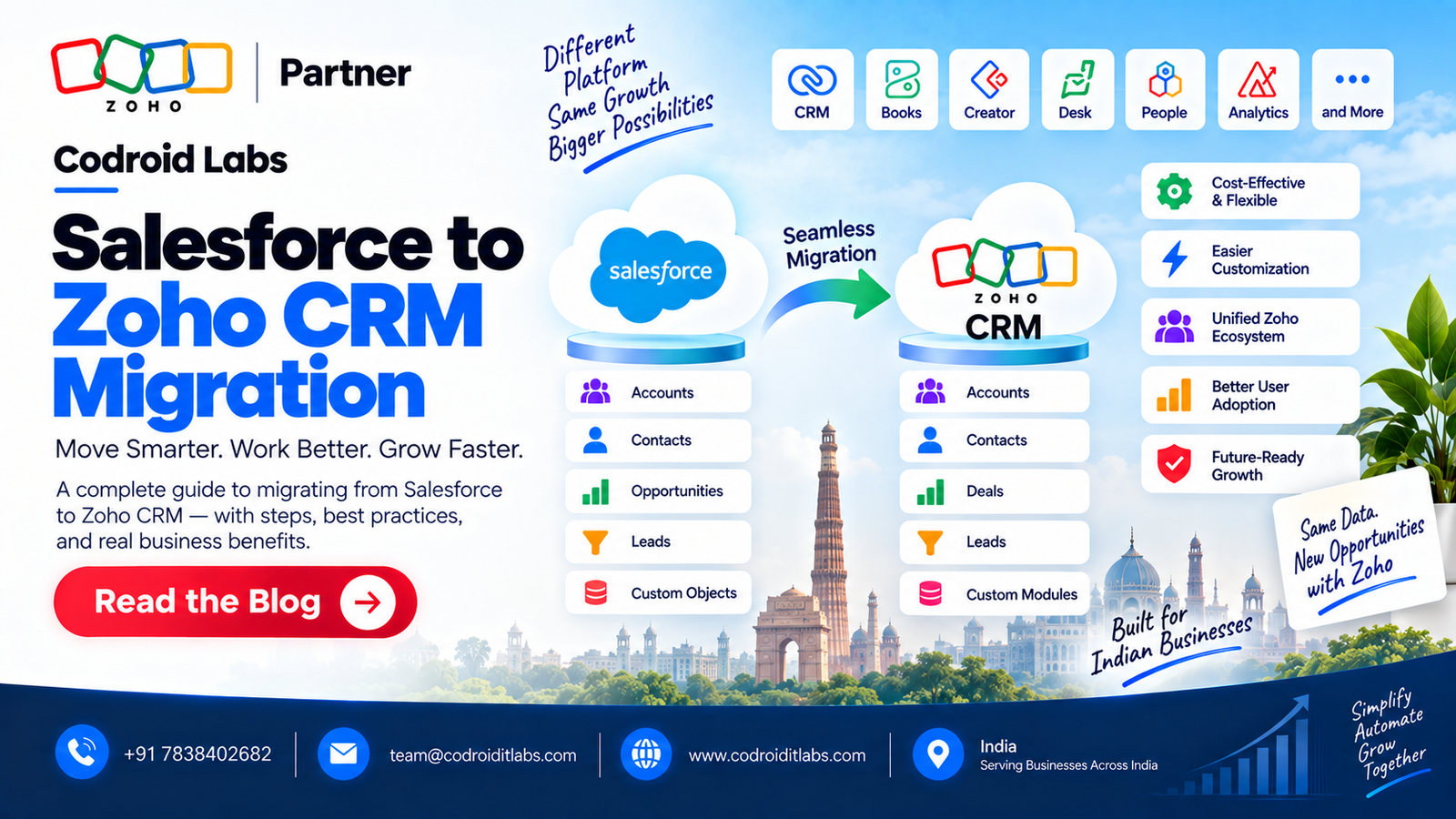
A Salesforce to Zoho CRM migration is genuinely more forgiving than people expect, provided the setup happens in the right order. Zoho confirms it directly through its own support channel: yes, you can import data from Salesforce to Zoho CRM, using the Import Wizard to map Salesforce fields to their Zoho CRM equivalents. This guide covers the native tools available, the sequence that avoids the most common ownership headaches, and what genuinely doesn’t transfer automatically.
Two Official Migration Paths for Salesforce to Zoho CRM
Zoho CRM offers a native Data Migration feature under Settings, Data Administration, Data Migration, where Salesforce can be selected directly from a dropdown of supported source CRMs — a purpose-built path specifically for this kind of Salesforce to Zoho CRM migration. Alongside it, the general-purpose Import Wizard accepts CSV exports from any source, including Salesforce, and includes field mapping so your Salesforce fields line up with the correct Zoho CRM fields during import.
Export your Salesforce data as CSV using Salesforce’s own Data Export Service, or a bulk tool if you have a large or complex object structure, before bringing it into either Zoho tool.
Why Role Hierarchy Must Come First
This is the single most important sequencing rule for a Salesforce to Zoho CRM migration: build your roles, profiles, and permissions structure under Setup, Users and Control before you import a single record. Setting up roles after data has already been imported causes record ownership errors that are difficult to fix retroactively — records end up assigned to the wrong owner or visibility structure, and untangling that after the fact is far more work than getting the hierarchy right beforehand.
Create custom modules and fields to mirror your Salesforce custom objects first too, so incoming data has somewhere correct to land rather than falling into mismatched or generic fields that need cleanup later.
The Correct Module Import Sequence
Data has to be imported module by module, and the order matters because related records need their parent record to already exist. Import Accounts before Contacts, Contacts before Deals, and any custom parent objects before the custom child objects that reference them. Attachments require a separate migration pass from the core records, since they carry meaningfully more storage weight and are typically handled as their own step rather than bundled into the main record import.
What Doesn’t Transfer Automatically
Zoho’s own support team has confirmed directly: there is no option to migrate chat data into Zoho CRM. If customer chat history genuinely needs to be preserved, the documented path is uploading the relevant chats as Attachments on the corresponding records rather than expecting a native chat migration.
Email activity works differently — rather than a one-time migration, Zoho CRM syncs ongoing email through IMAP configuration, with SalesInbox giving access to CRM records and emails together in one place going forward. And critically, Salesforce automation — workflow rules, Process Builder flows, Apex triggers — doesn’t carry over in any form. Every one of those needs to be rebuilt natively as Zoho CRM workflow rules, Blueprints, or custom functions after the data migration itself is complete.
Post-Migration Verification
Once your Salesforce to Zoho CRM migration data is in, run Zoho CRM’s built-in duplicate detection tool to catch anything that survived pre-import cleaning. Cross-check record counts module by module against Salesforce — if Salesforce had 5,000 Accounts and Zoho shows 4,900, track down which 100 didn’t make it over, since validation rules or duplicate rules are the usual cause. Spot-check several high-value records manually, confirming related Contacts, Deals, and Notes all came across correctly, not just the parent record itself.
9 Common Errors With Salesforce to Zoho CRM Migration — Fixed
1. Importing data before building roles
Causes record ownership errors that are difficult to fix retroactively. Build the role hierarchy first, always.
2. Expecting chat history to migrate natively
Not supported. Upload relevant chats as Attachments on the corresponding records instead.
3. Importing child records before their parent module
Contacts before their Account exists, or Deals before their Contact, leaves broken or missing relationships.
4. Custom Salesforce objects with no matching CRM module
Create the corresponding custom modules and fields in Zoho CRM before importing, not after.
5. Expecting Process Builder or Apex logic to carry over
Salesforce automation must be rebuilt manually as Zoho CRM workflows, Blueprints, or Deluge functions.
6. Record counts not matching post-migration
Usually caused by validation rules or duplicate rules silently rejecting specific records during import — cross-check counts module by module.
7. Attachments bundled into the main data import
Attachments generally need their own separate migration pass due to storage size, not a single combined import.
8. Skipping the duplicate check after import
Run Zoho CRM’s built-in deduplication tool immediately after migration to catch anything pre-import cleaning missed.
9. Expecting a one-time email migration
Email works through ongoing IMAP sync and SalesInbox, not a bulk historical import in the same way records are migrated.
Best Practices for a Clean Salesforce to Zoho CRM Migration
- Finish your full Zoho CRM configuration — modules, fields, roles — before any data import begins.
- Audit your Salesforce data quality honestly before export, since bad data migrated is still bad data.
- Back up all Salesforce data before starting, independent of whichever migration tool you use.
- Document every Salesforce automation rule so nothing gets forgotten when rebuilding it in Zoho CRM.
- Budget separate time and effort for attachments and email setup — don’t treat them as part of the core record migration.
More Guides from Codroid Labs
Switch From Salesforce Without the Ownership Chaos
Codroid Labs is a Certified Zoho Authorized Partner handling role hierarchy setup, data mapping, and full Salesforce migrations across India, with GSTIN invoicing for 18% ITC recovery.
Start Zoho CRM via Codroid Labs
Book Free Consultation – +91 78384 02682
Frequently Asked Questions
Does Zoho CRM have a native tool to migrate from Salesforce?
Yes. Under Settings, Data Administration, Data Migration, Salesforce can be selected directly as the source CRM. The Import Wizard is also available for CSV-based imports with field mapping.
Why should I set up roles before importing data?
Setting up roles after data has been imported causes record ownership errors that are difficult to fix retroactively. Building the role hierarchy first avoids this entirely.
Can I migrate my Salesforce chat history to Zoho CRM?
No, Zoho CRM does not currently support migrating chat data directly. Relevant chats can be uploaded as Attachments on the corresponding records instead.
Do my Salesforce workflow rules and Apex triggers transfer over?
No. Automation logic needs to be rebuilt natively inside Zoho CRM, using workflow rules, Blueprints, or Deluge custom functions.
External references:
Zoho CRM — Data Migration (Official Docs) ·
Zoho CRM — Import Wizard (Official Docs)
Codroid Labs (GSTIN 07AAWFC0815B1ZP) is a Certified Zoho Authorized Partner helping businesses complete a smooth Salesforce to Zoho CRM migration, role hierarchy setup, and full CRM implementation across India and global markets.
Phone: +91 78384 02682 | Email: team@codroiditlabs.com | codroiditlabs.com