


If you are looking to migrate QuickBooks to Zoho Books, you are making a strategic move toward better automation, lower costs, and a more integrated business ecosystem. However, moving years of financial data isn’t just a “click and hope” process. As a certified Zoho Partner, we’ve seen how a single mapping error can lead to months of reconciliation headaches.
In this comprehensive guide, we provide the ultimate checklist to import QuickBooks to Zoho Books with zero data loss. Whether you need to migrate QuickBooks Desktop to Zoho Books or move from the cloud-based QuickBooks Online to Zoho Books, this step-by-step roadmap will ensure your transition is seamless and 100% audit-ready.
Why Switch from QuickBooks to Zoho Books in 2026?
Before you migrate data from QuickBooks to Zoho Books, it’s important to understand why millions of businesses are making the switch this year.
- Cost-Efficiency: Zoho Books offers a more transparent pricing model with no hidden charges for extra users or features that QuickBooks often gates behind higher tiers.
- Seamless Zoho Ecosystem: If you use Zoho CRM, Inventory, or Projects, Zoho Books is the missing piece that completes your data flow.
- Superior Automation: From auto-scanning receipts to advanced workflow rules, Zoho Books reduces manual entry by up to 70%.
Pre-Migration: Preparing Your QuickBooks Data
The secret to a successful import of data from QuickBooks to Zoho Books happens before you even open the Zoho dashboard. “Garbage in, garbage out” is the golden rule of accounting migrations.
1. Reconcile All Accounts
Ensure all your bank accounts and credit cards in QuickBooks are reconciled up to your chosen “Cut-off Date.”
2. Clean Up Your Chart of Accounts
Do you have duplicate accounts or “miscellaneous” categories? Merge them now. A clean Chart of Accounts in QuickBooks makes the mapping process in Zoho Books significantly faster.
3. Export Key Reports for Verification
Before you transfer from Zoho Books to QuickBooks (or vice versa), export these reports to PDF or Excel as your “Source of Truth”:
- Trial Balance
- Profit & Loss (P&L)
- Balance Sheet
- Aged Receivables & Payables
Step-by-Step: How to Migrate QuickBooks to Zoho Books
Step 1: Set Up Your Zoho Books Organization
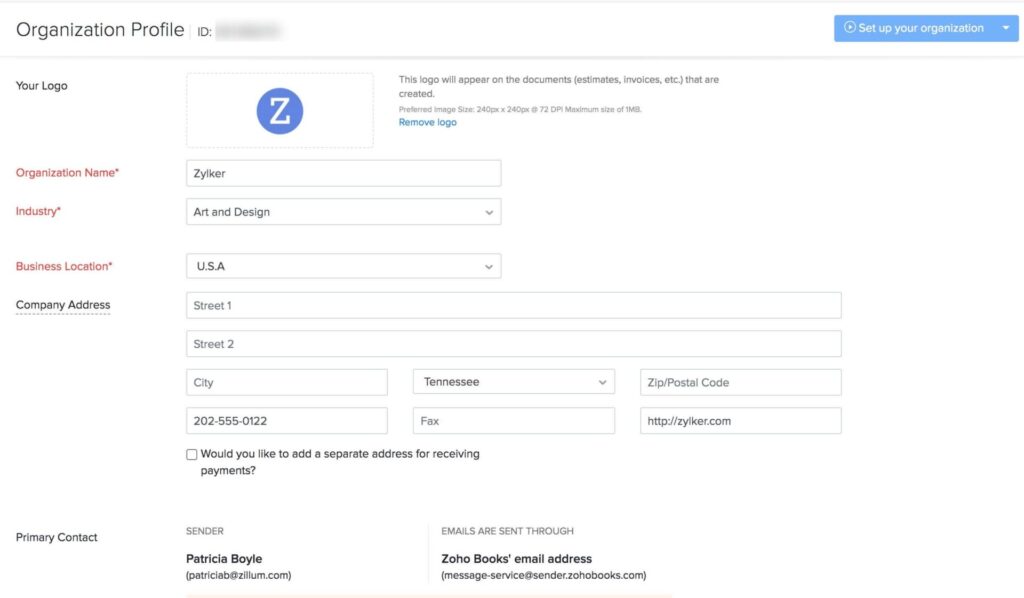
Log in to Zoho Books and configure your basic settings. Ensure your Financial Year and Currency settings match exactly what you had in QuickBooks.
Step 2: Use the Automated Migration Tool
Zoho provides a dedicated tool to import QuickBooks Online to Zoho Books.
- Go to Settings and select the Import Data option.
- Select QuickBooks Online as your source.
- Authenticate your account and let Zoho fetch your “Masters” (Customers, Vendors, and Items).
Step 3: Manual Mapping for QuickBooks Desktop
If you need to migrate QuickBooks Desktop to Zoho Books, the process is more manual but equally effective. You will need to export your lists as CSV files and use Zoho’s import templates.
Expert Tip: Always download the “Sample CSV” from Zoho Books before you import QuickBooks Desktop to Zoho Books. This ensures your column headers match Zoho’s requirements perfectly.
Migrating QuickBooks Desktop vs. Online
| Feature | QuickBooks Online to Zoho | QuickBooks Desktop to Zoho |
| Method | Direct API Sync | CSV/Excel Import |
| Speed | Fast (Automated) | Moderate (Manual) |
| Complexity | Low | High (Mapping Required) |
| Historical Data | Transactions included | Usually Opening Balances only |
Whether you import QuickBooks Online to Zoho Books or the Desktop version, the focus should always be on maintaining the integrity of your Opening Balances.
What Data Can (and Cannot) Be Migrated?
While you can migrate data from QuickBooks to Zoho Books for almost every module, there are some limitations to be aware of:
- What Migrates Well: Chart of Accounts, Customers, Vendors, Active Items, Invoices, and Bills.
- What Requires Manual Work: Recurring transaction templates, complex payroll history, and custom report layouts.
- Bank Feeds: You will need to reconnect your bank feeds directly in Zoho Books for security reasons once the migration is complete.
Post-Migration Verification Checklist
Once you have finished the import of data from QuickBooks to Zoho Books, do not start invoicing yet. You must verify the numbers.
- Check the Trial Balance: Does the total Debit/Credit in Zoho match your QuickBooks report exactly?
- Verify Opening Balances: Go to the Opening Balances section and ensure every account reflects the correct starting point.
- Audit Sample Transactions: Open five random invoices and five random bills in both systems. Ensure tax rates and line items are identical.
- Test the Customer Portal: If you use the Zoho Customer Portal, send a test invoice to yourself to ensure the “Look and Feel” is professional and correct.
Conclusion: Ready for Your Fresh Start?
To migrate QuickBooks to Zoho Books is more than just a software change; it’s an opportunity to clean up your financial data and automate your future growth. While the process can seem daunting, following this checklist will help you avoid common pitfalls and ensure a smooth transition.
As a Zoho Partner, we specialize in complex data migrations. If you have thousands of transactions or unique custom fields, don’t risk your data integrity by doing it alone.
Ready to Get Started on Zoho?
Let’s build your business the smart way — with Zoho and Codroid Labs by your side.
📅 Book your free consultation now
1. How long does it take to migrate QuickBooks to Zoho Books?
The timeline to migrate QuickBooks to Zoho Books depends on the volume of your data and the complexity of your Chart of Accounts. For a small business with clean data, an automated migration from QuickBooks Online can take 2 to 4 hours. However, for larger enterprises requiring manual mapping to import QuickBooks Desktop to Zoho Books, the process may take 2 to 5 business days to ensure full reconciliation.
2. Can I migrate QuickBooks Desktop to Zoho Books directly?
Yes, you can migrate QuickBooks Desktop to Zoho Books, but it requires a manual export-import process. Unlike the Online version, which uses an API, Desktop data must be exported into CSV or XLS files. You then map these files to the Zoho Books import templates. As a Zoho Partner, we recommend cleaning your vendor and customer lists before starting the export to avoid duplication.