



Table of Contents
Introduction: The Importance of Domain Verification
If you are a business owner or an IT admin, you likely want to know how to verify domain in Zoho CRM to ensure your emails actually reach your clients’ inboxes. Welcome! As a trusted Zoho Partner, we have helped countless businesses turn traffic into leads by perfecting their email deliverability.
When you configure your email deliverability properly, you build trust with major email providers. This article will show you step-by-step how to verify domain in Zoho CRM, Campaigns, and Desk using SPF (Sender Policy Framework) and DKIM (DomainKeys Identified Mail) records.
Whether you need to understand domain verification in Zoho from scratch, or you are looking for how to re verify my domain in Zoho Mail after a DNS change, this guide has you covered. Let’s dive in!
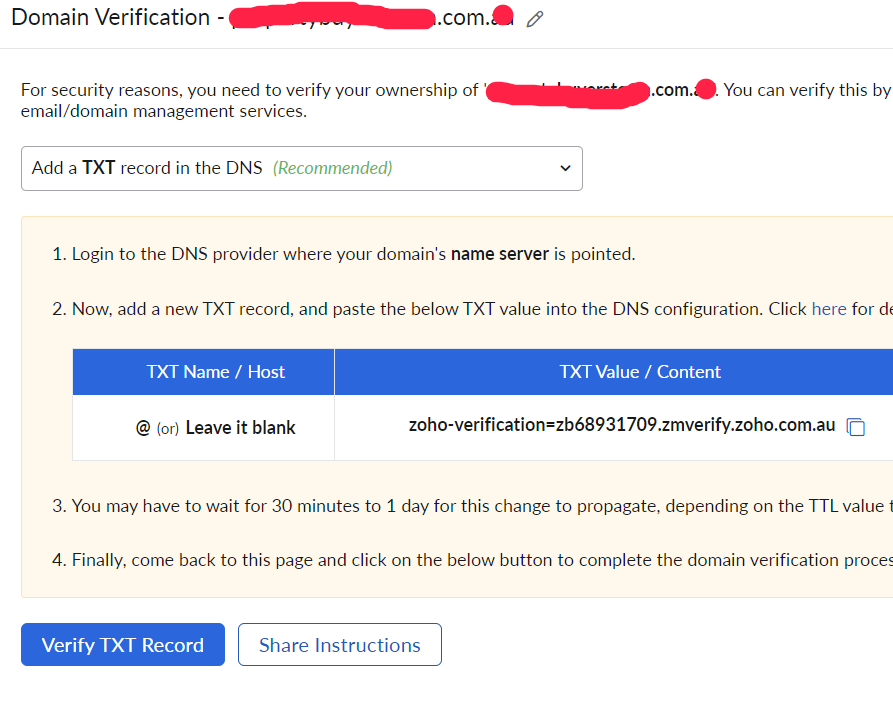
How to Verify Domain in Zoho CRM
Completing your domain verification in Zoho CRM is the first major step to securing your communications. Here is exactly how to do it:
Step 1: Add Your Domain in Zoho CRM Navigate to the setup icon in your CRM dashboard. Go to “Email” under the Channels section, and click on the “Email Deliverability” tab.
Click on “Add Domain” and type in an email address associated with the domain you want to verify. Zoho will send a verification code to that inbox. Open the email, copy the code, return to your CRM, paste the code into the “Enter Code” box, and click “Verify”.
Step 2: Add Your SPF Record to Your DNS Now, click on “Evaluate Records”. You must add two specific records to your domain’s DNS manager (such as GoDaddy or Cloudflare).
Start with the SPF record, as it is the simplest. Copy the SPF value from Zoho CRM. Head over to your domain registrar’s DNS section, click “Add”, and select “TXT” as the record type. Enter @ for the name, paste your copied value, leave TTL as default, and click “Add Record”
Learn more about our Zoho CRM Implementation Services here
Step 3: Add Your DKIM Record to Your DNS Back in Zoho CRM, copy the DKIM record name (the first string of text). Return to your DNS manager, add another “TXT” record, and paste that name.
Go back to Zoho CRM once more to copy the DKIM value (the second section), paste it into your DNS manager, and save the record. Finally, return to the CRM and click “Validate Records”. You have successfully completed domain verification in Zoho CRM!
Verify Domain in Zoho Campaigns
Email marketing requires strict authentication. If you want to verify domain in Zoho Campaigns, the process requires a slight adjustment to prevent breaking your existing setup.
Step 1: Locate Domain Authentication In Zoho Campaigns, click on “Settings” and navigate to “Domain Authentication”. If your domain does not appear, click the “Add Sender” button in the top right corner.
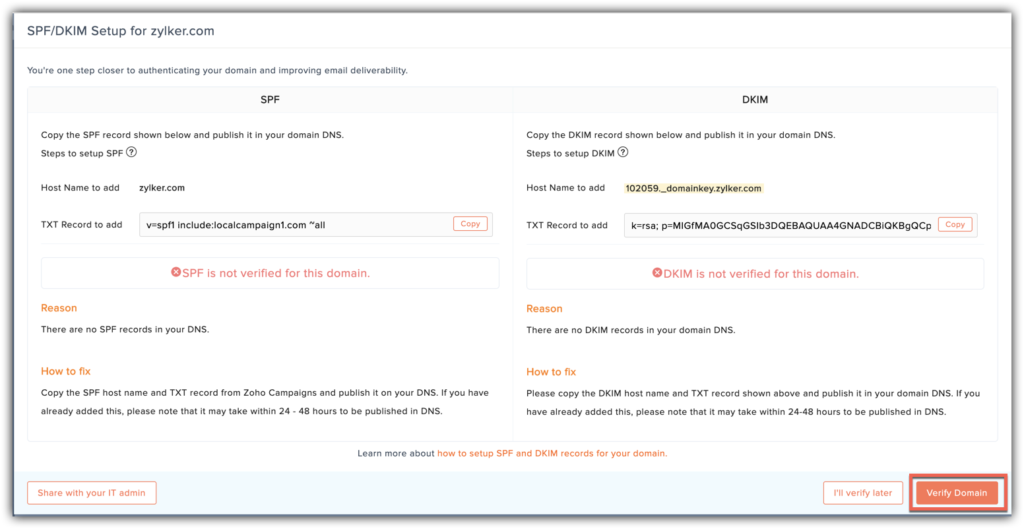
Step 2: Edit Your Existing SPF Record Because you already created an SPF record for your CRM, you should not create a brand new SPF record. Creating duplicate SPF records will cause email errors!
Instead, copy only the middle section of the Campaigns SPF record (the part that says “include”). Go to your domain manager, find the SPF record you created earlier, click “Edit”, and paste this new “include” section right in the middle, making sure to leave a space before the end of the text. Save the edited record.
Step 3: Add the Campaigns DKIM Record Next, you need to add the new DKIM record for Campaigns. Just like before, copy the name from Zoho, create a new “TXT” record in your DNS, and paste the name. Copy the value from Zoho, paste it into the DNS value field, and hit “Save”.
Return to Zoho Campaigns and click “Verify Domain”.
Important Note: It may take up to 40 hours for domain DNS records to fully update globally, so be patient if it does not verify immediately
How to Verify Domain in Zoho Desk
Customer support relies heavily on reliable emails. Here is how to verify domain in Zoho Desk:
Step 1: Add a From Address In Zoho Desk, go to Setup, then click on “Email”. Under “From Address”, click the plus (+) button to add your email address and a sender name, then click Save.
Open your email inbox, find the verification link sent by Zoho Desk, and click it to verify the address.
Step 2: Authenticate the Domain Open the “Authentication” tab in Desk. (Note: If you don’t see your domain, it is because you must add the “From Address” first!).
Click “Verify”. Just like with Zoho Campaigns, you will edit your existing SPF record by copying the missing “include” section and pasting it into your current DNS SPF record. Save the updated record.
Next, copy the new DKIM record name and value provided by Desk, and add them as a new TXT record in your DNS manager. Keep in mind, if your DNS manager gives you an error saying a record already exists, you can safely close the error message as it means it was previously added. Switch back to Zoho Desk and click “Verify”
Domain Verification in Zoho One & Zoho Mail
Many users search for how to verify domain in Zoho One, how to verify domain in Zoho, or how to verify domain in Zoho Mail.
If you are a Zoho admin managing multiple applications, mastering these integrations is vital. In fact, if you want to learn how to integrate the top 10 Zoho applications effectively, there are dedicated Zoho One masterclasses available.
While the exact menus might differ slightly, how to verify my domain in Zoho always follows the exact same underlying logic:
- Prove ownership via an email code or link.
- Add a TXT record for DKIM.
- Consolidate and update a single SPF record for all apps.
If your DNS records accidentally get deleted and you need to know how to re verify my domain in Zoho Mail, you simply repeat these DNS steps to restore your email credibility.
(Please note: For specific routing and MX record instructions for Zoho Mail hosting, you will need to refer to Zoho’s official external documentation at zoho.com as this falls outside the scope of our CRM, Desk, and Campaigns guide. This external resource is highly recommended for Mail setup!)
Conclusion & Next Steps
Learning how to verify domain in Zoho CRM, Campaigns, and Desk does not have to be a massive headache. By carefully managing your DNS records and ensuring you only ever have one active SPF record that you edit and expand, you will guarantee sky-high email deliverability.
domain verification in Zoho CRM ensures your marketing, sales, and support emails reach your clients safely, keeping your business running smoothly
Ready to Get Started on Zoho?
Let’s build your business the smart way — with Zoho and Codroid Labs by your side.
📅 Book your free consultation now