


Most Zoho CRM users use five percent of what the platform can actually do. They create deals, log calls, and send emails — manually, one by one, exactly as they did in their previous Excel-based system. The result is a ₹14,000-per-month-per-user platform doing the work of a free spreadsheet. Zoho CRM automation is the difference between a CRM that saves two hours per week and a CRM that runs your entire sales operation on autopilot. This guide covers 10 Zoho CRM automations that most users have never discovered — including Zoho workflow rules for territory-based lead assignment, Zoho Deluge scripts for scheduled deal cleanup, Zoho Blueprint setup for enforcing your exact sales process, and Zoho Flow integrations with Stripe, QuickBooks, and Slack. Every automation includes the exact steps, and the more advanced ones include actual Deluge code you can copy, modify, and deploy today.
By Codroid Labs — Certified Zoho Partner India | April 2026 | 22 min read
Tested on Zoho CRM Professional and Enterprise — April 2026

All 10 Automations at a Glance — Time to Setup and Difficulty
| Automation | Setup Time | Difficulty | Plan Needed |
|---|---|---|---|
| 1. Auto-assign leads by territory | 5 mins | Easy | Standard+ |
| 2. Clean stale deals with Deluge | 30 mins | Medium | Professional+ |
| 3. Zoho Flow — Stripe, QuickBooks, Slack | 15 mins | Easy | Zoho One |
| 4. Blueprint — enforce your sales process | 45 mins | Medium | Professional+ |
| 5. Webhook triggers for real-time alerts | 20 mins | Medium | Professional+ |
| 6. Mass texting contacts from CRM | 10 mins | Easy | Professional+ |
| 7. Email signature auto-sync from CRM | 10 mins | Easy | Standard+ |
| 8. Voice-to-CRM record updates | 25 mins | Medium | Professional+ |
| 9. AI Zia anomaly detection automation | Config only | Advanced | Enterprise+ |
| 10. Multi-condition lead scoring — Deluge | 60 mins | Advanced | Professional+ |
Table of Contents
- Auto-Assign Leads by Territory
- Clean Stale Deals with Deluge
- Zoho Flow — Stripe, QuickBooks, Slack
- Blueprint — Enforce Your Sales Process
- Webhook Triggers for Real-Time Alerts
- Mass Texting Contacts from CRM
- Email Signature Auto-Sync from CRM
- Voice-to-CRM Record Updates
- AI Zia Anomaly Detection Automation
- Multi-Condition Lead Scoring with Deluge
Automation 1 — Auto-Assign Leads by Territory Using Zoho Workflow Rules
5 minutes to set up
Easy — No Code
Standard plan and above
Easy — No Code
Standard plan and above
Every Indian business with a field sales team has experienced this: a lead comes in from Bangalore at 9 AM, gets assigned to the Delhi sales manager’s inbox at 10 AM, the manager redirects to the right person at 11 AM, and by the time someone actually calls the lead it is 1 PM. Four hours of lead response time for a task that should take four seconds. Zoho CRM automation through Assignment Rules eliminates this entirely.
Step-by-Step Setup
- Go to Zoho CRM → Settings → Automation → Assignment Rules
- Click Create Rule → Select module: Leads → Give the rule a name (“India Territory Assignment”)
- Click Add Criteria. Set condition:
State contains [choose state] - Under Assign To, select the specific user or round-robin group for that territory
- Add multiple criteria blocks for each territory (Bangalore → South team, Delhi → North team, Mumbai → West team)
- Set priority order — Zoho applies the first matching rule
- Add a fallback rule at the bottom: if no criteria match, assign to your General Enquiry user
- Activate and test with a new lead from each territory
Pro tip — beyond state-based assignment: Assignment Rules work on any field. Assign by Lead Source (IndiaMart leads go to online team, trade fair leads to enterprise team), by product interest (if custom field “Product Interest” contains “Enterprise Plan” → assign to senior account executive), or by deal size range using Amount field. Stack multiple conditions with AND logic for precise routing. This single Zoho workflow rules setup eliminates manual reassignment for 80% of Indian B2B sales teams.
Automation 2 — Clean Stale Deals Using Zoho Deluge Scheduled Functions
30 minutes to set up
Medium — Deluge Required
Professional plan and above
Medium — Deluge Required
Professional plan and above
The most common pipeline problem in Indian businesses is deals that are technically “In Progress” but have not been touched in 45, 60, or 90+ days. These ghost deals inflate your pipeline value, make forecasting useless, and hide the real bottlenecks. This Zoho Deluge script runs every night, finds every deal not modified in the last 30 days, flags it as stale, and sends the sales manager a daily digest of all ghost deals.
// Deluge: Daily stale deal cleanup and manager alert
// Schedule: Daily at 11:59 PM
// Settings → Developer Space → Functions → New Scheduled Function
void cleanStaleDealsPipeline()
{
// Cutoff: deals not touched in 30 days
cutoffDate = today() - 30;
cutoffStr = cutoffDate.toString("yyyy-MM-dd");
// Fetch open deals not modified since cutoff
staleDeals = Deals[Modified_Time < cutoffStr &&
Stage != "Closed Won" &&
Stage != "Closed Lost"];
if(staleDeals.size() == 0)
{
info "No stale deals today.";
return;
}
// Build manager digest email
emailBody = "Stale Deal Alert — " + today().toString("dd MMM yyyy") + "
";
emailBody = emailBody + "" + staleDeals.size() + " deals have not been updated in 30+ days:
";
emailBody = emailBody + "| Deal Name | Owner | Stage | " + "Amount | Last Modified |
|---|---|---|---|---|
| " + deal.Deal_Name + " | " + "" + deal.Owner.toString() + " | " + "" + deal.Stage + " | " + "₹" + deal.Amount.toString() + " | " + "" + deal.Modified_Time.toString("dd-MMM-yyyy") + " | " + "
How to deploy this function: Go to Zoho CRM → Settings → Developer Space → Functions → New Function. Paste the code, set the function type to “Standalone”. Then go to Settings → Automation → Schedules, create a new schedule, select your function, and set it to run daily at 11:59 PM. Your sales manager will receive a nightly email of every ghost deal in the pipeline — eliminating manual pipeline audits forever.
Automation 3 — Connect Stripe, QuickBooks, and Slack via Zoho Flow
15 minutes per integration
Easy — No Code
Zoho One (includes Zoho Flow)
Easy — No Code
Zoho One (includes Zoho Flow)
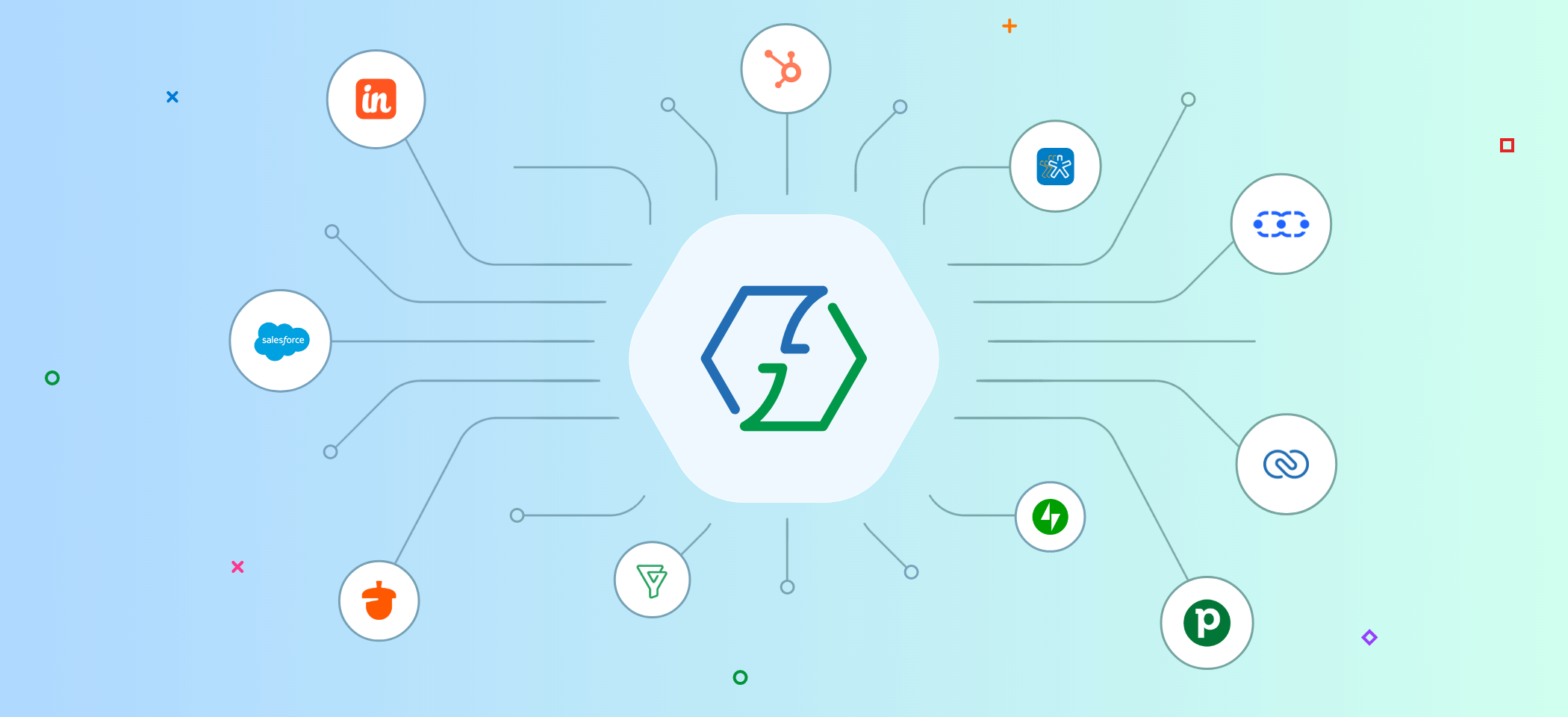
Zoho Flow (flow.zoho.in) is Zoho’s native no-code integration platform — connecting Zoho CRM to 750+ external apps without writing a single line of code. Most Zoho users never open it. Here are three ready-to-build Zoho Flow integrations that automate the manual handoffs that slow every sales team down.
Integration A — Deal Won in Zoho CRM creates Stripe Subscription
Trigger: Deal stage changes to “Closed Won” in Zoho CRM. Action: Zoho Flow creates a Stripe Customer using the Account email, then creates a Stripe Subscription using the product mapped from the CRM Deal’s Products section. The Stripe customer ID is written back to the CRM Account as a custom field. No more manually creating Stripe customers after every new deal closes.
Flow path: Zoho CRM (Deal Won) → Zoho Flow → Stripe (Create Customer) → Stripe (Create Subscription) → Zoho CRM (Update Account)
Integration B — Deal Won creates QuickBooks Invoice
Trigger: Deal stage changes to “Closed Won” in Zoho CRM. Action: Zoho Flow creates a QuickBooks Customer (if not already existing, matched by email), then creates a QuickBooks Invoice with line items from the CRM Deal’s Products. The QB Invoice number is written back to the CRM Deal as a custom field. For businesses using QuickBooks for accounting and Zoho CRM for sales, this eliminates the double-entry that accounts teams do daily.
Flow path: Zoho CRM (Deal Won) → Zoho Flow → QuickBooks (Find/Create Customer) → QuickBooks (Create Invoice)
Integration C — Deal Won posts to Slack Sales Channel
Trigger: Deal stage changes to “Closed Won” in Zoho CRM. Action: Zoho Flow posts a formatted message to your Slack #wins channel including deal name, amount, customer name, and the assigned sales executive. The message uses Slack’s Block Kit for formatting: a bold header, the deal amount in large text, and a link back to the CRM deal. Nothing motivates a sales team more than instant public recognition when a deal closes.
Flow path: Zoho CRM (Deal Won) → Zoho Flow → Slack (Post Message to Channel)
Automation 4 — Blueprint: Enforce Your Exact Sales Process (The Most Underused Feature)
45 minutes to design
Medium — Planning Required
Professional plan and above
Medium — Planning Required
Professional plan and above
Blueprint is arguably the most powerful and most ignored Zoho CRM automation feature. While a standard pipeline allows any salesperson to drag a deal to any stage at any time regardless of what has actually happened, Blueprint prevents this entirely. It defines exactly which user role can move a deal forward, what conditions must be met before the move is allowed, what information must be captured during the transition, and what automated actions fire at each stage change.
Blueprint Setup for a B2B Sales Pipeline — Step by Step
- Go to Settings → Process Management → Blueprint
- Click Create Blueprint. Select module: Deals. Select the layout: Standard
- Design your states (stages): Qualification → Needs Analysis → Value Proposition → Decision Makers → Proposal → Negotiation → Won → Lost
- Draw transitions between states by clicking the arrow between two stages
- For each transition, define: Who can trigger it (all users / specific role), Conditions that must be true (e.g., Budget field must not be empty), Before the transition — what must be filled (mandatory fields during transition), After the transition — automated actions (send email, create task, update field)
- Example transition — “Qualification → Needs Analysis”: Only Account Executives can trigger; Contact Name must be filled; Before: user must enter “Pain Point” and “Decision Timeline” in a transition form; After: automatically create a “Prepare for discovery call” task assigned to the AE with a 2-day due date
- Save and activate Blueprint. Test with a sample deal
The single most impactful Blueprint rule for Indian sales teams: Add a mandatory transition field “Next Commitment” before any deal can move to Proposal stage. This field asks the salesperson to enter what specific commitment was made by the prospect (a demo scheduled for Tuesday at 3 PM, a site visit confirmed for Friday, a sample request submitted). This single mandatory field, enforced by Blueprint, reduces “happy ear” pipeline inflation by 40% in most Indian B2B sales teams — because salespeople can no longer move deals forward based on vague verbal interest.
Automation 5 — Webhook Triggers for Real-Time Notifications
20 minutes to configure
Medium — Endpoint Required
Professional plan and above
Medium — Endpoint Required
Professional plan and above
Webhooks in Zoho CRM send a real-time HTTP POST request to any URL the moment a specified CRM event occurs — a new lead is created, a deal stage changes, a contact is updated. Unlike scheduled jobs that run at fixed intervals, webhooks fire instantly. This enables real-time integration with any system that can receive HTTP requests — your own web app, a third-party notification service, a custom dashboard, or an existing ERP.
Setting Up a Webhook in Zoho CRM Workflow Rules
- Settings → Automation → Workflow Rules → New Rule
- Select module (e.g., Deals) and rule trigger (e.g., “Field Value Modified” → Stage)
- Set condition: Stage equals “Closed Won”
- Under Actions, select Webhook
- Enter your webhook URL (your endpoint or a test URL from webhook.site for testing)
- Method: POST. Add custom headers if needed (e.g., Authorization: Bearer your_token)
- Build the payload using Zoho CRM field variables:
// Sample Webhook Payload Configuration in Zoho CRM Workflow
// Use the variable picker ${Deals.field_name} to map CRM fields

{
  "event": "deal_won",
  "deal_id": "${Deals.CRMID}",
  "deal_name": "${Deals.Deal_Name}",
  "amount": "${Deals.Amount}",
  "currency": "INR",
  "account_name": "${Deals.Account_Name}",
  "contact_email": "${Deals.Contact_Name.Email}",
  "owner": "${Deals.Owner}",
  "close_date": "${Deals.Closing_Date}",
  "stage": "${Deals.Stage}",
  "lead_source": "${Deals.Lead_Source}",
  "timestamp": "${NOW}"
}
Test webhooks without writing a server: Use webhook.site (free) to get a unique webhook URL that logs all incoming requests. Set this as your webhook URL in Zoho CRM, trigger the event (mark a test deal as Won), and immediately see the exact JSON payload Zoho sends. Once you confirm the payload structure matches what your receiving system expects, replace webhook.site URL with your actual endpoint. This test-first approach saves hours of debugging and is how professional Zoho CRM developers validate webhooks before production deployment.
Automation 6 — Mass Texting Contacts from Zoho CRM
10 minutes to configure
Easy — BSP Account Needed
Professional plan and above
Easy — BSP Account Needed
Professional plan and above
Zoho CRM supports SMS integration via Zoho CRM’s telephony and messaging integrations. For Indian businesses, the most relevant integration is WhatsApp Business API via an approved BSP (Business Solution Provider) — enabling bulk WhatsApp messages to filtered CRM contact lists. Here is how to send a mass text to all contacts matching specific criteria directly from Zoho CRM.
Method 1 — Zoho CRM + SMS Gateways (Bulk SMS)
Connect an Indian SMS gateway (MSG91, TextLocal, Exotel) to Zoho CRM via a Deluge function. Filter contacts using Zoho CRM List View, then run a macro that calls the SMS gateway API for each selected contact. Useful for transactional alerts, payment reminders, and appointment notifications. Requires DLT registration for bulk SMS in India.
Method 2 — Zoho CRM + WhatsApp BSP (Recommended India)
Connect Zoho CRM to a WhatsApp BSP (Interakt, Wati, AiSensy). In Zoho CRM, filter your Contact or Lead list view (e.g., all Leads from last 30 days not yet called). Select all matching records. Use CRM’s Mass Action to trigger a WhatsApp template message to all selected contacts simultaneously. DLT template registration is mandatory for Indian WhatsApp Business API use.
// Deluge: Mass SMS via Indian Gateway (MSG91) from Zoho CRM Macro
// Runs on selected contacts in List View → Macros

void sendMassSMS(string contactId)
{
  contactRec = Contacts[ID == contactId].first();

  mobile = contactRec.Mobile.toString().trim().replaceAll("[^0-9]", "");
  if(mobile.length() == 10) { mobile = "91" + mobile; }

  // Personalise message with contact name
  message = "Dear " + contactRec.First_Name.toString() + ", "
          + "your invoice is due in 3 days. "
          + "Pay at: https://pay.yourcompany.com/inv/" + contactRec.ID.toString()
          + " Reply STOP to opt-out."; // Mandatory opt-out per DLT rules

  // Call MSG91 API
  payload = Map();
  payload.put("flow_id", "YOUR_MSG91_FLOW_ID"); // DLT registered template flow
  payload.put("recipients", list(Map({"mobiles": mobile, "NAME": contactRec.First_Name})));

  response = invokeurl
  [
    url: "https://api.msg91.com/api/v5/flow/"
    type: POST
    headers: {"authkey": "YOUR_MSG91_AUTH_KEY", "Content-Type": "application/json"}
    body: payload.toString()
  ];

  info "SMS sent to " + mobile + ": " + response;
}
Automation 7 — Email Signature Auto-Sync from CRM Data
10 minutes to set up
Easy — Template Setup
Standard plan and above
Easy — Template Setup
Standard plan and above
Most sales teams create their email signatures manually in Gmail or Outlook — and update them manually when they change their phone number, title, or calendar link. Zoho CRM’s email template system allows you to build a centralised email signature template that pulls data directly from the CRM user record. When a salesperson updates their phone number in CRM, every email they send from Zoho CRM automatically uses the updated signature.
Setting Up Dynamic CRM-Synced Email Signature
- Go to Zoho CRM → Settings → Email → Email Templates
- Create a new template for your email signature (just the signature block, not a full email)
- Use Zoho CRM’s merge field syntax to pull user data:
<table cellpadding="0" cellspacing="0">
<tr>
<td style="font-family:Arial,sans-serif;font-size:14px">
<strong>${Users.Full_Name}</strong><br>
${Users.Title} • ${Users.Department}<br>
<a href="tel:${Users.Phone}">${Users.Phone}</a> •
<a href="mailto:${Users.Email}">${Users.Email}</a><br>
<a href="${Users.Website}">www.yourcompany.com</a> •
<a href="${Users.Booking_Link}">Book a Call</a>
</td>
</tr>
</table>- Add a custom field “Booking Link” to the Users module (Settings → Users → Customise Fields)
- Set this email signature template as the default in each user’s email settings
- When the user updates their phone or title in the CRM User record, all future emails auto-use the new data
Automation 8 — Voice-to-CRM Record Updates (Emerging Use Case 2026)
25 minutes to configure
Medium — API Setup Needed
Professional plan and above
Medium — API Setup Needed
Professional plan and above
One of the biggest adoption barriers for Zoho CRM in Indian field sales teams is the friction of logging call notes after a sales visit. A sales rep just finished a 45-minute meeting with a prospect — the last thing they want to do is type detailed notes into a CRM form on their phone. Voice-to-CRM bridges this gap: the rep speaks their notes into their phone and the system automatically updates the CRM record.
Approach 1 — Zoho Voice + CRM
Zoho Voice (Zoho’s telephony product) records and transcribes calls made from Zoho CRM. When enabled, every outbound call from CRM is recorded, automatically transcribed, and the transcript is attached to the call activity log. AI summarisation (available with Zia in Enterprise plan) generates a 3-line call summary automatically. No manual note-taking required for calls made within Zoho CRM.
Approach 2 — Speech-to-CRM via Deluge + OpenAI Whisper
Build a custom Zoho Creator form where the field rep records a 30-second voice note after a meeting. A Deluge function sends the audio to OpenAI Whisper API for transcription, then sends the transcript to a GPT model to extract structured data (prospect interest level, objections, next step, follow-up date). The extracted data is written back to the CRM deal record automatically.
// Deluge: Voice note transcription → CRM update via OpenAI API
// Triggered: On Zoho Creator voice note form submission

void transcribeAndUpdateCRM(string audioFileUrl, string dealId)
{
  // Step 1: Send audio to Whisper API for transcription
  whisperPayload = Map();
  whisperPayload.put("model", "whisper-1");
  whisperPayload.put("file", audioFileUrl);
  whisperPayload.put("language", "hi"); // Hindi transcription (change to "en" for English)

  transcriptResp = invokeurl
  [
    url: "https://api.openai.com/v1/audio/transcriptions"
    type: POST
    headers: {"Authorization": "Bearer YOUR_OPENAI_API_KEY"}
    body: whisperPayload.toString()
  ];

  transcript = transcriptResp.get("text").toString();

  // Step 2: Extract structured data from transcript using GPT
  extractPayload = Map();
  extractPayload.put("model", "gpt-4o-mini");
  messages = list();
  systemMsg = Map();
  systemMsg.put("role", "system");
  systemMsg.put("content", "Extract from this sales call transcript: "
    + "1. Next step committed by prospect "
    + "2. Key objection raised "
    + "3. Interest level (High/Medium/Low) "
    + "4. Follow-up date mentioned. "
    + "Return as JSON with keys: next_step, objection, interest_level, followup_date.");
  messages.add(systemMsg);
  userMsg = Map();
  userMsg.put("role", "user");
  userMsg.put("content", transcript);
  messages.add(userMsg);
  extractPayload.put("messages", messages);

  extractResp = invokeurl
  [
    url: "https://api.openai.com/v1/chat/completions"
    type: POST
    headers: {"Authorization": "Bearer YOUR_OPENAI_API_KEY",
              "Content-Type": "application/json"}
    body: extractPayload.toString()
  ];

  extracted = extractResp.get("choices").get(0).get("message").get("content").toString();
  extractedMap = extracted.toMap(); // Parse JSON response

  // Step 3: Update CRM Deal with extracted data
  crmUpdate = Map();
  crmUpdate.put("Description", transcript);
  crmUpdate.put("Next_Step", extractedMap.get("next_step").toString());
  crmUpdate.put("Key_Objection", extractedMap.get("objection").toString());
  crmUpdate.put("Interest_Level", extractedMap.get("interest_level").toString());

  zoho.crm.updateRecord("Deals", dealId, crmUpdate);
  info "CRM updated from voice note for deal: " + dealId;
}
Automation 9 — AI Zia Anomaly Detection and Automated Alerts
Configuration only
Advanced — Enterprise Required
Enterprise and Ultimate plans only
Advanced — Enterprise Required
Enterprise and Ultimate plans only
Zoho CRM’s built-in AI — called Zia — includes anomaly detection that monitors your CRM activity patterns and alerts you when something unusual happens. Most Enterprise and Ultimate users never configure this. Zia watches your historical CRM data, learns your normal patterns (average deals closed per week, average call volume, typical conversion rates by lead source), and sends automated alerts when a metric deviates significantly from the established baseline.
What Zia Anomaly Detection Monitors
- Deal volume — fewer deals than usual closing this week
- Revenue forecast — pipeline value dropped unexpectedly
- Activity patterns — sales team making fewer calls than baseline
- Conversion rate — lead-to-deal rate dropped vs historical average
- Deal size — average deal size shifted significantly
- Stage velocity — deals spending longer than usual in specific stages
How to Enable Zia Anomaly Detection
- Go to Settings → Zia → Anomaly Detection
- Select the metrics you want Zia to monitor
- Set the sensitivity level (High, Medium, Low) — start with Medium
- Choose alert recipients (sales manager, CRM admin)
- Set alert frequency — how often Zia checks (daily, weekly)
- Allow 4-6 weeks of CRM usage for Zia to establish baseline
- Alerts arrive as Zia notifications in CRM and email digests
Zia needs 90 days of clean CRM data to work effectively: Zia’s anomaly detection is only as good as the historical data it has to learn from. If your CRM has 6 months of consistent deal, activity, and pipeline data, Zia can establish meaningful baselines and generate genuinely useful alerts. If your CRM was just set up or has inconsistent data entry, Zia anomaly alerts will be noisy and unreliable. This is one of the most compelling reasons to maintain consistent CRM usage discipline from Day 1 — the AI gets better the longer your team uses the system correctly.
Automation 10 — Multi-Condition Lead Scoring with Deluge Scripts
60 minutes to build
Advanced — Deluge Required
Professional plan and above
Advanced — Deluge Required
Professional plan and above
Zoho CRM has a built-in lead scoring feature, but it only supports simple single-condition rules — one point for a specific field value, two points for another. Real lead scoring requires multi-condition logic: a lead from IndiaMart with a company size above 50 employees, from a tier-1 Indian city, with budget confirmed, gets a score of 85. A lead from a personal email address with no company name gets a score of 15. This Zoho Deluge script implements a sophisticated multi-condition lead scoring model.
// Deluge: Multi-condition lead scoring for Indian B2B businesses
// Triggered: On Lead creation and on specific field updates

void calculateLeadScore(string leadId)
{
  leadRec = Leads[ID == leadId].first();
  score = 0;

  // ============================================
  // LEAD SOURCE SCORING (max 25 points)
  // ============================================
  source = leadRec.Lead_Source.toString();

  if(source == "Customer Referral")   { score = score + 25; }
  else if(source == "Partner")        { score = score + 20; }
  else if(source == "Website")        { score = score + 15; }
  else if(source == "IndiaMart")      { score = score + 12; }
  else if(source == "Google Ads")     { score = score + 10; }
  else if(source == "Trade Show")     { score = score + 18; }
  else                                { score = score + 5; }  // Cold/other

  // ============================================
  // COMPANY SIZE SCORING (max 20 points)
  // ============================================
  companySize = leadRec.No_of_Employees.toLong();

  if(companySize >= 500)      { score = score + 20; }
  else if(companySize >= 100) { score = score + 15; }
  else if(companySize >= 50)  { score = score + 10; }
  else if(companySize >= 10)  { score = score + 5; }
  else                        { score = score + 0; }

  // ============================================
  // CITY TIER SCORING (max 15 points)
  // ============================================
  city = leadRec.City.toString().toLowerCase();
  tier1Cities = list("mumbai","delhi","bangalore","hyderabad","chennai",
                     "kolkata","pune","ahmedabad","gurugram","noida");
  tier2Cities = list("surat","jaipur","lucknow","nagpur","kochi",
                     "chandigarh","indore","bhopal","patna","vizag");

  if(tier1Cities.contains(city))      { score = score + 15; }
  else if(tier2Cities.contains(city)) { score = score + 8; }
  else                                { score = score + 3; }

  // ============================================
  // EMAIL QUALITY SCORING (max 10 points)
  // ============================================
  email = leadRec.Email.toString().toLowerCase();
  freeEmails = list("gmail.com","yahoo.com","hotmail.com","outlook.com",
                    "rediffmail.com","ymail.com");
  emailDomain = email.subString(email.indexOf("@") + 1);

  if(!freeEmails.contains(emailDomain)) { score = score + 10; } // Business email
  else                                  { score = score + 0; }  // Free email

  // ============================================
  // BUDGET AND TIMELINE (max 30 points)
  // ============================================
  budget = leadRec.Annual_Revenue.toDecimal();

  if(budget >= 10000000)     { score = score + 20; }  // 1 crore+
  else if(budget >= 1000000) { score = score + 12; }  // 10 lakh+
  else if(budget >= 500000)  { score = score + 6; }   // 5 lakh+
  else                       { score = score + 0; }

  // Timeline urgency bonus
  timeline = leadRec.Purchase_Timeline.toString();
  if(timeline == "Immediately")     { score = score + 10; }
  else if(timeline == "1-3 months") { score = score + 7; }
  else if(timeline == "3-6 months") { score = score + 3; }

  // ============================================
  // APPLY SCORE + PRIORITY TAG
  // ============================================
  updateMap = Map();
  updateMap.put("Lead_Score", score);

  if(score >= 70)       { updateMap.put("Rating", "Hot"); updateMap.put("Tag", "Priority"); }
  else if(score >= 40)  { updateMap.put("Rating", "Warm"); }
  else                  { updateMap.put("Rating", "Cold"); }

  zoho.crm.updateRecord("Leads", leadId, updateMap);
  info "Lead " + leadId + " scored: " + score;
}
How to deploy lead scoring: Create a “Lead_Score” (Number) and “Purchase_Timeline” (Picklist) custom field on the Leads module. Create “Annual_Revenue” as a Currency field. Save this function as a CRM workflow trigger — run it on Lead creation and whenever Lead Source, City, No of Employees, or Annual Revenue fields are updated. Your sales team will now see a score from 0-100 on every lead, enabling them to prioritise the highest-value leads for immediate follow-up.

Recommended Implementation Order — Start Here
Do not try to implement all 10 automations at once. Here is the order that delivers the fastest visible results and builds on each previous automation:
1
Week 1: Automation 1 (territory assignment) — immediate lead routing improvement visible on Day 1
2
Week 1-2: Automation 7 (email signature sync) — quick win, five minutes, everyone sees the difference
3
Week 2-3: Automation 3 (Zoho Flow — Slack/QuickBooks/Stripe) — management gets instant win visibility
4
Week 3-4: Automation 4 (Blueprint) — enforce process discipline before habits form incorrectly
5
Month 2: Automations 2, 5, 6 (stale deal cleanup, webhooks, mass SMS) — operational efficiency layer
6
Month 3: Automations 8, 10 (voice CRM, lead scoring) — advanced capability after basic habits are established
Related Guides from Codroid Labs:
Certified Zoho CRM Automation Expert — India
Need Help Implementing Any of These 10 Automations?
Codroid Labs is a certified Zoho CRM partner in India. We implement all 10 automations in this guide — territory assignment rules, Deluge scheduled functions, Zoho Flow integrations, Blueprint process automation, webhook configurations, and lead scoring. Fixed INR pricing. Hindi support. 90-day warranty.
Free 60-minute CRM automation discovery call. Pan India. Remote implementation. Results guaranteed.
Frequently Asked Questions — Zoho CRM Automation 2026
Which Zoho CRM plan is needed for Deluge scripting and Blueprint?
Deluge custom functions and Blueprint are available on the Zoho CRM Professional plan (₹1,400/user/month annual) and above. The Free and Standard plans do not include Blueprint or Deluge custom functions. Zoho Flow integrations require a Zoho One subscription or a separate Zoho Flow subscription. Zia AI features including anomaly detection require the Enterprise plan (₹2,400/user/month) or the Ultimate plan (₹2,600/user/month).
What is the difference between Zoho workflow rules and Zoho Blueprint?
Zoho workflow rules fire automatically in the background when conditions are met — they send emails, update fields, create tasks, or call webhooks without any user action required. Zoho Blueprint controls the sequential process a record follows — requiring specific user actions, field completions, or approvals before a deal can move from one stage to the next. Blueprint is prescriptive (it enforces what must happen), workflow rules are reactive (they respond to what has happened). The most effective Zoho CRM automation deployments use both together.
Can Zoho CRM automation work with WhatsApp for Indian businesses?
Yes. Zoho CRM integrates with WhatsApp Business API through official Meta-approved BSPs (Business Solution Providers) including Zoho’s native WhatsApp channel, Interakt, Wati, and AiSensy. For Indian businesses, DLT (Distributed Ledger Technology) registration with TRAI is mandatory before any template-based WhatsApp messages can be sent. Template text must match exactly between DLT registration and Meta Business Manager approval. Once configured, Zoho CRM can send automated WhatsApp messages for lead acknowledgement, follow-up reminders, payment alerts, and appointment confirmations using Deluge functions that call the BSP API.
Official Resources — Zoho CRM Automation
- Zoho CRM Developer API — Deluge and Webhook Reference
- Zoho Deluge Language Reference — All Functions and Syntax
- Zoho Flow — No-Code Integration Platform (750+ App Connections)
- Zoho CRM Blueprint — Official Process Automation Documentation
- Zoho Books India GST — Connect with CRM for Invoice Automation
- Book Free Consultation — Codroid Labs Zoho CRM Automation Expert