



Building a custom widget for Zoho CRM is the ultimate way to bridge the gap between a standard sales tool and a high-performance business engine. As a developer, you know that while standard layouts are great, complex workflows often require a bespoke CRM Dashboard or unique integrations that only a custom UI can provide.
In this guide, we will walk through the technical architecture of widgets, leveraging the CRM API and the Zoho JS SDK to create a seamless user experience. Whether you’re looking to pull external data or build an interactive interface, this roadmap covers it all.
Table of Contents
What is a Zoho CRM Widget?
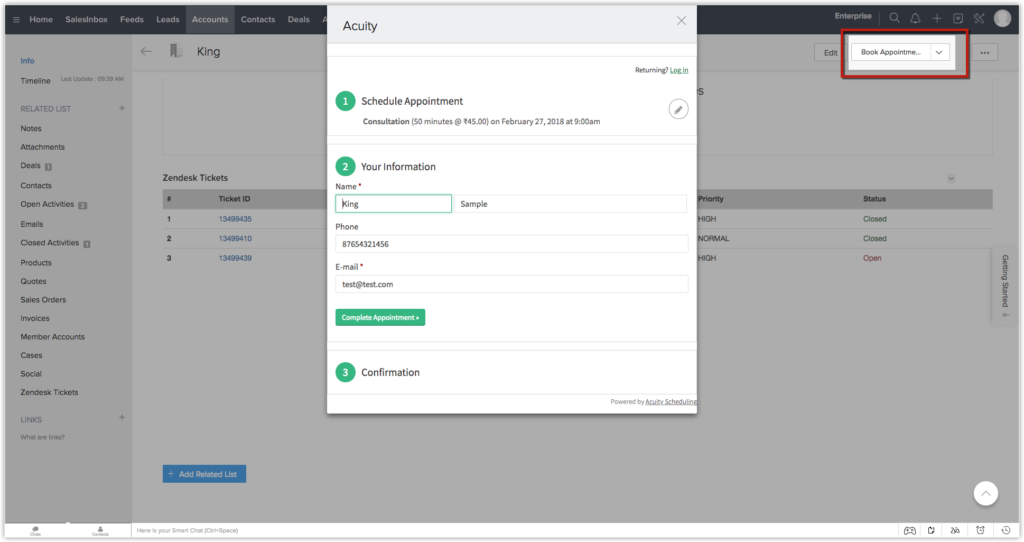
A widget is essentially an embedded application that lives within the Zoho ecosystem. Unlike basic scripts, widgets allow you to use any front-end framework (React, Vue, or even plain HTML/JS) to build a specialized interface. By utilizing the CRM API Documentation, developers can create tools that update records in real-time without ever leaving the CRM interface.
Prerequisites: Getting Your CRM API Key Ready
Before you write your first line of code, you need to ensure your environment is authenticated. While modern widgets primarily use the JS SDK for internal calls, understanding your CRM API Key and OAuth 2.0 protocols is vital for more complex, server-side integrations.
- Developer Account: Ensure you have a Zoho Developer Edition account.
- ZDK CLI: You will need Node.js installed to use the command-line interface.
Step 1: Installing the Zoho Extension Toolkit (ZET)
To build an SEO-standard, high-performance widget, you must use the official Zoho CLI. Open your terminal and run:
npm install -g zoho-extension-toolkit
This tool simplifies the packaging process, ensuring your widget complies with the latest CRM API standards for security and speed.
Step 2: Initializing Your First Project
Once the toolkit is installed, create a dedicated folder for your project and run the initialization command:
zet init
Select Zoho CRM from the list of services. This creates a scaffolding that includes your manifest file—the “brain” of your widget—and a sample HTML file.
Step 3: Integrating the CRM API and SDK
The true power of a custom widget lies in its ability to communicate with your data. Referencing the CRM API Documentation, you will use the JavaScript SDK to initialize your app.
JavaScript
ZOHO.embeddedApp.init().then(function(){
    // Your code to fetch data via CRM API goes here
    ZOHO.crm.API.getRecord({Entity:"Leads",RecordID:"12345"})
    .then(function(data){
        console.log(data);
    });
});
This snippet ensures that your widget only executes once the CRM handshake is complete, preventing “undefined” errors that often plague amateur builds.
Step 4: Designing a High-Performance CRM Dashboard
One of the most common use cases for widgets is creating a custom CRM Dashboard. Standard dashboards are limited, but a widget allows you to:
- Visualize external data (e.g., from an ERP or Shopify).
- Create interactive “Quick Action” buttons for sales reps.
- Display real-time KPIs using libraries like Chart.js.
Expert Insight: Keep your CSS lightweight. A fast-loading widget improves user adoption and reduces friction in the sales process.
Step 5: Testing and Deployment
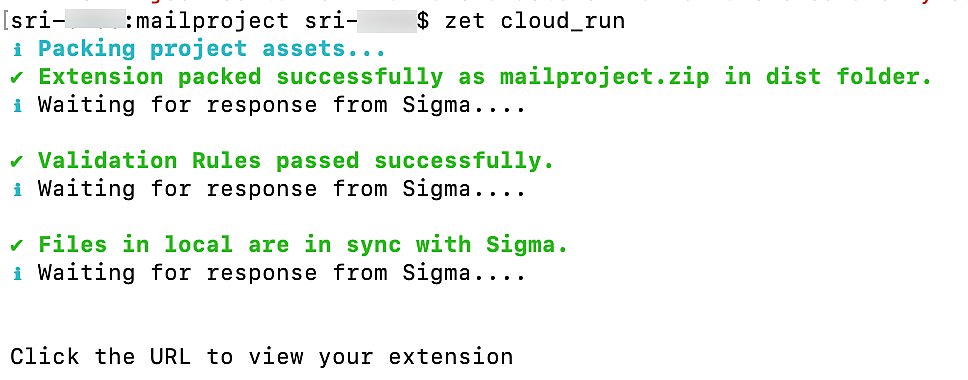
Before you push your widget to the live environment, use the zet run command to host it locally. This allows you to test how your CRM API calls behave in a sandbox environment within the CRM.
- Validate: Run
zet validateto check for manifest errors. - Pack: Run
zet packto create a zip file. - Upload: Go to Setup, find the Developer Hub, and upload your package under the Widgets section.
Key Takeaways for Developers
| Feature | Importance | Resource |
| Authentication | High | CRM API Key / OAuth |
| Data Fetching | Critical | JS SDK & CRM API |
| UI/UX | High | Custom HTML/CSS |
| Metadata | Medium | manifest.json |
Conclusion: Transforming Your Zoho CRM Experience
Building your first custom widget is a significant milestone for any Zoho Partner. By mastering the CRM API and creating intuitive interfaces like a custom CRM Dashboard, you provide value that goes far beyond basic data entry.
As your widget grows in complexity, always refer back to the official documentation to stay updated on new API versions and SDK enhancements.
Ready to scale your Zoho CRM capabilities?
As a certified Zoho Partner, we help businesses turn complex requirements into streamlined digital workflows.
Ready to Get Started on Zoho?
Let’s build your business the smart way — with Zoho and Codroid Labs by your side.
📅 Book your free consultation now
Q: Where can I use custom widgets within Zoho CRM?
You can implement widgets as Web Tabs, Dashboard elements, custom buttons, related lists, or even within Blueprint transitions and sales signals.
Q: Can I use modern frameworks like React or Vue to build widgets?
Yes. Zoho CRM widgets are framework-agnostic. You can use any client-side technology (React, Angular, Vue) as long as you include the Zoho JS SDK to facilitate communication with the CRM API
Q: How do I find my CRM API Key for widget authentication?
Modern widgets use the JS SDK for seamless authentication. However, if you need a persistent CRM API Key for server-side tasks, you can generate one via the Zoho API Console by creating a “Self-Client.”
Q: What are the size limits for a custom widget?
A single widget project can have up to 250 files with a total package size limit of 25MB. Individual files should not exceed 5MB.