

Zoho CRM workflow automation is the single highest-leverage activity for any Zoho CRM administrator. Setting up the right automations — once — means leads are assigned instantly, follow-ups happen without reminders, deals are escalated before they go cold, contracts are renewed before they expire, and customers receive birthday messages without anyone checking a calendar. The difference between a CRM that the sales team loves and one they abandon is almost entirely in the automation layer: how much of the repetitive coordination work the system handles automatically versus how much the human has to remember.
This Zoho CRM workflow automation tutorial and top 10 Zoho CRM automations setup guide covers every major automation type: Workflow Rules, Assignment Rules, Blueprints, Approval Workflows, Webhooks, field updates, date-based triggers, and Zia AI lead scoring. The 10 automations below are the Zoho CRM 10 essential automations that every business using Zoho CRM should have active — they collectively eliminate the most common CRM failure modes: slow lead response, forgotten follow-ups, stagnant deals, and missed renewals.
Zoho CRM Automation Framework — 2026
Workflow Rules: Trigger → Condition → Action
Blueprints: State machine — process enforcement (Enterprise+)
Assignment Rules: Auto-distribute leads/contacts
Approval Workflows: Multi-level approval routing
Webhooks: Real-time outbound data push to external URLs
Zia AI Scoring: Automated lead qualification by AI
Automation 1 — Automatic Lead Assignment (Setup Today)
Lead assignment Zoho, automatic lead assignment Zoho CRM, and Zoho assignment rules — the first automation every business must configure. Every minute a new lead sits unassigned is a minute the competitor’s sales rep has already called. Zoho workflow rules combined with Zoho assignment rules eliminate this delay entirely.
Setup path: Setup → Automation → Assignment Rules → Create Rule
Automatic lead assignment — configuration logic:
Rule 1: Lead Source = “IndiaMART” → Assign to IndiaMART Sales Pod (round-robin among 3 reps)
Rule 2: State = “Maharashtra” → Assign to Mumbai Sales Manager
Rule 3: Industry = “Manufacturing” → Assign to Industrial Sales Specialist
Rule 4: Lead Score > 80 → Assign to Senior Account Executive (priority)
Rule 5: All others → Assign by round-robin across full team
Rule 1: Lead Source = “IndiaMART” → Assign to IndiaMART Sales Pod (round-robin among 3 reps)
Rule 2: State = “Maharashtra” → Assign to Mumbai Sales Manager
Rule 3: Industry = “Manufacturing” → Assign to Industrial Sales Specialist
Rule 4: Lead Score > 80 → Assign to Senior Account Executive (priority)
Rule 5: All others → Assign by round-robin across full team
Result: Every new lead — from web form, IndiaMART, Facebook, or import — is assigned within 0 seconds of creation.
Zoho CRM task creation workflow — CRM task creation companion rule to add: when lead is assigned, create a task “Call within 30 minutes” assigned to the same owner. Auto task creation Zoho leads ensures the assignment is accompanied by an explicit action item with a deadline, not just a notification. Workflow triggers Zoho for lead assignment fire on record creation — the fastest possible trigger point.
Automation 2 — Zoho Email Sequence and Follow-Up Automation
Email automation CRM, Zoho email sequence, email follow up automation Zoho, and email follow-up automation — the second most impactful automation. Most leads require 5-8 touchpoints before conversion. Manual follow-up sequences have a 40-60% failure rate — sales reps forget, get busy, or deprioritize older leads. Automated email sequences have a 100% execution rate by definition.
Task automation Zoho — add task creation at each unanswered touchpoint. If a lead has not responded after the Day 5 email, create a task “Call this lead — email sequence not converting.” The CRM workflow combines automated emails with human escalation at the right moment — automation handles the volume, humans handle the exceptions.
Automation 3 — Deal Stage Automation and Stagnation Alerts
Deal stage automation, Zoho deal alerts, deal stage automation Zoho tutorial, and Zoho CRM risk identification workflow — deals stagnate silently. No alert fires, no one notices, and a prospect moves to a competitor while the deal sits untouched in the pipeline for three weeks.
Setup: Workflow Rule triggered by Date/Time — configure a daily-check workflow: if Deal.Stage = any open stage AND Deal.Last Activity Date < TODAY-7, trigger alert to deal owner AND to Sales Manager. The Notification alerts Zoho CRM setup: CRM alerts and Zoho notifications fire every morning, showing exactly which deals have gone cold.
Risk Alert Trigger
No activity for 7 days → Alert to deal owner. No activity for 14 days → Alert to sales manager with deal details. No activity for 21 days → Zoho CRM risk identification workflow creates escalation task for Director-level review.
No activity for 7 days → Alert to deal owner. No activity for 14 days → Alert to sales manager with deal details. No activity for 21 days → Zoho CRM risk identification workflow creates escalation task for Director-level review.
Stage Change Notifications
When a deal moves to “Proposal Sent” → notify pre-sales team. When “Negotiation” → alert finance for credit check. When “Closed Won” → trigger invoice automation + handoff workflow.
When a deal moves to “Proposal Sent” → notify pre-sales team. When “Negotiation” → alert finance for credit check. When “Closed Won” → trigger invoice automation + handoff workflow.
Sales pipeline automation Zoho and Zoho field update — when a deal stage changes, use field update actions to automatically set: Close Date (to a calculated future date based on average deal cycle), Deal Owner (to territory manager for enterprise deals), and Priority (to High for deals over Rs.10 lakh). Zoho CRM field update workflow fires on record edit — zero human action required.
Automation 4 — Zoho Blueprints: Process Enforcement in CRM
Zoho blueprints and blueprint automation Zoho CRM — Blueprints are the most powerful automation tool in Zoho CRM, available from the Enterprise plan ($40/user/month). A Blueprint defines the exact process a CRM record must follow — which stages exist, who can perform transitions between stages, what information must be captured at each transition, and what automated actions fire at each stage change.
Sales Blueprint example for a B2B deal:
New Lead → [Qualification] Who can transition: Any SDR | Required: Budget, Authority, Need, Timeline fields
→ [Demo Scheduled] Who: Account Executive | Required: Meeting date confirmed
→ [Proposal Sent] Who: AE | Required: Proposal PDF attached, Proposal amount filled
→ [Negotiation] Who: AE + Sales Manager | Required: Discount justification note
→ [Closed Won] Who: AE | Action: Auto-invoice + handoff task to Customer Success
→ [Closed Lost] Who: AE | Required: Loss reason selected from picklist
→ [Demo Scheduled] Who: Account Executive | Required: Meeting date confirmed
→ [Proposal Sent] Who: AE | Required: Proposal PDF attached, Proposal amount filled
→ [Negotiation] Who: AE + Sales Manager | Required: Discount justification note
→ [Closed Won] Who: AE | Action: Auto-invoice + handoff task to Customer Success
→ [Closed Lost] Who: AE | Required: Loss reason selected from picklist
Setup Zoho CRM workflows today using Blueprint — every deal is forced through the same structured process. Sales reps cannot skip stages, cannot close deals without required information, and cannot mark deals as Closed Won without the system automatically triggering the invoice and handoff workflow. Zoho CRM segmentation automation via Blueprint: records in different Blueprint states are automatically segmented for different marketing campaigns in Zoho Campaigns.
Automation 5 — Approval Workflow for Deals and Custom Discounts
Approval workflow CRM and approval workflows Zoho CRM guide — sales reps should not have the authority to approve their own discounts. Zoho CRM Approval Workflows enforce discount approval rules automatically: when a sales rep applies a discount above the configured threshold, the deal is locked for editing and sent to the designated approver.
Setup: Setup → Automation → Approval Processes → Create Process
Trigger: Deal field “Discount %” is updated and value > 15%
Approver Level 1: Sales Manager (must approve within 24 hours)
Approver Level 2 (if discount >30%): Director of Sales
On Approval: Deal unlocked, deal owner notified, discount applied
On Rejection: Deal owner notified, discount field reset, reason recorded
Trigger: Deal field “Discount %” is updated and value > 15%
Approver Level 1: Sales Manager (must approve within 24 hours)
Approver Level 2 (if discount >30%): Director of Sales
On Approval: Deal unlocked, deal owner notified, discount applied
On Rejection: Deal owner notified, discount field reset, reason recorded
Sales automation Zoho — the Approval Workflow prevents revenue leakage from unauthorized discounts, creates an audit trail for compliance, and ensures management visibility on all high-discount deals in real time. Zoho notifications alert both the approver and the deal owner at each step of the approval process.
Automation 6 — Contract Renewal and Subscription Reminders
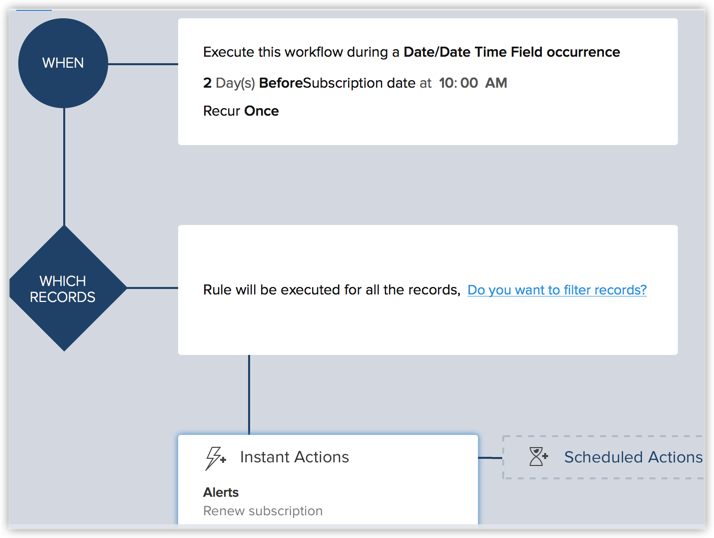
Contract renewal Zoho and contract renewal reminders Zoho — missed contract renewals are the most avoidable revenue loss in B2B businesses. A date-based workflow rule running against a Contract Renewal Date custom field fires the renewal sequence automatically:
Zoho reporting auto — the contract renewal workflow also feeds a renewal pipeline report: all accounts with renewal dates in the next 90/60/30 days, current renewal status, and value at risk. Zoho CRM reporting automation schedules this report to be emailed to management every Monday morning automatically.
Automation 7 — Birthday and Anniversary Email Automation
CRM birthday emails and Zoho CRM birthday anniversary emails — one of the highest-ROI, lowest-effort automations available. Personalised birthday and anniversary emails consistently achieve open rates of 40-60% compared to 20-25% for standard marketing emails — because they feel personal rather than promotional.
Setup: Workflow Rule → Trigger: Date/Time → Contact Field “Date of Birth” matches TODAY
Birthday Email
Trigger: Birthday = Today (runs annually). Action: Send email template with personalised salutation + a relevant offer or complimentary gift voucher. Field used: Contact.Date_of_Birth.
Trigger: Birthday = Today (runs annually). Action: Send email template with personalised salutation + a relevant offer or complimentary gift voucher. Field used: Contact.Date_of_Birth.
Work Anniversary
Trigger: Custom field “Customer Since Date” anniversary. Action: Thank you email acknowledging the relationship duration + loyalty reward. Builds long-term retention without any manual effort.
Trigger: Custom field “Customer Since Date” anniversary. Action: Thank you email acknowledging the relationship duration + loyalty reward. Builds long-term retention without any manual effort.
Subscription Anniversary
Trigger: “Subscription Start Date” anniversary. Action: Renewal offer email 30 days before + thank you note on anniversary date. Used for SaaS, AMC, and retainer-based businesses.
Trigger: “Subscription Start Date” anniversary. Action: Renewal offer email 30 days before + thank you note on anniversary date. Used for SaaS, AMC, and retainer-based businesses.
Wedding Anniversary
Trigger: Custom field for wedding anniversary (hospitality, jewellery, luxury brands). Action: Personalised offer email. Converts to high-value repeat purchases in the right verticals.
Trigger: Custom field for wedding anniversary (hospitality, jewellery, luxury brands). Action: Personalised offer email. Converts to high-value repeat purchases in the right verticals.
Automation 8 — Lead Scoring and AI Qualification
Lead scoring Zoho, lead scoring automation Zoho setup, and lead conversion Zoho — Zoho CRM’s Zia AI automatically scores leads based on engagement signals: email opens, link clicks, website visits (via Zoho SalesIQ integration), form submissions, and company-level data. The score updates continuously as the lead’s behaviour changes.
Zoho CRM segmentation automation using lead scores:
Score 80-100
Hot Lead
Auto-assign to Senior AE + immediate call task + notification to Sales Manager
Hot Lead
Auto-assign to Senior AE + immediate call task + notification to Sales Manager
Score 50-79
Warm Lead
Enter email nurture sequence + assign to standard AE + weekly review task
Warm Lead
Enter email nurture sequence + assign to standard AE + weekly review task
Score 0-49
Cold Lead
Move to marketing nurture campaign + re-score in 30 days automatically
Cold Lead
Move to marketing nurture campaign + re-score in 30 days automatically
Marketing attribution Zoho workflow — when a lead converts from a marketing campaign, the workflow rule records the campaign source on the lead record and on the resulting deal. This enables marketing attribution reporting in Zoho Analytics: which campaigns generate the most revenue, not just the most leads. Data enrichment automation Zoho — Zia automatically fills missing company information (company size, industry, LinkedIn profile) using publicly available data, improving lead quality without manual research.
Automation 9 — Webhooks and Real-Time Data Integration
Zoho webhooks and Zoho CRM webhook automation tutorial — webhooks are the bridge between Zoho CRM and every external system your business uses. When a deal is Closed Won in Zoho CRM, a webhook can fire simultaneously to: your ERP system (create a sales order), your accounting software (create an invoice record), your project management tool (create an onboarding project), and your support system (create a customer account) — all within seconds, with zero manual data entry.
Webhook setup in Zoho CRM:
Setup → Automation → Workflow Rules → Create Rule
Module: Deals | Trigger: Record edit, Stage = “Closed Won”
Action: Webhook
Method: POST
URL: https://your-erp.com/api/sales-order/create
Headers: Authorization: Bearer [token]
Body: {“deal_name”: “${Deal Name}”, “amount”: “${Amount}”, “contact”: “${Contact Name}”}
Setup → Automation → Workflow Rules → Create Rule
Module: Deals | Trigger: Record edit, Stage = “Closed Won”
Action: Webhook
Method: POST
URL: https://your-erp.com/api/sales-order/create
Headers: Authorization: Bearer [token]
Body: {“deal_name”: “${Deal Name}”, “amount”: “${Amount}”, “contact”: “${Contact Name}”}
No code integration option: use Zoho Flow to connect CRM events to 800+ supported apps including Tally, WhatsApp Business, Slack, Google Sheets, and SAP — without writing webhook code manually. Zoho CRM workflow automation via webhooks eliminates the data-entry duplication that costs businesses 30-45 minutes per deal in manual cross-system updates.
Automation 10 — Post-Deal Handoff and Customer Re-Engagement
Post deal handoff automation Zoho and Zoho reengagement campaigns — the deal closing is not the end of the customer relationship; it is the beginning of the retention journey. Two automations handle this critical transition:
Post-deal handoff automation — when a deal reaches Closed Won:
1. Zoho CRM account record created/updated automatically
2. Customer Success Manager assigned via assignment rule
3. Onboarding task created with 30-day kickoff checklist
4. Welcome email sequence starts (3 emails over 2 weeks)
5. Renewal date calculated and set in Contract Renewal Date field
6. Webhook fires to CRM and ticketing system — customer account created
7. Internal Slack notification to CS team via Zoho Flow
2. Customer Success Manager assigned via assignment rule
3. Onboarding task created with 30-day kickoff checklist
4. Welcome email sequence starts (3 emails over 2 weeks)
5. Renewal date calculated and set in Contract Renewal Date field
6. Webhook fires to CRM and ticketing system — customer account created
7. Internal Slack notification to CS team via Zoho Flow
Reengagement campaigns Zoho CRM — six months post-purchase, a re-engagement workflow triggers for customers with no recent activity: email with usage tips, an NPS survey, and an upsell offer appropriate to their current plan. Zoho CRM segmentation automation identifies inactive accounts using field conditions: Last Activity Date < TODAY-90 AND Account Status = Active. The Zoho reengagement email sequence is fully automated and runs continuously in the background.

More Guides from Codroid Labs
Frequently Asked Questions — Zoho CRM Workflow Automation
What triggers can I use in Zoho CRM workflow automation?
Workflow triggers Zoho CRM supports four trigger categories: (1) Record Action triggers — a record is created, edited, or deleted. (2) Date/Time triggers — fire on a specific date field value, with offset options (N days before or after the date). (3) Field Update triggers — fire when a specific field changes to or from a defined value. (4) Scheduled triggers — run at configured intervals (daily, weekly, monthly) filtering records by condition. CRM workflow rules can use a single trigger or combine trigger types for more precise automation logic.
Which Zoho CRM plan includes Blueprints?
Zoho blueprints are available from the Zoho CRM Enterprise plan at $40/user/month (annual billing). The Standard ($14) and Professional ($23) plans include Workflow Rules and Assignment Rules but not Blueprints or multi-level Approval Workflows. For businesses with structured sales or service processes — particularly those with mandatory stage-by-stage information capture — the Enterprise plan is strongly recommended. Blueprint automation Zoho CRM more than justifies the plan upgrade through improved data quality, process compliance, and deal velocity.
How do I set up Zoho CRM webhooks?
Zoho CRM webhook automation tutorial setup: Setup → Developer Space → Webhooks → Add New Webhook. Configure the Name, URL endpoint, Method (POST or GET), Headers (for authentication tokens), and Body parameters (map CRM fields to JSON or XML payload). Then create a Workflow Rule → Add Action → Webhook → select your configured webhook. The webhook fires every time the workflow rule triggers. For connecting to 800+ third-party apps without coding, use Zoho Flow’s pre-built Zoho CRM connectors as an alternative to raw webhooks.
How many workflow rules can I create in Zoho CRM?
Workflow rules Zoho CRM limits by plan: Standard — 20 active rules per module, Professional — 50 per module, Enterprise — 100 per module, Ultimate — 200 per module. For most businesses, 50-100 rules across Lead, Contact, Account, and Deal modules is sufficient. Zoho CRM automation best practice: avoid creating duplicate rules for the same trigger — consolidate related actions into a single rule with multiple action steps to keep the automation layer manageable and auditable. Setup Zoho CRM workflows today — start with the 10 automations in this guide; most businesses will see measurable improvement in response time and pipeline health within 30 days.
Set Up All 10 Zoho CRM Automations — Codroid Labs Implements in 1 Week
Certified Zoho CRM partner — workflow rules, blueprints, approval workflows, webhooks, lead scoring, assignment rules, email sequences, contract renewals, birthday automations. GSTIN invoice. Hindi + English.
Start Zoho CRM via Codroid Labs
Book Free Automation Setup Consultation