


Codroid Labs Guide • Updated September 29, 2026
Zoho MCP ChatGPT Integration: 7 Powerful Steps for 2026
Zoho MCP ChatGPT integration lets you connect selected Zoho tools to conversational AI without turning every workflow into another custom integration project.

Zoho MCP is a tool connection layer for AI clients. For a Zoho MCP ChatGPT integration, you create a server, select the tools it can expose, copy the MCP URL, add it as an app, authorize it, and test a small read operation before enabling higher-impact writes. The same Zoho MCP server model can be used with Gemini CLI or Gemini Code Assist, with client-specific setup.
7setup steps
$0separate MCP fee
300tool-count guidance
2026current context
Reviewed against public documentation: Zoho MCP setup and pricing pages, current ChatGPT MCP/app documentation, Gemini MCP guidance, and the supplied third-party Zoho toolkit page. Menu labels and plan availability can change.
What Is Zoho MCP?
Model Context Protocol gives an AI client a structured way to discover tools and call them. Zoho MCP adds a managed layer where you create a server, select the tools you want exposed, and connect the server to an MCP-compatible client. The practical difference is that the model is not only describing what should happen. It can be given an approved tool that performs the action.
Zoho’s implementation documentation describes custom and pre-configured servers, native and third-party tools, OAuth authorization and client connections. It also recommends keeping the tool set focused, with its guide suggesting a ceiling of 300 tools as a practical limit.
Zoho MCP ChatGPT Integration: 7 Powerful Steps
A good Zoho MCP ChatGPT integration starts small, with one workflow and a narrow set of tools. Exposing every possible tool on day one is a reliable way to turn a simple automation into a permission puzzle.
1. Create the Zoho MCP server
Open the Zoho MCP Console and create a server. Name it for its purpose and environment, such as CRM-Sales-Test or Finance-Read-Only. Clear names help when a team has more than one server.
2. Add only the tools you need
Choose tools by business action rather than by curiosity. A sales assistant may need record search, related-record reads, notes and tasks. It probably does not need every administrative operation.
| Workflow | Start with | Why |
|---|---|---|
| Lead follow-up | Read + draft | Low risk |
| Support triage | Read + tag | Easy to validate |
| Finance assistant | Read-only | Sensitive data |
3. Copy the MCP URL
Use the Connect section of the Zoho MCP Console to obtain the server URL. Keep the endpoint private and share it only through approved configuration channels.
4. Create the app in ChatGPT
For a Zoho MCP ChatGPT integration, current Zoho instructions describe a Settings → Apps → Create App path: provide a name and description, paste the MCP URL, choose OAuth and continue to authorization. Current ChatGPT MCP availability and write permissions depend on account and workspace capabilities, so older screenshots may not match the current UI.
5. Authorize the connection
Review the requested permissions before approval. Treat the authorization screen as part of the security review, not a formality.
6. Test with a read action
Start with a reversible request: “Find the five newest leads created this week and show their names and lead sources.” Confirm the response is from the expected Zoho environment.
7. Add writes only after validation
Once reads work reliably, add a low-risk write such as creating a note or task. This keeps the Zoho MCP ChatGPT integration easy to validate. Important actions should stay behind explicit approval. The model can be capable and still misunderstand one field.
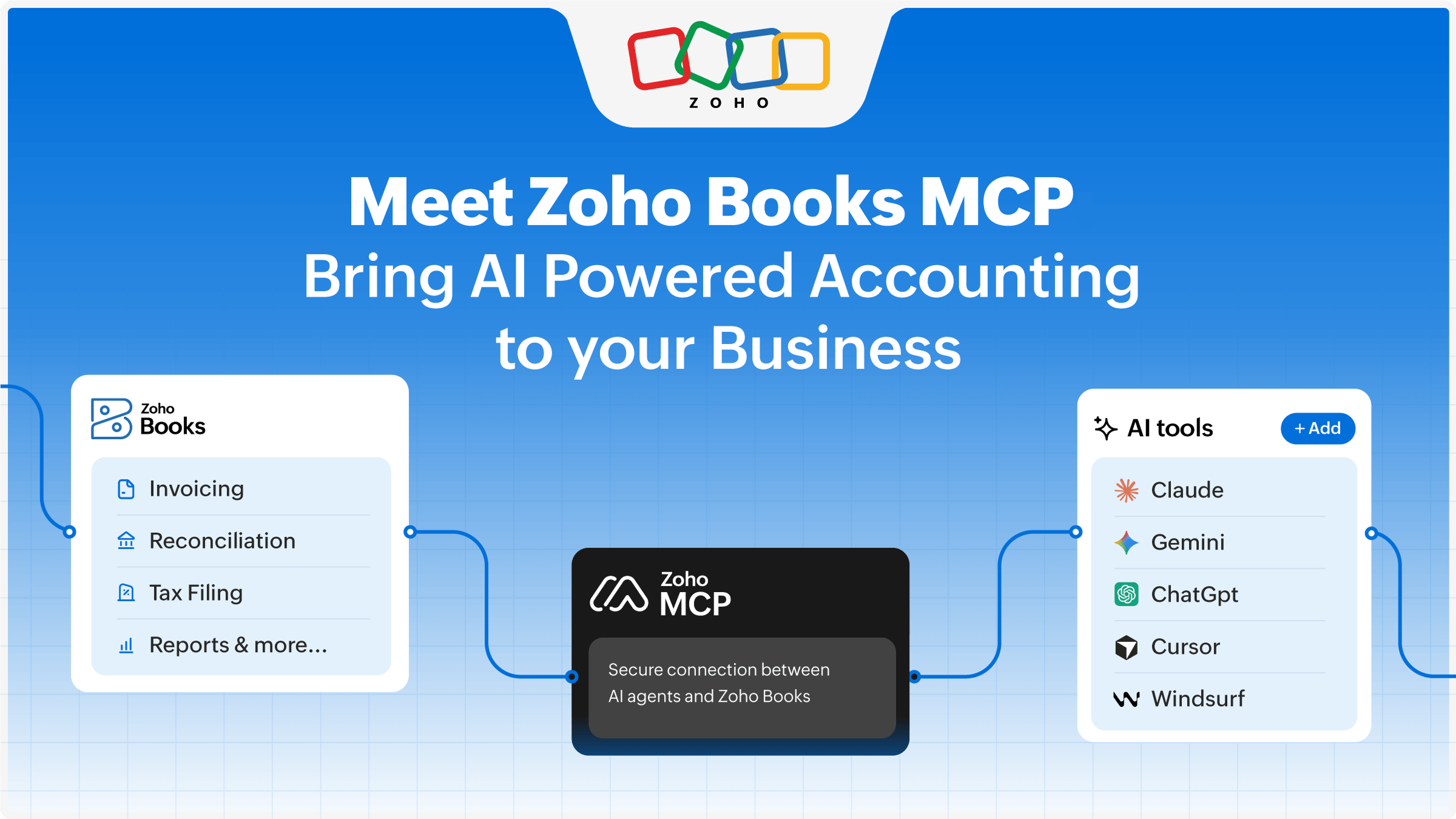
Zoho MCP Gemini Integration: Practical Setup
The Zoho MCP Gemini integration is useful for developers and power users working in VS Code or the terminal. Current public guidance documents Gemini Code Assist with Agent mode and Gemini CLI as MCP-capable routes.
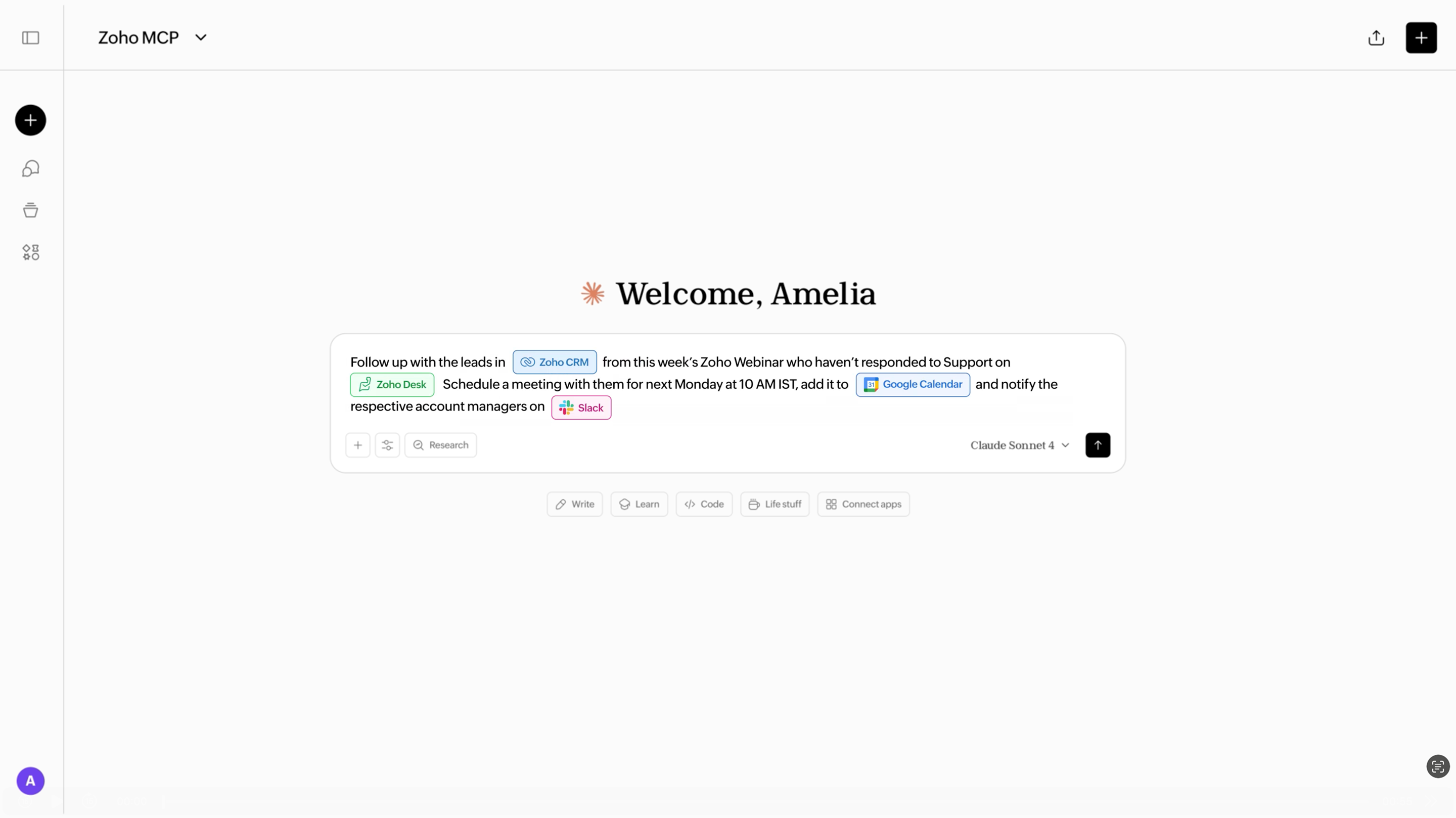
Gemini Code Assist
In the documented flow, install Gemini Code Assist in VS Code, enable Agent mode, create or open .gemini/settings.json, paste the MCP configuration from the Zoho console, reload VS Code, and use /mcp to verify the server and tools.
Gemini CLI
The terminal-first route uses the Gemini settings file and then verifies the server with gemini mcp list. After that, the chat session can request permission before executing the configured tools.
Prompts That Work With Zoho MCP
Do not prompt with “clean up my CRM.” Define the module, filter, fields, action and whether the operation should stay read-only.
CRM: “Find leads created in the last seven days with no follow-up task. Show owner, company and lead source. Do not update records.”
Sales: “Read the three oldest open deals over ₹10 lakh. Summarize stage, close date and next activity. Do not change fields.”
Operations: “Find overdue tasks assigned to the sales team and group them by owner. Do not send messages.”
Write action: “Create a task for the selected lead with title X and due date Y. Show the proposed action first and wait for approval.”
What a Third-Party Toolkit Adds
The supplied toolkit page shows a different architecture. It is a useful comparison point when evaluating a Zoho MCP ChatGPT integration: a managed integration layer can expose structured Zoho tools to agents, handle OAuth, create tool-router sessions and provide execution logging. That can be useful when a custom application needs a consistent tool layer across multiple AI frameworks.
The difference is architectural, not magical. Native Zoho MCP gives you a Zoho-managed MCP server and tool selection. A third-party layer can sit between the AI application and Zoho. In either setup, security still comes from permissions, scoped tools, testing and approval policies.
Security Gotchas to Fix Before Production
Too many tools: expose only what the workflow needs.
Write access too early: start read-only, then add low-risk writes.
Production data during tests: use controlled records wherever practical.
Missing ownership: document who owns the server, tool configuration and logs.
Prompt injection: treat email, notes and retrieved business text as untrusted input. A model should not obey instructions found inside a customer message merely because it can read that message.
Zoho MCP Pricing: What You Really Pay
As of September 2026, Zoho publishes Zoho MCP at $0 with no separate subscription required. The service uses the existing API limits of the connected Zoho products rather than adding a separate MCP license.
| Cost area | Current position | What to watch |
|---|---|---|
| Zoho MCP | $0 | No separate subscription |
| Zoho APIs | Existing service limits | Edition and quotas matter |
| AI client | Plan-dependent | MCP/write availability varies |
For a Zoho MCP ChatGPT integration, “MCP is free” should not be read as “the whole AI stack is free.” Your Zoho subscriptions remain relevant, and an AI client or third-party integration service may have its own commercial terms.
Zoho MCP ChatGPT Integration Troubleshooting
Create App is missing in your Zoho MCP ChatGPT integration
Check whether developer mode, workspace permissions or your plan support the custom-app/MCP workflow available to you. Current platform UI is evolving.
Tools are not visible
Return to the Zoho MCP server and verify the intended tools were added. Then refresh the app and confirm the connected account can access the underlying Zoho service.
Gemini sees the server but cannot act
Confirm Agent mode is enabled in Gemini Code Assist, or verify the server with gemini mcp list in Gemini CLI.
The wrong tool keeps getting selected
Reduce the tool set, improve descriptions and make the prompt explicit about the module and intended action. More tools do not automatically produce better results.
A Production-Ready Pattern
Map the workflow, create a dedicated server, expose the minimum tool set, test reads, add low-risk writes, add approvals, then monitor the system.
Useful Codroid Labs Reads
Zoho MCP Integration ExplainedConnect AI Models with ZohoZoho MCP vs Zia AgentsBuild a Zoho AI Agent with Zia Agent Studio
Quick Answers for AI Search
Is Zoho MCP free? Yes. Zoho currently publishes it with no separate subscription charge. Usage follows the existing API limits of the connected services.
Can Zoho MCP connect to ChatGPT? Yes. Zoho documents a Create App flow using the server URL and OAuth, subject to current client permissions.
Can Zoho MCP work with Gemini? Yes. Current guidance documents Gemini Code Assist and Gemini CLI routes.
Do I need coding skills? Not for every use case. Server creation and tool selection can be configuration work; custom clients may require development.
FAQ
Is Zoho MCP the same as an API?
No. APIs are direct application endpoints. MCP is a standardized tool interface that AI clients can discover and call. Zoho MCP uses the connected application’s capabilities while adding the tool layer.
Should I connect every Zoho app at once?
No. Start with one workflow and a narrow tool set. Expand only after the first workflow is reliable and auditable.
Can one MCP server support multiple Zoho apps?
Yes. Zoho’s implementation guide allows tools from multiple services on the same server. Keep the resulting tool set focused enough for predictable execution.
Is a third-party toolkit required?
No. It is one possible architecture. Native Zoho MCP can be connected directly to supported clients, while a managed toolkit can be useful when a custom application needs a common routing or authentication layer.
What is a sensible first workflow?
Read-only retrieval followed by a human-reviewed draft is a strong starting pattern. Examples include lead summaries, overdue-task lists, ticket context and follow-up drafts without sending messages.
Turn Zoho Data Into Controlled AI Actions with a Zoho MCP ChatGPT integration
Codroid Labs can help with MCP architecture, permissions, AI workflows, testing and rollout across your Zoho environment.