



Zoho CRM automation is the single most underused feature by teams that are already paying for it. Right now, inside your Zoho CRM account, there are workflow rules, Blueprints, macros, and Zia AI triggers that could eliminate hours of repetitive daily work — lead data entry, follow-up reminders, deal stage updates, invoice creation, team notifications — all running automatically while your sales reps focus on selling. Most teams use less than 20% of what Zoho CRM automation is capable of.
This guide gives you 10 real, proven Zoho CRM automation examples that Codroid Labs has implemented at businesses across India and internationally. Each automation includes what it does, exactly how to set it up, which Zoho CRM plan you need, and a realistic estimate of how many hours per week it saves your team. These are not theory — they are the automations that transformed how real sales teams work.
Certified Zoho Partner — Codroid Labs
Want these automations set up for your team?
Free 60-min consultation — we set up your first 3 automations live.
6–10 hrs
Saved per rep per week with full Zoho CRM automation
10
Real automation setups in this guide — copy exactly
₹800
Zoho CRM Standard — basic automations start here
0 code
All 10 automations are no-code — any admin can set them up
Jump to Any Automation
- Auto Lead Assignment by Territory
- Automated Follow-Up Email Sequence
- Deal Won → Auto Invoice in Zoho Books
- Blueprint — Enforce Your Sales Process
- Zia AI Lead Scoring + Best Time to Call
- Auto Task Creation on Deal Stage Change
- WhatsApp Alert When Hot Lead Arrives
- Web Form → CRM Lead + Welcome Email
- Stale Deal Alert — No Activity in 7 Days
- Macro — One Click to Close 5 Tasks
What Is Zoho CRM Automation? (And Why Your Team Needs It Today)
Zoho CRM automation covers four built-in tools that work independently and together to eliminate manual work from your sales process. Understanding which tool does what is the first step to implementing them correctly.
| Tool | What It Does | Best For | Plan Required |
|---|---|---|---|
| Workflow Rules | Trigger emails, field updates, tasks, or webhooks when a record meets conditions | Background automation — runs silently | Standard+ |
| Blueprints | Enforce a step-by-step process — reps must follow transitions and complete required fields | Process enforcement + guided selling | Professional+ |
| Macros | Bundle multiple actions (email + task + field update) into one click for reps | Repetitive multi-step tasks done manually | Standard+ |
| Zia AI | Scores leads, predicts deal close probability, suggests best contact time, detects anomalies | Intelligent prioritisation for sales reps | Enterprise+ |
| Zoho Flow | Connect Zoho CRM to 1,000+ external apps — trigger actions across platforms | Cross-app automation (WhatsApp, Slack, accounting, etc.) | Separate subscription |
01
Zoho CRM Automation: Auto Lead Assignment by Territory or Source
Time saved: 1–2 hours/rep/week | Plan needed: Standard | Tool: Assignment Rules
This is the first Zoho CRM automation every team should implement. Without it, a manager manually reads every incoming lead and decides who to assign it to. With it, every lead is assigned instantly — based on rules you define — the moment it enters CRM from any source.
You can assign leads based on geography (city, state, PIN code), lead source (website form, cold call, referral, Google Ads), industry, company size, product interest, or any custom field. You can distribute leads evenly (round-robin) or always route specific criteria to specific reps.
⚙️ How to Set It Up:
- Go to Setup → Automation → Assignment Rules
- Select module: Leads
- Click Create Rule → name it (e.g., “Delhi Leads → Rahul”)
- Set criteria: Lead City = Delhi (or Lead Source = Website)
- Choose Assign to a specific user → select the rep
- For round-robin: choose Assign based on criteria → add multiple reps in rotation
- Save and activate. Test with a dummy lead from your web form.
Real result: A Mumbai-based IT distributor using Codroid Labs’ implementation reduced lead response time from 4 hours (manual assignment) to under 3 minutes (automated) after activating this single rule. Conversion rate on those leads increased by 28% in 90 days.
02
Zoho CRM Automation: Automated Follow-Up Email Sequence
Time saved: 2–3 hours/rep/week | Plan needed: Standard | Tool: Workflow Rules + Email Templates
The biggest leak in most sales pipelines is the gap between the first contact and the follow-up. Studies consistently show that 80% of sales require 5+ follow-up touches, yet 44% of sales reps give up after just one. Zoho CRM automation eliminates this gap entirely — your CRM follows up automatically, on schedule, every time, for every lead, without a single rep remembering to do it.
A typical automated sequence: Day 0 — welcome email on lead creation. Day 2 — value content email (sent only if no reply). Day 5 — case study or social proof email. Day 10 — gentle check-in. Day 14 — breakup email. Each email is personalised with the lead’s name, company, and any custom fields you have captured.
⚙️ How to Set It Up:
- Go to Setup → Templates → Email Templates → create 4–5 email templates using merge tags (
${Leads.First Name},${Leads.Company}) - Go to Setup → Automation → Workflow Rules → Create Rule
- Module: Leads | Trigger: A record is created
- Conditions: Lead Source = Website (or any source you target)
- Actions: Email Notification → select Day 0 template → set delay: Immediately
- Add another action: Email → Day 2 template → delay: 2 days
- Repeat for each email in the sequence
- Add a Stop condition: if Lead Status changes to “Contacted” — this stops the sequence so reps who respond manually don’t get spammed
Pro tip: Use Zoho CRM’s SalesSignals (Enterprise plan) to track when leads open emails or visit your website, and trigger a task alert to the assigned rep to call them while they’re “hot” — within minutes of their website visit.
03
Zoho CRM Automation: Deal Won → Auto-Create Invoice in Zoho Books
Time saved: 30–60 min/deal closed | Plan needed: Zoho CRM + Zoho Books | Tool: Native Integration
In businesses without Zoho CRM automation, closing a deal triggers a separate manual process: someone exports the deal details from CRM, opens Zoho Books or Tally, recreates the customer record, manually enters product line items, sets payment terms, and sends the invoice. This takes 20–45 minutes per deal and introduces errors with every manual re-entry step.
Zoho CRM integrates natively with Zoho Books. When a deal is marked Closed Won, an invoice is automatically created in Zoho Books with the customer details, products and quantities from the CRM deal, pricing, and payment terms — all populated automatically. The invoice is sent to the customer without anyone touching it. Zero re-entry. Zero errors. Zero delay.
⚙️ How to Set It Up:
- Ensure Zoho CRM and Zoho Books are linked: Setup → Marketplace → Zoho Books → Connect
- Go to Setup → Automation → Workflow Rules → Create Rule
- Module: Deals | Trigger: A record is modified → Field: Stage
- Conditions: Stage = Closed Won
- Actions: Create Invoice in Zoho Books (appears as an action option after Books is connected)
- Map fields: CRM Account → Books Customer, CRM Products → Books Line Items, CRM Amount → Books Amount
- Set payment terms and due date formula
- Optional: add a second action — Email Notification to the finance team alerting them a new invoice was created
04
Zoho CRM Automation: Blueprint — Make Your Sales Process Non-Negotiable
Time saved: Consistent pipeline data — priceless | Plan needed: Professional | Tool: Blueprint
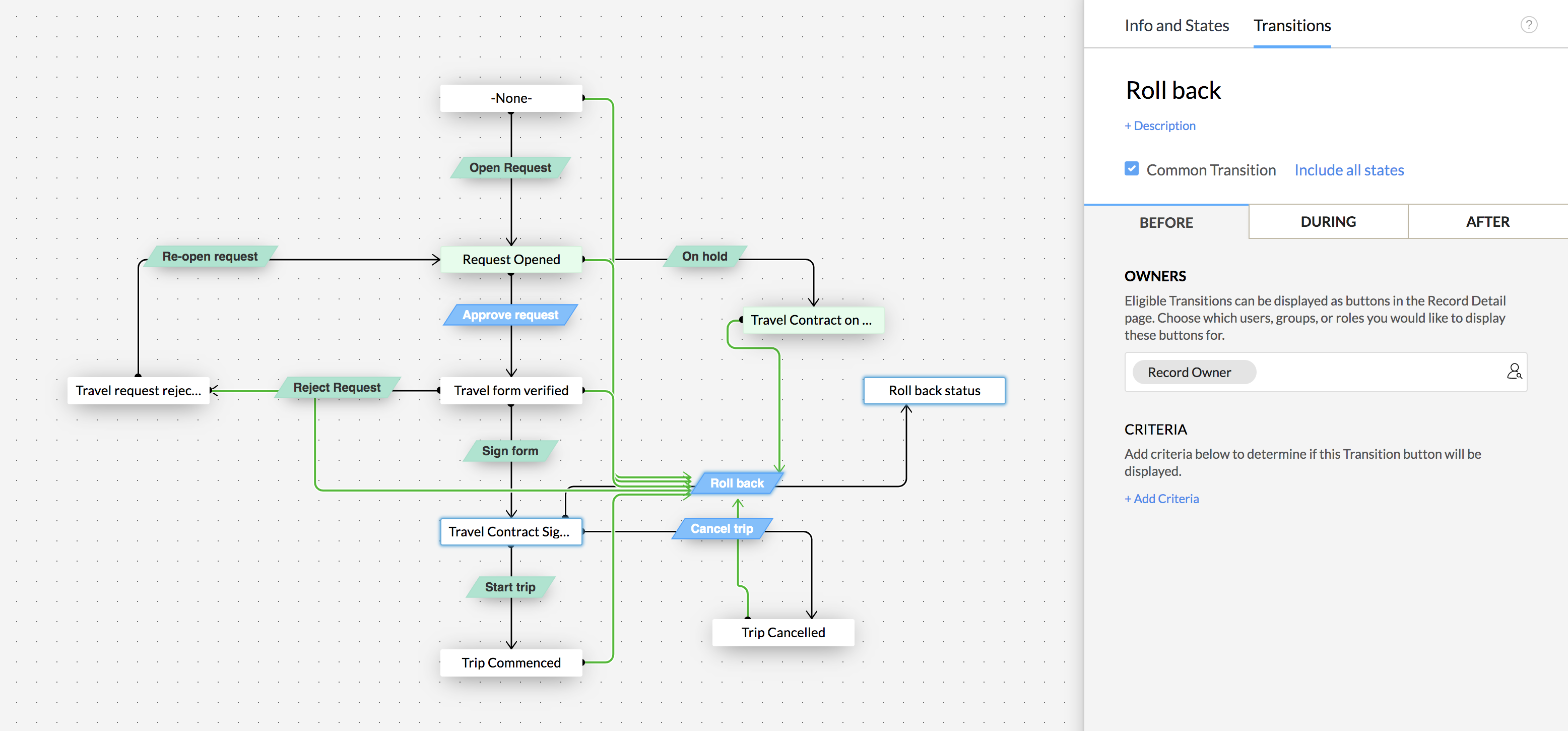
Blueprint is the most powerful and most underused Zoho CRM automation feature. It solves the single biggest problem in most sales teams: reps updating deal stages freely without completing the required actions at each stage. A rep marks a deal “Proposal Sent” without actually sending a proposal. Another skips “Needs Analysis” entirely. Your pipeline data becomes meaningless, and your sales forecasts are fiction.
Blueprint locks the Stage field. Reps cannot manually drag a deal to a new stage. They must click the transition button, complete required fields (budget confirmed, decision-maker identified, proposal document attached), and the system then moves the stage — and simultaneously triggers automation like email notifications, task creation, or field stamps.
Example Blueprint Flow — B2B Sales Deal
New Lead
Entry State
Entry State
→
Qualify
Requires: Budget + Need
Requires: Budget + Need
→
Demo
Requires: Meeting booked
Requires: Meeting booked
→
Proposal
Requires: Doc attached
Requires: Doc attached
→
Closed Won
Triggers invoice
Triggers invoice
+ Common Transition available at every stage: Closed Lost (requires: Loss Reason field)
⚙️ How to Set It Up:
- Go to Setup → Process Management → Blueprint → Create Blueprint
- Module: Deals | Field: Stage
- Drag your stage values onto the canvas and connect them in sequence
- For each transition, configure: Before (who can execute), During (required fields + checklist items), After (automatic field update + task + email)
- Add Closed Lost as a Common Transition — visible from every stage
- Keep it linear for v1. Add branches only after 3 months of usage data.
- Publish and train reps — explain the transition buttons they’ll see

05
Zoho CRM Automation: Zia AI Lead Scoring + Best Time to Contact
Time saved: 1–2 hrs/week on lead prioritisation | Plan needed: Enterprise | Tool: Zia AI (built-in)
Zia is Zoho CRM’s built-in AI assistant, and lead scoring is its most immediately impactful Zoho CRM automation feature. Without Zia, reps decide which leads to call based on gut feel or whoever they happen to notice first. With Zia, every lead gets a data-driven score from 1–100 based on your historical deal data — the characteristics of leads that converted vs. those that didn’t. High-scoring leads are automatically flagged for priority attention.
Zia’s “Best Time to Contact” feature analyses each lead’s engagement patterns — when they open emails, when they respond, when they visit your website — and shows your reps the specific hour and day they are most likely to pick up the phone. For one Codroid Labs client, enabling Zia’s contact timing increased call answer rates from 18% to 34%.
⚙️ How to Enable Zia Lead Scoring:
- Go to Setup → Zia → Lead/Contact Scoring
- Click Enable Lead Score
- Zia will analyse your historical lead data (needs at least 50 past leads to build a meaningful model — better with 200+)
- Once enabled, a Lead Score field appears on every lead record — 1–100
- Create a workflow rule: if Lead Score ≥ 75, assign to your best closer and send a Cliq/WhatsApp alert: “🔥 High-priority lead just scored 82 — call within 1 hour”
- For Best Time to Contact: go to Setup → Zia → Prediction → Best Time to Contact → enable for Leads and Contacts
06
Zoho CRM Automation: Auto-Create Tasks on Every Deal Stage Change
Time saved: 30–45 min/rep/day on task planning | Plan needed: Standard | Tool: Workflow Rules
Every deal stage transition implies a predictable next action. When a deal moves to “Demo Scheduled,” the next task is always to send a pre-demo prep document to the prospect. When a deal moves to “Proposal Sent,” the next task is always to follow up in 2 days. This Zoho CRM automation creates these tasks automatically — your reps never have to think “what do I do next?” because Zoho tells them, creates the task, and sets the due date.
⚙️ How to Set It Up:
- Setup → Automation → Workflow Rules → Create Rule
- Module: Deals | Trigger: Record is modified → Field: Stage
- Condition: Stage = Demo Scheduled
- Action: Create Task → Subject: “Send pre-demo prep document to
${Deals.Account Name}” → Due: Today → Assigned to: Deal Owner - Create a separate rule for each stage transition you want to cover
- Most valuable stage-to-task mappings: Qualification → “Research company and prepare discovery questions” | Proposal Sent → “Follow up call in 2 days” | Negotiation → “Loop in manager for deal review”
07
Zoho CRM Automation: Instant WhatsApp Alert When a Hot Lead Arrives
Time saved: Faster response time — critical for conversion | Plan needed: Enterprise (Zoho CRM) + WhatsApp Business API | Tool: Zoho CRM + WhatsApp integration
Speed to lead is the single biggest determinant of B2C and B2B lead conversion. Research from Harvard Business Review found that responding to a lead within 5 minutes makes you 21x more likely to qualify them than if you respond in 30 minutes. This Zoho CRM automation sends an instant WhatsApp message to the assigned sales rep the moment a qualified lead arrives — not an email that might sit unread, but a WhatsApp message that a rep sees on their phone within seconds.
⚙️ How to Set It Up:
- Connect Zoho CRM to WhatsApp Business API: Setup → Channels → WhatsApp
- Create a Workflow Rule: Module Leads | Trigger: Record is created
- Condition: Lead Score ≥ 70 OR Lead Source = “Inbound Request” OR Annual Revenue ≥ ₹1 crore
- Action: Send WhatsApp Message → to: Lead Owner’s mobile number
- Message template: “🔥 Hot lead just assigned to you!
${Leads.First Name}from${Leads.Company}—${Leads.Phone}. Lead Score:${Leads.Lead Score}. Call NOW.” - Alternatively, use Zoho Cliq notification (free) to post to a #hot-leads channel — every rep sees it instantly
Pro tip: Add a second automation that sends a WhatsApp message directly to the lead — a personalised “Thanks for reaching out” message within 60 seconds of form submission. Even if your rep takes 10 minutes to call, the lead has already received a human-feeling response. Response rates improve dramatically.
08
Zoho CRM Automation: Web Form Submission → CRM Lead + Instant Welcome Email
Time saved: Eliminates all manual lead data entry | Plan needed: Standard | Tool: Zoho Forms + CRM Web Forms
If your website contact form submissions are being sent to a shared email inbox and then manually typed into CRM by someone, you are losing leads daily — through delays, typos, inbox neglect, and complete omissions when no one checks email on evenings and weekends. This Zoho CRM automation eliminates that entirely. Your website form connects directly to Zoho CRM — every submission creates a lead record in under 5 seconds, triggers the assignment rule (Automation #1), and sends a personalised welcome email automatically.
⚙️ How to Set It Up (Two Methods):
Method A — Zoho CRM Web Form (Simplest):
- CRM → Leads → Web Forms → Create Form
- Drag the fields you need: Name, Email, Phone, Company, Inquiry Type
- Copy the embed code → paste into your WordPress/website HTML
- Set assignment rule and auto-response email in the form settings
Method B — Zoho Forms (More Design Control):
- Build form in Zoho Forms with your branding
- Integration tab → Zoho CRM → Map fields
- Form submission instantly pushes to CRM Leads module
- Workflow Rule (created in Automation #2) fires immediately on lead creation
09
Zoho CRM Automation: Stale Deal Alert — No Activity for 7 Days
Time saved: Rescues dead deals before they’re gone | Plan needed: Standard | Tool: Scheduled Workflow Rules
Deals don’t usually die with a rejection — they die with silence. A prospect goes quiet, a rep gets busy with newer leads, and a ₹5 lakh deal sits untouched in the pipeline for weeks until it quietly disappears. This Zoho CRM automation runs every night, checks every open deal in your pipeline, and alerts the rep (and their manager) if there has been no activity — no call logged, no email sent, no task completed — for 7 days.
⚙️ How to Set It Up:
- Setup → Automation → Workflow Rules → Create Rule
- Module: Deals | Trigger: Based on date/time → Scheduled
- Schedule: Daily at 8:00 AM
- Conditions: Stage is not Closed Won AND Stage is not Closed Lost AND Last Activity Time is before Today – 7 days
- Action 1: Email Notification to Deal Owner — Subject: “⚠️ Deal stale:
${Deals.Deal Name}— no activity in 7 days” - Action 2: Create Task — “Re-engage
${Deals.Account Name}— deal going cold” → Due: Today - Action 3 (optional for managers): Email Notification to Deal Owner’s Manager — weekly digest of all stale deals
Advanced version: Add a field update that stamps “At Risk” in a custom Deal Health field when a deal goes 7 days without activity. Then create a CRM view filtered by “At Risk” deals — your sales manager has a one-click view of every deal that needs intervention, updated every morning automatically.
10
Zoho CRM Automation: Macros — One Click Replaces Five Manual Steps
Time saved: 3–5 min per lead × 20 leads/day = 1–1.5 hrs/day | Plan needed: Standard | Tool: Macros
Macros are the most underrated Zoho CRM automation feature. A Macro bundles multiple actions into one button that a rep clicks manually when they’re ready — not triggered automatically, but executed instantly on demand. The best use case: every time a rep qualifies a lead, they need to do 5 things: update the Lead Status to “Contacted,” send a welcome email, create a follow-up task for tomorrow, add a tag “Q1-Qualified,” and log a note. Without a macro: 5 minutes. With a macro: 8 seconds.
⚙️ How to Set It Up:
- Setup → Automation → Macros → Create Macro
- Name: “Qualify Lead” | Module: Leads
- Add Action 1: Update Field → Lead Status = “Contacted”
- Add Action 2: Send Email → select your “Lead Qualified” email template
- Add Action 3: Create Task → “Follow up with
${Leads.First Name}” → Due: Tomorrow - Add Action 4: Add Tag → “Qualified”
- Save and share with your team (Macros can be shared or kept personal)
- Reps click the Macro button from inside any lead record — all 4 actions execute in under 10 seconds
Most useful Macros to create for sales teams: “New Lead Qualified,” “Proposal Sent,” “Meeting Booked,” “Deal Lost — Follow Up in 90 Days,” and “Referral Request.” Each one should bundle 3–5 actions your reps currently do manually one by one.

Which Zoho CRM Plan Do You Need for Each Automation?
| Automation | Standard ₹800 | Professional ₹1,400 | Enterprise ₹2,400 |
|---|---|---|---|
| #1 Auto Lead Assignment | ✅ | ✅ | ✅ |
| #2 Automated Follow-Up Emails | ✅ | ✅ | ✅ |
| #3 Deal Won → Auto Invoice | ✅ + Zoho Books | ✅ | ✅ |
| #4 Blueprint Sales Process | ❌ | ✅ | ✅ |
| #5 Zia AI Lead Scoring | ❌ | ❌ | ✅ |
| #6 Auto Tasks on Stage Change | ✅ | ✅ | ✅ |
| #7 WhatsApp Alert for Hot Leads | ❌ | ❌ | ✅ |
| #8 Web Form → CRM Lead | ✅ | ✅ | ✅ |
| #9 Stale Deal Alert | ✅ | ✅ | ✅ |
| #10 Macros | ✅ | ✅ | ✅ |
Recommendation: Start with the Standard plan (₹800/user/month) and implement automations #1, #2, #6, #8, #9, and #10 — these six alone will save your team 4–6 hours per rep per week. Once you see the impact, upgrade to Professional to add Blueprint (#4) and then to Enterprise to unlock Zia AI (#5) and WhatsApp triggers (#7). Start your Zoho CRM free trial via Codroid Labs.
Related Guides from Codroid Labs:
Certified Zoho CRM Automation Partner — Codroid Labs
Let Us Set Up These Automations for Your Team
We implement all 10 automations as part of every Zoho CRM setup — Blueprint design, workflow rules, Zia configuration, and Zoho Books integration.
Free 60-minute consultation. We set up your first 3 automations live during the call so you see the impact immediately.
Frequently Asked Questions — Zoho CRM Automation
What is Zoho CRM automation?
Zoho CRM automation refers to using Zoho CRM’s built-in tools — Workflow Rules, Blueprints, Macros, Zia AI, and Zoho Flow integrations — to automatically perform repetitive sales tasks without manual input from your team. The most common Zoho CRM automation examples include automatically assigning incoming leads to the right sales rep, sending follow-up emails on a schedule, creating tasks when deal stages change, generating invoices when deals close, and alerting managers about stale deals. Zoho CRM automation is available from the Standard plan (₹800/user/month) upward, with more advanced features unlocked at higher tiers.
What is the difference between Workflow Rules and Blueprints in Zoho CRM?
Workflow Rules run automatically in the background — when a record meets specified conditions, actions like emails, field updates, and task creation execute silently without any rep intervention. Blueprints, on the other hand, enforce a structured process that reps actively follow — the Stage field is locked and reps must click defined transition buttons, complete required fields, and take specified actions before moving a deal forward. Use Workflow Rules for Zoho CRM automation that should run invisibly. Use Blueprints when you need to guarantee that your sales process is actually followed — not just configured.
Can I set up Zoho CRM automation without coding?
Yes — all 10 automations in this guide are completely no-code. Workflow Rules, Blueprints, Macros, and Zia AI configuration all use point-and-click interfaces in the Zoho CRM Setup panel. No developer is required. Any CRM admin who can navigate the Setup menu can implement every automation described in this article. For more complex Zoho CRM automation involving custom functions (Deluge scripting) or cross-app workflows (Zoho Flow), some technical knowledge helps but is not required for the core use cases.
How much time does Zoho CRM automation actually save?
Based on implementations by Codroid Labs across 150+ businesses, Zoho CRM automation saves sales teams an average of 6–10 hours per rep per week when all 10 automations in this guide are active. The biggest individual time savers: automated follow-up email sequences save 2–3 hours/rep/week (eliminating manual email drafting), stale deal alerts prevent revenue leakage worth far more than time, and Blueprint enforcement saves 1–2 hours/week on pipeline data cleanup and forecasting corrections. For a 10-rep team, this translates to 60–100 hours recovered per week — equivalent to 1.5–2.5 full-time employees in productive selling time.
Does Zoho CRM automation work with WhatsApp for Indian businesses?
Yes. Zoho CRM automation integrates natively with WhatsApp Business API from the Enterprise plan. You can trigger WhatsApp messages to leads (personalised welcome messages), to reps (instant hot-lead alerts), and to customers (payment reminders, appointment confirmations) — all automated from Workflow Rules. For Standard and Professional plan users, Zoho Cliq notifications (included free) serve as an alternative real-time alert channel. Codroid Labs configures WhatsApp automation as part of our Zoho CRM Enterprise implementations — book a consultation to discuss your requirements.
Is Zoho CRM automation available in the free plan?
Zoho CRM’s free plan (up to 3 users) includes very limited automation — basic email notifications only. To access meaningful Zoho CRM automation including full Workflow Rules, you need the Standard plan at ₹800/user/month. Blueprints require Professional (₹1,400/user/month). Zia AI lead scoring requires Enterprise (₹2,400/user/month). For most growing Indian businesses, the Standard or Professional plan provides the best balance of automation capability and cost. Start a free 15-day trial of Zoho CRM via Codroid Labs — all paid features are available during the trial.
Official Resources
- Start Zoho CRM Free Trial via Codroid Labs (All Automation Features)
- Start Zoho One Free Trial — CRM + Books + All 50+ Apps
- Book Free Zoho CRM Automation Setup Call with Codroid Labs
- Zoho CRM Official Pricing — All Plans Compared
- Zoho CRM Official Documentation — Workflow Scenarios
- Zia — Zoho CRM’s AI Assistant Documentation