


Introduction: Why You Must Connect Zoho Creator with Excel Sheet
The ability to connect Zoho Creator with Excel sheet systems serves as a vital bridge between static data and dynamic, scalable applications. In the modern business landscape, keeping your data siloed in a traditional Zoho Creator with Excel file often leads to manual errors, outdated information, and significant lost time.
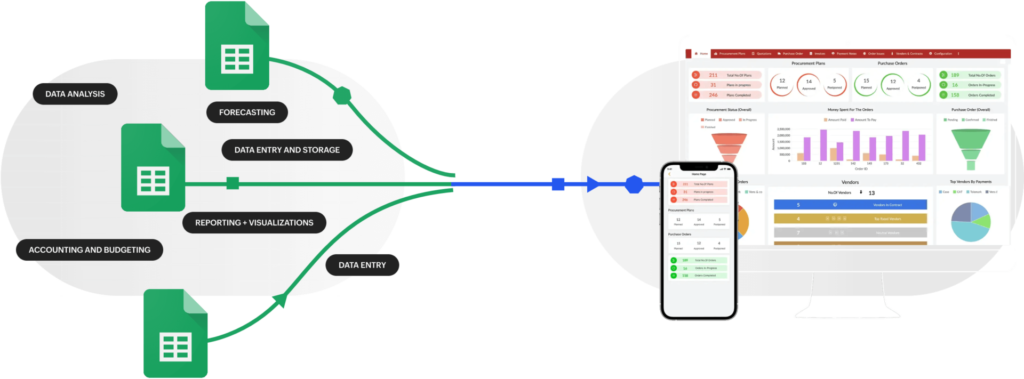
By flowing your Zoho Creator with Excel data into a centralised low-code application, you can transform your operations. Whether you are migrating legacy records or establishing a live two-way synchronisation, bridging these two platforms is a premier productivity hack.
Table of Contents
Method 1: Direct Import of Zoho Creator with Excel Data
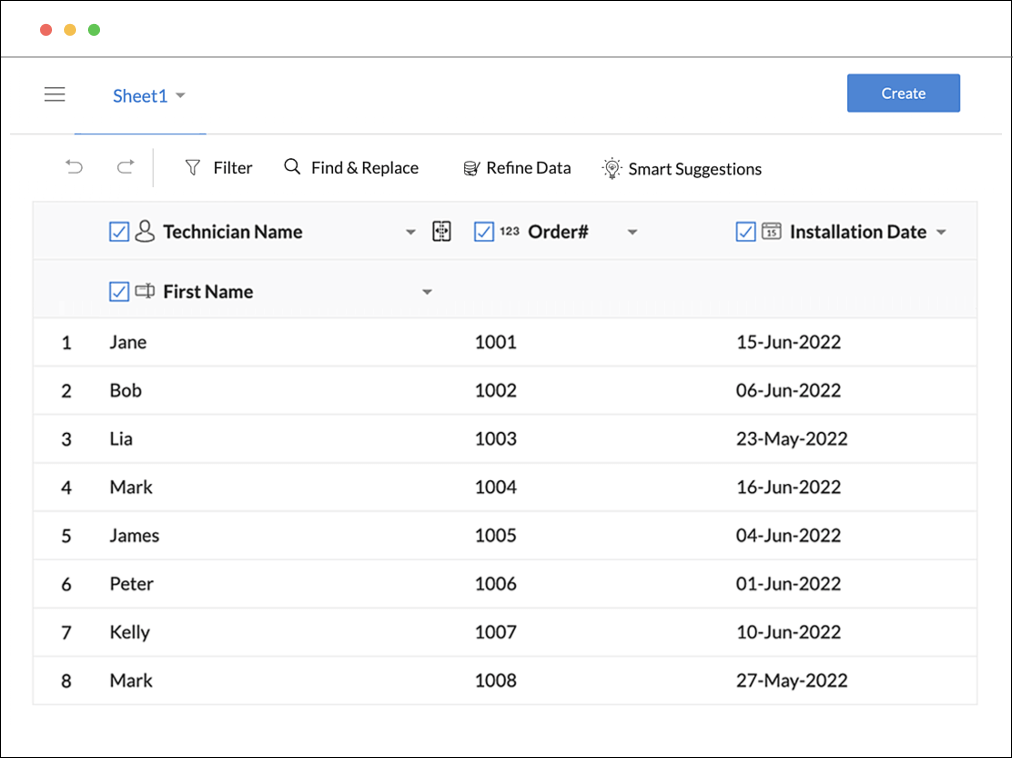
The fastest way to begin is using the native import tool, which is ideal for one-time migrations or weekly batch updates.
- Step 1: Open your Zoho Creator application and go to the “Reports” section.
- Step 2: Click the “Import Data” button on the top dashboard.
- Step 3: Select “Local Drive” and upload your Zoho Creator with Excel file.
- Step 4: Map the columns in your spreadsheet to the specific fields in your Zoho Creator form.
Expert Tip: Ensure your Excel headers match your Zoho field names exactly to prevent mapping errors.
Method 2: Real-time Automation via Zoho Flow
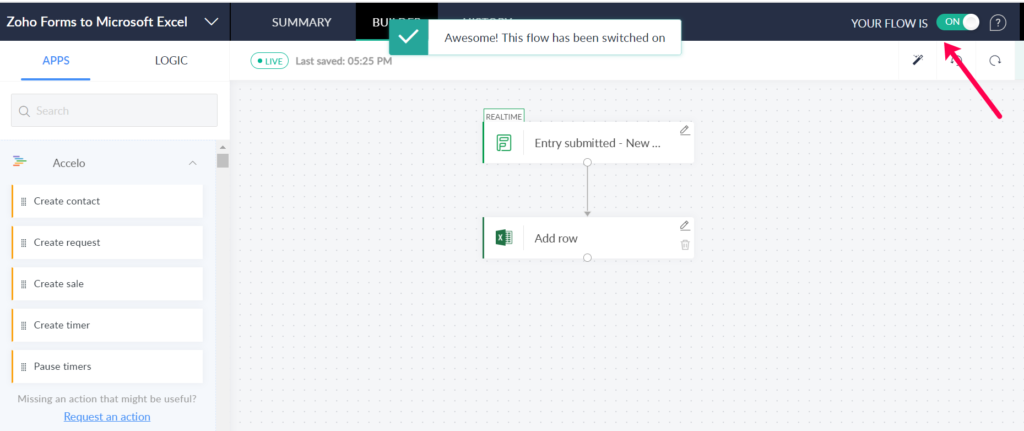
For a “set it and forget it” solution, Zoho Flow allows you to connect Zoho Creator with Excel sheet (Online version) so that new rows automatically trigger record creation.
- Create a New Flow: Set Microsoft Excel Online as the “Trigger” application.
- Define the Trigger: Select “New Row in Worksheet”.
- Set the Action: Choose Zoho Creator as the “Action” app and select “Create Record”.
- Map Variables: Drag and drop the Excel column data into the corresponding Zoho fields.
Method 3: Advanced Integration with Zapier
If you use a diverse tech stack, Zapier offers robust triggers to manage Zoho Creator with Excel data. This is particularly useful if your spreadsheet is updated by external forms or third-party APIs. These platforms are highly effective at handling complex logic and data formatting for large-scale transfers.
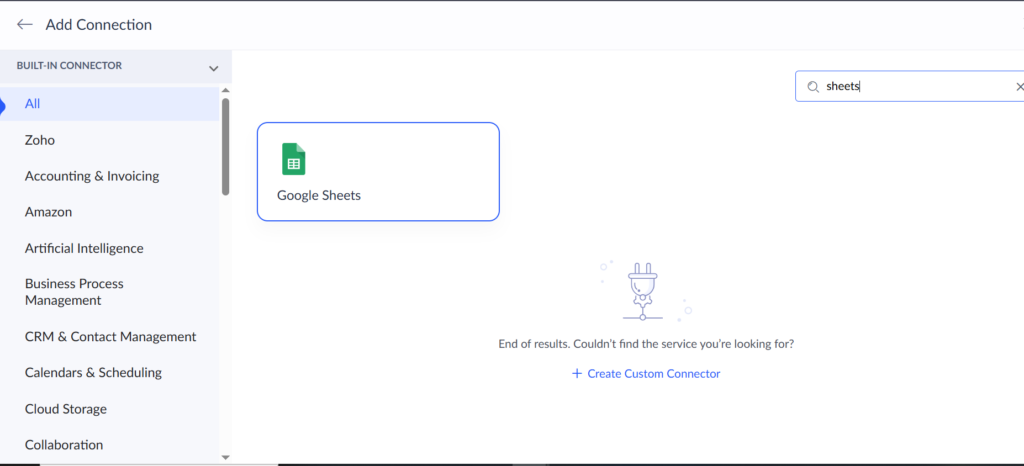
Method 4 : Integrate Google Sheets Seamlessly with Zoho Creator
The Add Connection page in Zoho Creator, where built-in connectors are available for integration. After searching for “sheets,” the Google Sheets connector appears as a selectable option. This allows you to connect Zoho Creator directly with Google Sheets for data sync and automation. The left panel displays different connector categories for easy navigation. If the required service is not listed, there is also an option to create a custom connector.
Best Practices for Managing Zoho Creator with Excel Data
To ensure data integrity and security, follow these industry standards:
- Data Validation: Check for duplicate entries or broken strings before connecting the systems.
- Format Consistency: Use a standard date format, such as YYYY-MM-DD, to prevent import errors.
- Secure Permissions: Use role-based access when sharing files to protect sensitive information.
- Automation Logic: Implement Deluge scripting within Zoho to refine how data is processed once it is imported.
Conclusion: Building a Unified Ecosystem
Moving your Zoho Creator with Excel data into a structured, low-code environment provides mobile access, automated notifications, and real-time reporting. Don’t let your data sit idle—automate it to scale your business effectively.
Quick Summary Table for Integration Options
| Feature | Direct Import | Zoho Flow | Third-Party Sync | Data Drivers |
|---|---|---|---|---|
| Effort Level | Low | Medium | Medium | High |
| Real-time? | No | Yes | Yes | Yes (Refresh) |
| Best For | One-time migration | Daily workflows | Multi-app stacks | Power Users |
Analogy for Understanding Integrating these two systems is like setting up a plumbing system for your data. A Direct Import is like carrying a bucket of water from a well to a tank; it works, but you must do it manually every time. Zoho Flow or Zapier is like laying down pipes so that every time the well fills, the water automatically flows into your tank without you lifting a finger.
Ready to Get Started on Zoho?
Let’s build your business the smart way — with Zoho and Codroid Labs by your side.
📅 Book your free consultation now